Carpenter & Cabinet Maker Time Tracking: Shop Hours, Install Jobs and PTO (2026)
How carpentry shops and cabinet makers track millwork vs install hours, catch overtime, and cover PTO before a kitchen set date — without Friday clipboard chaos.

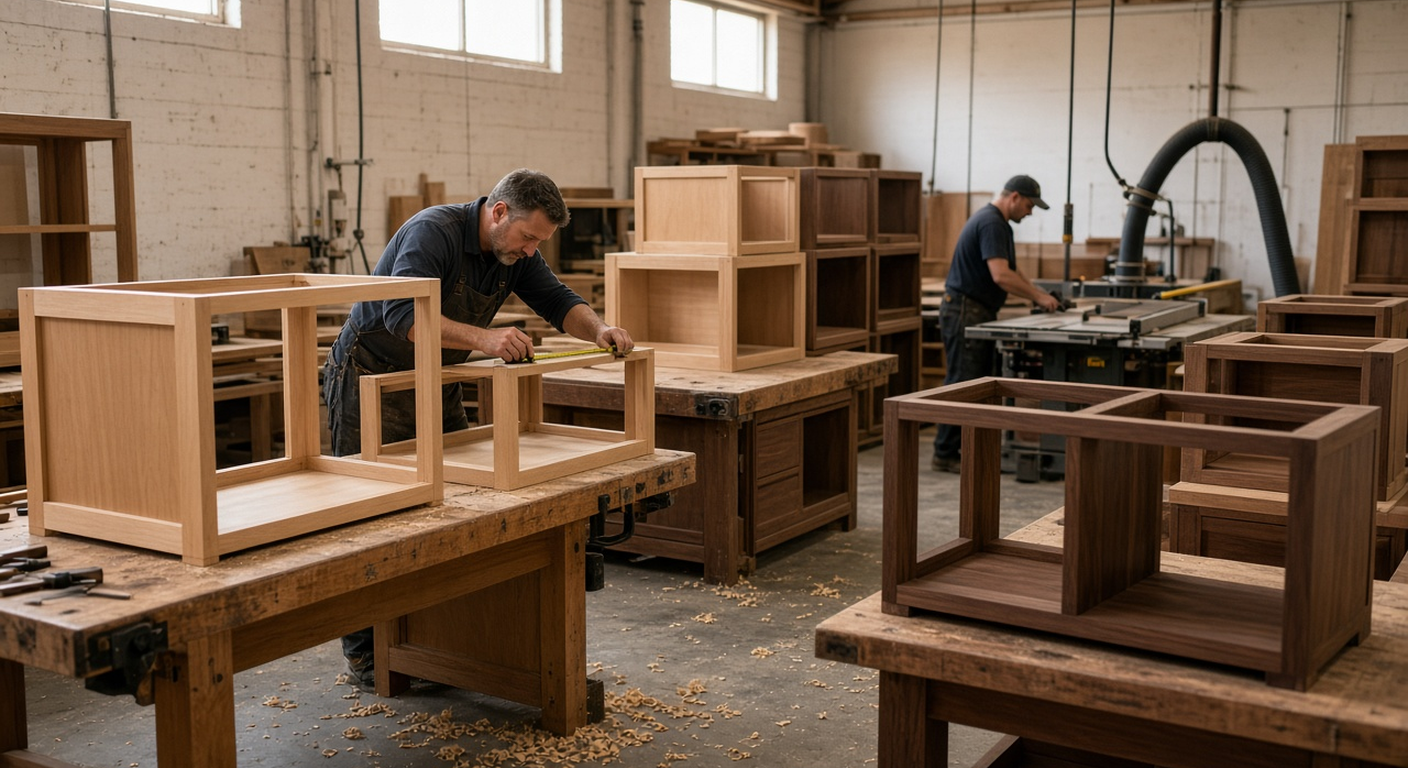
Shop millwork and install crews need one timesheet system.
Friday afternoon in a cabinet shop is chaos if your timekeeping is still a clipboard. One journeyman is on a remodel install across town. Two apprentices are sanding faces in the shop. Your lead is answering a customer call about a delayed countertop. Nobody wrote down when they started, and the install crew texted that they "worked late" without saying how late. Payroll is Monday. You are guessing.
That guess is expensive. Shop hours and job-site hours look the same on a paper timesheet, so you cannot tell which custom kitchen ate the overtime. Vacation requests land in a group chat. Sick days show up as empty benches with no coverage plan. If you run both millwork and install crews, you need one system that clocks people in where they actually work, tags the hours to the right job, and shows who is off next week before you promise a delivery date.
This guide is for carpentry shops, cabinet makers, millwork houses, and finish-carpentry crews who need clean hours without a corporate HR suite. We will cover shop vs install clock-in, job codes for custom work, overtime traps, PTO coverage, and how time tracking software fits a small woodworking business. Product details below match what TimeOff Manager actually ships — nothing invented.
Why carpenter and cabinet-shop time tracking breaks down
General construction time apps assume everyone is on one job site with a superintendent. Your world is messier. Half the day is bench work under fluorescent lights. The other half is install at a client's house with parking headaches and change orders. The same person might spend morning hours in the shop on cabinet boxes and afternoon hours hanging doors across town.
Common failure modes we hear from shop owners:
- Paper cards get filled in at the end of the week from memory.
- Install crews clock one "job" when they actually hit three addresses.
- Apprentices stay late finishing glue-ups and nobody captures the overtime until the paycheck is wrong.
- Vacation is promised verbally, then two key finish carpenters take the same week off right before a kitchen set date.
- Shop managers cannot see who is still on site versus who already headed home.
If that sounds familiar, you do not need another spreadsheet. You need reliable clock-in for the shop floor and the field, plus a leave calendar your office can trust.
What good looks like for a carpentry or cabinet shop
- Shop staff clock in on a shared tablet or phone at the bench — no paper cards.
- Install crews clock in on their phones at the job site, with GPS context managers can review.
- Optional work activities or job codes separate millwork, install, service calls, and shop cleanup.
- Managers approve leave and missed clock-ins from one inbox before payroll.
- A team coverage calendar shows who is on vacation before you lock a delivery date.
- Overtime shows up in the timesheet view while there is still time to fix staffing, not after the check is cut.
- Exports go to your bookkeeper without retyping hours into a second system.
TimeOff Manager is built for that SMB pattern: mobile clock-in, kiosk clock-in, leave requests, overtime visibility, and payroll-friendly timesheets — not a 50-module ERP.
Shop floor vs job site: how employees clock in
Treat the shop and the field as two attendance patterns that share one company account.
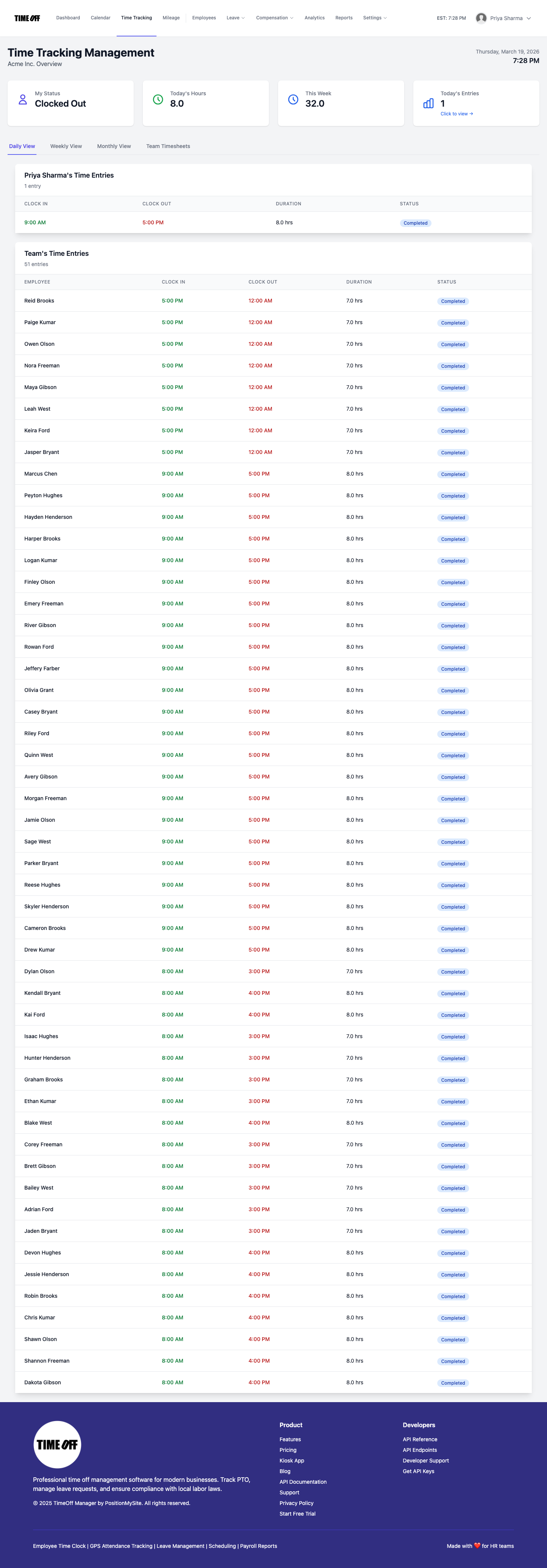
In the shop. Put a shared tablet near the time clock wall or tool crib and use the kiosk. Each carpenter enters a PIN and clocks in or out. That keeps phones in pockets while people are around table saws. Read the kiosk overview for how shared-device clock-in works.
On install. Finish carpenters and lead installers use the signed-in mobile app on their own phones. They clock in when they arrive at the client's address and clock out when they leave. Managers can review location context on timesheets and, when needed, the live staff map (managers and admins only — employees do not see that map). See the employee mobile app help and the live map admin doc.
If someone forgets to clock out after a long install, they submit a fix request instead of editing history quietly. The forgot-clock-in flow is documented under forgot clock-in.
Job codes and work activities for millwork vs install
Custom shops live and die by knowing which kitchen, built-in, or door package consumed the hours. TimeOff Manager lets admins turn on optional work activities so employees pick a code when they clock in or during the day. Typical activity set for a cabinet shop:
- Shop — casework / millwork
- Shop — finishing / sanding
- Install — kitchen
- Install — trim / doors
- Service / warranty
- Delivery / material run
- Shop cleanup / maintenance
Admins configure activities under work activities. Employees then allocate time without texting the office a novel. Details live in work activities admin and the broader job codes and cost allocation guide.
This is also how you stay distinct from a general contractor crew tracker. Contractors often care about billable vs non-billable across many trades. You care about shop versus install on your jobs, plus enough detail to price the next custom kitchen honestly.
Employee vs manager: who does what
Employees (journeymen, apprentices, finishers) clock in and out, pick a work activity when you require it, request vacation or sick leave, check their schedule, and fix a missed clock-in when it happens. Their leave queue is covered in my leave requests. Their timesheet view is in employee timesheet overview.
Shop managers and owners approve leave, review timesheets, watch overtime, and confirm coverage before promising dates. Leave approvals sit in the admin requests queue (manage leave requests). Timesheet review for managers is documented in manager timesheet overview. Overtime rules and visibility are summarized in overtime admin and the practical PTO, clocks, and overtime guide.
One inbox pattern matters on busy weeks: leave requests, missed clock-ins, mileage, and day notes can land where managers already work. Keep payroll adjustments separate from a simple forgotten clock-out — the product treats those as different flows on purpose.
Practical setup steps for a woodworking shop
- Create the company and invite the roster. Add journeymen, apprentices, finishers, and office staff. Use the employee roster tools in employees admin.
- Decide shop kiosk vs phone. Most shops put a kiosk tablet by the entrance and keep phones for installers. Confirm work locations if you use geofence-style expectations — see work locations.
- Turn on work activities that match how you quote: millwork, install, service, delivery.
- Configure leave types you actually grant — vacation, sick, unpaid, bereavement — in leave types admin. Do not invent accrual math the product does not show; track balances the way you already promise them, and use requests plus the calendar for coverage.
- Load holidays that shut the shop (US federal or Canadian statutory sets you observe) via holidays admin.
- Walk the first payroll week slowly. Managers review daily/weekly timesheets, clear missed clock-ins, then export for the bookkeeper. Accountant-friendly access is covered in accountant access.
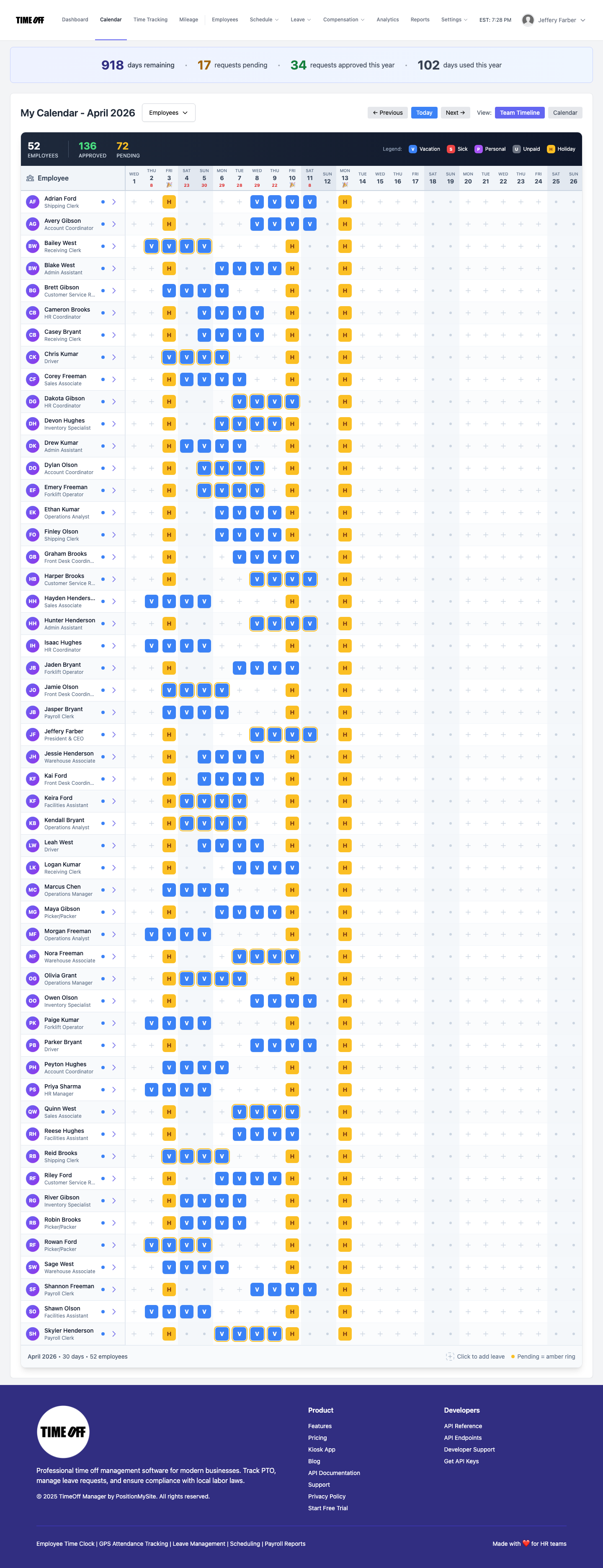
- Use the team calendar before you schedule installs. Open the coverage view so two finish carpenters are not both off the week a kitchen sets. Help: team timeline calendar.
Overtime, apprentices, and compliance notes
This is not legal advice. Carpentry shops in the US often mix hourly shop labor with piece-influenced habits on custom work. Federal overtime under the Fair Labor Standards Act generally treats non-exempt employees as owing time-and-a-half after 40 hours in a workweek — see the US Department of Labor overview at dol.gov overtime. Some states add daily overtime rules. Canadian provinces set their own hours-of-work and overtime standards; check your provincial employment standards site for the shop's location.
What the software should do for you:
- Show weekly hours clearly so overtime is visible before payday.
- Keep an audit trail when someone fixes a missed clock-in.
- Separate leave days from worked hours so PTO does not silently erase overtime context.
Apprentices are usually hourly. Leads sometimes think they are "salary" when they are not. If someone is non-exempt, track the hours — do not paper over long install days with a handshake. For a deeper overtime product walkthrough, see overtime tracking and payroll integration.
PTO and coverage when a kitchen is on the calendar
Custom work has hard dates. A missing finisher the week of install is not a mild inconvenience — it is a reschedule and an angry GC. Require leave requests in the app, not in a text thread. Managers approve against the coverage calendar. Employees can see their own requests; admins see the shop-wide picture.
Pair leave with simple staffing rules you already use: no more than one lead installer off during set week, apprentices covered by a journeyman before vacation is approved, and shop-only weeks blocked when a big millwork push is booked. The software will not invent those rules for you, but it will show the conflicts if people request time off in the system.
Related reading: construction crew time tracking for multi-trade sites, and contractor and subcontractor time tracking when you are the sub on someone else's job — different angle from a dedicated cabinet shop.
Mileage between shops, yards and install addresses
Finish crews bounce between the shop, the lumberyard, and client homes. If you reimburse mileage, have installers log trips in the app instead of dumping a pile of odometer photos on the office manager. Employees start a live GPS trip or enter a manual log; managers approve from the same attention queue they already use for leave. Help docs: my mileage, submit a trip, and mileage admin. For a fuller walkthrough see mileage reimbursement software.
Material runs are easy to lose on paper. A coded work activity plus a mileage entry gives you both the hour and the drive without a second app.
Try TimeOff Manager with your shop
New companies get 1 year free to run real shop and install hours with your team. A card is required to start; the yearly plan price is charged on the anniversary only if you continue. After the year: Starter (1–20 people) $180/yr, Growth (21–50) $300/yr, Scale (51–1,000) $479.90/yr or $49.99/mo.
Register your company for 1 year free — or open the live demo if you want to click around first. For industry context on carpentry crews, see also time tracking for carpentry crews.
FAQ
Can install carpenters clock in from a job site on their phones?
Yes. Installers use the signed-in mobile app to clock in and out in the field. Shop staff can use the shared kiosk tablet instead. Both feed the same timesheets your manager reviews.
How do we separate shop millwork hours from install hours?
Turn on work activities and create codes for millwork, finishing, install, service, and delivery. Employees select the activity when they work so job costing is not a Friday guess.
What happens if someone forgets to clock out after an install?
They submit a forgot clock-in request. A manager reviews and approves it. That keeps corrections visible instead of silently editing a paper card.
Can we see who is on vacation before we schedule a kitchen install?
Yes. Use the team coverage calendar so leave shows up before you lock delivery and install dates. Approve requests against that view, not a group chat.
Does TimeOff Manager replace QuickBooks for a cabinet shop?
No. It tracks time, leave, and attendance, then helps you export clean hours for payroll or your bookkeeper. It is not a full accounting suite.
Is this only for big construction companies?
No. It is aimed at small and mid-size teams — including shops with a handful of carpenters and a working owner who still installs on Fridays.
Do employees see the live staff map?
No. The live map is for managers, HR, and admins. Employees clock in on mobile or kiosk; they do not get the map view.