Time Tracking for Contractors: Crew Hours by Job, Billable Time and Subs (2026)
How contractors and subcontractors track crew hours by job, split billable change-order time from shop time, keep subs out of payroll, and hand the office one approved hours file.


Your crew clocks in at the job. Your subs send their own hours.
It's Friday afternoon. The GC wants your hours for the change order by Monday, your bookkeeper wants the payroll hours tonight, and you're scrolling a group text trying to remember who was at the Elm Street job on Tuesday and who was at the shop. Half the crew wrote their times on a card. One guy texted "8ish." Your electrician sub sent nothing, because he's not your employee and never was.
This guide is for contracting businesses with a crew of 5 to 50: remodelers, specialty trade contractors and the subcontractors who work for bigger GCs. It shows how to track your own crew's hours by job, split billable time from shop time, keep subcontractors out of your payroll file, and still give the office one clean set of numbers. If you run large construction crews across several sites, our construction time tracking guide goes deeper on crew setup. This one is about the money side: hours you can bill and hours you can defend.
Why contractor hours go wrong
Contractors have a problem a store or an office doesn't. The same person can work three places in one day, and each of those places may get billed to a different customer. The hours have to be right for payroll, and they also have to be right for the invoice.
- Hours without a job attached. "9 hours" is fine for payroll. It's useless when the homeowner asks why the bathroom ran 14 hours over the estimate.
- Billable and non-billable time mixed together. Loading the truck, the supply house run and the drive between jobs are real paid hours. Most of them shouldn't land on a customer invoice, and some contracts say exactly what you can bill.
- Change orders with no proof. Time and materials work gets disputed. If you can't show who was on site and for how long, you eat the hours.
- Subs mixed in with employees. When your sub's helper ends up on your sign-in sheet, he ends up in your payroll file. That's a classification problem, not just a paperwork problem.
- The office is blind. The estimator takes Thursday off and the crew finds out when nobody answers the phone.
What good contractor time tracking looks like
- Each job is saved as a place, and the crew clocks in there, not at the shop.
- GPS is saved at the moment someone clocks in, with an optional boundary for the jobs where a GC or owner wants proof.
- Crews can switch between job codes (install, change order, travel, shop) without clocking out.
- Missed clock-ins are fixed through a request the foreman or owner approves, not by editing the sheet after the fact.
- Office staff and field staff request time off in the same account, and approved days show on one calendar.
- Miles between jobs are logged and approved with the hours.
- Friday ends with one approved hours file for the people you employ, and nothing for the people you don't.
Step 1: Save every job as a work location
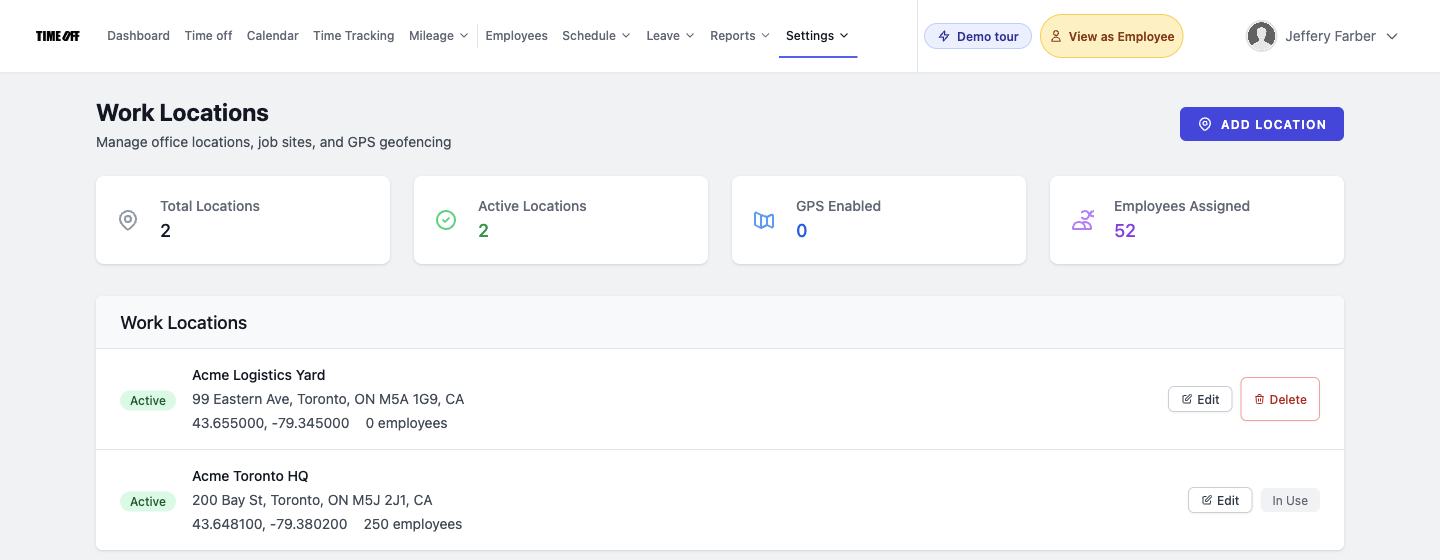
Start in Work locations. Add your shop and each active job with its address. Turn on GPS validation for a job when you want clock-ins there to happen inside a boundary you draw, which is useful when a GC asks for proof that your crew was in the building and not at the coffee shop down the road. Leave it off for jobs where that's overkill.
Keep the list tidy. When a job wraps, mark it inactive. A location that people were scheduled to can't be deleted, which is what you want: the history stays tied to the job.
Step 2: Pick how your crew clocks in
Most contractors use one of two setups, and plenty use both.
Each person on their own phone. Crew members sign in to the TimeOff Manager Pro phone app and clock in when they reach the job. GPS is saved at that moment. This fits small crews who drive straight to the job and leads who move between sites all day. The phone app help page walks through it.
One shared tablet. If you have a shop, a job trailer or a long remodel where the crew starts at the same door every morning, put a tablet there with the TimeOff Kiosk app. Each person enters a personal PIN. No one signs in to anyone else's account, and no one needs a company phone. See the kiosk setup guide.
Don't mix up the two apps. TimeOff Manager Pro is the signed-in personal app. TimeOff Kiosk is the shared PIN clock.
Step 3: Split billable and non-billable time with job codes
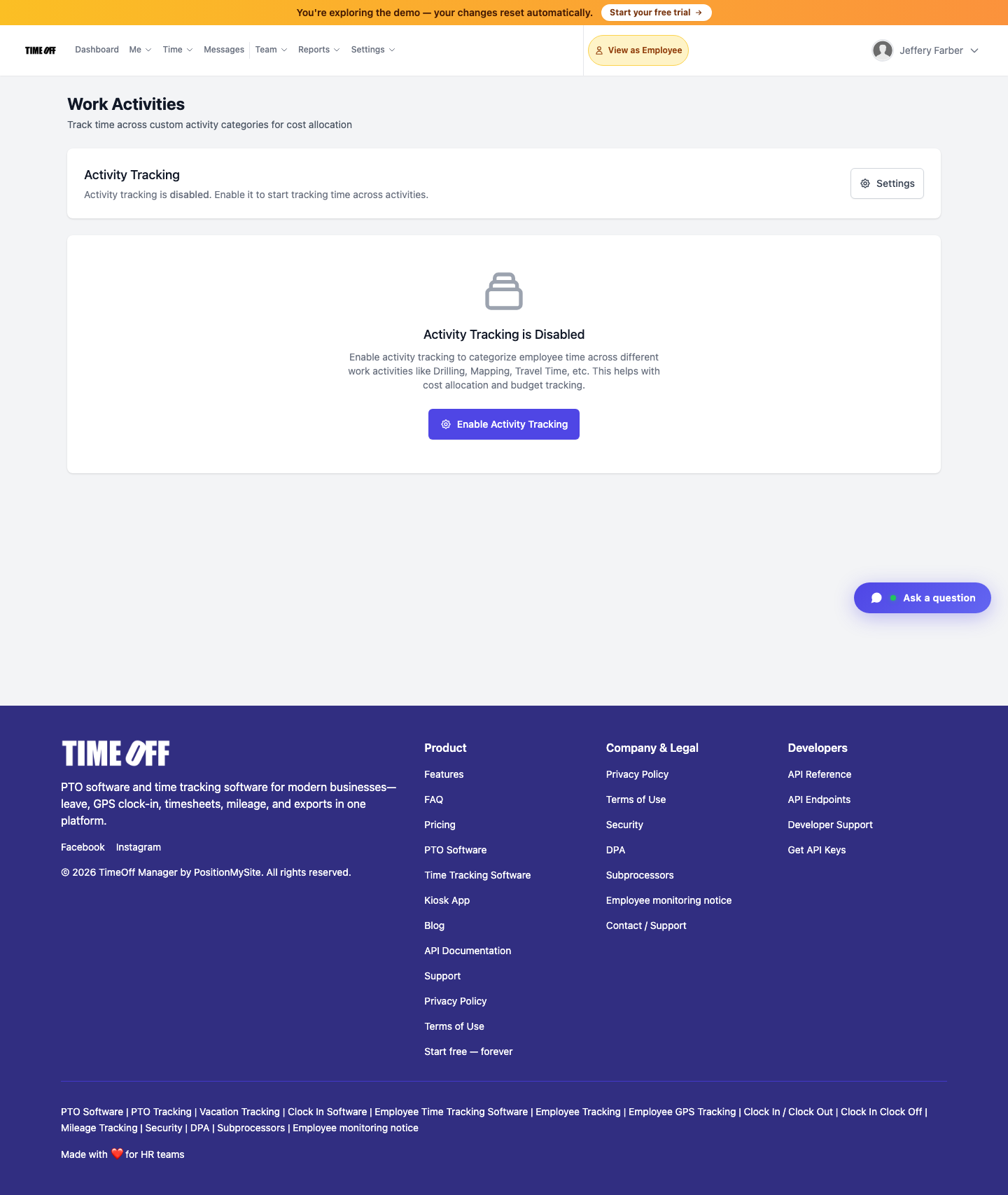
This is the step that pays for the whole setup. Work activities are optional and off by default. A company admin turns tracking on, picks hours or percentage allocation, and adds codes. Each code gets a name, an optional short code, a color, a billable flag and an optional rate.
A starting list for a small contractor might look like this:
- Install / base contract (billable)
- Change order (billable, at the T&M rate if you set one)
- Warranty or callback (not billable)
- Travel between jobs (not billable to the customer, still paid)
- Shop and loading (not billable)
Once tracking is on, the crew switches activity from the phone timesheet, or taps Switch activity on the kiosk, without clocking out. The activity report then shows time by code. When the homeowner signs a change order at 1 p.m., your lead switches to Change order and the hours from that point are already split for your invoice.
Keep the list short. Five or six codes people can pick without thinking beat twenty that nobody uses. If a code has been used already, you can deactivate it but not delete it, so the history stays intact.
Employees, subcontractors and who belongs in your time clock
Here's the part a lot of contractors get wrong. Your time clock and your payroll hours file should cover the people you employ. A real subcontractor is a separate business. They run their own crew, set their own hours, bring their own tools and send you an invoice.
When you start scheduling a sub, clocking them in and out, and approving their timesheet like an employee, you're also building the record that says they're an employee. In the US, the Department of Labor and the IRS each have guidance on classification. In Canada, the CRA has its own guide, Employee or Self-employed? (RC4110). This is not legal advice. Talk to your accountant before you change how anyone is classified.
So what do you do with subs? Ask for their own hours or daily tickets with their invoice, and keep those with the job file. Put your W-2 or T4 crew in TimeOff Manager. Your Friday hours file then matches your payroll exactly, with nobody in it who shouldn't be.
If you are the subcontractor, flip it around. The GC isn't tracking your crew, you are. Your crew is your employees, so they belong in your time clock, and your clean records become your proof when you bill the GC.
Foreman, crew and office: who does what
Crew member. Clocks in at the job on the phone app or the kiosk, switches job codes when the work changes, and clocks out. If they forget, they send a missed clock-in request with the real time and a note. They request time off from the same app and see their schedule.
Foreman or lead. Logs the drive between jobs as a mileage trip, checks the day's hours, and flags anything that looks off before Friday.
Owner or office manager. Opens the manager timesheet for daily, weekly and monthly views. Approves missed clock-ins, time off and mileage from one approvals inbox on the dashboard. Uses the live staff map to see who is clocked in right now. That map is for managers and admins, not for the crew.
The forgot clock-in queue and payroll day notes are different things. A missed clock-in rebuilds a time that never got recorded. A payroll day note adds context to a day that was recorded correctly. If your crew forgets often, our guide to fixing missed clock-ins has a simple routine for it.
Step 4: Drive time and miles between jobs
Contractors drive. Leads go from the morning job to the supply house to the afternoon job, and those miles add up. Logging them in the same app as the hours means the trip and the shift sit side by side when you approve the week.
Employees can start live GPS tracking for a trip on the mileage page or log one by hand afterward. Managers approve trips in the same inbox as time off. The mileage admin page covers rates and approvals, and our mileage reimbursement guide explains the policy side.
One note on location data: tell your crew when location is recorded. GPS history is kept for a short rolling window, not forever. If you need records longer than that, download them.
Step 5: Overtime before it hits payroll
Busy season on a contracting crew means long weeks. Set your rules in Overtime settings so extra hours are flagged on the weekly timesheet. You see them before you pay them, and you can decide whether Saturday's callback was really necessary.
Check your state or province rules. In the US, the FLSA overtime fact sheet is the federal baseline, and some states go further. In Ontario, the Employment Standards Act guide to hours of work covers the limits.
Step 6: Time off for the office and the field
A contracting business has two kinds of people, and both take days off. When the estimator, the project manager or a lead carpenter is out, the jobs feel it. Everyone requests time off in the same app, the owner approves it, and approved days show on the team calendar.
Look at the calendar before you promise a start date. If two of your three finish carpenters are off the week of the 14th, you know before the customer does. The PTO software page covers balances and leave types.
Step 7: One approved hours file on Friday
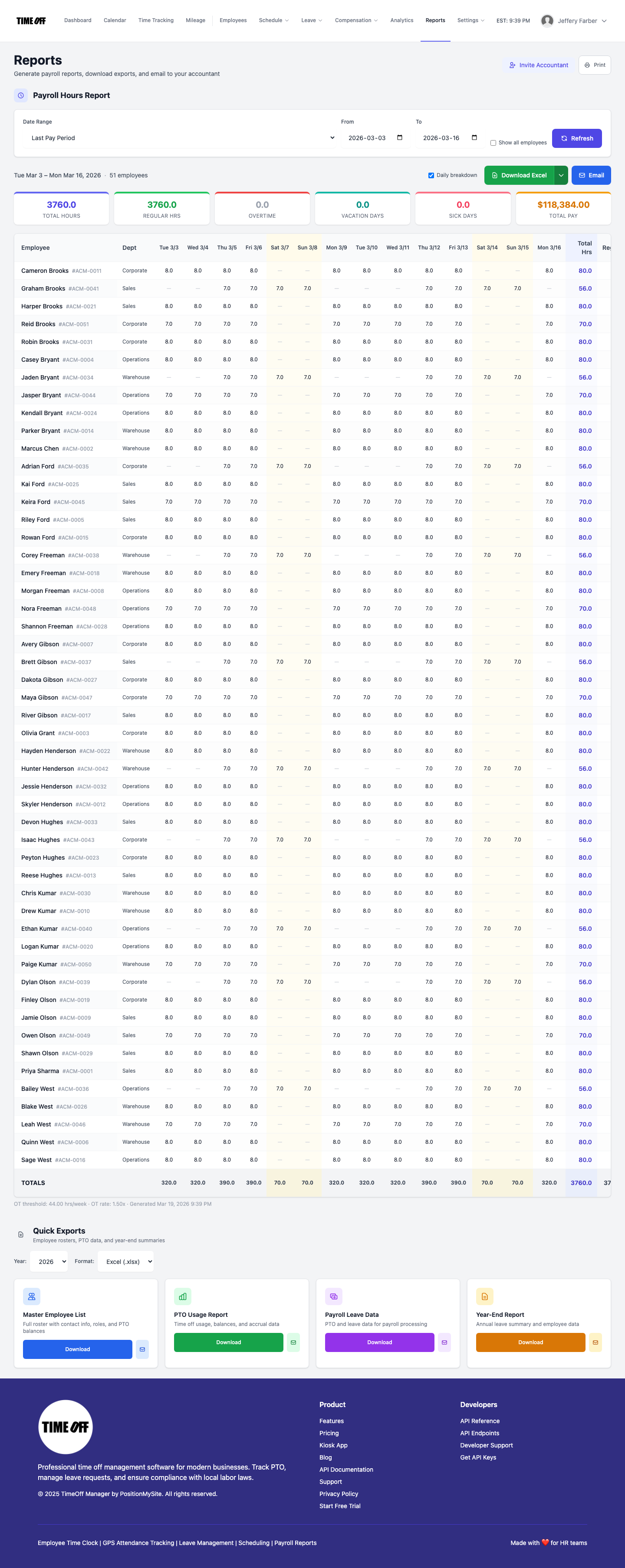
Once the week is approved, open Reports. The payroll hours report shows regular hours, overtime and leave days for the date range. Download it as Excel or CSV, or as an hours file for ADP RUN or Paychex if that's where you run payroll. You can also send approved hours to QuickBooks Online or FreshBooks, or invite your accountant to pull the reports themselves.
For the invoice side, use the activity report. It shows hours by job code, so the change order hours go on the change order and the shop time stays off the customer bill.
Be clear about what this isn't. TimeOff Manager doesn't calculate pay, run payroll, file taxes, write estimates, track job costs or produce certified payroll reports. It gives you hours you trust and hands them to the software that does the rest.
Set it up in an afternoon
- Add your crew and office staff. Leave subcontractors out.
- Save your shop and your active jobs as work locations. Turn on GPS boundaries where a GC wants proof.
- Decide phone app, kiosk, or both, and set up PINs if you use a tablet.
- Turn on work activities and add five or six codes, with billable flags.
- Set overtime rules and your time-off types.
- Run one week, then approve it on Friday and download the hours file. Fix anything that looked confusing before week two.
Rules worth checking
This is not legal advice. Contractors face a few extra rules worth a quick check:
- Records. The FLSA requires employers to keep time and pay records. The DOL recordkeeping fact sheet lists what to keep.
- Classification. Employee versus contractor is decided by the actual working relationship, not by what the paperwork calls it.
- Public projects. Prevailing wage and certified payroll have their own rules. TimeOff Manager records the hours, but it doesn't file those reports.
- Location notice. Tell employees when location is recorded and put it in your employee monitoring notice.
Try it with your crew
A full year to try it with your team. Get comfortable before you pay. Start your free year: you pay $0 for 12 months. A card is required to start, and the yearly price is charged on your anniversary unless you cancel first. After the year, Starter (1 to 20 people) is $180 per year, Growth (21 to 50) is $300 per year, and Scale (51 to 1,000) is $479.90 per year or $49.99 per month.
See how it fits a contracting business on the contractors page, or read the time tracking software overview first.
FAQ
What is the best time tracking software for contractors?
Look for three things: crews can clock in on their own phone at the job address or on one shared tablet, each job is saved as a place with an optional GPS boundary, and the office gets one approved hours file at the end of the week. If you bill time and materials, add job codes that you can mark billable. TimeOff Manager does all of that, plus time off and mileage in the same account.
Should I put my subcontractors in the same time clock as my employees?
Usually not. Your time clock and your payroll hours file should cover the people you employ. A 1099 subcontractor runs their own crew and sends you an invoice. If you start scheduling and clocking a sub like an employee, you also start building the case that they are one. Ask the sub for their own hours or daily tickets instead, and check classification with your accountant.
We are a subcontractor. How do we prove our hours to the general contractor?
Save each GC job as a work location and turn on the GPS boundary if the GC wants proof the crew was on site. Clock-ins then have to fall inside that line, and GPS is saved at the moment someone clocks in. Approve the week, then download the hours as Excel or CSV and attach them to your billing.
Can we split one shift between billable and non-billable work?
Yes, if you turn on work activities. You add codes such as install, change order, travel or shop time, mark which ones are billable, and the crew switches activity during the shift without clocking out. The activity report then shows hours by code.
Does TimeOff Manager do job costing, estimates or invoices?
No. It keeps employee hours, overtime, time off, mileage and where people clocked in. Bids, job costs, lien waivers and invoices stay in the software you already use. You can download approved hours as Excel or CSV, send hours files for ADP RUN or Paychex, or send approved hours to QuickBooks Online or FreshBooks.
What if a crew member forgets to clock out at the end of the job?
They send a missed clock-in or clock-out request with the real time and a note. It lands in the manager's approvals inbox next to time off and mileage, and nothing changes on the timesheet until someone approves it.
How does the 1 year free offer work?
A full year to try it with your team. New companies pay $0 for 12 months. A card is required to start, and the yearly price is charged on your anniversary unless you cancel first. After the year, Starter (1 to 20 people) is $180 per year, Growth (21 to 50) is $300 per year, and Scale (51 to 1,000) is $479.90 per year or $49.99 per month.