Timesheet: Employee view
Personal time tracking hub: clock status, hours, punches with photos/GPS when required, plus Forgot to punch and payroll day notes. “Not scheduled today” is a Clock rule admins can turn off.
/timesheet/employee
Roles
Employee · Company admin (can open employee view)
The employee timesheet at /timesheet/employee is the day-to-day view for clock status, hours today and this week, and today’s time entries (when your company has time tracking enabled).
Purpose
Use this screen to clock in or out (if allowed on web), see hours, and review punches. Clock photos and GPS appear on entries when your company requires them. If you see You are not scheduled to work today, your company requires a schedule to clock in. Admins can turn that off under Company settings → Clock rules. Missed in/out times: Forgot to punch. Punch is fine but payroll needs a note: Payroll day notes / hours.
What’s on the page
- Header — typically My Time Clock or a personal timesheet title, plus company date/time.
- Stat cards — Typical tiles: clocked in/out, today’s hours, week total, and entry count.
- Time entries — List or details for today and recent days, including photo/GPS metadata when captured.
- Corrections — Forgot-punch and payroll day-note links when time tracking is on.
Team-wide and payroll views use different routes; this article focuses on the personal employee experience.
Who can open it
Built for employees. Company admins can also open /timesheet/employee to preview the same UI (useful for support and screenshots).
Product screenshot
Automated capture: full page after login (demo admin opening employee view).
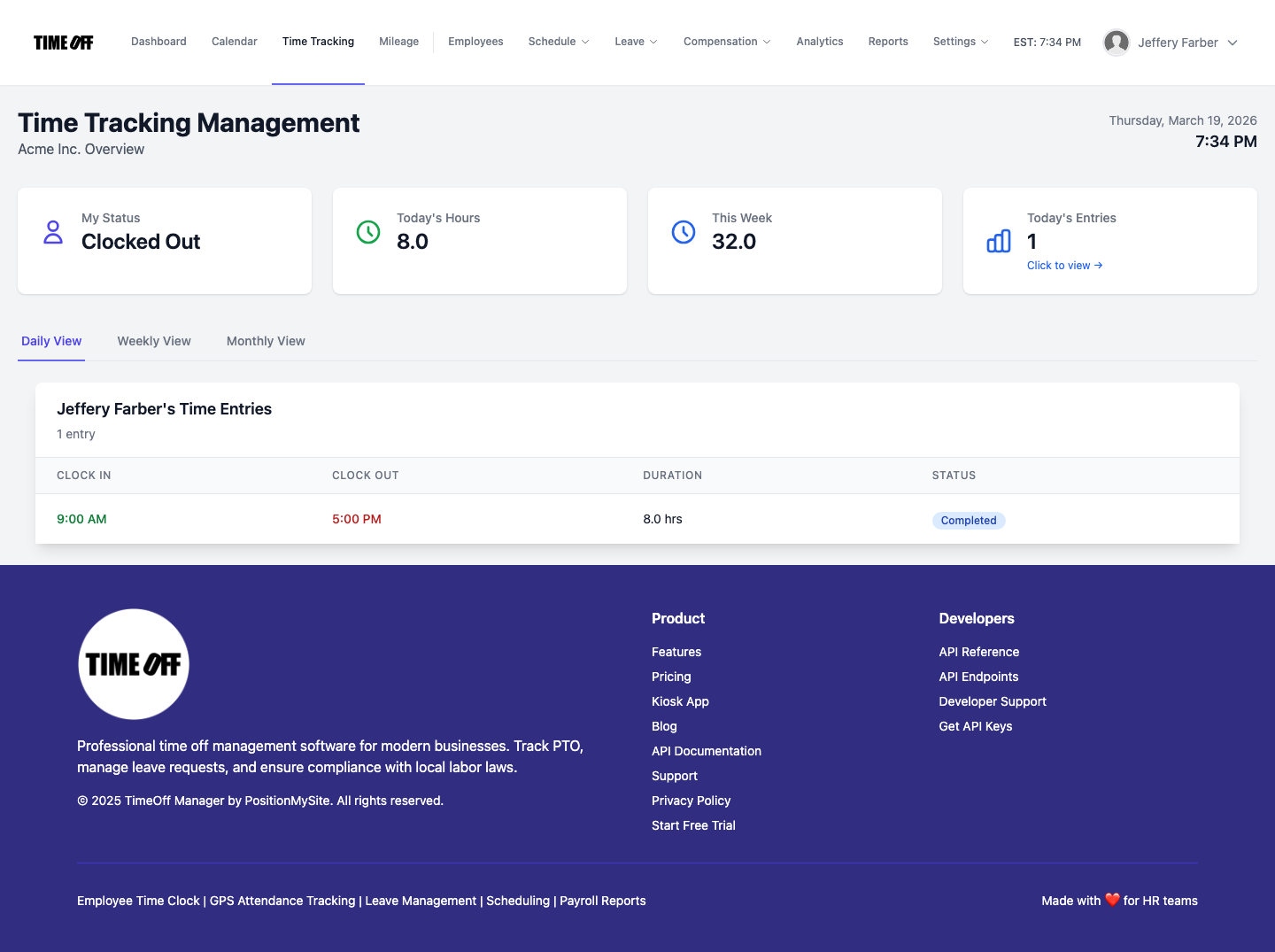
Time tracking — employee view (Acme demo).