Construction Time Tracking: Clock-In for Crews on Every Job Site (2026)
How construction crews can clock in at the job site on a phone or trailer tablet, track hours by task, see overtime early and fix missed clock-ins without paper timesheets.


Crews clock in where the work happens, on a trailer tablet or their own phone.
It's Friday afternoon and your foreman is texting you hours from memory. Two guys "started around seven," one left early for a dentist appointment nobody wrote down, and the new laborer was at the other site Tuesday, or maybe Wednesday. You round it, you pay it, and you hope it's close. On a construction crew, that guesswork adds up fast, and it lands right on your labor costs.
This guide shows how to set up construction time tracking that works where your crew actually works: on job sites, out of a trailer, sometimes with no signal. You'll see what good looks like, who does what, how to set it up in a day, and what to watch for on overtime and compliance.
Why paper timesheets fail on job sites
Office teams can get away with a loose system. Crews can't. The work moves from site to site, the start time depends on the weather and the delivery truck, and the person writing the hours down is usually the foreman at the end of a long day.
- Hours get rebuilt from memory. Paper cards and group texts get filled in at the end of the week, not at the gate.
- Nobody knows which site someone was on. When you run two or three jobs at once, hours drift between them, and you can't tell which job ate the overtime.
- Overtime shows up as a surprise. A long pour or a push to close in before the rain turns into a 52-hour week you only see on payday.
- Time off lives somewhere else. A guy books a week off in one place, the schedule says he's on the roof, and you find out at 7 a.m.
- Disputes have no record. When a worker says he was there at 6:45 and the foreman says 7:15, there's nothing to check.
The fix isn't more paperwork. It's letting each worker clock in once, at the site, and letting the system do the adding.
What good construction time tracking looks like
- Clock-in happens at the job site, on the worker's own phone or on a shared tablet in the trailer.
- Location is checked against each site, so a clock-in from the coffee shop down the road doesn't count.
- It still works with weak signal, because basements, steel buildings and rural lots don't care about your coverage map.
- Hours split by task when you need it, so you can see how much went to framing versus travel versus cleanup.
- Overtime is visible during the week, not after payroll is run.
- Missed clock-ins get fixed with a request the foreman or office approves, not with white-out.
- Time off and schedules sit in the same place as the clock, so you plan crews around who is actually available.
Everything below uses features in TimeOff Manager time tracking. Nothing here needs a separate field service or dispatch tool.
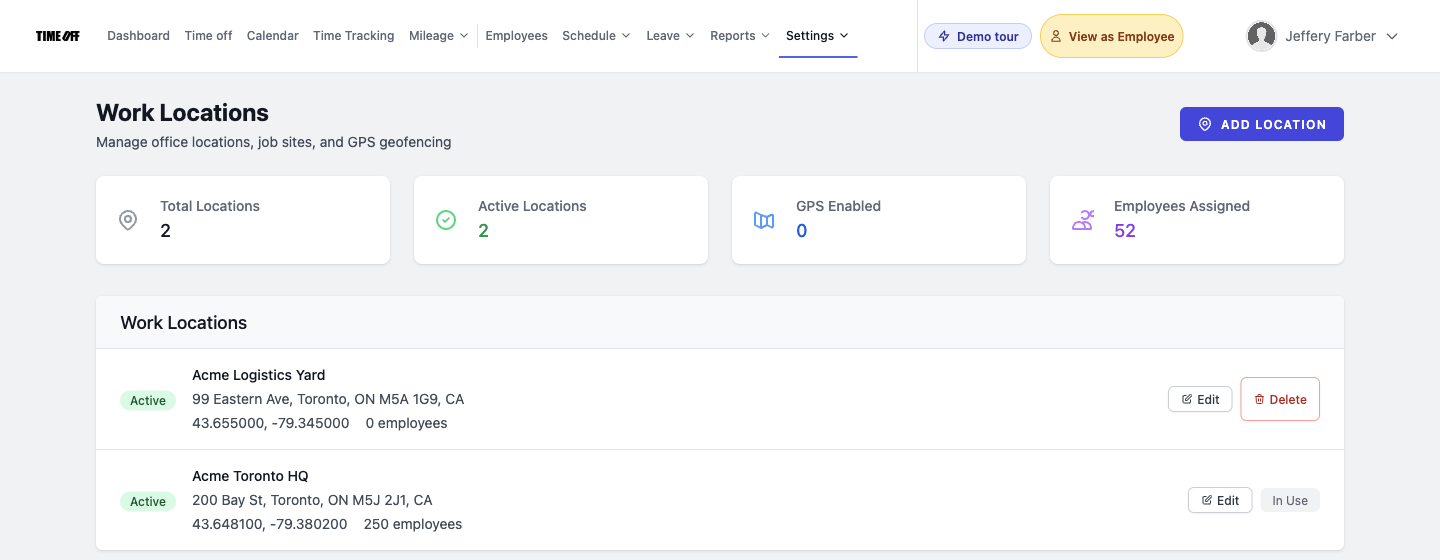
Set up every job site as a work location
Start with your sites. In TimeOff Manager, company admins add offices and job sites at Work locations. Each one gets a name, an address, map coordinates and, if you want it, a geofence radius with GPS validation turned on. The summary cards show how many locations you have, how many require GPS, and how many people are scheduled to each one.
A few tips from crews that do this well:
- Name sites the way your crew talks. "Maple St duplex" beats "Project 2026-114."
- Set a radius that covers the whole lot, including where people park. Too tight and honest workers get blocked at the gate.
- Mark finished jobs inactive instead of deleting them. A location that still has people scheduled to it can't be deleted anyway.
- Attach sites to shifts so the schedule tells each worker where to show up. Schedules and locations are linked in schedule management.
Pick how your crew clocks in: phone or trailer tablet
There are two ways to clock in, and most construction companies end up using both.
Each worker on their own phone
The TimeOff Manager Pro phone app is for people who sign in with their own email. They clock in and out, request time off, log mileage and see their pay stubs. If the clock-in request times out because the signal drops, the app saves the event on the phone and sends it later with the original time and location. Company rules like the geofence and schedule are checked against what was captured at the tap, not where the phone is when it finally syncs. More detail is in the employee app guide.
One shared tablet at the trailer
The TimeOff Kiosk app turns a tablet into a PIN time clock. An admin or HR manager activates it once, and from then on each worker taps their own PIN to clock in or out. It's a good fit for crews where not everyone wants the company app on their personal phone. The kiosk guide covers activation, offline saving and what to do when you move the tablet to the next site (deactivate it, then activate it again).
Two things to know before you hang a tablet on the trailer wall. First, anyone with a PIN can clock in, so keep the device somewhere the foreman can see it. Second, GPS and photo checks follow your company clock rules, the same as the web clock. If you're worried about one worker clocking in for another, our post on kiosk photo checks explains the options.
Foreman vs. office: who does what
A crew time clock only works when everyone knows their part. Here's a split that keeps the foreman on the tools and the office out of the guessing business.
The worker
- Clocks in at the site, on the phone app or the trailer tablet.
- Switches activity when moving from one task to another, if you use activity codes.
- Sends a missed clock-in request the same day if they forgot. Requests can go back up to 60 days, but same-day is far easier to approve. The steps are in the missed clock-in guide.
- Requests time off in the app instead of telling the foreman at lunch.
The foreman or site manager
- Checks who is clocked in at the start of the day on the Daily view of the manager timesheet.
- Approves or edits missed clock-in requests from the dashboard Approval Center. Line managers see their own team only.
- Uses the live staff map on busy mornings to see who is on the way, who is running late and who is on site. Workers don't get this map. Only managers, HR and admins do.
The office or owner
- Reviews the Weekly view before payroll, where regular and overtime hours are split per person.
- Sets overtime thresholds in overtime rules, with per-worker overrides when someone has a different arrangement.
- Adds payroll day notes or small hour adjustments for days that were clocked correctly but need a note, like a rain-out that ended the day early. That's separate from missed clock-ins and lives in payroll day notes.
- Pulls exports from reports and exports for your payroll provider or bookkeeper.
Track hours by task with activity codes
Knowing that someone worked 9 hours is good. Knowing that 6 went to framing, 2 to material runs and 1 to cleanup is better, especially when you're trying to bid the next job. That's what work activities are for.
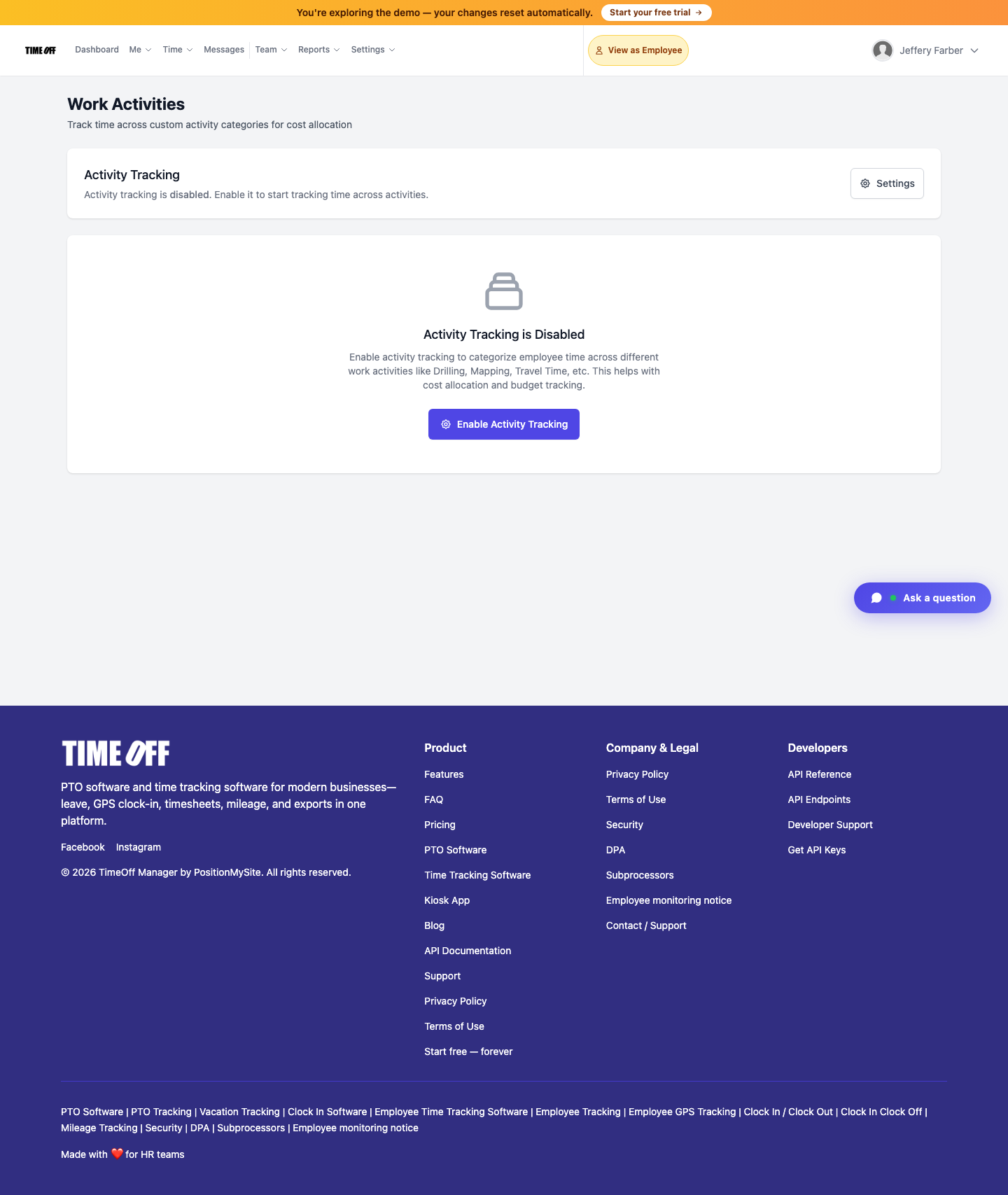
Activities are optional and off by default. A company admin turns them on at Work activities, picks hours or percentage allocation, and adds codes with a name, a short code, a color and a billable flag. Rates are optional. Once tracking is on, workers switch activity from the phone timesheet or tap Switch activity on the kiosk without clocking out. An activity report then shows time by code.
Keep the list short. Five to eight codes your crew can pick without thinking will give you better data than thirty codes nobody uses. If a code has already been used, you can't delete it, so deactivate old ones instead. For more on setting codes up, read our guide to work activities and job codes.
Drive time and trips between sites
Crews move. Someone runs to the supplier, someone drives the trailer to the next lot. Decide in writing which of those trips are paid work time and which are reimbursed mileage, then use the tools that match. Paid travel during the day can be its own activity code. Personal vehicle trips can go through mileage: employees start a live GPS trip from Mileage in the app or log one by hand, and managers approve it. The mileage guide walks through both.
Plan crews around time off
Peak season is when everyone wants a long weekend. If time off lives in a text thread, you'll find out who's missing when you're one guy short on a pour. In TimeOff Manager, workers request leave in the same app they clock in with, managers approve it, and the team timeline shows everyone's approved time off side by side. Check it before you lock next week's crew. If you turn on "Require a schedule to clock in," remember the shared kiosk will need a schedule for everyone who uses it.
Set it up in one day
- Turn on time tracking in the setup wizard or company settings.
- Add your active job sites as work locations, with geofences where you want GPS checks.
- Set your company overtime threshold, then add any per-worker rules.
- Decide phone app, trailer tablet, or both. Activate the tablet if you're using one.
- Optional: turn on work activities and add five to eight task codes.
- Add your crew, assign schedules and sites, and give kiosk users their PINs.
- Run one full week side by side with your old method, then compare the weekly totals.
Our post on the time clock for HVAC, plumbing and electrical techs covers service-call trades that drive to a different house every few hours. This guide is for crews that stay on the same site for days or weeks.
Compliance notes for construction employers
This is not legal advice. A few points worth checking with your payroll provider or advisor:
- Overtime. In the US, non-exempt workers generally earn overtime after 40 hours in a workweek under federal law, and some states add daily overtime. See the US Department of Labor overtime page. In Ontario, the general overtime threshold is 44 hours a week, and some construction roles have special rules, so read the Ontario employment standards guide or your own province's rules.
- Public projects. Federally funded construction can bring prevailing wage and certified payroll rules. The DOL construction contracts page explains the basics. TimeOff Manager records the hours, but it doesn't file those reports for you.
- Location data. Tell your crew when location is recorded. Live location is only collected in the window your company sets, and GPS history is kept for a short rolling window, not forever. Put it in your employee monitoring notice.
- Records. Keep time records for as long as your jurisdiction requires, using exports if you need copies longer than your system keeps them.
Try it on your own crew
See how it fits your sites before you change anything. Start a 14-day trial, or open the live demo to click through a sample company first. You can also read more on our construction time tracking page or see all time tracking features.
FAQ
What is construction time tracking software?
It is a time clock built for crews that start and finish at job sites instead of an office. Workers clock in on their own phone or on a shared tablet at the site, the clock can check their location against the job site, and the hours roll into weekly timesheets with overtime already split out for payroll.
Can my crew clock in at the job site instead of the yard?
Yes. Add each job site as a work location with an address and a geofence radius. When GPS validation is on for that location, a clock-in only counts when the phone or tablet is inside the radius you set.
Can we use one tablet in the job trailer for the whole crew?
Yes. The TimeOff Kiosk app turns a tablet into a shared PIN clock. An admin or HR manager activates it once, and each worker clocks in and out with their own PIN. Treat it as a dedicated device, because anyone with a PIN can use it.
What happens when the site has no cell signal?
Finding a worker by PIN still needs a network. After that, if the clock-in times out, the TimeOff Kiosk app and the TimeOff Manager phone app save the event on the device and send it with the original time and location once a signal comes back. The website clock does not save offline.
Can we track hours by task, like framing versus cleanup?
Yes, if you turn on work activities. You create codes such as framing, drywall, travel or cleanup, and workers switch activity during the same shift without clocking out. An activity report then shows time by code.
Does this handle prevailing wage or certified payroll?
No. TimeOff Manager records hours, overtime and activity codes and gives you exports, but it does not file certified payroll reports. If you work on public projects, check the rules with your payroll provider or advisor. This article is not legal advice.
Is there a free trial?
Yes. You can start a 14-day trial, or open the live demo first to click around a sample company.