Work Activities: Job Codes Mid-Shift for Cost Allocation (2026)
Company admins enable optional job codes at /admin/work-activities (Settings → Work Activities) so staff can split a shift and switch activity mid-punch on kiosk, web, or app—for billable vs non-billable cost allocation. Not the live map; not a leave type.

Company admins enable optional job codes at /admin/work-activities (Settings → Work Activities) so staff can split a shift and switch activity mid-punch on kiosk, web, or app—for billable vs non-billable cost allocation. Not the live map; not a leave type.
Billable hours in one sheet. Travel in another. Shop time guessed at month-end. That is how cost allocation falls apart for US and Canada field and hourly teams—and how payroll exports lose the story of the shift.
TimeOff Manager Work Activities at /admin/work-activities (Settings → Work Activities) lets company admins turn on optional job codes so staff can split a single clock-in into billable vs non-billable segments—and switch mid-shift on the timesheet, PIN kiosk, or app. It is not the live staff map and not a leave type.
Why mid-shift job codes matter
Warehouse vs delivery. Shop vs travel. Drilling vs mapping. One punch rarely equals one cost bucket. Without activity segments, managers rebuild the day in a spreadsheet after the fact—or bill the wrong code.
- Optional feature—off by default until a company admin enables it
- Split one shift into named activities with colors, short codes, and billable flags
- Staff switch while still clocked in (no clock-out / clock-in dance)
- Segments store duration—and cost when rates are on
Yesterday’s signup guide covered the manager Approval Center mixed inbox. This post is the admin path for cost allocation by activity—different job, same platform.
What Work Activities is (and is not)
What it is — Settings → Work Activities for company admins. Enable activity tracking, choose hours vs percentage allocation, optionally set rates (default hourly, overtime multiplier). Then build the catalog with Add Activity.
What it is not — Not the live staff map (who is inbound / on site). Not a leave type. Not a replacement for punching on time. One person, one PIN on the kiosk—never share PINs.
Turn tracking on, then build the catalog
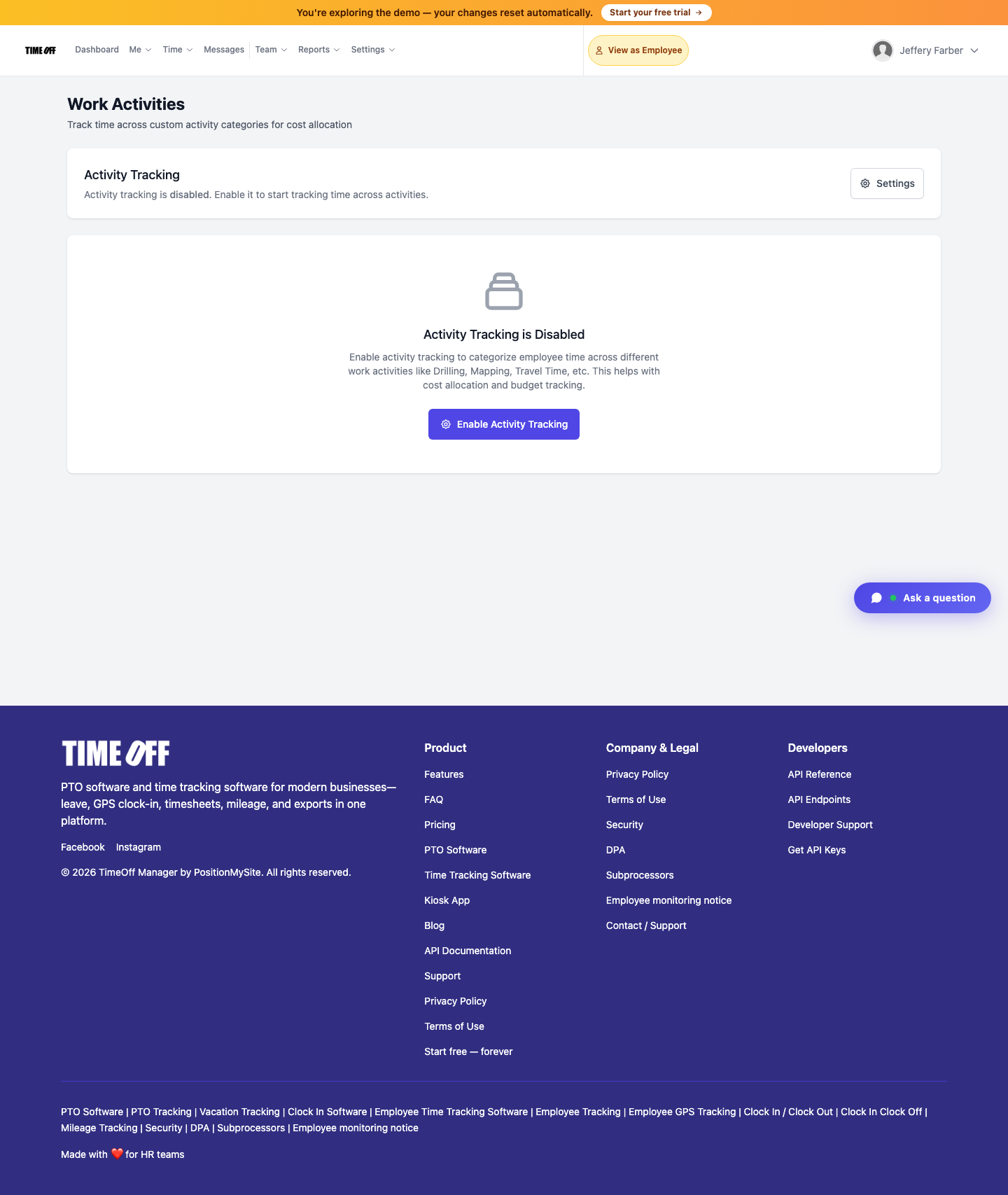
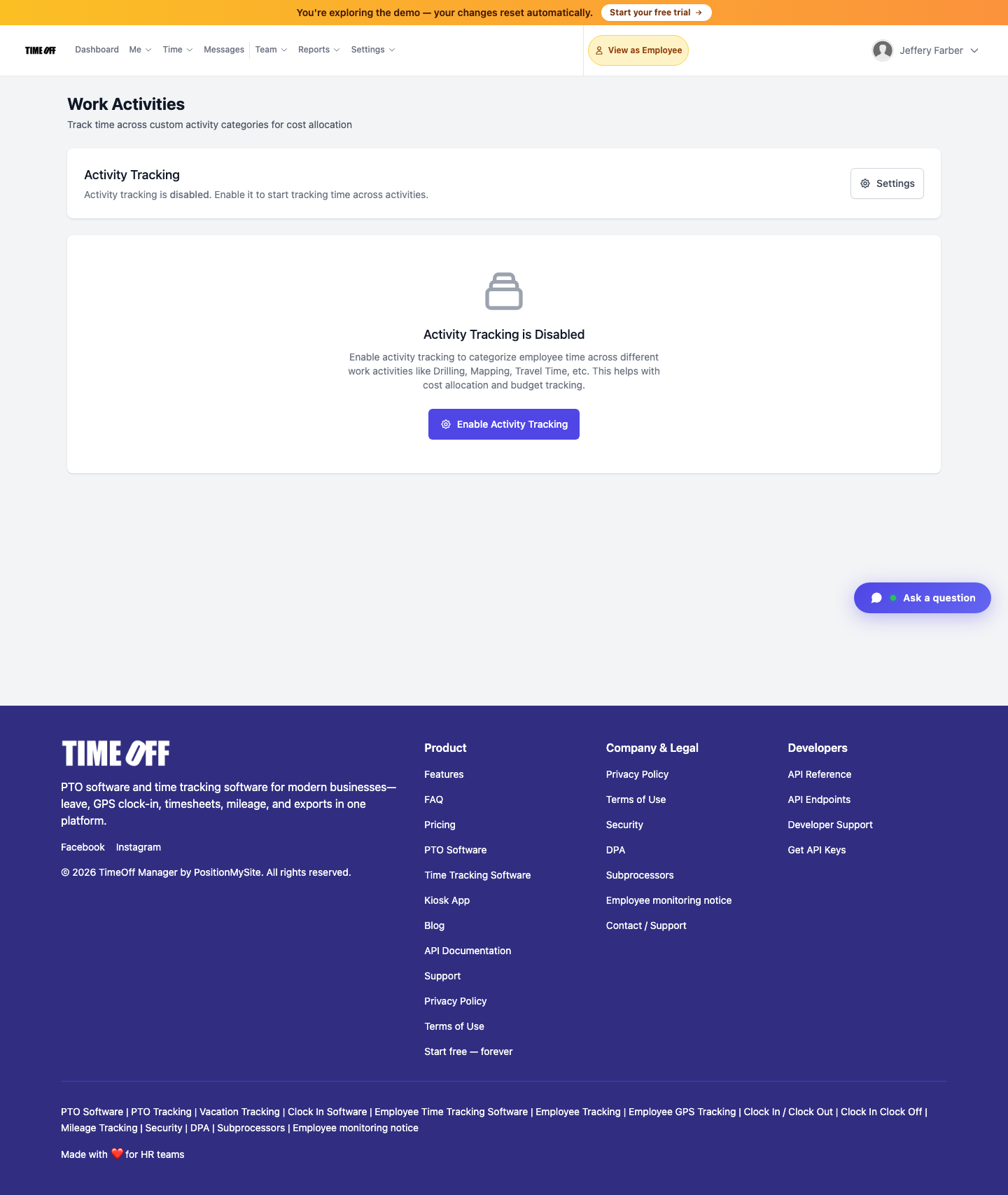
You cannot add activities until tracking is enabled. On the Work Activities page, open Settings:
- Enable activity tracking
- Choose hours vs percentage allocation
- Optionally turn on rates (default hourly rate, OT multiplier)
Add Activity sets name, optional short code, color, rate type (standard / overtime / premium / custom), optional hourly rate, billable flag, and description. Drag to reorder. If a code already appears on punches, delete is blocked—deactivate instead.
Switching on a punch
With tracking on, staff pick or switch the current activity from the signed-in timesheet and from the PIN kiosk (Switch activity) while clocked in. Each segment stores duration (and cost when rates are on). That is how billable field work stays separate from travel without a second punch.

Activity reports (only when tracking is on)
When tracking is enabled, Settings → Activity Reports at /admin/activity-reports shows time by activity. That report stays hidden while tracking is off—so if the Acme demo still shows the enable card, turn tracking on first, then open reports.
Who uses Work Activities
- Company admins — enable tracking, build/deactivate the catalog, set rates
- Staff — switch activity mid-shift on web, app, or PIN kiosk while clocked in
- Managers / HR — read activity time (and cost) in Activity Reports once tracking is on
On mobile, TimeOff Manager Pro uses the same work email account as the website. Kiosk remains the door-tablet PIN app—do not install Pro on the shared tablet.
Distinct from live map, leave, and Approval Center
- Live staff map — who is inbound (~30 minutes) or on site when live location is on
- Leave / Approval Center — PTO and mixed pending approvals, not job-code segments
- Work Activities — optional job codes on an open punch for cost allocation
Full product walkthrough: Work activities (admin).
How to enable it (real product path)
- Sign in as a company admin
- Go to Settings → Work Activities, or open
/admin/work-activities - Enable activity tracking (hours or percentage; optional rates)
- Add Activity — name, short code, color, rate type, billable flag
- Have staff Switch activity on timesheet or PIN kiosk while clocked in
- Open Settings → Activity Reports (
/admin/activity-reports) when you need time-by-code
Who this is for
- Field and hourly ops that change tasks inside one clock-in
- Companies billing some codes and not others (shop vs travel, billable vs not)
- US and Canada teams that still rebuild cost allocation in sheets after payroll week
- Admins already on TimeOff Manager clock-in who want job codes without a second product
Start a 14-day trial (then Starter, Growth, or Scale)
Enable Work Activities on your own company workspace—catalog, mid-shift switch, and Activity Reports.
You get a 14-day free trial, then choose Starter, Growth, or Scale based on seats and features. Register at https://timeoffmanager.us/register/company.
Related: Help: Work activities (admin) · Approval Center · Company settings