Retail Time Tracking for the Holiday Rush: Store Staff Hours (2026)
How store owners can track retail staff hours through the holiday season: clock-in off the register, seasonal hires, time-off requests, overtime and payroll.


Clock associates in on a back-room tablet, keep holiday shifts and time off on one schedule, and approve hours before payroll.
It's the second Saturday in December. The mall opened an hour early, two of your seasonal hires are no-shows, and the person who said she'd close is now asking for the day off because her flight moved. Meanwhile, the register clock says your keyholder has been on shift since 6:40 this morning, which nobody can explain. You'll find out on payroll day that three people went into overtime.
Retail time tracking is easy in March and hard in December. This guide is for store owners and managers heading into the holiday rush: how to get honest clock-ins when the floor is packed, how to bring seasonal staff on and off fast, how to deal with time-off requests during your busiest weeks, how to see overtime before you pay it, and how to hand clean hours to payroll in January.
Why retail hours fall apart in the holiday season
Most stores run fine on a printed schedule and a register clock for ten months of the year. Then the season hits and every weak spot shows up at once:
- The register is a bad time clock. When it's down, being counted or tied up with a line, nobody can clock in. And a register login is easy to share, so one associate clocks in another.
- Seasonal hires arrive in a wave. Ten new people in two weeks, each needing a login, a schedule and someone to explain how clocking in works.
- The schedule changes daily. Extended hours, early openings, extra closers, shift swaps written in pen. The posted week is wrong by Wednesday.
- Everyone wants the same days off. Requests for the 24th, the 26th and New Year's Eve pile up in texts and sticky notes, and you approve two people for the same day without noticing.
- Overtime creeps up. A keyholder opens, stays for the rush and closes. Do that three days running and the week is over 40 before anyone checks.
- Missed clock-outs. After a 10 p.m. close, people walk out and forget. By Friday the timesheet says someone worked 16 hours.
What good retail time tracking looks like
- Clock-in that doesn't depend on the register. A tablet in the back room with a personal PIN for each associate.
- One store, one location. If you run more than one shop, each store is its own work location so the hours split by address.
- A schedule people can see on their phone. Openers, closers and the extra holiday shifts, with approved time off on the same view.
- Time-off requests that come in one way. In the app, with a status, landing in one approval inbox instead of your texts.
- A coverage view. So you can see who's already off on the 26th before you approve one more.
- Overtime visible mid-week. While you can still move a shift, not after payroll closes.
- Corrections with a trail. Missed clock-ins fixed through a request and an approval.
- A clean download for payroll. Approved regular and overtime hours in Excel or CSV for whoever runs your payroll.
Clock-in on the sales floor: a tablet, not the register
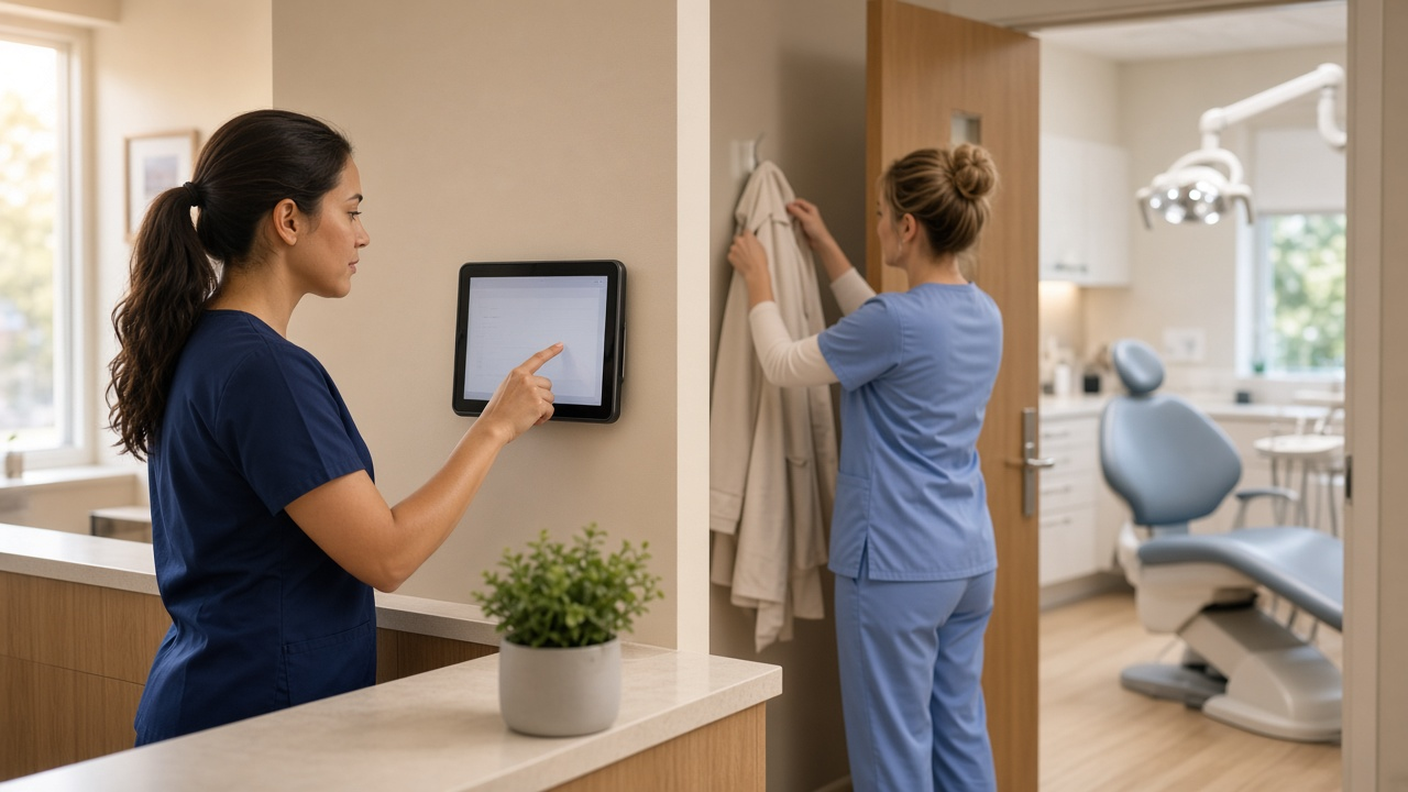
The simplest fix for most stores is a dedicated tablet in the back room or by the staff entrance running TimeOff Kiosk. An admin or HR manager activates the tablet once for your company. After that, each associate types their own PIN to clock in and out. The register doesn't need to be up, and the person leaving can't clock in the person arriving. The kiosk setup guide walks through activation.
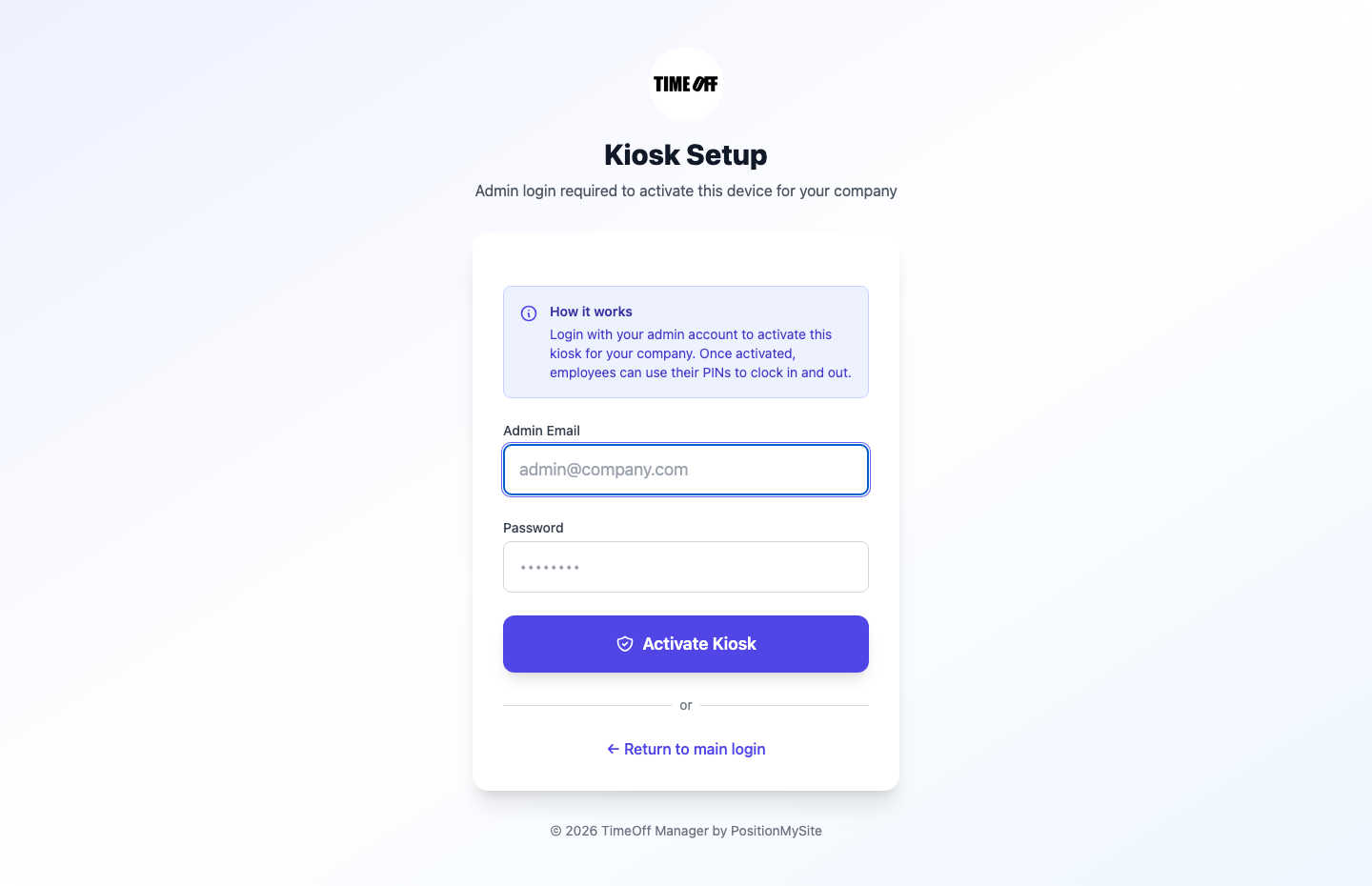
A few settings matter more in retail than elsewhere:
- Photo at clock-in. Your clock rules can ask for a photo when someone clocks in. It's a simple way to make sure each PIN belongs to the person using it.
- Require a schedule to clock in. If this is on in Company settings, Clock rules, staff can only clock in on days they're scheduled. On the shared kiosk that applies to everyone, including managers, so make sure the holiday shifts are actually on the schedule. If you'd rather let people clock in without a roster during the rush, turn the rule off.
- Breaks. You can turn on break tracking so a long selling shift records its break with the hours, and your schedule validation rules can flag shifts that run long or skip a break.
- Treat the tablet as a work device. Anyone with a PIN can clock in on it, so keep it in a staff-only area.
Managers and staff who'd rather use their own phones can sign in to the TimeOff Manager Pro app instead. That's the signed-in app for requests, schedules and clock-in on a personal phone. The kiosk is the PIN tablet. They're two different apps, and most stores use the kiosk for associates and the phone app for managers. If you run a restaurant or a food counter inside the store, our restaurant time clock guide covers that side.
Bringing seasonal staff on (and off) fast
The holiday wave is where a lot of stores lose a week to admin. A faster path:
- Load the new people in one go. From the employee roster, download the template and upload a CSV with every seasonal hire. For one-off hires, the add employee wizard takes three steps and suggests minimum vacation and sick amounts based on the hire's state or province, which you can accept or change.
- Give each one a PIN. The PIN comes from their employee profile. No shared logins, ever.
- Put them on a pattern. Build a few reusable shift templates, such as Weekend Rush, Evening Close and Early Open, then use bulk assignment in schedule management to put ten people on a template at once.
- Tell them how it works, once. Send a staff message with the clock-in rules and holiday hours. It's a one-way announcement, not a chat, and you can see who tapped Got it.
- Archive them in January. When the season ends, archive seasonal staff from the roster (you can select several and archive them together). Their hours stay on record for payroll and audits.
Holiday schedules and time-off requests
December is when everyone wants the same three days. You can't say yes to all of them, but you can say no early and fairly instead of finding the gap on the 24th.
Post the week where people can see it. Associates check their own shifts on My Schedule in the app or on the web, and approved time off shows on the same calendar. Managers can switch to the Team view. That cuts down on "I didn't know I was closing."
Take requests one way. Associates submit time off from their requests page or the app and can see whether it's pending, approved or rejected. Managers approve from one approval inbox on the dashboard, which also holds missed clock-in fixes, mileage and day notes.
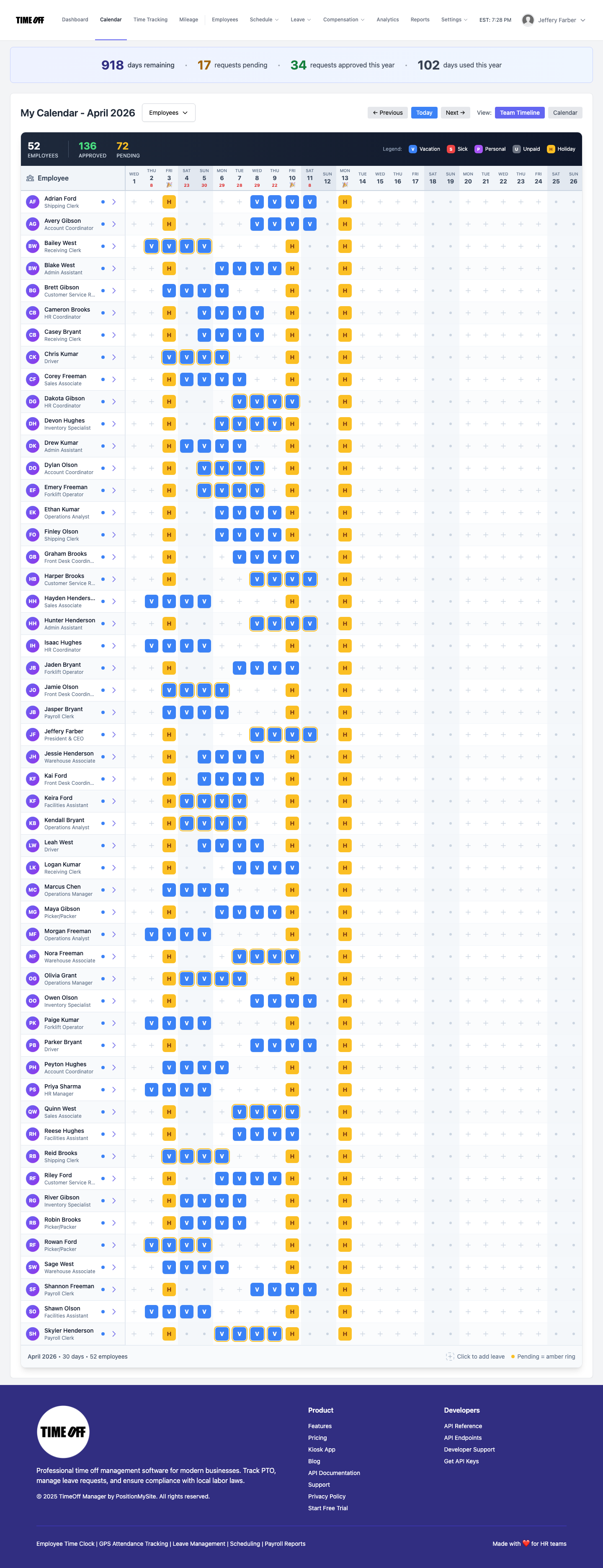
Check coverage before you approve. The team coverage calendar shows every person as a row and every day as a column, with vacation, sick, personal and holiday days marked. Look down the column for the 26th before you approve one more person.
Set your holiday dates once. Add the days your stores close to your company holiday calendar so they show up for everyone. If you're already planning next year, our 2027 US and Canada holiday calendar lists the dates.
A rule many stores use: publish the holiday request deadline in early November, approve in the order requests came in, and cap how many people can be off on the busiest days. For more on balancing requests, see our guide to team leave calendars.
See holiday overtime before you pay it
Overtime in retail rarely comes from one long day. It comes from a keyholder who opens, stays for the rush and closes three days in a row. The fix is to look in the middle of the week, not at the end.
- Set the rules once. Company admins set overtime thresholds and multipliers in overtime rules, with per-person rules for anyone on a different arrangement.
- Check the weekly view on Wednesday. The manager timesheet shows today's clock-ins, then a weekly grid by person with regular and overtime hours split. If someone is at 34 hours by Wednesday, move their Saturday close.
- Use schedule limits. Validation rules can flag long shifts, weekly limits and too many days in a row before the hours are worked.
For the payroll side of overtime, read overtime tracking and payroll export.
Fix missed clock-ins without retyping the timesheet
After a late close, someone will forget to clock out. Don't edit the record by hand. The associate opens Forgot to clock out from their timesheet, the app or the store tablet with their PIN, enters the real times and a short reason, and submits. It goes to the manager's approval inbox, where the manager accepts it or edits the times. The approved request becomes the time entry, and there's a record of who changed what. Requests work for overnight shifts and break minutes, within 60 days. Our guide to fixing missed clock-ins has more detail.
Several stores: split hours by location
If you run two or three shops, or send associates to a pop-up or a holiday market stall, save each one under work locations. Shift templates can carry a default location, and clock-ins record where they happened, so the week splits by store. That matters when you compare labor between locations or when a store manager asks why their hours look high.
TimeOff Manager isn't a register or a stock system. It doesn't ring sales, track inventory or plan markdowns. It tracks who worked, where, their time off, and the hours you approve. See how it fits a store on our retail page.
January payroll: hand off clean hours
Once the week is approved, managers download the hours as Excel or CSV for the payroll software or bookkeeper you already use. TimeOff Manager doesn't calculate pay, print checks or file taxes. If your accountant needs to pull reports, you can give them accountant access instead of emailing files. For a broader look at clocks, timesheets and exports, see time tracking software.
Retail rules to check this season
This is not legal advice. Rules change, and they depend on where your stores are.
- Overtime (U.S.). Under federal law, non-exempt employees get time and a half for hours over 40 in a workweek. Some states, like California, add daily overtime. See the U.S. Department of Labor's overtime fact sheet.
- Records (U.S.). Employers have to keep accurate records of hours worked each day and week. See the recordkeeping fact sheet.
- Breaks (U.S.). Federal law doesn't require breaks, but short breaks you do give are usually paid, and many states set their own meal and rest rules. See the DOL page on breaks and meal periods.
- Predictive scheduling. Some places, including Oregon and cities such as New York, Seattle, San Francisco, Chicago and Philadelphia, have fair workweek laws that can require advance notice of schedules and pay for last-minute changes, often only for larger retail chains. Check whether yours applies before you rewrite the week on short notice.
- Public holidays (Ontario). Christmas Day and Boxing Day are public holidays. An employee who works one generally gets regular pay plus a substitute day off, or public holiday pay plus premium pay. See Ontario's guide to public holidays and record keeping.
Try it before the rush
A full year to try it with your team. Get comfortable before you pay. Start your free year: you pay $0 for 12 months. A card is required to start, and the yearly price is charged on your anniversary unless you cancel first. After the year, Starter (1 to 20 people) is $180 per year, Growth (21 to 50) is $300 per year, and Scale (51 to 1,000) is $479.90 per year or $49.99 per month.
Setting it up in early November gives you a few quiet weeks to load staff, build templates and put a tablet in the back room before Black Friday. For more on building the week, read our shift scheduling guide.
FAQ
What is the best way to track time for retail employees?
Give every associate their own PIN on a tablet in the back room, separate from the register, or their own login on a phone app. Save each store as a work location, build the week from shift templates, and approve the weekly timesheet before you download hours for payroll. Missed clock-ins should be fixed through a request and an approval, not by retyping the record.
Should retail staff clock in on the register?
It's better not to. A register that's down, being counted or tied up with a line can't clock anyone in, and register time clocks are easy to share. A separate tablet running a PIN time clock keeps clock-ins working even when the register system isn't, and each PIN belongs to one person.
How do I handle seasonal holiday hires?
Add them in bulk with a CSV import, give each one a PIN, and put them on a shift template so they show up on the schedule from day one. When the season ends, archive them from the employee roster. Their past hours stay on record, and they stop showing up on the schedule and the kiosk.
How do I stop holiday overtime from surprising me?
Set your overtime thresholds once, then check the weekly timesheet mid-week, when regular and overtime hours are still split by person and you have time to move a shift. In the U.S., the federal rule is time and a half after 40 hours in a workweek; some states add daily rules. This is not legal advice.
What happens when someone forgets to clock out after closing?
They submit a forgot-to-clock-out request from the phone app, their timesheet or the store tablet with their PIN. It lands in the manager's approval inbox, and the manager accepts it as written or edits the times. The approved request becomes the time entry, so nobody types over the record.
Are retail workers paid extra for working Christmas or Boxing Day?
In the U.S., federal law doesn't require holiday premium pay; that's your policy unless a state or contract says otherwise. In Ontario, Christmas Day and Boxing Day are public holidays, and an employee who works one generally gets either regular pay plus a substitute day off, or public holiday pay plus premium pay. Check your province or state. This is not legal advice.
How does the 1 year free offer work?
A full year to try it with your team. New companies pay $0 for 12 months. A card is required to start, and the yearly price is charged on your anniversary unless you cancel first. After the year, Starter (1 to 20 people) is $180 per year, Growth (21 to 50) is $300 per year, and Scale (51 to 1,000) is $479.90 per year or $49.99 per month.