Schedule management
Admin hub at /admin/schedule: coverage stats, employee list with schedule status, per-person edit, and bulk assignment. Clock-in can require a schedule (Company settings → Clock rules) or allow punches without a roster.
/admin/schedule
Roles
Company admin · HR manager · Manager (when permitted)
Schedule management helps administrators maintain work schedules and shifts for people who use time tracking. Reusable patterns come from Shift templates (/admin/templates). The roster hub is at /admin/schedule; mass updates use /admin/schedule/bulk-edit (bulk assignment). Company-wide validation for shifts and time (limits, breaks, presets) is configured separately at Schedule: Validation rules (/admin/validation).
Overview
Schedules tie employees to weekly patterns, shift templates, and work locations where your product supports them. When Require a schedule to clock in is on (Company settings → Clock rules), regular staff cannot punch unless they are scheduled today. Turn that rule off for offices that clock in without a weekly roster. Managers and admins can always punch without a schedule. On the shared PIN kiosk, a schedule is still required for everyone while that rule is on. The hub summarizes how many people have schedules configured versus still needing setup, then lists each eligible employee with a path to edit their schedule or jump to Bulk Assignment for many people at once.
Schedule Management page
On /admin/schedule you typically see:
- Header — title, short description, and Bulk Assignment (opens bulk-edit).
- Company context — a company selector may appear when multiple companies exist.
- Summary cards — totals such as employees in scope, how many already have schedules, and how many still need them.
- Employee Schedules — a list of people with status (e.g. has schedule vs needs one) and actions to open the per-employee editor.
If no one appears, time tracking may be off for the company or there are no eligible users — check company settings and the employee roster.
Editing one employee
From the list, open an employee’s schedule editor (URL shape /admin/schedule/employee/{id}/edit).
See the dedicated guide Schedule: Edit one employee for field-level detail and a screenshot of that screen.
Bulk assignment
/admin/schedule/bulk-edit — titled Bulk Schedule Assignment — lets you select multiple employees and apply a schedule template in one step. The screen usually separates people without schedules from the full roster (with indicators for who already has a schedule). Use checkboxes, optional “Select All” helpers, choose a template, and submit to run the bulk update.
Breadcrumb links on that page take you back to the main Schedules hub.
Who can access
Routes are limited to users allowed by your tenant’s company admin rules (typically company admins, HR, and managers where enabled). Employees do not manage company-wide schedules here.
Product screenshots
Main hub and bulk assignment (demo tenant).
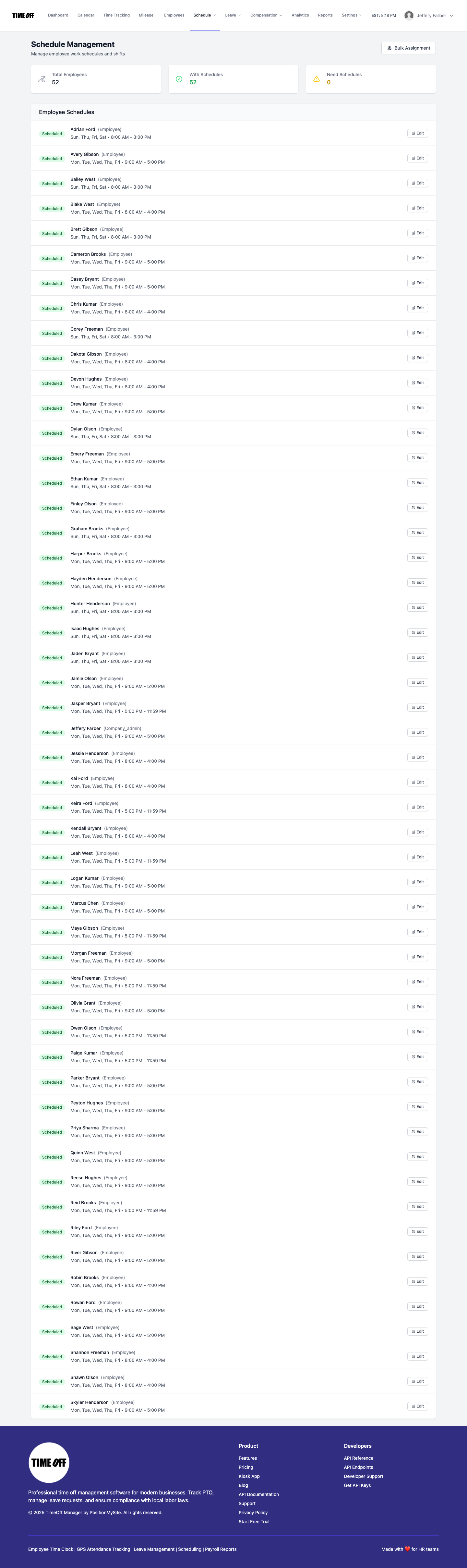
Schedule Management — /admin/schedule
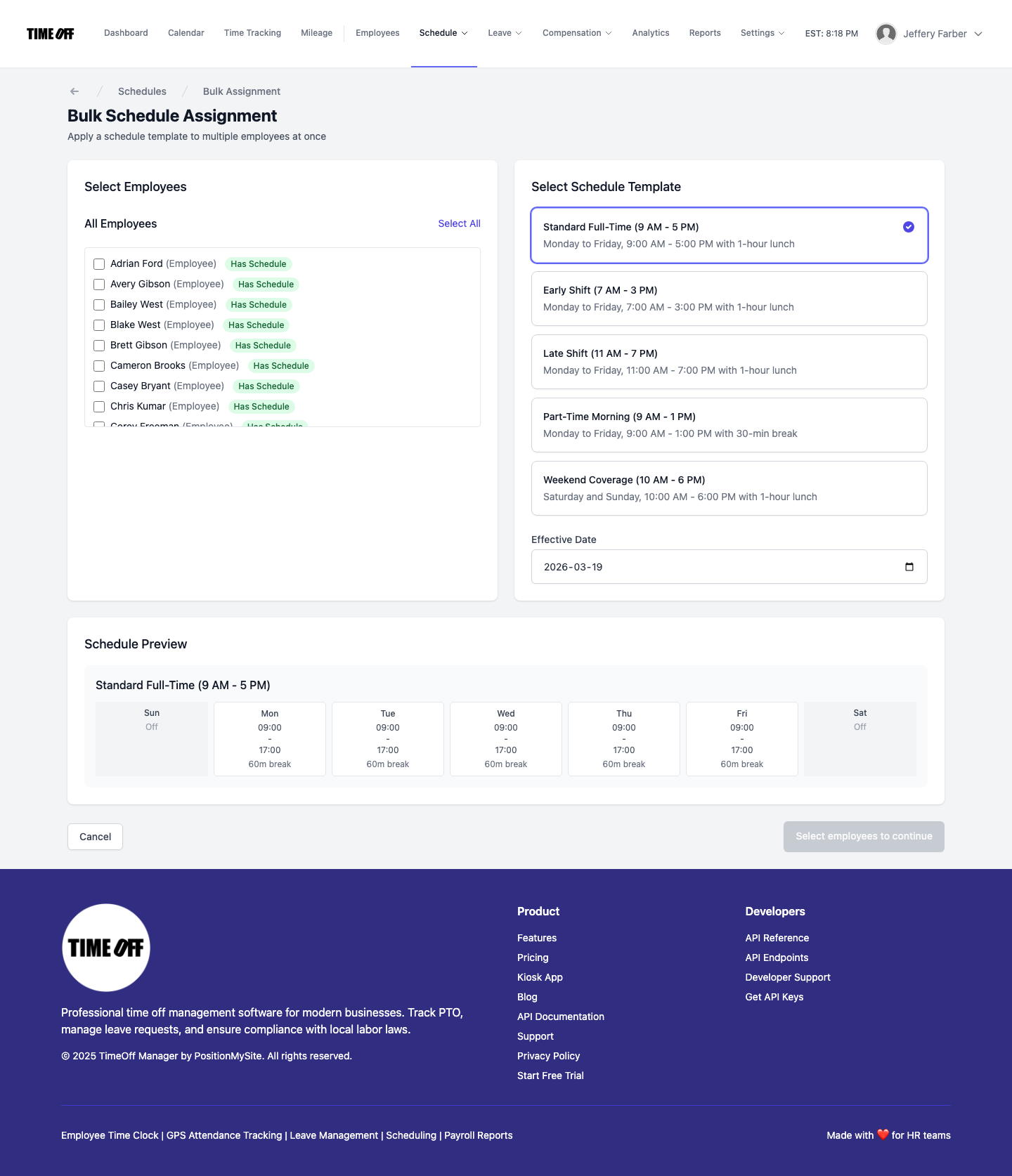
Bulk Schedule Assignment — /admin/schedule/bulk-edit