Janitorial Time Tracking: Clock Cleaning Crews In at Client Buildings (2026)
How cleaning companies can track night crew hours at client buildings: honest clock-ins, drive time between sites, who's still on shift, missed clock-outs and payroll.

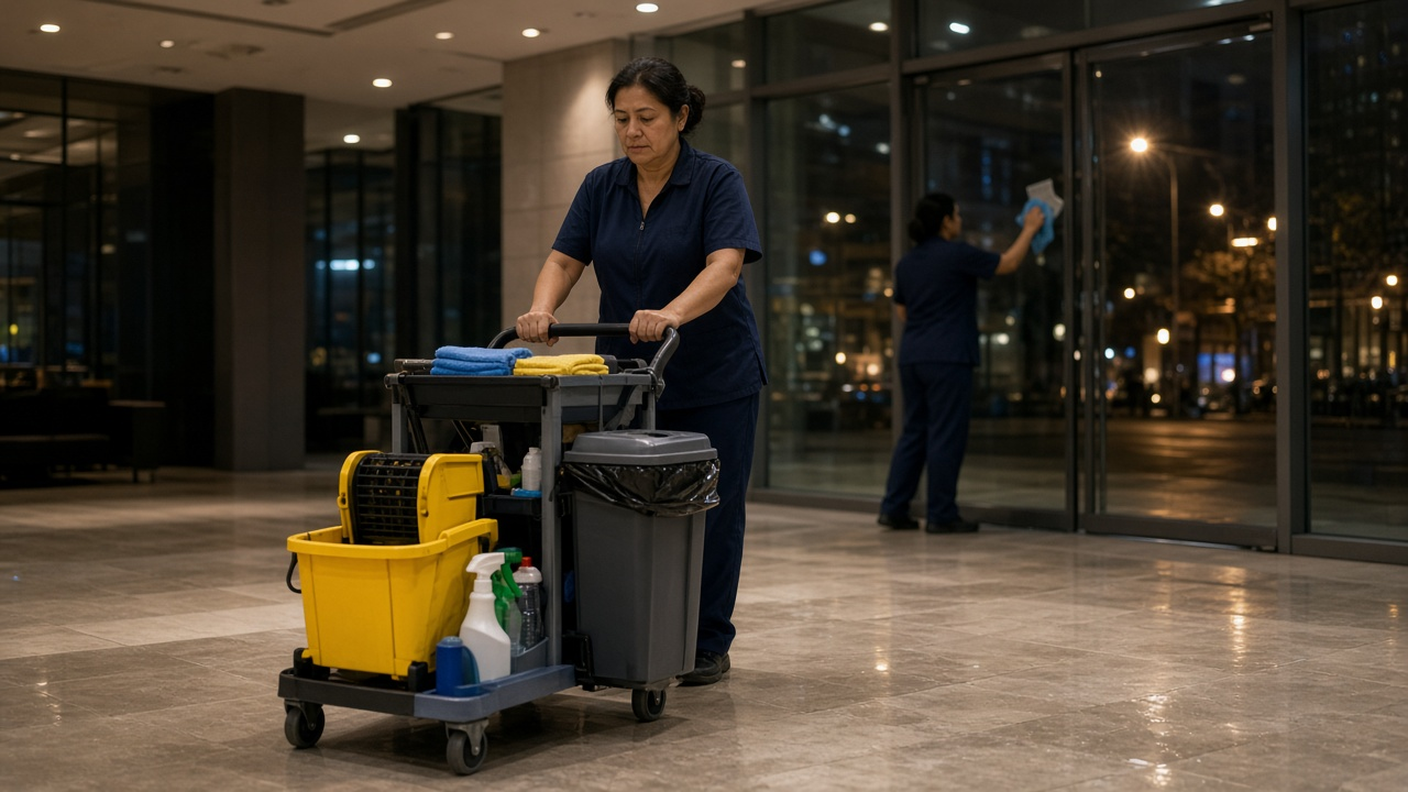
Clock each cleaner in at the client building, count the drive between sites, and send approved hours to payroll.
It's 7 a.m. and a property manager is on the phone. The third-floor offices weren't done last night. Your timesheet says two cleaners worked six hours each in that building. One of them, it turns out, was clocked in by the crew lead from the van and never went upstairs. Now you're paying for hours nobody can prove, and you're about to lose a contract over it.
Janitorial time tracking is harder than it looks. Your people work at night, in buildings you don't own, often three or four sites in one shift, with nobody from the office watching. This guide covers how cleaning companies can track crew hours at client buildings: where people clock in, how to handle drive time between sites, how to see who's still on shift, and how to hand clean hours to payroll.
Why cleaning crew hours go wrong
Most cleaning companies don't have a time theft problem. They have a records problem: hours on a paper sheet in the janitor's closet, in a group text, or in the crew lead's memory. Here's where it breaks:
- One login for the whole crew. The lead clocks everyone in from the parking lot. It's fast, and you can't tell who showed up.
- Clock-ins from the wrong place. A phone clock-in from the van, from a coffee shop, or from home looks exactly like one from the lobby unless something checks where it happened.
- Several buildings in one night. A cleaner does a dental office at 6, a bank branch at 8 and a small office tower until 1. Three sites become one line of hours, and nobody knows which client got what.
- Drive time nobody counted. The 20 minutes between buildings is usually paid time in the U.S., and it's the first thing to disappear from a paper sheet.
- Forgotten clock-outs. At 1 a.m., after the last floor, people walk out and forget. By Friday the record says they worked 19 hours.
- Call-offs after the office closes. Someone can't make it tonight, the day supervisor has already gone home, and the building doesn't get cleaned.
What good janitorial time tracking looks like
- Every cleaner clocks in as themselves. Their own PIN or their own login, never a shared one.
- The clock-in happens at the building. A tablet at the client's door, or a phone clock-in that has to be inside a geofence around that address.
- Each client site is its own location. So hours can be checked by address before you bill.
- Schedules tied to sites. Who's supposed to be at which building tonight, and from what time.
- A way to see who's still on shift. For the supervisor at midnight, not just the payroll person on Friday.
- Corrections that leave a trail. A missed clock-out gets fixed through a request and an approval, not by someone typing over the record.
- A clean file for payroll. Approved regular and overtime hours, ready for your payroll provider or bookkeeper.
Clock-in at the client building: kiosk or phone
You have two ways to get an honest clock-in at a site you don't control. Most cleaning companies end up using both.
A shared tablet by the door
If a client lets you keep a tablet in a janitor's closet or a back office, TimeOff Kiosk turns it into a PIN time clock. An admin activates the tablet once for your company. After that, each cleaner enters their own PIN to clock in and out. The person leaving can't clock in the person arriving. If the building's Wi-Fi drops after the cleaner is identified, the kiosk app saves the clock-in on the tablet and sends it with the original time when the connection is back. The kiosk guide covers setup.
A personal phone with a geofence
For buildings where you can't leave a device, cleaners use the TimeOff Manager Pro app on their own phone. First, save each client building under Work Locations with its address and, if you want it enforced, a GPS geofence radius. When a cleaner clocks in, the app saves the GPS point at that moment and checks it against the geofence. You can also require a photo at clock-in in your clock rules. Basements and stairwells often have no signal, so it matters that the app still saves the clock-in on the phone and sends it later.
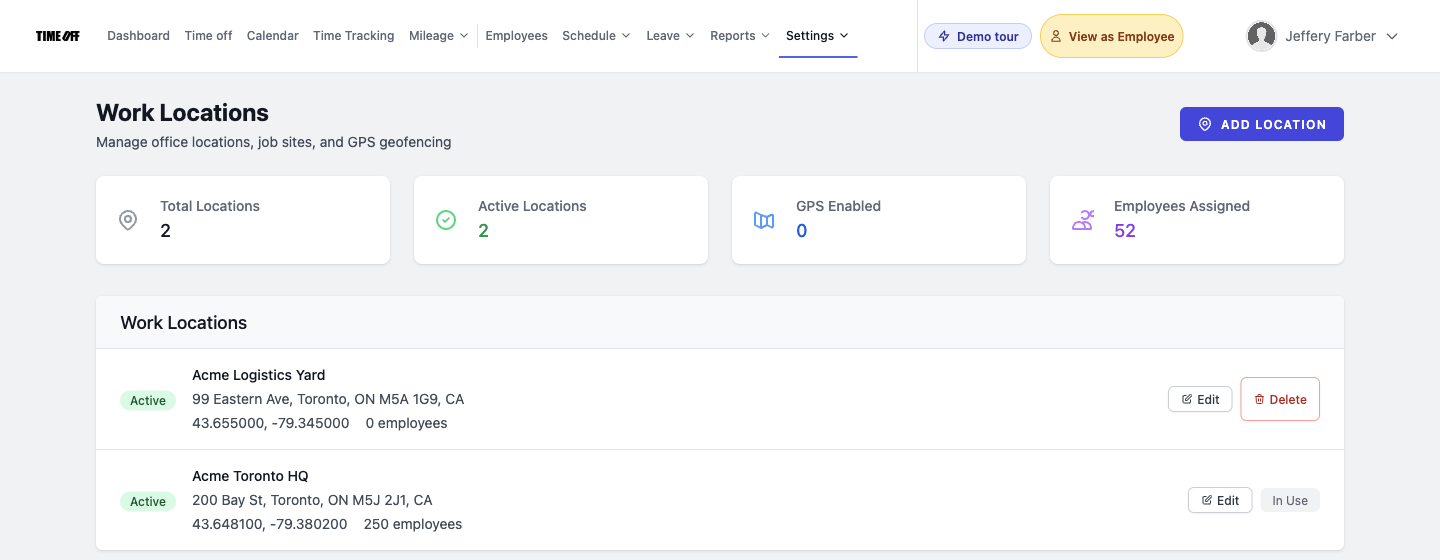
A geofence checks where someone clocked in. It isn't a quality score. Tell your crew what you record and why. For more on GPS clock-ins for small teams, see our guide to clock-in apps with GPS.
Several buildings in one shift: count the drive
This is where cleaning companies lose real money. The U.S. Department of Labor's guidance on hours worked says travel from job site to job site during the workday is work time and has to be counted. The trip from home to the first building usually isn't. The drive from the dental office to the bank branch usually is.
There are two simple ways to handle it:
- Stay clocked in between buildings. The cleaner clocks in at the first site and out at the last one. Easy to understand, and the drive is in the hours automatically. You lose a little detail about time on each site.
- Use work activities. Turn on work activities and add codes like Cleaning and Travel. The cleaner stays clocked in and switches the current activity from their timesheet, the phone app or the kiosk. Activity Reports then show how much of the night was spent driving.
What you don't want is a cleaner clocking out at one building and back in at the next. That turns paid travel into an unpaid gap, the kind of thing that shows up in a wage claim.
Schedules and night coverage
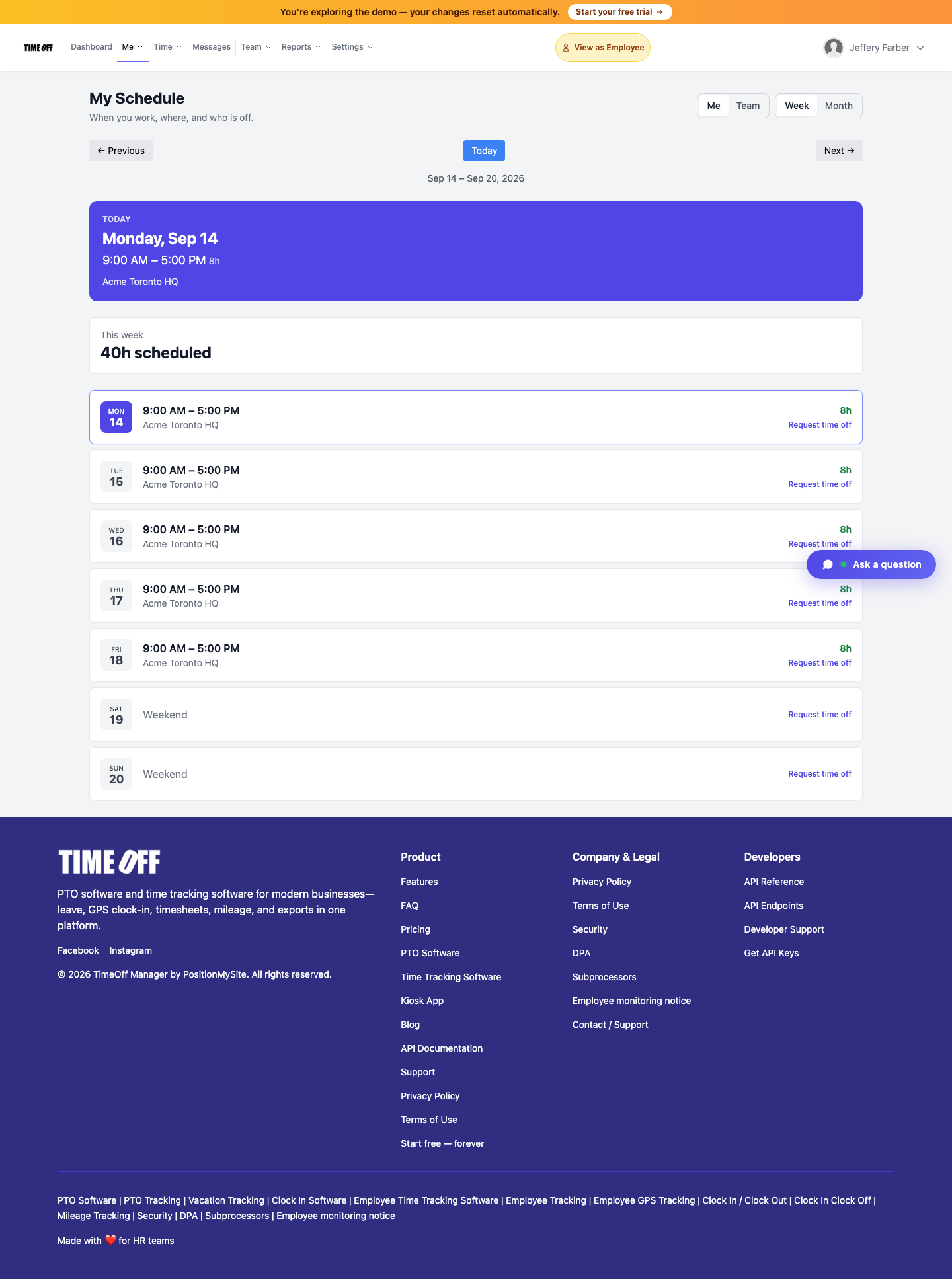
A schedule tells you who should be where tonight. In TimeOff Manager, admins build reusable weekly patterns as shift templates, which can carry a default work location, then assign them to people from the schedule hub. Cleaners see their own week, with approved time off on the same view, under My Schedule.
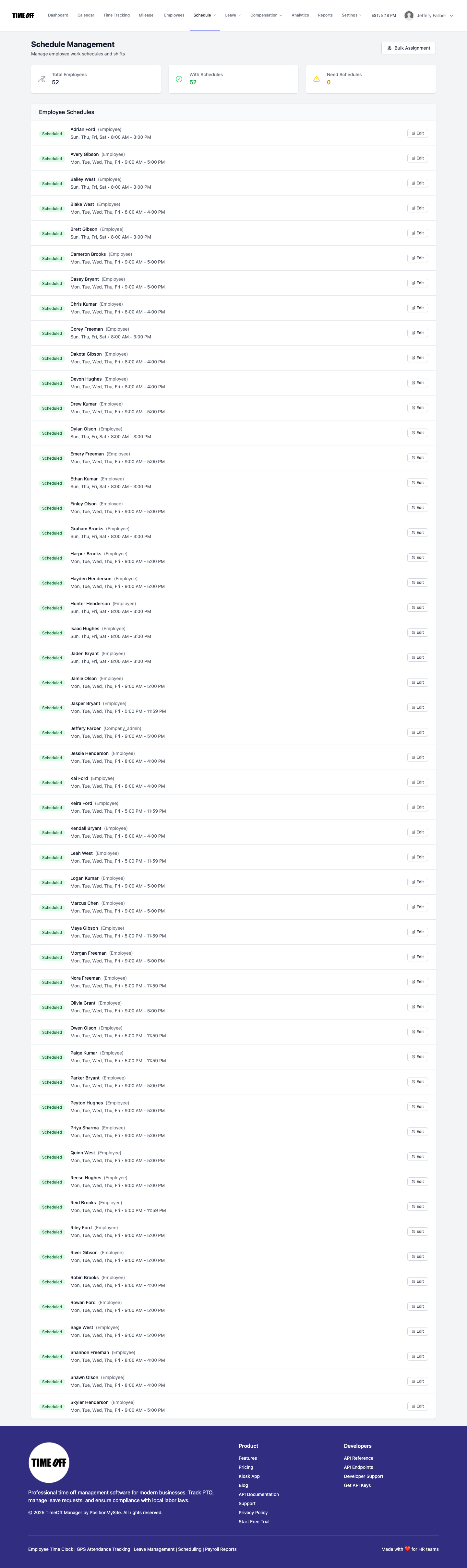
You can also switch on Require a schedule to clock in under Company settings, Clock rules. Then regular staff can only clock in on days they're scheduled. Be careful with this on a kiosk: while that rule is on, the shared tablet needs a schedule for everyone who uses it, including supervisors covering a shift. Turn it off if your crews swap buildings a lot and you'd rather review than block.
Call-offs are where night work falls apart. When a cleaner asks for a night off in the app, the request goes to the approvals inbox, and once it's approved it shows on the team coverage calendar. A supervisor can see the gap the afternoon before, not at 9 p.m. If you need to tell a whole crew that the bank branch has a new alarm code procedure, staff messages are one-way announcements that people open and can acknowledge. For more on building a weekly roster, read our post on shift scheduling for small business.
Who's still on shift at midnight
The question a night supervisor actually asks is simple: is anyone still in the building? The live staff map answers it for managers, HR and admins. It shows who's on the way, who's running late and who's clocked in, during the live-location window your company turns on in clock rules. Employees don't get the map.
Two things to know. The live map is separate from the GPS point saved at clock-in; you can use one without the other. And location is only recorded during the window your company sets, so put it in your monitoring notice. Our post on the live staff map and inbound alerts goes deeper.
Missed clock-outs at 1 a.m.
People forget. The fix should be boring. A cleaner who forgot to clock out sends a missed clock-in request from the website, the phone app, or the kiosk with their PIN: the date, the in and out times, and a short reason. It sits in the approvals inbox until a manager accepts it, edits the times, or rejects it. An approved request creates or updates the time entry, and the trail stays. See our guide to fixing missed clock-ins for how approvers should handle them.
Overtime when people work many sites
Overtime sneaks up on cleaning companies because hours are spread across buildings. A part-timer who picks up an extra building three nights a week can cross 40 hours without anyone noticing.
The manager timesheet has Daily, Weekly and Monthly views. The weekly view is the one to live in: one row per person, days across the top, regular and overtime split out. Set company overtime thresholds once under Overtime Management, and add an individual rule for anyone who's different. Check the weekly grid midweek, so you can move a shift before it becomes overtime instead of finding it on payday.
Hours for payroll and for the client bill
When the week is approved, open the Payroll Hours Report under Reports. It shows total, regular and overtime hours for the dates you pick, with a daily breakdown. Download Excel or CSV, or use the ADP RUN and Paychex SPI hours files if you run payroll in one of those. If your books are in QuickBooks Online or FreshBooks, the accounting connection can send completed time.
Be clear about the line. TimeOff Manager doesn't calculate pay or taxes, doesn't write client invoices, and doesn't run inspections or supply orders. It gives you approved hours, time off and where people clocked in. You use the same hours to bill each building in whatever invoicing software you already have. You can see how this fits cleaning crews on our commercial cleaning page, and the full feature list on time tracking software.
Set it up in an afternoon
- List your client buildings. Add each one as a work location. Turn on a geofence for sites where phone clock-ins must happen inside.
- Pick kiosk or phone per building. Tablet by the door where the client allows it, the phone app everywhere else.
- Give everyone their own PIN and login. Retire any shared crew account the same day.
- Decide how drive time works. Stay clocked in between sites, or turn on work activities with a Travel code. Write it down and tell the crew.
- Build shift templates. One per regular route, with the default building, then assign them in bulk.
- Set overtime rules and clock rules. Photo, live location window, and whether a schedule is required to clock in.
- Run one practice week. Compare the Payroll Hours Report to your old sheet before you switch payroll over.
Compliance notes (not legal advice)
This is not legal advice. Wage rules depend on where your crew works and how they're paid. Check with your payroll provider or an employment lawyer.
- U.S. hours worked. The Department of Labor's Fact Sheet #22 on hours worked says travel from job site to job site during the workday is work time. It also says short rest breaks, usually 20 minutes or less, are counted as hours worked, while a real meal break of about 30 minutes or more, fully relieved from duty, generally isn't.
- U.S. recordkeeping. Fact Sheet #21 requires hours worked each day and each workweek for non-exempt staff. Payroll records are kept at least three years, and time cards at least two.
- Ontario records. The ESA guide's record keeping chapter requires dates and times worked and hours each day and week, kept for three years.
- Ontario contract changes. Cleaning companies are building services providers under Ontario's ESA. When a contract changes hands, the building services providers rules can make the new provider responsible for termination and severance pay to the old provider's staff, depending partly on whether each person worked primarily at that building in the weeks before the switch. Hours kept by building make those questions easier to answer.
- State and provincial rules. Some U.S. states have daily overtime, required meal breaks or split-shift rules. Check where each person works.
Try it with your crew
A full year to try it with your team. Get comfortable before you pay. Start your free year: you pay $0 for 12 months. A card is required to start, and the yearly price is charged on your anniversary unless you cancel first. After the year, Starter (1 to 20 people) is $180 per year, Growth (21 to 50) is $300 per year, and Scale (51 to 1,000) is $479.90 per year or $49.99 per month.
Want to see the screens first? Click through a sample company to look at work locations, schedules and the weekly timesheet.
FAQ
What is the best way to track time for a janitorial crew?
Have each cleaner clock in at the client building, not in the van or from home. Use a shared tablet by the door with a personal PIN for each cleaner, or a phone clock-in held to a geofence you draw around that building. Then review the week by person, fix missed clock-ins through a request instead of by hand, and send approved hours to payroll.
Is drive time between client buildings paid?
In the U.S., usually yes. The Department of Labor says travel from job site to job site during the workday is work time and must be counted as hours worked. The commute from home to the first building usually isn't. Many cleaning companies keep cleaners clocked in between buildings, or switch them to a travel activity code, so the drive shows up in the hours. This is not legal advice.
Can cleaners clock in on their own phones?
Yes. TimeOff Manager Pro is the signed-in app for a personal phone. It can save the GPS point when someone clocks in, check a geofence if you drew one on that building, and ask for a photo if your clock rules require it. If the basement has no signal, the app saves the clock-in on the phone and sends it when it reconnects.
How do we stop one person from clocking in the whole crew?
Give every cleaner their own PIN on TimeOff Kiosk, or their own login on the phone app, and stop using a shared account. You can also require a photo at clock-in and a geofence on the building. Each clock-in then belongs to one person, at one place, at one time.
Can we see hours by client building?
Each client building can be saved as a work location, and clock-ins record where they happened. That lets you check who worked at which address before you bill the client in your own invoicing software. TimeOff Manager doesn't write invoices or score the cleaning; it records hours, time off and where people clocked in.
How does the 1 year free offer work?
A full year to try it with your team. New companies pay $0 for 12 months. A card is required to start, and the yearly price is charged on your anniversary unless you cancel first. After the year, Starter (1 to 20 people) is $180 per year, Growth (21 to 50) is $300 per year, and Scale (51 to 1,000) is $479.90 per year or $49.99 per month.