Team Leave Calendar Coverage: Spot PTO Overlaps Before You Approve (2026)
Approving PTO one request at a time hides coverage holes. TimeOff Manager's Team Leave Calendar shows employee rows, leave codes (V/S/P/U/H), and pending vs approved days so managers spot overlaps before they say yes.

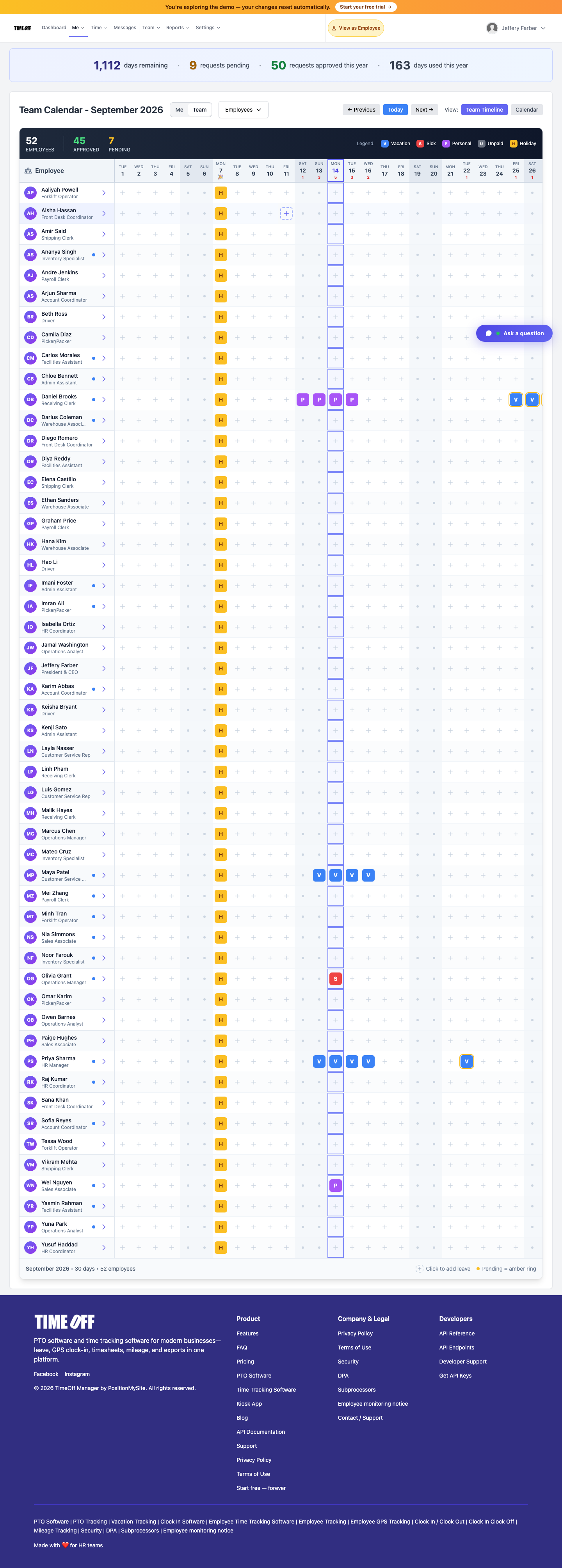
Approving PTO one request at a time hides coverage holes. TimeOff Manager's Team Leave Calendar shows employee rows, leave codes, and pending vs approved days so you spot overlaps before you say yes. https://timeoffmanager.us/blog/team-leave-calendar-coverage-pto-software-2026
Approving time off without a clear picture of who else is out is how coverage holes start. One vacation looks fine in a Slack thread. Two overlapping vacations on the same crew look like a quiet week until Monday arrives with double-booked shifts and a last-minute scramble.
Managers and HR leads feel this every summer and every holiday week: leave requests arrive one by one, approvals happen in isolation, and the team calendar lives in someone's head—or in a spreadsheet that was last updated three Fridays ago.
TimeOff Manager's Team Leave Calendar at /calendar (team view) is built for that exact problem. It turns PTO into a coverage timeline so you can spot overlaps before you approve—not after someone is already on a flight.
Product usage backs the need: over the last 28 days, the calendar path is one of the most-visited screens in the app after dashboard and login. Search interest in vacation tracking and PTO software is real, but many results still sell generic “best of” lists instead of showing how coverage actually works. This post is about the feature your managers will open every week.
What goes wrong when you approve PTO blind
Blind approval is rarely malicious. It is usually a process gap:
- Coverage holes — two key people on the same day with no backup named.
- Double-booked shifts — especially for small teams where “someone else can cover” is not automatic.
- Last-minute fire drills — managers discover the conflict on the day of leave and burn goodwill fixing it.
- Uneven load — the same few people absorb every gap while others stack time off in the same window.
Spreadsheets and Slack threads make this worse. A sheet does not show pending vs approved at a glance. A channel scroll does not show holidays next to leave codes. By the time someone notices the overlap, the polite “can you move your days?” conversation is already awkward.
The Team Calendar coverage timeline
Open Calendar with the team (who=team) view. You get employee rows across day columns—a coverage grid, not a personal month picker. That layout is what makes overlaps obvious.
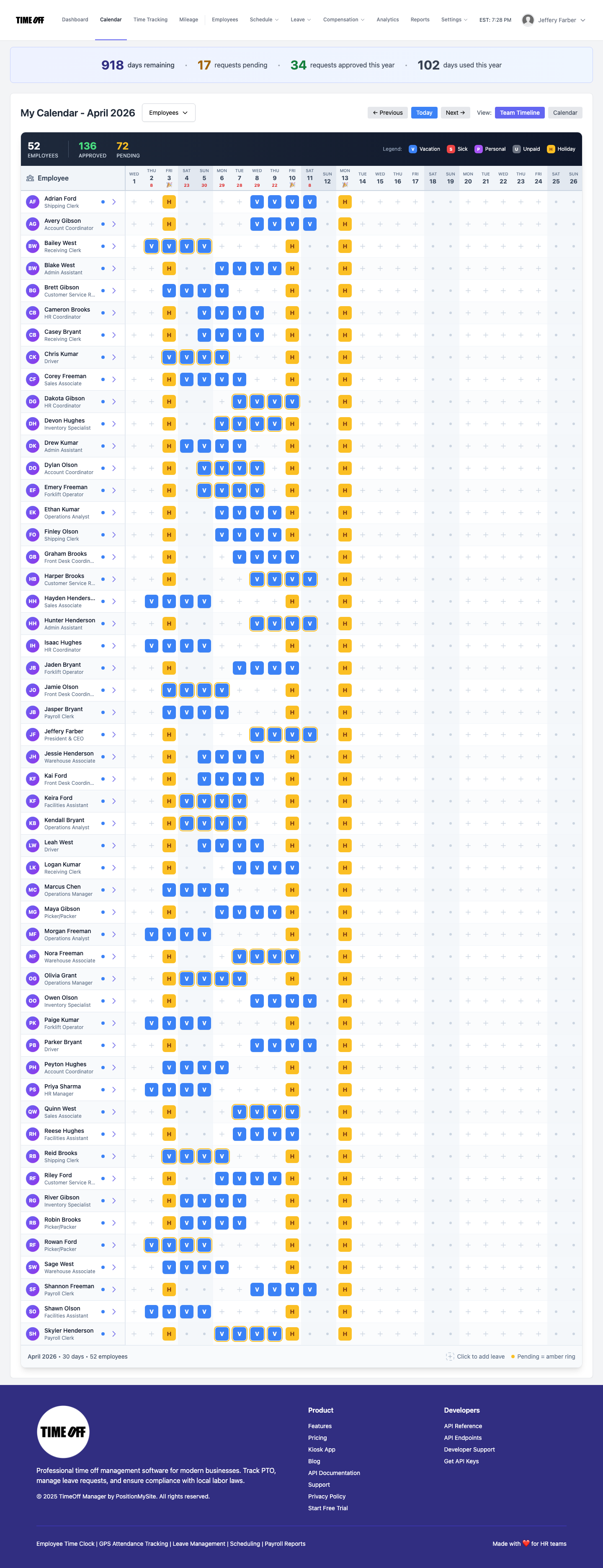
On that screen managers typically see:
- Employee rows × day columns — scan the whole team for a week or month without opening each request.
- Leave codes — compact markers such as V (vacation), S (sick), P (personal), U (unpaid), H (holiday) so the type of absence is readable at a glance.
- Company holidays — sitting on the same timeline as PTO so you do not double-count “quiet days.”
- Pending vs approved stats — so a yellow pending block next to an already-approved vacation is a decision, not a surprise.
That is the unused-feature angle for many SMBs already on TimeOff Manager: the request inbox answers “is this person's balance OK?” The team calendar answers “can the operation absorb this day?”
How managers and HR should use it (step by step)
- Open Calendar in team view before you batch-approve end-of-week requests. Start with the week that has the most pending leave.
- Scan for stacked codes on the same columns—two V's on a three-person desk is a red flag even if both balances are fine.
- Check pending next to approved. Approving a second vacation into an already-thin day is how fire drills start.
- Note holidays and blackout patterns on the same grid. A holiday plus half the crew on personal leave is still a coverage problem.
- Decide with context: approve, suggest alternate dates, or ask for a named backup—while the employee is still planning, not already packing.
- Re-check after approvals. One click should not require a separate spreadsheet to confirm the grid still looks safe.
HR can use the same view for workforce planning: which weeks are chronically thin, which departments collide every July, and where policy (not just personality) needs clearer blackout or notice rules.
Why this beats spreadsheets and Slack
A shared Google Sheet can list names and dates. It rarely stays current with pending requests, leave types, and holidays in one place. Slack is great for conversation and terrible as a system of record: messages scroll away, screenshots go stale, and nobody owns the “source of truth.”
The Team Leave Calendar keeps coverage next to the same leave data employees already request in TimeOff Manager. No export. No copy-paste. No “who updated the sheet last?”
If your team still reconciles PTO in chat, try one week of approving only after a calendar scan. Most managers do not go back.
Tie-in for search and product reality
People searching for vacation tracking software usually want two outcomes: accurate balances and fewer staffing surprises. Usage inside TimeOff Manager already shows the calendar is where operators spend time after they log in. Putting coverage on that timeline—codes, holidays, pending and approved—closes the gap between “PTO tracker” and “coverage tool.”
Get coverage visible before the next approval wave
If you are still approving leave from email or chat, stand up a company workspace and put your team on the same calendar. Create your account at https://timeoffmanager.us/register/company.
New companies get a 1 year free trial: you pay $0 for 12 months. A full year to try it with your team. Get comfortable before you pay. Cancel before your anniversary and you owe nothing.
Once you are in, open Calendar, switch to the team coverage view, and walk the next two weeks of pending leave. Spot the overlaps before you approve them—and keep summer and holiday weeks from turning into Monday morning fire drills.
Ready to see your team's leave on one timeline? Register your company and open the Team Leave Calendar on your first login.