Schedule: Validation rules (admin)
Company rules at /admin/validation: preset strictness, time limits, breaks, test scenarios, export/import JSON—HR can view; company admin edit.
/admin/validation
Roles
Company admin · HR manager (view only)
Schedule Validation Rules at /admin/validation define how the system checks shifts and time entries against your policy—daily/weekly limits, shift length, breaks, consecutive days, and related thresholds. Presets give a quick baseline; the detailed form fine-tunes numbers, with optional test runs and JSON backup/restore.
Overview
Validation runs in the context of your company. The header shows which company is being configured. Use this screen to align rule strictness with how you schedule and pay people; stricter presets flag more potential violations when employees or admins record time against schedules.
What’s on the page
- Header — Schedule Validation Rules and subtitle naming the company.
- Company selector — when multiple companies are in context, switch via query (same pattern as other admin hubs).
- Quick Setup — current validation level (e.g. strict / moderate / lenient), radio presets, and Apply Preset Level.
- Test Validation — pick a sample scenario and run Test Rules to see pass/fail messaging.
- Backup & Restore — Export Rules and Import Rules (JSON) for copy between environments.
- Detailed settings — sections such as Time Limits, Break Requirements, and other rule groups with numeric fields; save with the primary update action at the bottom of that form.
Typical workflow
- Choose a preset that matches your culture (you can still edit fields afterward).
- Adjust thresholds in the detailed panels to match contracts and local expectations.
- Test a few scenarios so approvers see the kinds of messages employees get.
- Export after a good baseline so you can restore or clone to staging.
Who can access
Company administrators can open the page and change rules. HR managers can typically view the configuration but edits may be restricted—if you see “access denied” on save, use a company admin account.
Related
Schedules themselves are maintained in Schedule management and Shift templates. Overtime policy at the payroll/rule level may complement these checks—see Overtime: Admin rules and Timesheet: Manager & HR hub for day-to-day review.
Product screenshot
Automated capture: full page after login as demo company admin (optional DOCS_CAPTURE_COMPANY_ID when capturing a specific company).
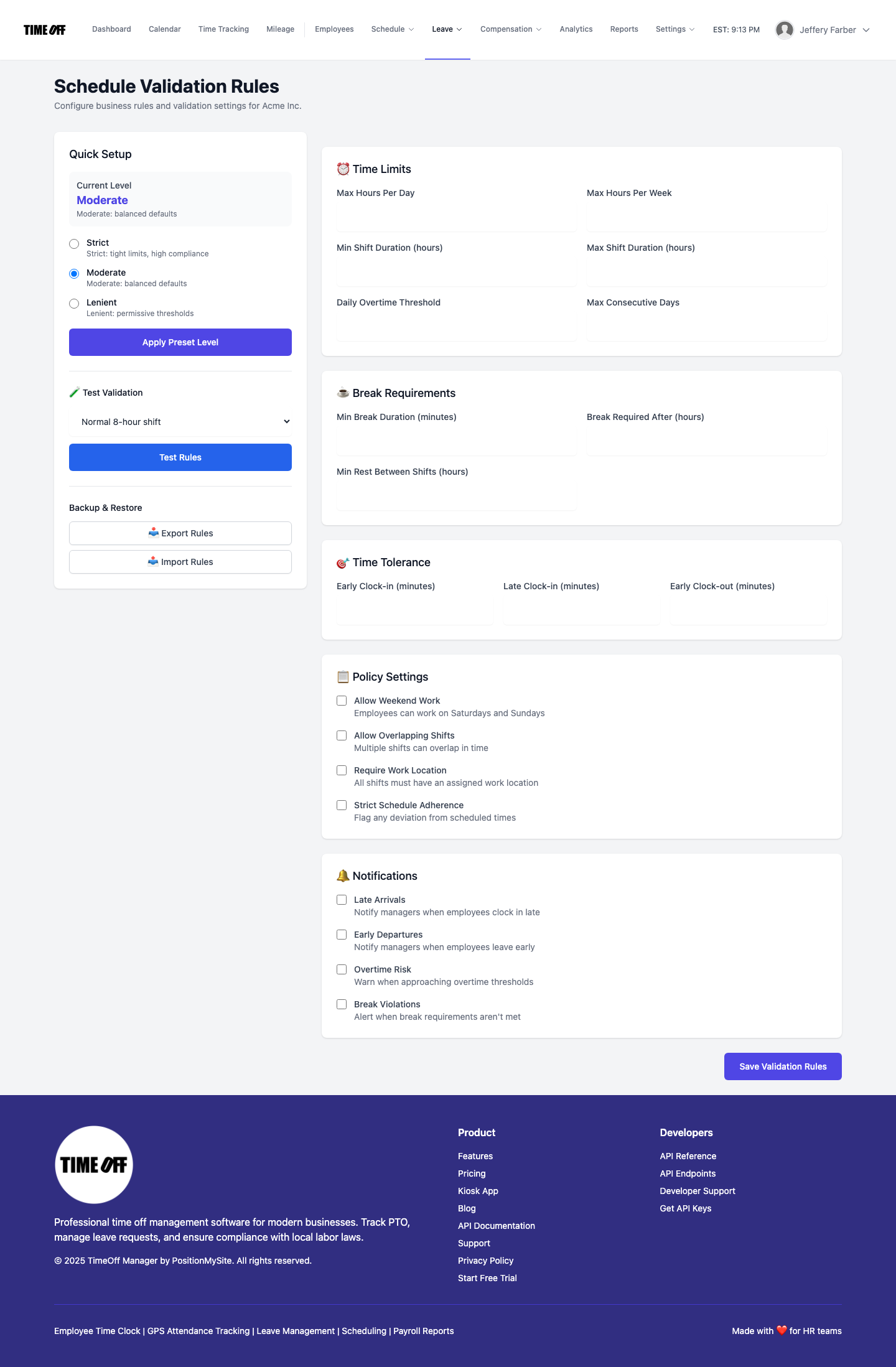
Schedule validation rules — /admin/validation