Shift Scheduling Software for Small Business: 2026 Buyer's Checklist
Most small teams don't need AI auto-scheduling. They need one roster that knows who's on leave, who can clock in today, and when overtime is coming. Here's the 8-point checklist and a 30-minute test you can run on any tool.


Build the week once, see leave and overtime before you publish.
It's Thursday night. Next week's schedule is half done in a spreadsheet, two people texted you about days off you can't find, and you just noticed your best closer is down for 46 hours. Again. You'll find out what that costs on payday.
Shift scheduling software is supposed to fix that. A lot of it just moves the spreadsheet into a prettier grid. This guide is the checklist I'd use if I ran a 10 to 80 person team today: what the software actually has to do, how to test it with one real week, and how it works in TimeOff Manager so you can check it yourself.
Why the spreadsheet schedule breaks
A spreadsheet doesn't know anything. It doesn't know Maria has approved vacation next Tuesday. It doesn't know Dev already hit 38 hours by Thursday. It doesn't know which shifts are the same every week and which ones you rebuild from scratch every Sunday.
So you become the system. You hold the leave requests in your head (or your texts), you add up hours by hand, and you hope nobody shows up for a shift that was moved. When something slips, it shows up in three places at once:
- Coverage gaps. Two people off on the same Saturday because the requests came in through different channels.
- Surprise overtime. Nobody saw the 44th hour coming until the timesheet closed.
- Timesheet fights. Someone forgot to clock in, someone worked a shift that wasn't on the plan, and now payroll is a negotiation.
None of that is a "people problem." It's a schedule that lives apart from leave, hours, and clock-ins.
What good shift scheduling software does: the 8-point checklist
Ignore the feature grids for a minute. For a small business, these are the things that save you time every single week:
- Reusable shift templates. Define your common weekly patterns once (openers, closers, weekday office, weekend crew) and apply them instead of retyping.
- Bulk assignment. Put 12 new seasonal hires on the same pattern in one step, not 12.
- One-day exceptions that don't wreck the pattern. Someone needs to start at 11 on Friday only. You change that date, not their whole week.
- Leave on the same screen as the schedule. Approved vacation, sick days, and holidays should sit right beside the roster, so you see the gap before you publish.
- Rules that flag problems early. Shift length, daily and weekly limits, breaks, consecutive days. Set once, checked every time.
- Overtime thresholds per company and per person. Your weekly threshold isn't the same in every state or province, and some people have different arrangements.
- Clock-in tied to the schedule. If the plan says you work today, you can clock in. If it doesn't, the system knows.
- A staff view that answers "when do I work?" Employees should check their own week or month, with their leave shown, without texting you.
Notice what's not on the list: AI auto-scheduling, demand forecasting, built-in chat. Those can be great at 500 employees. At 25, most owners need the basics to be connected, not clever.
Test any tool with one real week
Every scheduling demo looks good with fake data. Here's a 30-minute test that tells you more than any sales call. Use it on any product you're comparing, including ours.
- Build two templates from your real shifts. Time how long it takes.
- Assign them to five real people in one pass.
- Give one person a one-day change (late start on Friday) and confirm the rest of their week didn't move.
- Approve a vacation day for someone on that schedule. Does it show up where you plan coverage, or do you have to go look somewhere else?
- Push someone over your overtime threshold on paper. Does anything tell you before payday?
- Clock in as an employee who isn't scheduled today. What happens?
- Open the employee view on a phone. Can a non-technical person find next week's shifts in ten seconds?
If a tool fails steps 4 through 6, it's a calendar, not scheduling software.
How it works in TimeOff Manager: manager side
Here's the same checklist mapped to real screens. Everything below is in the product today and documented in our Help Center.
Shift templates
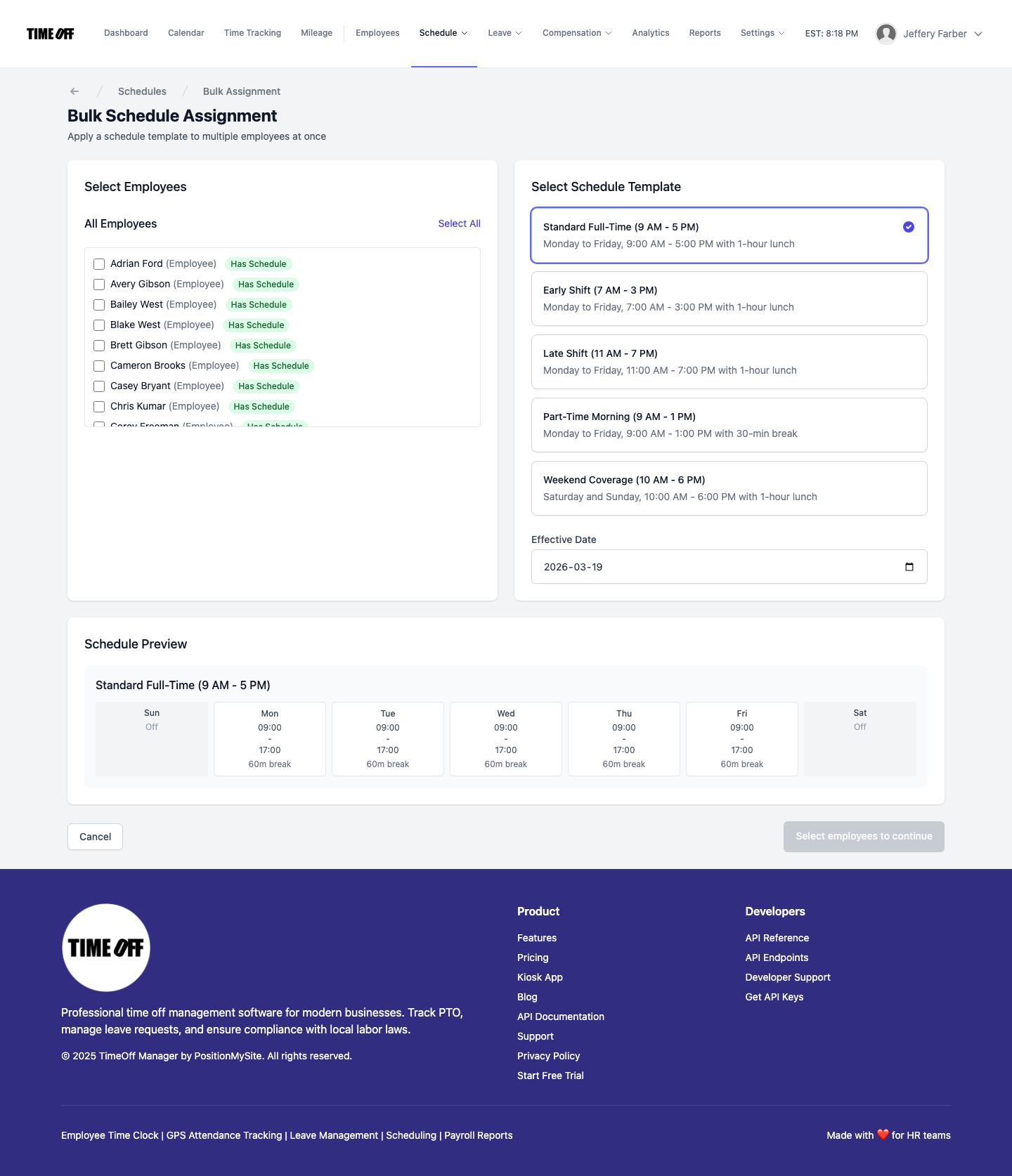
Templates live at /admin/templates. You create one with a name, description, category, the weekly shift definitions, and, if you use them, a default work location. Templates are stored per company, so a second business in the same account keeps its own set. Details are in Shift templates.
The schedule hub and bulk assignment
The hub at /admin/schedule shows summary cards (how many people already have a schedule and how many still need one) and a list of everyone with their status. From there, Bulk Assignment lets you check off a group of employees, pick a template, and apply it in one step.
One person, one day
Open anyone's editor from the hub and you get two separate things: their weekly repeating schedule, and a Change hours for one day card. Pick the date, set start and end, and hit Save this date only. That saves an approved exception for that date and leaves the weekly pattern alone. See Schedule: Edit one employee.
Validation rules
At /admin/validation a company admin picks a preset (strict, moderate, or lenient) and then fine-tunes time limits, break requirements, and related thresholds. You can run test scenarios to see the messages people will get, and export the rules as JSON as a backup. HR managers can view the rules; edits stay with the company admin. More in Schedule validation rules.
Coverage, with leave on top
The team coverage view at /calendar?who=team&calendar_view=coverage puts every employee on a row and every day of the month in a column. Vacation, sick, personal, unpaid, and holidays show as short codes, so a double-booked Saturday jumps out. Approvals themselves happen in the dashboard Approval Center, not on the calendar. The team timeline guide walks through it, and we wrote more about planning around leave in team leave calendars and coverage.
How it works for employees
Staff open My Schedule at /schedule. It shows their week or a month grid, with approved leave overlaid on the same calendar. Managers get a Me / Team switch on the same page. It's read-only for staff on purpose: the pattern is set by an admin or a permitted manager.
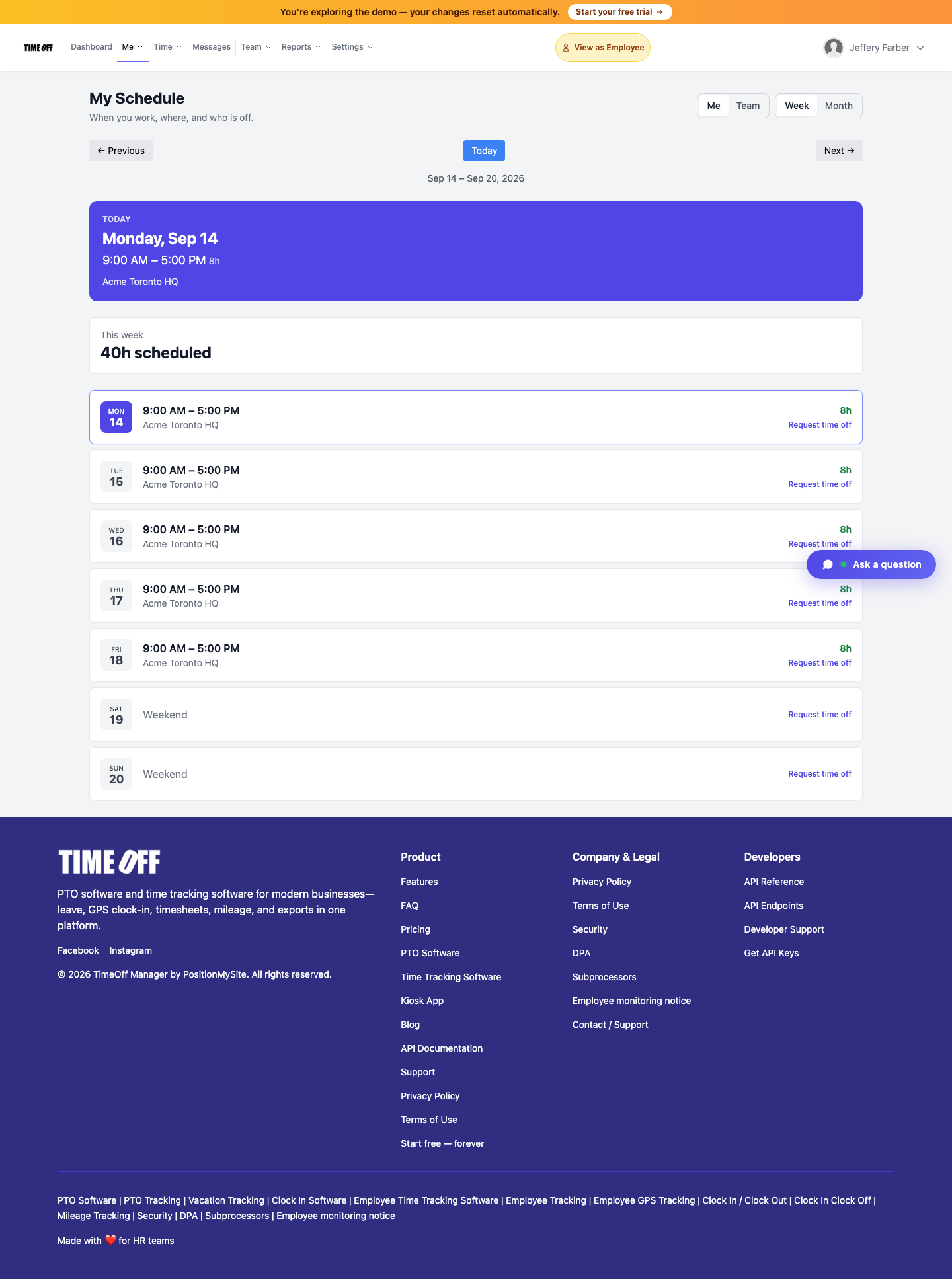
On a phone, employees use the signed-in TimeOff Manager Pro app to see their schedule, clock in and out, and request time off. If you run a shared tablet at the door instead, that's the separate TimeOff Kiosk app with a PIN. Both are covered on the mobile app and kiosk app pages. The My Schedule help page has the details.
Clock-in that respects the schedule
This is the part most "scheduling" tools skip. In TimeOff Manager, Require a schedule to clock in is on by default under Company settings, Clock rules. With it on, regular staff can only clock in on days they're scheduled. Managers and admins can always clock in without a schedule. On the shared PIN kiosk, everyone needs a schedule while the rule is on.
Running an office where people don't follow a roster? Turn the rule off and keep everything else. The same Clock rules tab controls how early or late people can clock in relative to their shift, optional photo on clock-in, and live location during a shift.
When someone forgets to clock in or out anyway, they submit a missed clock-in request and you approve it from the same Approval Center as leave. Hours then flow into the manager timesheet hub. If timesheet sign-off is your bottleneck, read timesheet approval for managers.
Catch overtime in the schedule, not on payday
Overtime usually isn't a decision. It's an accident nobody saw coming. Two things stop it:
- Thresholds that match your rules. Company-wide defaults live in Overtime Management at
/admin/overtime. If one person needs a different daily or weekly threshold or multiplier, you create a rule just for them. - Limits checked against the plan. Your validation rules flag long shifts, missing breaks, and weekly limits when time is recorded against schedules, so you see the problem while you can still swap someone out.
For the payroll side (what gets exported and how approved hours line up), see overtime tracking and payroll. We export clean data to your payroll process; we don't pretend to sync with every payroll vendor.
Compliance basics for US and Canadian schedules
This is not legal advice. Rules change and depend on your location, industry, and employee classification. Check your own jurisdiction.
- US federal: non-exempt employees earn overtime after 40 hours in a workweek under the FLSA. See the US Department of Labor overtime page.
- Daily overtime states: California, for example, also has daily overtime rules. The California DIR overtime FAQ spells them out.
- Predictive scheduling: Oregon and several large cities have advance-notice rules for certain industries. Oregon's are on the BOLI predictive scheduling page. If you're covered, publishing the schedule early is not optional.
- Ontario: overtime generally starts after 44 hours in a work week. See Ontario's overtime pay guide. Other provinces set their own thresholds, which is exactly why per-company and per-employee rules matter.
Software doesn't make you compliant. It makes your rules visible and consistent so you're not relying on memory.
When you don't need scheduling software
Honest answer: if you have six people working the same fixed hours every week, you probably don't need a full scheduler. You need clean clock-ins, PTO tracking, and a timesheet you trust. In TimeOff Manager you'd turn off "Require a schedule to clock in" and use time tracking and PTO software on their own. Add schedules later when you add shifts.
You need real scheduling when shifts vary week to week, when coverage matters (retail, clinics, cleaning crews, security, field teams), or when overtime keeps surprising you.
Try it with your own week
Run the 30-minute test above on your own team. Start a 14-day trial, build two templates, assign them, and approve one vacation day. If you'd rather click around first, open the live demo and go straight to Schedules.
FAQ
What is the best shift scheduling software for a small business?
The one that connects your schedule to leave, overtime, and clock-ins. For most teams under 100 people, that matters more than auto-scheduling. Test any tool with one real week: templates, a one-day change, an approved vacation, and an unscheduled clock-in.
Can employees see their schedule on their phone?
Yes. In TimeOff Manager, employees see their week or month in My Schedule, with approved leave on the same calendar, from the web or the TimeOff Manager Pro phone app.
How do shift templates save time?
You define a weekly pattern once, then apply it to many people with Bulk Assignment instead of building each schedule by hand. One-day changes are saved as exceptions, so the template stays intact.
Can I stop people from clocking in when they aren't scheduled?
Yes. Require a schedule to clock in is on by default under Company settings, Clock rules. Regular staff can only clock in on scheduled days. Managers and admins are exempt, and you can turn the rule off for teams without a roster.
Does scheduling software help prevent overtime?
It helps you see overtime coming. TimeOff Manager uses company-wide overtime thresholds, optional per-employee rules, and schedule validation limits so long weeks and missing breaks get flagged before payroll closes.
Is there a free trial?
Yes. You can start a 14-day trial at timeoffmanager.us/register/company, or open the live demo first without signing up.