Time Tracking for Vision Centers: Opticians, Optometric Techs and the Year-End Rush (2026)
How independent vision centers and optometry groups track hours for techs, opticians and the front desk, cover Saturdays and floaters between stores, and get through the year-end benefits rush without overtime surprises.

Opticians, techs and the front desk all on one schedule, with hours and overtime visible before the year-end rush.
It's the second Saturday in December. The book is full of patients trying to use their vision benefits before the year ends, the optical floor has a line for frame fittings, and your pretest tech just called in sick. Your lead optician is covering two stores this week, and nobody is sure which one she clocked in at on Thursday. When payroll comes around, the hours live in a sign-in binder, a group text and someone's memory.
This guide is for owners and office managers at independent vision centers, optometry practices with an optical shop, and small groups with two or three locations. It covers how to track hours for optometric techs, opticians and the front desk, how to staff long retail hours and Saturdays, how to handle staff who float between stores, and how to get through the year-end rush without overtime surprises or a short Saturday.
Why vision center hours are hard to track
A vision center is two businesses under one roof. The exam side runs on appointments. The optical side runs like retail. Each has its own people and its own rhythm, and the hours get tangled in a few predictable places.
- Mixed roles. Optometric techs run pretest, opticians dispense and adjust frames, a contact lens tech teaches insertion, and the front desk checks insurance. Some people do two of those jobs in one shift.
- Retail hours. Many vision centers open evenings and Saturdays, and some in malls or shopping centers open Sundays. Those shifts are often staffed by a different group than the weekday exam team.
- Floaters. In a group with more than one store, an optician or tech covers another location when someone is out. On paper, those hours end up on the wrong store's sheet.
- Seasonal rushes. Back-to-school exams in late summer and the year-end benefits rush in November and December pack the book just when staff want time off for the holidays.
- Opening and closing work. Someone has to turn on the equipment, clean the frame boards, run the lab or close out the register. That time is work, and it's easy to miss when people write down their hours from memory.
When all of that lives in a binder at the front desk, you get the usual results: overtime you only notice on the payroll register, a Saturday with no licensed optician on the floor, and time off approved by one manager while another books the same person for the busiest week of the year.
What good looks like for a vision center
- Every hourly person clocks in and out on a real clock, at the store where they're actually working.
- The weekday exam team, the evening optical crew and the Saturday crew each have a repeatable schedule you can assign.
- Staff who float between stores show up under the right location.
- If you want it, hours split by type of work, such as pretest, optical and lab, so you can see where the time goes.
- Time off is requested and approved before the schedule is set, and everyone can see who's out during the rush.
- Overtime shows on the timesheet during the week, not on payday.
- Approved hours download as a clean Excel or CSV file for your bookkeeper or payroll provider.
None of this touches your practice management or optical software. Exam records, prescriptions, insurance claims and frame inventory stay where they are. This is about your people and their hours.
A clock at the front desk, PIN by PIN
Most vision centers do best with one shared tablet at the front desk or the staff entrance. With TimeOff Kiosk, each person clocks in with a personal PIN. Nobody needs to sign in to the front desk computer, and the binder goes away. A company admin or HR manager activates the tablet once, and it stays tied to your company until you deactivate it. The kiosk help guide walks through activation.
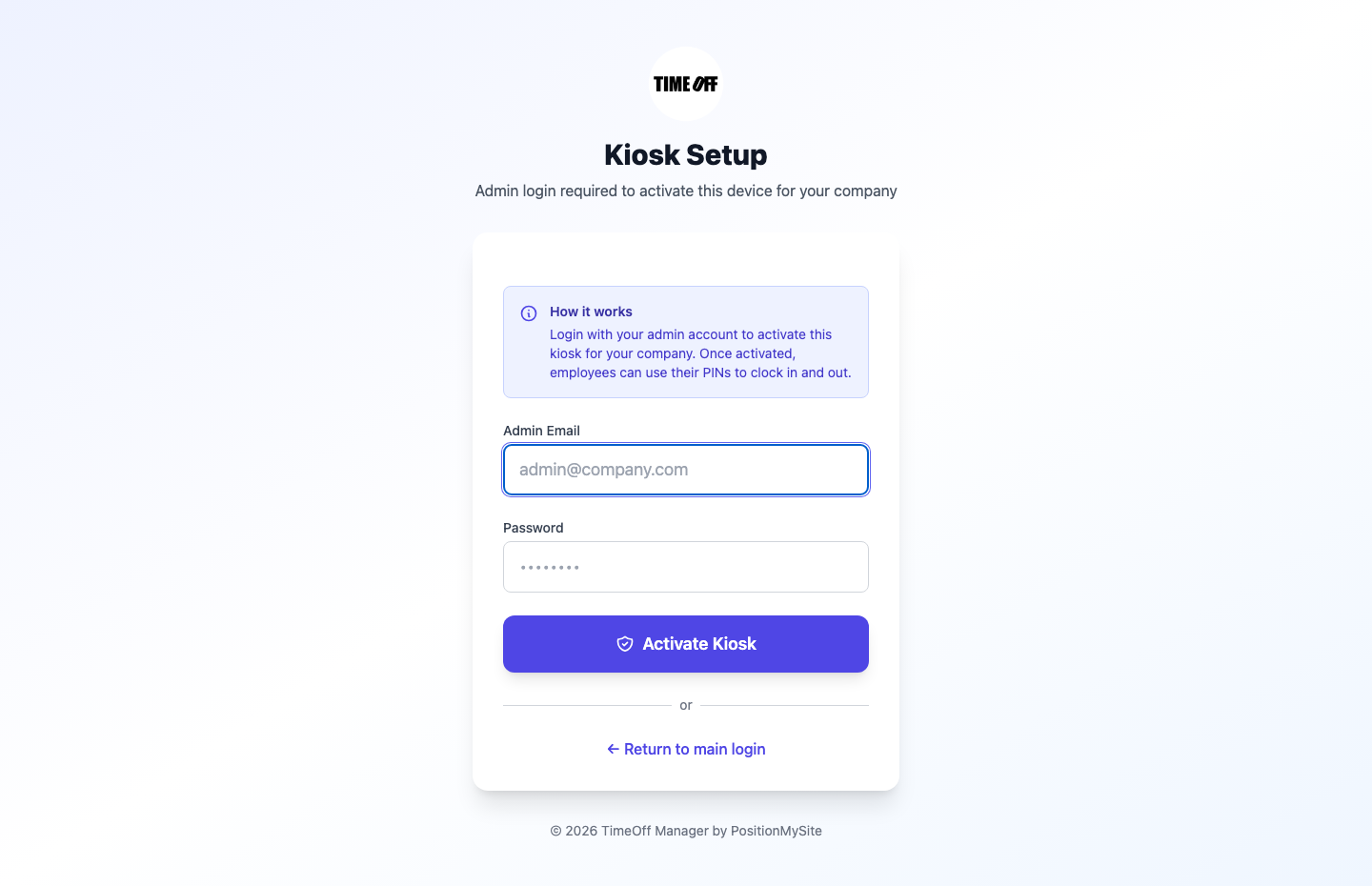
If you want an extra check on who's clocking in, the kiosk follows the same clock rules as the web clock, including GPS and selfie if your admin turns them on. If you're worried about one person clocking in for a coworker, our post on kiosk selfie checks covers how that works.
Who should clock in? Usually the people you pay by the hour: techs, opticians, the contact lens tech, the front desk and lab staff. Many practices pay optometrists a salary and leave them off the clock. If an associate OD is paid by the day or by the hour, decide with your accountant whether you need their hours tracked too.
One setting to decide early is Require a schedule to clock in, under Company settings and Clock rules. When it's on, people can only clock in on days they're scheduled, and the PIN kiosk enforces it for everyone, admins included. That keeps your roster tidy. It also means a tech you call in on short notice for a packed Saturday can't clock in until that shift is on the schedule. Either leave the rule off or have whoever makes the call add the shift first.
Schedule the exam side and the optical side separately
The fastest way to a clean schedule is to stop building each week from scratch. Write down the shifts you actually run as shift templates. For a typical vision center that might be:
- An exam day for techs, from 8:30 to 5:00
- An optical opening shift, from 9:30 to 6:00
- An evening optical shift, from noon to 8:00 on late nights
- A Saturday shift for both sides
- A short lab or edging shift, if you finish lenses in house
Each template holds the days and times, and you can tie it to a work location. Then assign templates from schedule management, one person at a time or in bulk. Staff see their week in My Schedule, so "am I working Saturday?" stops being a text message.
Keep your Saturday and evening people on their own patterns. A part-time optician who only works Saturdays and Thursday nights shouldn't share a template with your full-time weekday dispenser just because they have the same job title.
Then set limits that match how you staff. In schedule validation rules, a company admin can set daily and weekly hour limits, shift lengths, breaks and consecutive days. That's how you catch the tech who ends up booked for six days in a row during the December rush.
For a broader look at building rosters for a small team, see our guide to shift scheduling software for small business.
Floaters and more than one store
If you run two or three locations, save each one as its own work location. A company admin adds the address, and can set a GPS geofence if you want clock-ins checked against the site. Shifts can be assigned to a location, so your schedule shows that your lead optician is at the north store Tuesday and the main store Thursday.
When she clocks in on that store's tablet, or on her own phone with the signed-in TimeOff Manager Pro app, you can see where the clock-in happened. At the end of the week the hours aren't buried on the wrong store's sheet. If you split labor costs by store for your accountant, that's the difference between a guess and a number.
Two practical notes for groups:
- Decide how drive time is handled. Time spent driving from one store to another during the workday is usually work time. If someone ends at the north store and starts at the main store after lunch, plan for that time.
- Use one clock per store. One tablet per location makes it obvious where people were. Don't let a store "borrow" another store's kiosk.
Hours by type of work: pretest, optical, lab
Many vision center owners want to know where the hours go. Is the optical floor overstaffed on Tuesday mornings? How much time goes into frame board cleanup and inventory counts? That's what work activities are for.
Work activities are optional and off by default. A company admin turns them on and adds a short list, for example Pretest, Optical floor, Contact lens training, Lab and edging, and Inventory. Staff who are clocked in can tap Switch activity on the kiosk or in the app when they move from one job to another, without clocking out. When tracking is on, the activity report shows time by activity.
Keep the list short. Five activities your team actually uses beat twenty that nobody remembers to switch. If you're new to this, our post on work activities and job codes explains how to set it up.
The year-end rush: time off and coverage
November and December are often the busiest weeks in a vision center. Many patients' vision insurance benefits reset on January 1, and some flexible spending accounts have year-end deadlines, so people book exams and order glasses before the year runs out. That's also when your staff want time off for the holidays.
Here's how to keep both sides happy:
- Ask for holiday requests early. Staff request time off in the app from My requests, including partial days for a school concert or an appointment. See hourly and partial-day PTO for how half days work.
- Approve from one queue. Managers approve requests from manage requests and can see each person's remaining balance before saying yes.
- Look at the calendar before you approve. Approved time off shows on the team calendar, so you can see that two of your three opticians already have the week of December 22 off.
- Approve before you publish the schedule. That one rule prevents most short Saturdays.
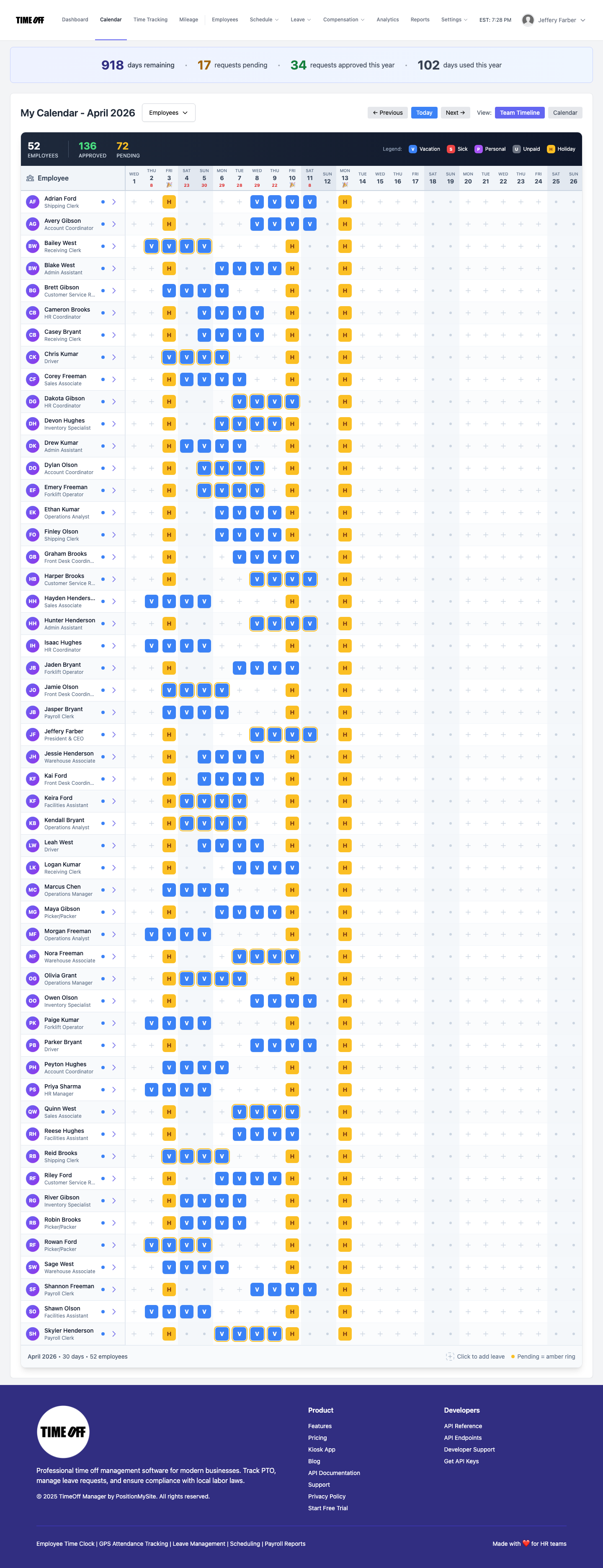
If opticians in your state need continuing education to renew a license, and custom leave types are turned on, a company admin can add a type such as Continuing education in leave types. Vacation and sick are always there. If you grant PTO by policy, PTO software keeps the balances so you aren't adding up days in a spreadsheet. Also, add your store's closed days in holiday management so nobody is scheduled on Christmas Day.
Overtime during the rush
A packed December is how a full-time tech hits 46 hours without anyone noticing. A company admin sets overtime thresholds in overtime rules, company-wide or per person. Extra hours show on the timesheet, so a manager reviewing the week in the manager timesheet sees overtime while there's still time to do something about it.
That gives you real choices. Move a Saturday shift to a part-timer, send someone home early on Friday, or approve the overtime because the book needed it. Any of those is fine. Finding out on payday isn't.
When people forget to clock out after a late night on the optical floor, they don't need to email you. They file a forgot-to-clock request with the real time and a note. A manager approves it from the approvals inbox, and the timesheet keeps a record of the change. We cover that flow in how to fix a missed clock-in or clock-out.
For more on the clock side, see time tracking software.
Payroll: approved hours, nothing else
At the end of the pay period, a manager reviews and approves hours, then downloads them as Excel or CSV for your bookkeeper or payroll provider. TimeOff Manager doesn't store exams, prescriptions or frame inventory, and it doesn't replace your payroll provider. It hands payroll real hours instead of a week pieced together from a binder. If your accountant needs their own login to pull reports, see accountant access.
If you pay opticians a commission or bonus on eyewear sales, give your payroll provider both the hours and the commission for the same week. In the US, that matters for overtime, as the next section explains.
A simple setup for a vision center
- Add your hourly staff: techs, opticians, contact lens tech, front desk and lab. Leave salaried optometrists off the clock if you don't need their hours.
- Save each store as a work location.
- Create four or five shift templates: exam day, optical opening, evening optical, Saturday and lab.
- Decide on the Require a schedule to clock in rule and how last-minute shifts get added.
- Set overtime thresholds and schedule validation limits that match your state or province.
- Turn on work activities if you want hours by pretest, optical and lab.
- Activate a tablet at each front desk and hand out PINs.
- Open holiday requests for November and December early, and approve them before you publish the schedule.
- Run two pay periods next to your old method, then switch.
For the short version of how this works in an eye care office, see our optometry page. If you also run a dental or medical practice, our posts on dental office time clocks and physician practice PTO coverage cover those teams.
Rules worth checking
This is not legal advice. A few rules matter more in vision centers than in most small businesses:
- Exempt vs hourly. In the US, optometrists paid on a salary basis often qualify as exempt professionals. Techs, opticians and front desk staff are usually non-exempt and owed overtime after 40 hours in a workweek under the FLSA. Some states, such as California, also have daily overtime.
- Commissions and overtime. Under the FLSA, commissions and most bonuses count toward an hourly employee's regular rate, which raises their overtime rate. The US Department of Labor explains this in Fact Sheet #56A on the regular rate.
- Opening and closing time. Time spent turning on equipment, cleaning or closing the register before or after the shift is generally work time. Have people clock in when they start that work.
- Canada. Overtime thresholds differ by province. Ontario, for example, generally pays overtime after 44 hours a week; see the Ontario overtime guide. Public holiday rules also differ by province.
- Optician licensing. Some states and provinces license opticians and require continuing education. Check your board, and decide whether CE time is paid under your policy.
Try it with your vision center
Start with a full year free to try it with your team. You pay $0 for 12 months. A card is required to start, and the yearly price is charged on the anniversary unless you cancel first. After that, Starter (1 to 20 people) is $180 a year, Growth (21 to 50) is $300 a year, and Scale (51 to 1,000) is $479.90 a year or $49.99 a month. Get comfortable before you decide: add your stores and staff, build a December week and see how a busy Saturday looks.
FAQ
Do optometrists need to clock in?
Not if you only need hours for hourly staff. Many practices pay optometrists a salary and treat them as exempt, so they stay off the clock. Clock in the people you pay by the hour, usually techs, opticians, the front desk and lab staff. Your accountant should confirm who is exempt.
Can staff who float between stores clock in at either location?
Yes. Save each store as a work location and assign shifts to the store where the person is working. They clock in on that store's tablet or on their own phone with the TimeOff Manager Pro app, and you can see where each clock-in happened.
Can I see hours for pretest, optical and lab separately?
Yes, if you turn on work activities. A company admin adds activities such as Pretest, Optical floor and Lab. Staff switch activities on the kiosk or in the app without clocking out, and the activity report shows time by activity.
How do I keep the December rush covered when everyone wants time off?
Ask for holiday requests early, check the team calendar before you approve, and approve time off before you publish the schedule. Managers see each person's remaining balance before they say yes.
Will it flag overtime during a busy week?
Overtime rules are set by a company admin, with company-wide thresholds and optional per-employee rules. Extra hours show on the timesheet so a manager can see them before payroll.
What if an optician forgets to clock out after a late night?
They submit a forgot-to-clock request with the real time and a note. A manager approves it from the approvals inbox, and the timesheet keeps a record of the change.
Does TimeOff Manager store exams, prescriptions or frame inventory?
No. Exams, prescriptions, insurance claims and frame inventory stay in your practice management and optical software. TimeOff Manager handles staff clock-ins, schedules, overtime, time off and approved hours.