Stop Kiosk Selfie Fraud: Shared PIN + Selfie Photo Rules (2026)
Shared-PIN / kiosk selfie fraud empties payroll. TimeOff Manager pairs a shared-device PIN kiosk with Clock Rules Require Photo (AI face check) and optional GPS geofencing at work locations—so the person who clocks in is the person on the roster.

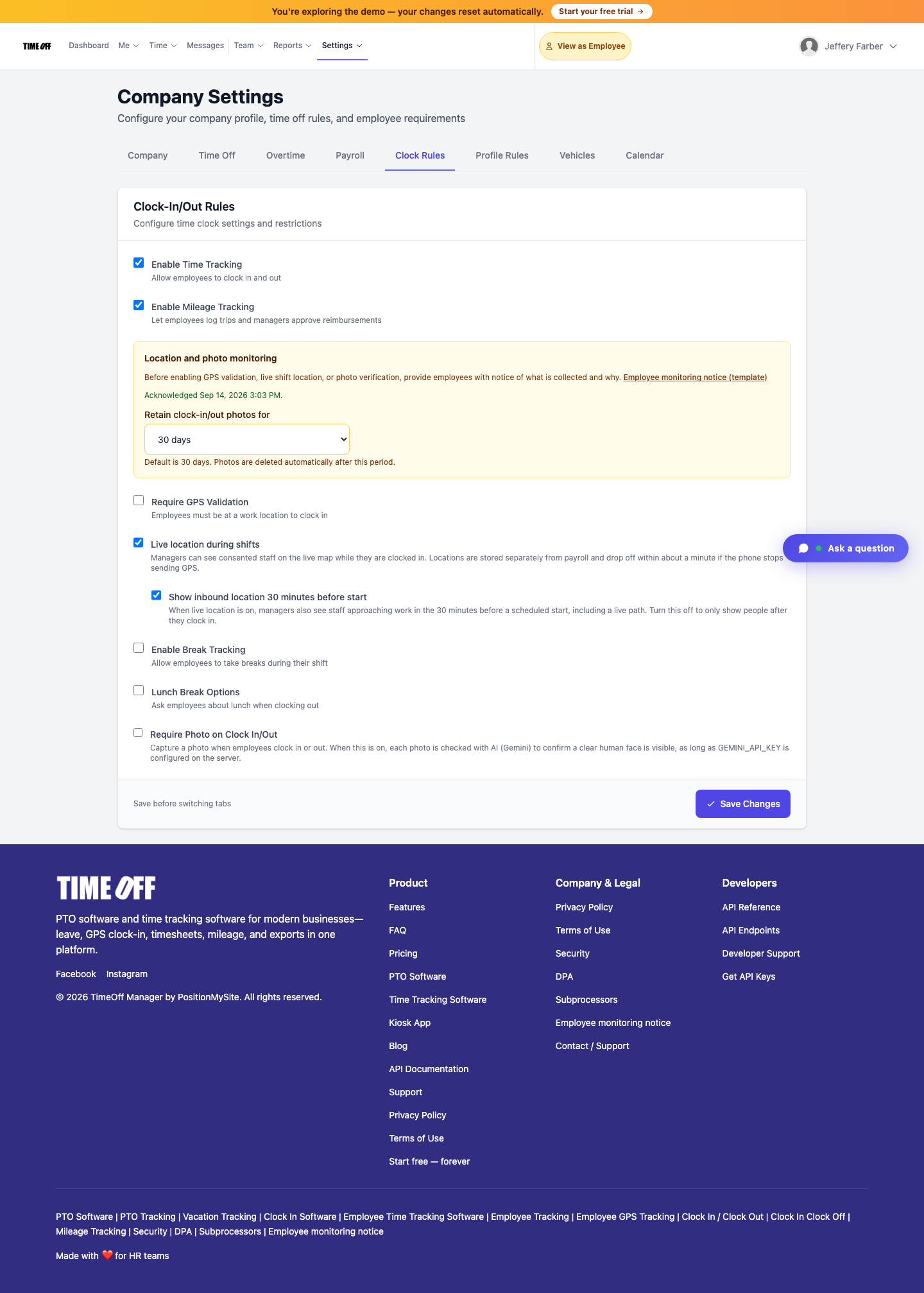
Shared-device PIN kiosk with Require Photo and optional GPS geofencing.
If the same PIN keeps showing up for two people on the same shift—or someone clocks in from the parking lot while a coworker is already on the floor—you do not have a “timesheet attitude problem.” You have a buddy-punching problem. The fix is not another spreadsheet audit. It is making every clock-in prove who and where.
TimeOff Manager stacks three controls most SMBs never wire together: a shared-device PIN kiosk at the door, Require Photo on Clock In/Out in Clock Rules (each photo is checked for a clear human face), and optional GPS validation against work-location geofences. That is a signup story that still sits open: GPS clock posts already rank in Search Console, but the anti-fraud path—PIN + selfie + geofence—is the underused conversion angle.
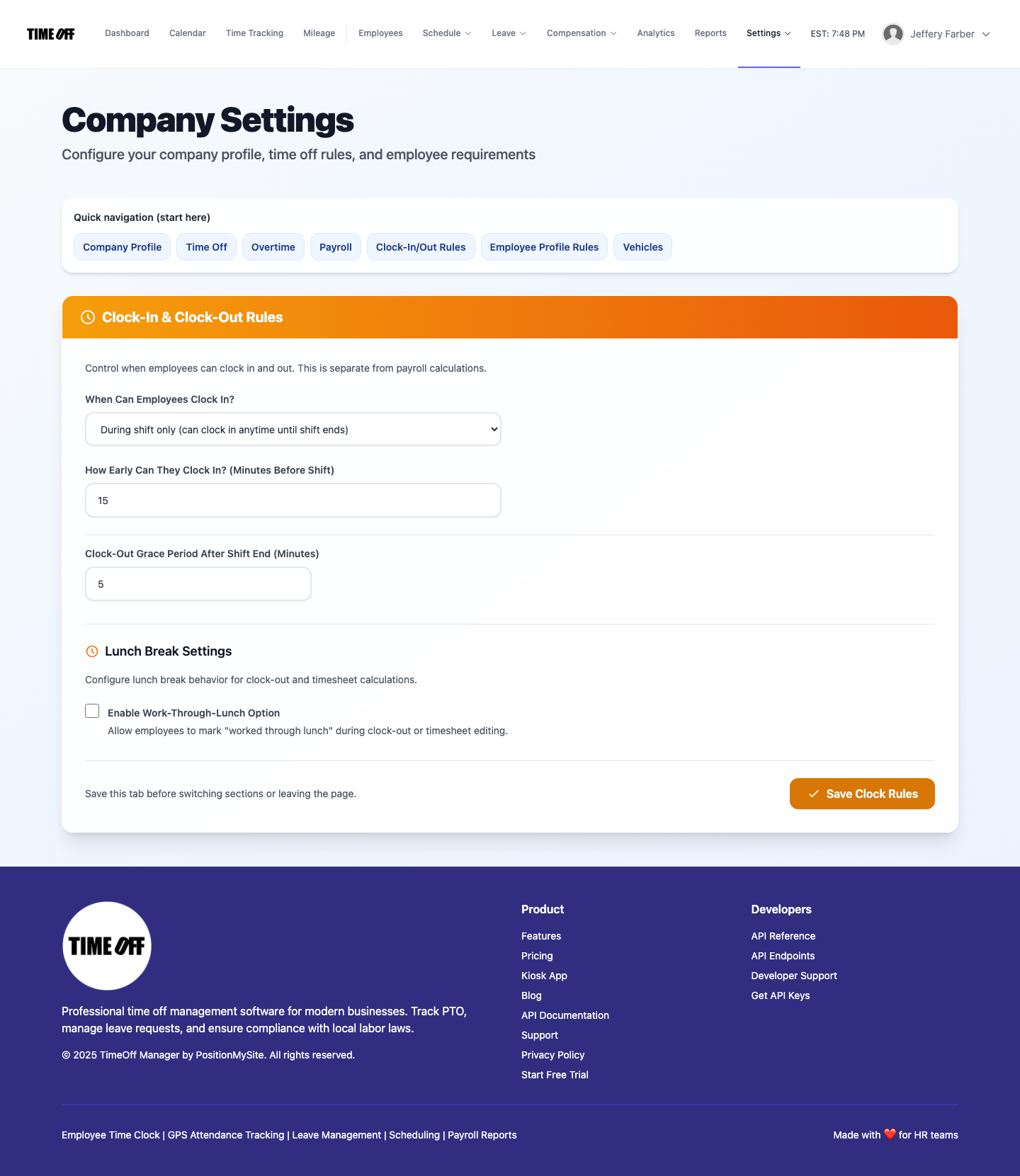
Why shared-PIN / kiosk selfie fraud still slips into SMB payroll
On timeoffmanager.us, the last 28 days of analytics still concentrate on homepage, company registration, dashboard, and login—with active use of leave, calendar, and kiosk surfaces. Search still shows demand around PTO software and “time clock app with GPS for small business,” and the help doc for the PIN kiosk earns impressions. Existing GPS blog posts already cover “clock in with location.” What is missing is the blunt ops story: stop the friend who clocks in for someone who is late.
Typical failure modes look familiar on shared tablets and warehouse floors:
- One device, many people, and a PIN that gets whispered across the break room
- Clock-in from home or the parking lot because GPS was never required
- No photo on the clock-in, so disputes become “he said / she said” on payday
- Managers chase screenshots instead of reading Clock Rules that already exist in the product
PIN alone is not enough. Photo alone is not enough. Geofence alone is not enough. The stack is the point.
Layer 1: TimeOff Kiosk (PIN on a dedicated device)
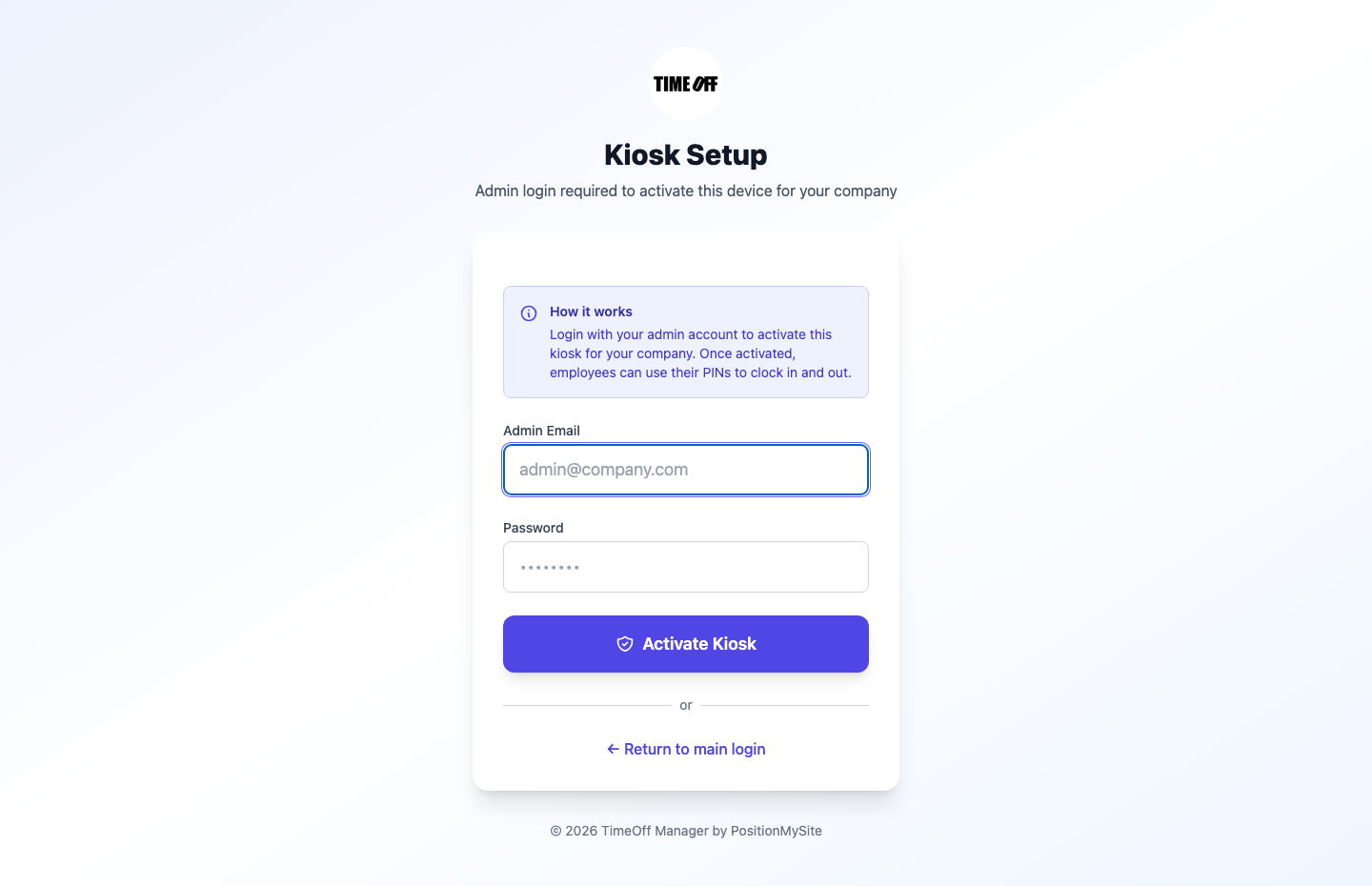
Path: /clockin (browser) or the TimeOff Kiosk app. This is a shared-device clock, not the signed-in employee phone app.
Company admin or HR activates the device once. After activation, employees clock-in with their PIN—no full email login on the tablet. Treat the hardware as dedicated (front desk, shop floor, warehouse entrance). GPS and selfie still follow the same Clock Rules as web/mobile clock-in, so the kiosk inherits your photo and location policy instead of inventing a second rulebook.
Need the longer walkthrough? See TimeOff Kiosk (PIN clock).
Layer 2: Require Photo on Clock In/Out (selfie / face check)
Path: /company/settings → Clock Rules.
Turn on Require Photo on Clock In/Out. When someone clock-ins, the product captures a photo and checks that a clear human face is visible. Pair that with photo retention (for example 30 days) and the employee-monitoring notice your counsel wants on file—the Clock Rules screen surfaces that acknowledgment path so you are not improvising policy in Slack.
Shared-PIN / kiosk selfie fraud thrives when a PIN is transferable and the clock-in is faceless. A required photo makes “I clocked in for Jake” a visible lie, not a rumor.
Layer 3: GPS validation + work-location geofences
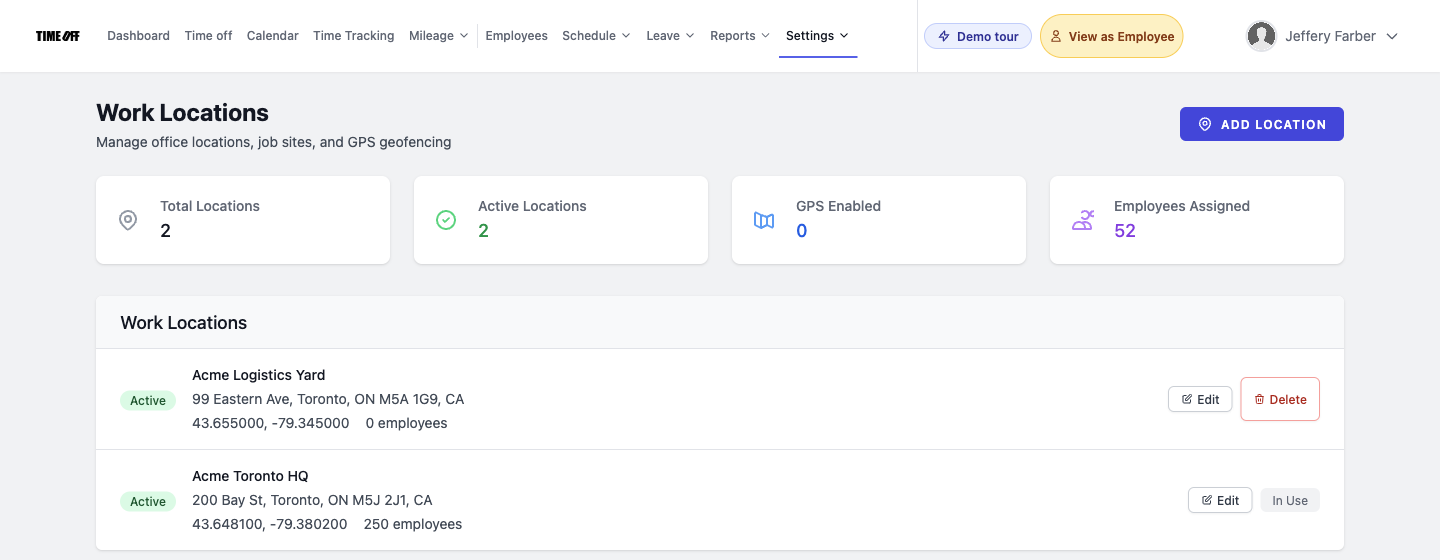
In Clock Rules, enable Require GPS Validation so employees must be at a work location to clock in. Maintain those sites under /admin/work-locations: address, coordinates, and geofence radius. Optional Live location during shifts (and inbound 30 minutes before start) helps managers see consented staff on the live map—useful for field crews, distinct from the clock-in-time geofence check.
Help: Work locations (admin) · Live staff map.
How to turn it on (real product path)
- Sign in as company admin
- Open Company Settings → Clock Rules at
/company/settings - Enable time tracking; turn on Require Photo on Clock In/Out; set photo retention
- Optionally enable Require GPS Validation and Live location during shifts
- Add or edit sites at
/admin/work-locationswith geofence radii - Activate a dedicated device at
/clockin(or the Kiosk app) so floor staff clock-in with PIN under those same rules - Click Save Changes on Clock Rules and spot-check a test clock-in with photo + location
Who this is for
- Owners tired of paying for hours that never happened
- Warehouse, retail, clinic, and shop teams that share a front-desk tablet
- Field crews that need GPS at the job site plus a photo when policy requires it
- HR managers who want Clock Rules in one place instead of three vendor logins
Start your 1 year free trial (then Starter, Growth, or Scale)
Wire kiosk PIN, Require Photo, and geofences on your own company workspace before the next pay run—not after another buddy-punch dispute.
You get a 1 year free trial and pay $0 for 12 months. A card starts the year. Nothing is charged until then. Cancel before your anniversary and you owe nothing; otherwise choose Starter, Growth, or Scale based on seats and features. Register at https://timeoffmanager.us/register/company.
Related: Help: TimeOff Kiosk · Help: Company settings / Clock Rules · Kiosk app