GPS Time Cards: How to Read a GPS Timesheet Before Payroll (2026)
What a GPS time card should show, how to check one in about a minute before you approve the week, which red flags matter, and what GPS can't prove.


Check the odd days, the clock-in locations and the failed attempts, then approve the week.
It's Monday morning and payroll closes at noon. One of your cleaners shows 9.5 hours on Thursday. The paper card says 6:00 to 3:30, in handwriting that looks a lot like the handwriting on Friday's card. Was she at the client's building at 6:00? You don't know, and you don't have time to find out, so you approve it and move on.
A GPS time card fixes the "were they actually there?" part. But only if someone reads it. Plenty of businesses switch to a GPS timesheet and still approve the week like paper: glance at the total, click approve. This guide covers what a GPS time card should show, how to read one in about a minute per person, which red flags matter, and what GPS can't prove, so you don't lean on it for the wrong things.
Why paper and spreadsheet time cards stop working
Paper cards and shared spreadsheets work when everyone starts in the same room. They break the moment people start somewhere else.
- Times get written after the fact. A card filled in on Friday afternoon is a memory, not a record.
- Nobody can check the place. "Job site, 7:00" doesn't say which job site, and a crew lead texting "we're here" isn't something you can file.
- Missing clock-outs get guessed. Someone forgot to clock out, so the manager types in "5:00" because that's when shifts usually end.
A GPS time card won't make anyone more honest. It makes the honest majority easy to approve and the odd exception easy to spot.
What a GPS time card should actually show
A good GPS timesheet is still a time card, with more evidence on each line. Expect this on every entry:
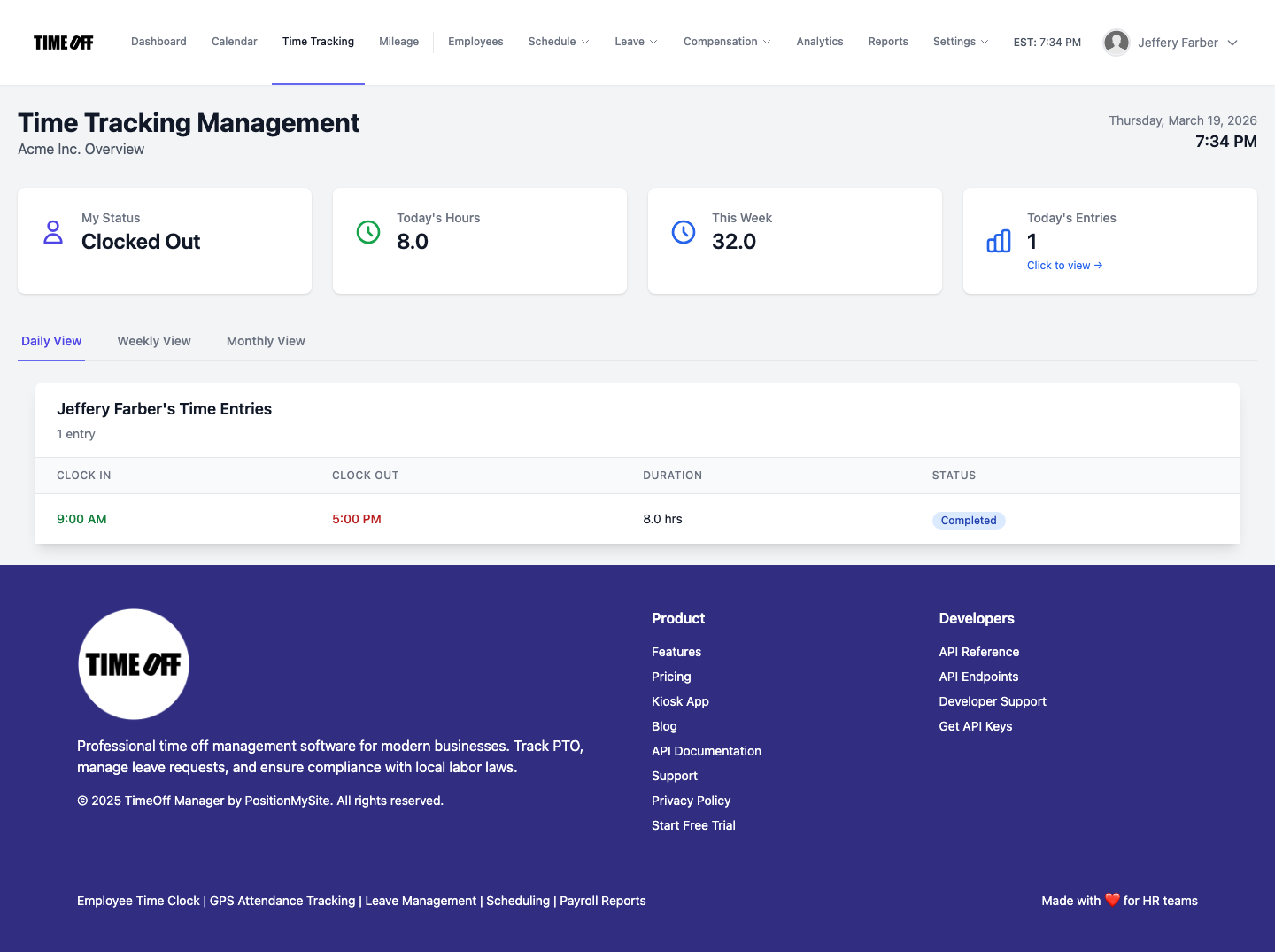
- Date, clock-in time, clock-out time and duration. The basics.
- The location of the clock-in and the clock-out. In TimeOff Manager, the app saves the GPS point and the address with the time, and a manager can open the entry to see where it happened.
- A photo, if you require one. With "Require photo on clock in/out" turned on in clock rules, the photo sits on the entry. You choose how long clock photos are kept (30 days by default), and they're deleted automatically after that.
- The work location it was checked against. If the site has a geofence, the clock-in only succeeds inside the circle you drew.
- Regular and overtime hours split out on the weekly view, based on your company's overtime rules.
- A trail of corrections. Missed or wrong times go through a request that a manager approves, so the fix is visible instead of silently typed over.
Employee vs manager: who sees what
Employees
Staff clock in on their own phone with the TimeOff Manager Pro app, on the website, or with a PIN on a shared tablet using TimeOff Kiosk. Their personal timesheet shows clock status, hours today, hours this week and each entry, including photo and GPS details when your company captures them. If they forgot to clock in or out, they send a missed clock-in request with the date, times and a reason, and it waits for a manager. If the times are right but payroll needs a note, they use payroll day notes instead.
Managers, HR and admins
Leaders work from the Timesheet hub at /timesheet with Daily, Weekly and Monthly views. Each entry shows the clock-in and clock-out address, and you can open it to see the spot on a map. If a location looks wrong, a manager, HR manager or admin can flag that clock-in or clock-out as suspicious and add a reason. The entry then carries a "Flagged" marker, which is a lot better than a sticky note.
Leaders also get the failed clock-in / clock-out log. It records attempts that were blocked (by the geofence, the schedule window, validation or a wrong PIN) along with the reason. For a geofence block it shows how far the person was from the site and what radius was allowed. Most owners never open it, and it's often the most useful page on a Monday.
How to read a GPS time card in about a minute
You don't need to inspect every entry, just the few that matter. Here's the routine we suggest for each person, each week:
1. Start with the total, then the outliers
Open the Weekly view. Look for days much longer or shorter than the schedule, and overtime you didn't expect. Only open those days.
2. Check the location on the odd days
Open the entry. Does the clock-in address match the site they were scheduled at? A clock-in two blocks from the site at 6:58 is a person walking in from parking. A clock-in at a home address at 6:00 for a 7:00 site start is a conversation.
3. Look for open shifts
An entry with a clock-in and no clock-out is the most common error on any time card. Don't type a clock-out over it. Ask the employee to submit a missed clock-in request so the correction has a reason and an approver.
4. Read the failed attempts
Several blocked clock-ins at 7:02, 7:04 and 7:09, then a success at 7:11, usually means the person was on site and the geofence radius is too tight. One blocked attempt from 3 km away, followed by nothing, means something else. Either way, you learn more from the failures than from the successes.
5. Flag, don't fix, anything you're unsure about
If a location looks off and you can't resolve it now, flag it with a reason and approve the rest. Payroll doesn't wait on one question.
For the full weekly approval rhythm (who approves, when, and how leave and overtime fit in), see our timesheet approval guide. This post is about reading the GPS evidence on each line.
Red flags that matter (and ones that don't)
GPS data is noisy. Phones drift and big sites have several entrances. These are worth a look:
- The same person clocking in from the same off-site address every day. Patterns matter more than one odd point.
- A clock-in far from the site, right before a long shift. Especially if it's paired with an early start time.
- Repeated failed attempts from far away. Someone trying to clock in from home is different from someone standing at the gate.
And these usually aren't a problem:
- A pin a few dozen meters off the building. That's normal phone accuracy, not fraud.
- A clock-in that syncs late. If the phone had no signal, the app saved the event on the device and sent it later. The time and GPS are from the moment of the tap, not the moment it synced.
What GPS on a time card can't prove
GPS tells you where someone was when they tapped. It doesn't tell you everything about the hours in between.
- It doesn't prove work stopped at clock-out. Under the FLSA, work that's "suffered or permitted" counts as hours worked even if nobody asked for it. If someone keeps working after clocking out, a clean GPS time card doesn't make that time unpaid. See the U.S. Department of Labor's Fact Sheet #22 on hours worked.
- It doesn't decide which travel counts. The same fact sheet says travel between job sites during the workday is work time, while ordinary home-to-work travel generally isn't. GPS shows the pattern; the rule decides what you pay.
- It isn't the live map. The live staff map is a separate company setting that shows consented staff during the live-location window, with a short rolling GPS history. GPS on clock-in is just the point at the start and end of the shift. You can use one, the other or both.
Setting up GPS time cards in TimeOff Manager
If you're still choosing a clock-in app, start with our guide to a clock-in app with GPS for small business. If you've picked one and want time cards you can trust, this is the setup that matters.
1. Add your work locations
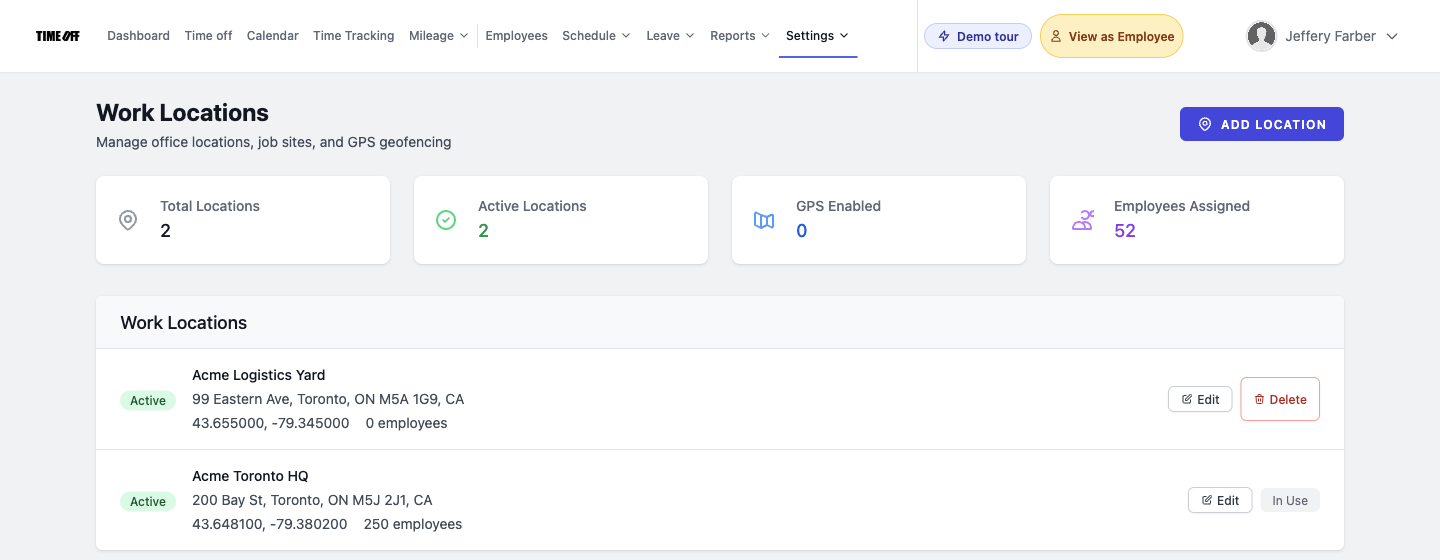
Under Work Locations, add each office, shop or job site with its address and coordinates. Turn on GPS validation for the sites where people must be inside a geofence to clock in, and set a radius that fits the site. A parking lot across the street needs a bigger circle than a storefront.
2. Set your clock rules
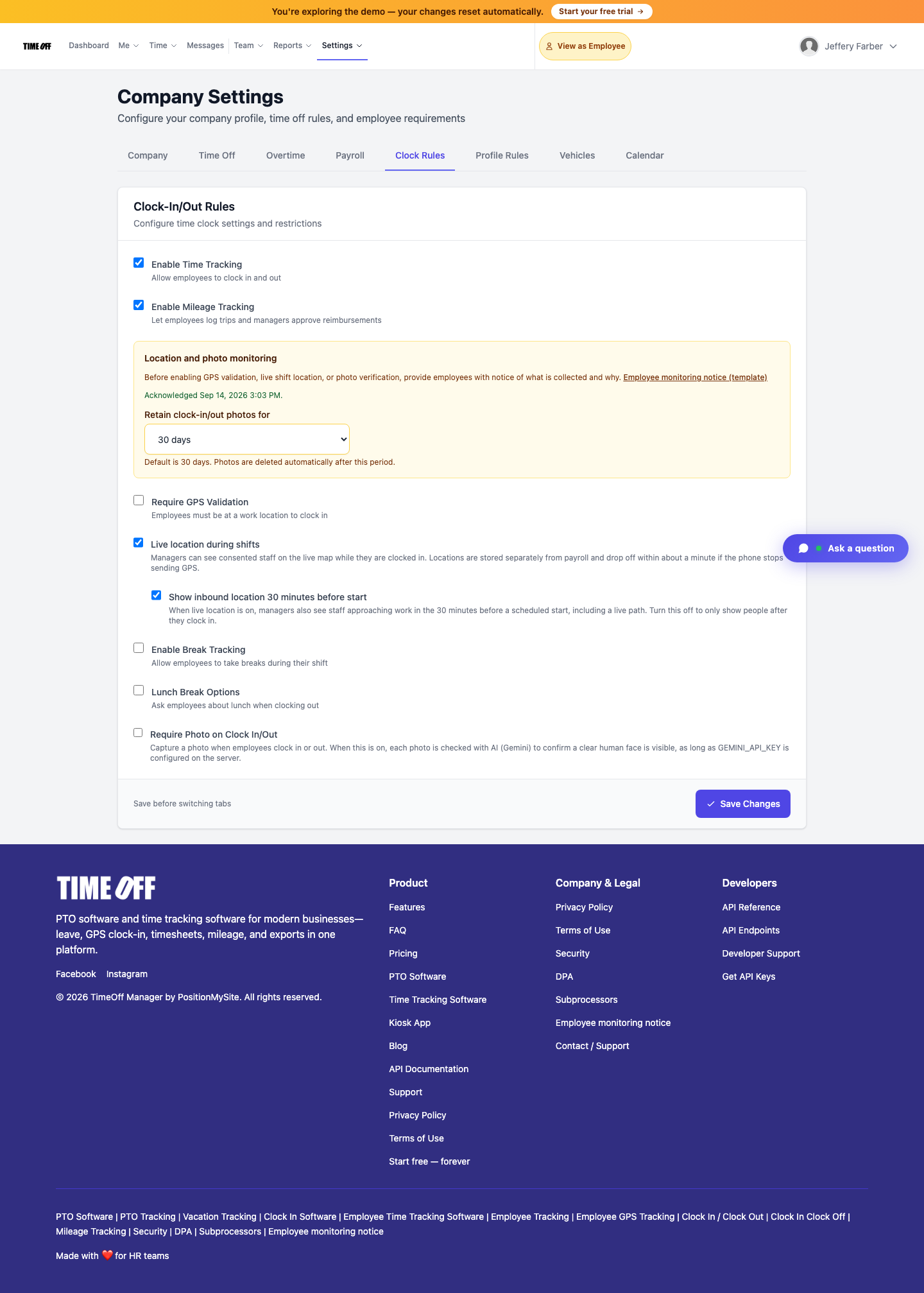
In Company settings under Clock Rules, decide whether GPS validation is required, whether a photo is required on clock-in and clock-out, how long photos are kept, and whether break tracking is on. Before you turn on GPS validation, live location or photo checks, the settings page asks you to give staff notice of what's collected and why. There's an employee monitoring notice template you can start from.
3. Pick the clock for each group
Crews and field staff on their own phones use TimeOff Manager Pro, which keeps working without signal and syncs later. A shop or warehouse door can use a shared tablet with the PIN kiosk, which follows the same GPS and photo rules. Office staff can clock in on the website.
4. Approve, then export
Once the week is clean, run the Payroll Hours Report under Reports and download Excel or CSV for whoever runs payroll. TimeOff Manager doesn't calculate pay or taxes. It hands over approved hours, overtime and leave, not location data.
For a feature overview of geofencing and the live map, see the GPS time clock page. For the full list of time tracking features, see time tracking software.
Compliance notes (not legal advice)
This is not legal advice. Check the rules where your staff work, and talk to your payroll provider or employment lawyer about your situation.
- United States: any method, as long as it's accurate. The Department of Labor's Fact Sheet #21 on FLSA recordkeeping says employers may use any timekeeping method they choose, as long as it's complete and accurate. Records for non-exempt staff must include hours worked each day and total hours each workweek. Payroll records are kept at least three years, and records wages are based on, like time cards and work schedules, at least two years.
- Ontario: dates, times and hours, kept three years. Ontario's record keeping chapter of the ESA guide says employers must record the dates and times employees worked and the hours worked each day and each week, and keep them for three years after the day or week of work (with narrower rules for some salaried staff).
- Ontario: written electronic monitoring policy at 25+ employees. Employers with 25 or more employees in Ontario on January 1 must have a written policy on electronic monitoring in place before March 1 of that year. The ESA guide on the written policy on electronic monitoring lists GPS as an example of electronic monitoring. The policy has to say whether you monitor, how and when, and what you use the information for.
- Everywhere else. Tell staff in writing what you collect, when and why. People accept GPS on clock-in far more easily when they know it stops at clock-out.
Common mistakes with GPS timesheets
- A geofence radius that's too tight. People pile up at the gate, the failed log fills up, and staff stop trusting the clock. Widen it until real arrivals pass.
- Typing over missing clock-outs. Use the missed clock-in request so the fix has a reason and an approver. Our guide to fixing a missed clock-in covers the details.
- Turning on everything at once. Start with GPS on clock-in at your main sites. Add photos or the live staff map only if you have a problem they solve.
Try it with your team
A full year to try it with your team. Get comfortable before you pay. Start your free year: you pay $0 for 12 months. A card is required to start, and the yearly price is charged on your anniversary unless you cancel first. After the year, Starter (1 to 20 people) is $180 per year, Growth (21 to 50) is $300 per year, and Scale (51 to 1,000) is $479.90 per year or $49.99 per month.
Want to see the screens first? Click through a sample company, or read about the phone app and the shared-tablet kiosk.
FAQ
What is a GPS time card?
A GPS time card is a normal time card (date, clock-in, clock-out, total hours) where every clock-in and clock-out also carries the location where it happened. In TimeOff Manager that means the GPS point and the address saved with the time, plus a photo if your clock rules require one. It is not a trail of everywhere the person went.
Is a GPS timesheet legally required?
No. In the U.S., the Department of Labor says employers may use any timekeeping method as long as the records are complete and accurate. GPS is evidence that helps you trust the hours, not a required field. This is not legal advice, so check the rules where your staff work.
What should a manager check on a GPS time card before approving it?
Check four things: that the clock-in and clock-out addresses match where the person was scheduled, that nobody has an open shift with no clock-out, that any failed clock-in attempts that day are explained, and that overtime on the weekly grid makes sense. Fix missing times through a missed clock-in request, not by typing over the record.
Can employees clock in without cell signal and still get a GPS time card?
Yes, on the TimeOff Manager Pro phone app and the TimeOff Kiosk app. The clock event is saved on the device with the time you tapped, the GPS and the photo if required, then sent when the signal comes back. Geofence and schedule rules are checked against what was captured at the tap, not where the phone is when it syncs. The website clock-in page does not queue offline.
Does a GPS time card mean we track employees all day?
No. GPS on the clock-in is a single point saved when someone clocks in or out. The live staff map is a separate company setting that shows consented staff only during the live-location window and stops when they clock out. You can require GPS on clock-in and leave the live map off.
How does the 1 year free offer work?
A full year to try it with your team. New companies pay $0 for 12 months. A card is required to start, and the yearly price is charged on your anniversary unless you cancel first. After the year, Starter (1 to 20 people) is $180 per year, Growth (21 to 50) is $300 per year, and Scale (51 to 1,000) is $479.90 per year or $49.99 per month.