Live Staff Map in TimeOff Manager Pro: See Who’s Inbound (2026)
TimeOff Manager Pro gives managers live insight into their people: who is inbound ~30 minutes before a shift, who is on site, and who clocked in—until they clock out. Pair that with GPS clock-in geofencing. Full payroll and AP/AR coming soon at the same pricing.

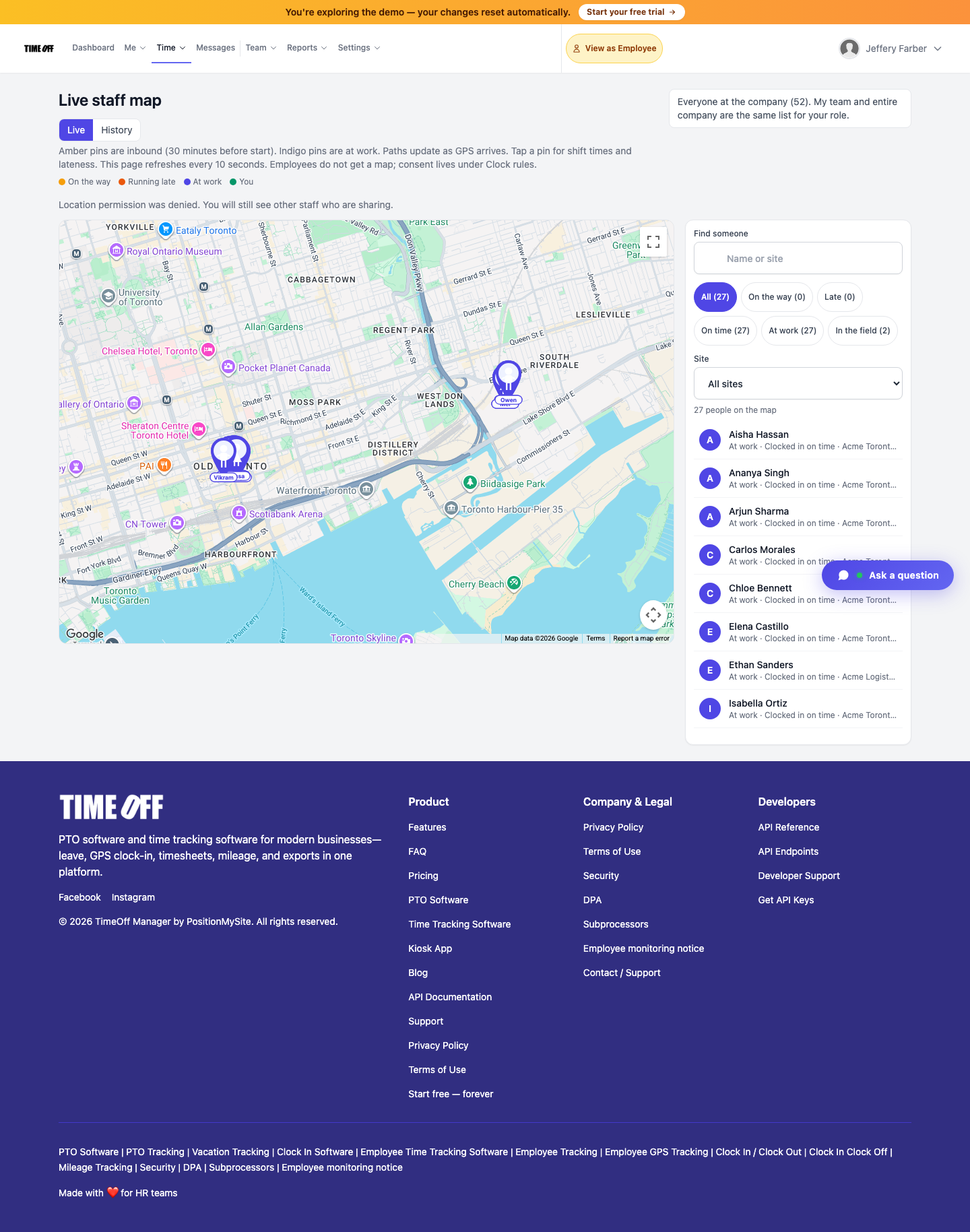
TimeOff Manager Pro gives managers live insight into their people: who is inbound ~30 minutes before a shift, who is on site, and who clocked in—until they clock out. Pair that with GPS clock-in geofencing. Full payroll and AP/AR coming soon at the same pricing.
TimeOff Manager Pro is how managers get real insight into their people—not another timesheet spreadsheet after the fact. On the signed-in phone app (same work email as the website), you see who is on their way to work about 30 minutes before the shift, who is already on site, who clocked in versus who did not, and who is online. Tracking stops when they clock out. That privacy boundary is intentional: live location is for the shift window, not forever surveillance.
Pair that ops power with GPS on the clock-in (work-location geofencing + Clock Rules Require GPS Validation) and you cover two different questions: were they at a site when they clocked in? versus are they inbound or on shift right now? Those are not the same feature—and Pro is what makes both real for field and multi-site teams.
What managers get in Pro today (live / shippable)
- Live staff map — see employees on their way to work roughly 30 minutes before shifts; know if they are actually inbound or not
- On-site during the shift — indigo “at work” pins and filters for who is clocked in on time, late, or in the field
- Tracking ends at clock-out — live location is for the shift window; locations drop off when the phone stops sharing after the clock-out
- PTO in the same app — approve and see leave requests; view and adjust PTO balances where your role allows
- Attendance clarity — see who clocked in versus who did not; who is online versus not during the live window
- Photo + GPS on the clock-in — optional Require Photo and Require GPS Validation in Clock Rules; leave, mileage, schedule, and pay stubs stay with that person
For business owners, that is the difference between guessing from Slack and running the day from one screen. TimeOff becomes much more powerful when Pro is on every manager’s phone—not only when payroll is due.
Clock-in GPS is a moment. The live map is the shift.
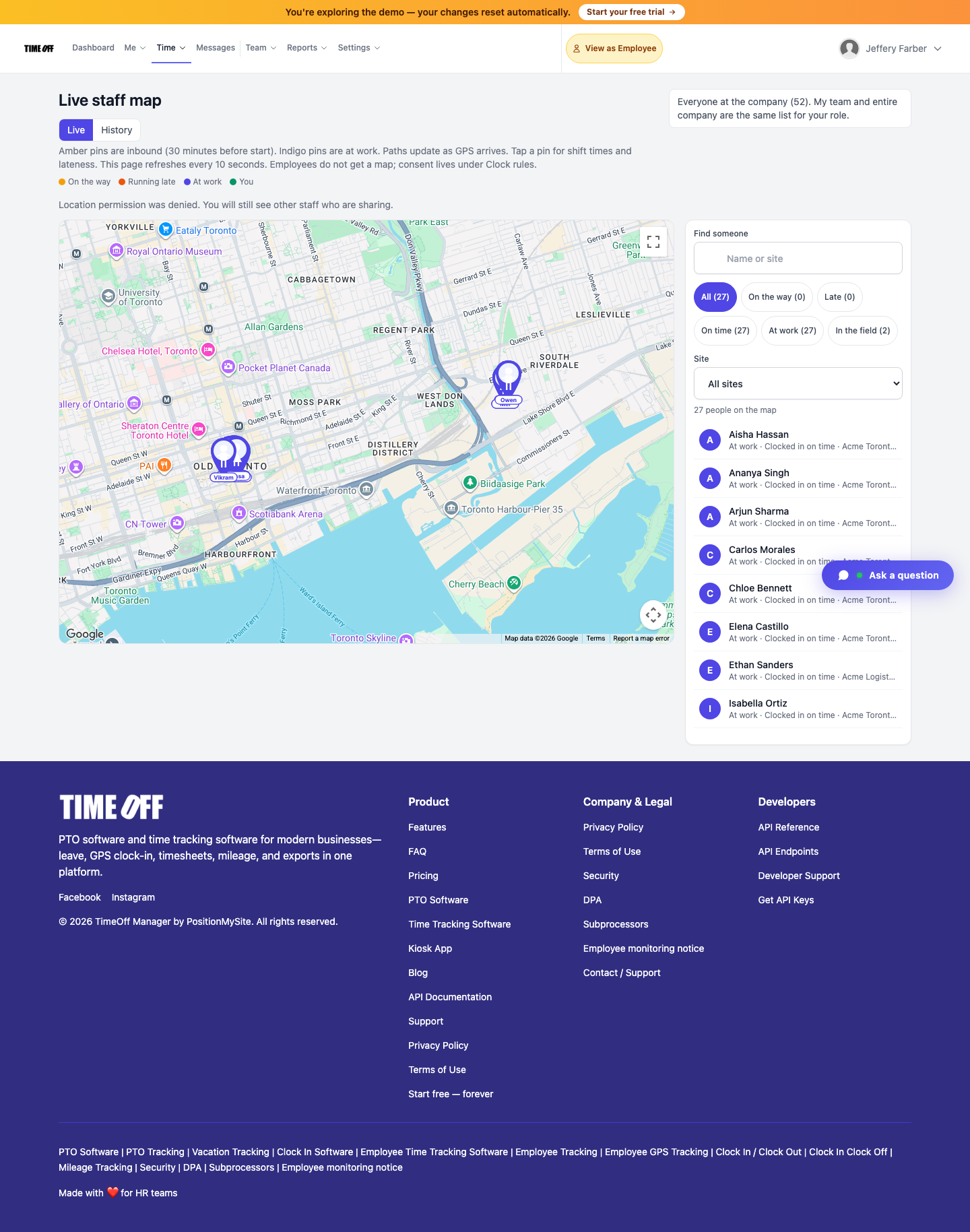
Help docs put it plainly: the live staff map at /admin/live-map shows who is on the way versus at work during the live-location window. It is not the same as GPS captured once at clock-in. Managers, HR, and company admins open Time → Live map. Pins refresh on a timer. Tap a pin for shift times and lateness. History at /admin/live-map/history holds a GPS trail when you need a record.
Employees do not get a manager map. Consent lives under Clock rules. Tell staff in your monitoring notice before you enable live location or photo verification.
- Amber — inbound (minutes before shift start, when that Clock rule is on)
- Orange — running late
- Indigo — at work / clocked in
Optional inbound tracking (about 30 minutes before start, including a live path) is a separate toggle under Live location during shifts—not a geofence radius.
Geofencing + Require GPS Validation (the clock-in gate)
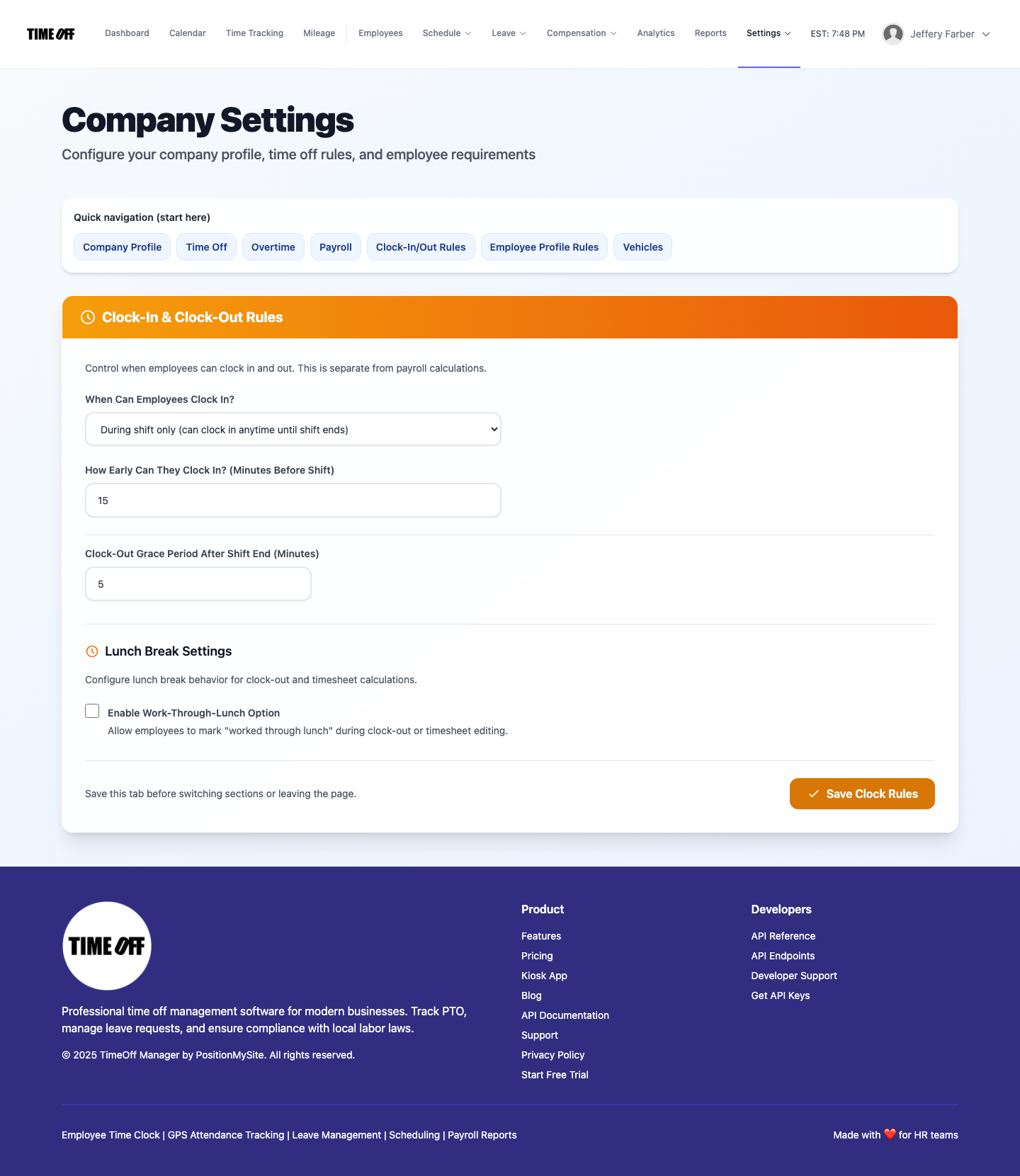
Company admins maintain offices and job sites at /admin/work-locations: address, coordinates, and geofence radius. In Company Settings → Clock Rules (/company/settings), turn on Require GPS Validation so employees must be at a work location to clock in.
You can leave geofence / require-GPS-on-clock-in off while live map is on—or the reverse. The product treats them as different controls on purpose.
Pro vs Kiosk vs the website
TimeOff Manager Pro is the signed-in phone app. Work email, same account as the website. Photo and GPS on the clock-in. Leave, mileage, schedule, and pay stubs stay with that person. Managers get approvals and the live staff map when the company turns live location on.
TimeOff Kiosk is a different app for the door tablet (PIN pad). Do not install Pro on the shared tablet.
Payroll runs and company-wide admin (Clock Rules, work locations, accountant exports) stay on the website. Pro puts insight and approvals in the manager’s pocket; the website remains the control center.
Coming soon (not live yet)
On the same plans—no new price tier invented here—we are building:
- Coming soon: a full payroll suite inside TimeOff Manager
- Coming soon: accounts payable + receivable (invoice clients, get paid, and keep money movement next to time and leave)
Until those ship, today’s Pro + live map + GPS clock-ins + leave/mileage/pay stubs already replace the spreadsheet-and-Slack stack most SMBs still run.
How to turn live map + GPS clock-ins on
- Sign in as company admin
- Open Company Settings → Clock Rules
- Enable time tracking; turn on Live location during shifts (optional: inbound 30 minutes before start)
- Optionally enable Require GPS Validation and maintain sites at
/admin/work-locationswith geofence radii - Have managers and staff use TimeOff Manager Pro on their own phones (work email)—not Pro on the shared tablet
- Open Time → Live map to confirm inbound / on-site pins during a live window; confirm tracking drops after clock-out
- Keep payroll runs and accountant exports on the website until the coming-soon payroll suite ships
Who this is for
- Business owners who need life-changing ops visibility without enterprise bloat
- Field and multi-site managers who ask “is the crew actually inbound?” every morning
- HR rolling out a monitoring notice who need live location consent separate from clock-in GPS
- Teams that want PIN kiosk at the door and signed-in Pro on each phone
Start your 1 year free trial (then Starter, Growth, or Scale)
Put Pro on every manager’s phone, turn on live location and geofences, and run the next field week with inbound and on-site visibility—before the next “where is everyone?” thread.
You get a 1 year free trial and pay $0 for 12 months. A card starts the year. Nothing is charged until then. Cancel before your anniversary and you owe nothing; otherwise choose Starter ($180/year, 1–20 users), Growth ($300/year, 21–50), or Scale ($49.99/mo or $479.90/year, 51–1,000)—same pricing for today’s product and the coming-soon payroll / AP-AR modules when they land. Register at https://timeoffmanager.us/register/company.
Related: Help: Live staff map · Help: Company settings / Clock Rules · Help: Work locations · Kiosk + selfie buddy-punch prevention