Gym & Fitness Studio Staff Scheduling and Time Tracking (2026)
How gym and fitness studio owners schedule front desk, coaches and cleaners, get everyone clocked in on their own, cover call-outs and time off, and see overtime before payday.

Early opens, late closes and weekend classes: gyms need one schedule for every role.
It's 5:12 a.m. Your opener texts that she's sick, the 6 a.m. spin class has 22 people booked, and the only person who knows the front-desk schedule is the manager who's still asleep. Later that week, payroll asks how many hours your trainers actually worked, and all you have is a whiteboard photo and a group chat. If that sounds like your gym, this guide is for you. You'll see how fitness studios and independent gyms schedule front desk, coaches and cleaners, get everyone clocked in on their own, and see overtime before payday.
Why gym schedules fall apart
A gym is open longer than almost any other small business. Early opens, late closes, weekend classes and holiday hours mean you're covering 16 or more hours a day with a mix of full-time managers, part-time front desk staff, coaches who teach a few classes a week, and cleaners who come in after close.
That mix is where things break:
- The schedule lives in too many places. Class times in the booking app, staff shifts on a spreadsheet, time off in texts. Nobody sees the whole week.
- Call-outs hit the worst hours. The 5 a.m. open and the Saturday morning rush are the shifts people drop, and you find out by text.
- Hours are written down after the fact. A coach writes "6 to 9" on a sheet when they really stayed until 10 for a consult. Or the other way around.
- Overtime sneaks up. A manager who opens five days and covers two closes is past 40 hours before anyone adds it up.
- Time off collides. Two of your three morning coaches book the same week in January, right when new members show up.
What good gym staff scheduling looks like
- One weekly schedule for every role: front desk, coaches, managers, cleaning.
- Reusable shift patterns, so "Opener Mon-Fri" or "Saturday classes" takes one click, not an hour of copying cells.
- Every person clocks in on their own, with a PIN at the front desk or their own phone.
- Approved time off shows on the same calendar as the schedule, so you see gaps before they happen.
- Weekly hours and overtime visible on Thursday, not after payroll runs.
- Missed clock-outs fixed through a request you approve, not a Monday guessing game.
- A clean hours export for whoever runs payroll.
Build the week with shift templates
Most gyms run the same week over and over with small changes. That's what shift templates are for. You define a weekly pattern once (days, start and end times, and a default work location if you use one) and apply it to people. Typical templates for a studio:
- Opener: Monday to Friday, 5:00 to 1:00.
- Closer: Monday to Thursday, 2:00 to 10:00.
- Weekend desk: Saturday and Sunday mornings.
- Evening cleaner: after close, five nights.
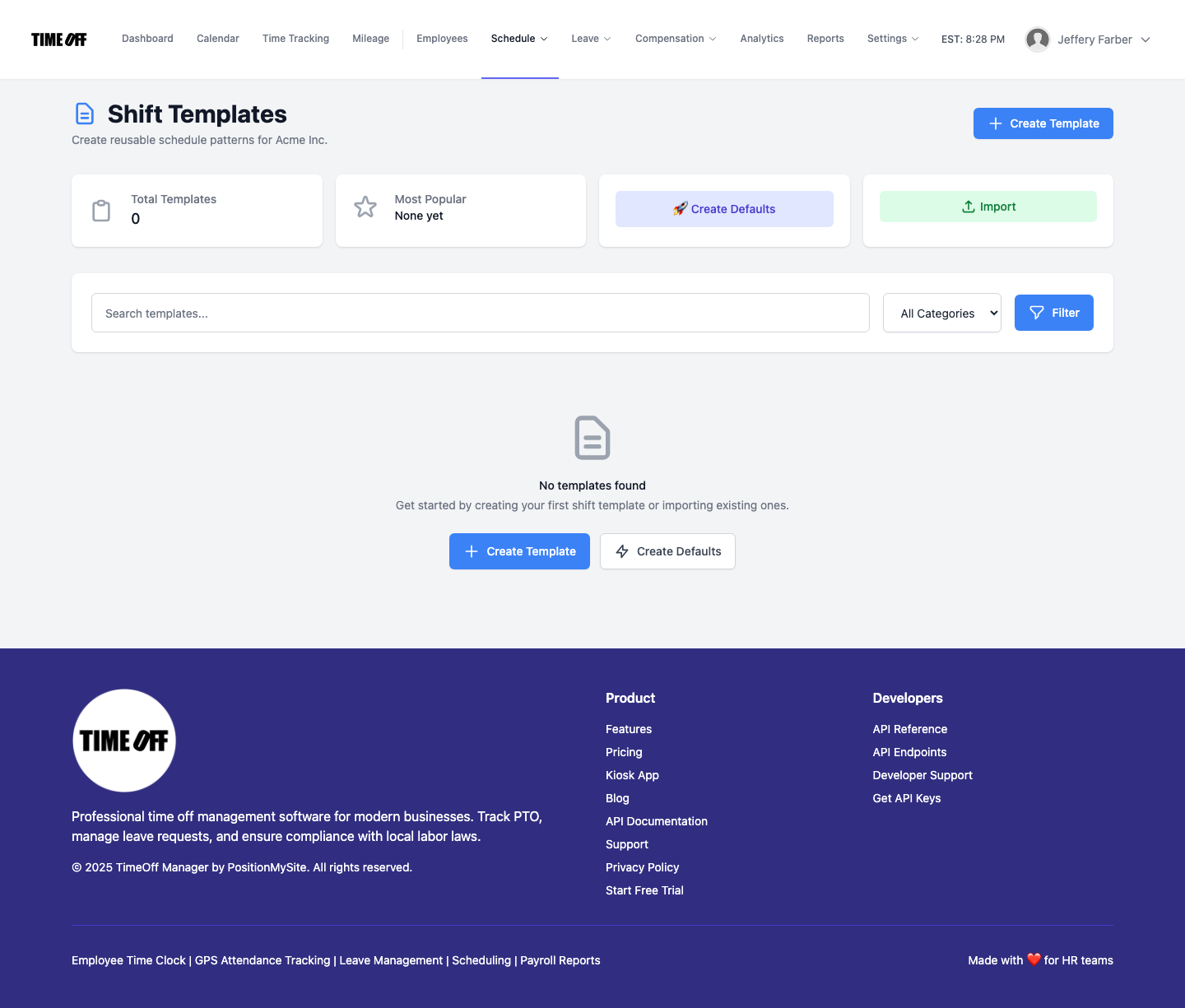
From the schedule management hub you can see who has a schedule and who still needs one, edit one person's week, or use bulk assignment to put a template on several people at once. When someone covers a single day, a one-day override changes that day without touching their normal pattern.
Staff see the result on My Schedule, a week or month view with their approved leave on the same calendar. Managers can flip to the team view. If you want a deeper look at shift planning in general, read our guide to shift scheduling software for small businesses.
Clock in at the front desk, or on their own phone
A PIN tablet behind the desk
For most gyms, the simplest setup is a tablet at the front desk running TimeOff Kiosk. An admin activates the device once, and after that each person clocks in with their own PIN. Nobody needs to log in to a full account, and nobody can clock in for a friend without that friend's PIN. If someone forgets to clock out, they can send a request from the kiosk with their PIN too. The kiosk help article covers activation and what happens if the Wi-Fi drops.
Coaches who teach off-site or at more than one location
Some coaches run bootcamps in the park, teach at two of your locations, or do home sessions. They can clock in on the TimeOff Manager Pro app on their own phone, where they also see their schedule and request time off. If you run more than one studio, set each one up as a work location so hours are tied to the right place. Multi-site owners should also read our post on franchise and multi-location time tracking.
Should a schedule be required to clock in?
There's a company setting under Clock rules called Require a schedule to clock in. When it's on, regular staff can only clock in on days they're scheduled. That stops a part-timer from showing up on an off day and clocking hours you didn't plan. Managers and admins can still clock in without a schedule, but on the shared PIN kiosk the rule applies to everyone while it's on. If your coaches pick up classes on short notice, you might leave it off and rely on approvals instead.
Front desk, coaching or cleaning? Track what the hour was for
One person can work the desk from 6 to 9 and coach a class at 9:30. If you want to see how much of your payroll goes to the desk versus coaching versus cleaning, turn on work activities. They're optional. When they're on, a clocked-in employee can tap Switch activity on the kiosk without clocking out, so the hours are split cleanly.
This also helps if you pay a different rate for coaching than for desk work. You'll have the hours by activity ready for payroll instead of reconstructing them from the class schedule.
Set guardrails with validation rules
Gyms are notorious for "just one more shift." Schedule validation rules let you set company limits for daily and weekly hours, shift length, breaks and consecutive days. Pick a preset (strict, moderate or lenient) and then fine-tune the numbers. When someone's time doesn't fit the rules, it gets flagged, so you catch the opener who's been scheduled for nine days straight before they burn out.
Handle time off before January hits
Every gym owner knows the new-year rush. It's the worst possible week to be short on coaches. With leave requests in the same system as the schedule, staff ask for time off in the app, and you approve it from the Approval Center on your dashboard, the same inbox that holds missed clock-out requests and other approvals.
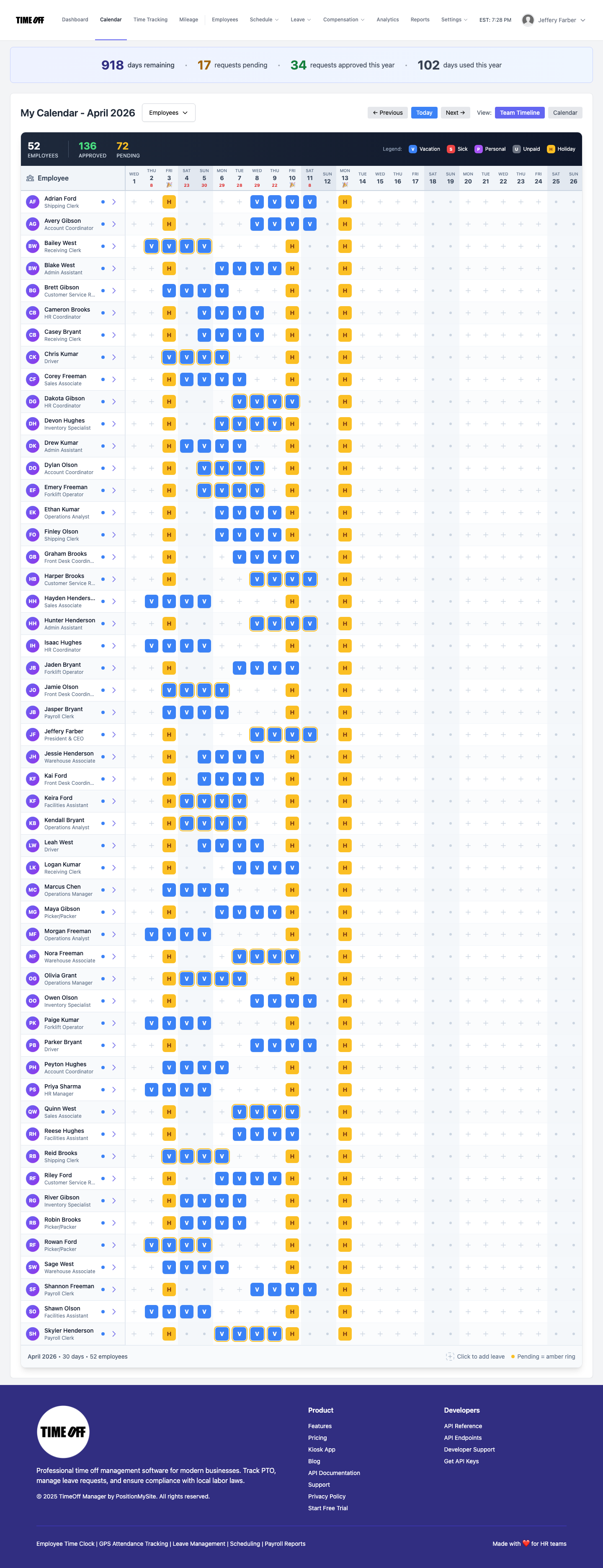
Before you approve, check the team coverage calendar. Each row is a person and each column is a day, so you'll see right away if two morning coaches want the same week. We wrote more about this in team leave calendars and coverage.
When a call-out happens anyway, you can post a one-way announcement with staff messages to let the team know the schedule changed. It's not a chat, so the replies won't bury you.
See overtime before payday
Your managers and full-time front desk staff are the ones most likely to drift past 40 hours, especially in January and during staff shortages. In overtime settings you set your company thresholds once, then add a rule for anyone who needs a different one. The weekly matrix gives you a grid of hours so you can spot who's close to the line.
Make it a habit: open the manager timesheet view every Thursday. If your closer is already at 36 hours, move Saturday to someone else. That's a lot cheaper than finding out on payday.
Fix missed clock-outs without the Monday scramble
Closers forget to clock out. It happens at every gym. Instead of guessing, the employee sends a missed clock-in or clock-out request with the real time and a short note. You approve or reject it from the Approval Center and the timesheet is fixed. Our guide to fixing missed clock-ins walks through the full flow.
Hand clean hours to payroll
At the end of the pay period, export approved hours for your payroll provider or bookkeeper. TimeOff Manager exports hours. It doesn't run your gym's commissions or class bonuses, so keep those in your payroll system, but the hours, overtime and time off they're based on will be clean and approved. If an outside bookkeeper does payroll, accountant access gives them read access to the reports without sharing your login.
Step by step: your first two weeks
- Day 1: Add your staff and their roles. Set each location if you have more than one.
- Day 2: Build three or four shift templates: opener, closer, weekend and cleaning.
- Day 3: Assign templates with bulk assignment. Use one-day overrides for the odd shifts.
- Day 4: Put a tablet at the front desk, activate the kiosk, and give everyone their PIN.
- Day 5: Get coaches who work off-site onto the phone app.
- Week 1: Set overtime thresholds and a moderate validation preset. Decide whether a schedule is required to clock in.
- Week 2: Move all time-off requests into the app and stop accepting them by text. Run one pay period next to your old sheets and compare.
Compliance notes for gyms and fitness studios
This is not legal advice. Rules depend on your state or province, so check with your payroll provider or an employment lawyer.
- Overtime in the US: Non-exempt employees generally earn time and a half after 40 hours in a workweek under the FLSA. See the DOL's Fact Sheet #23 on overtime. Some states add daily overtime.
- Per-class pay: Paying instructors per class is common. If they're employees, the hours they're required to work (setup, required meetings, required training) generally still count as hours worked for minimum wage and overtime. See Fact Sheet #22 on hours worked.
- Trainers as contractors: Calling a trainer a contractor doesn't make them one. The test looks at how the work is actually done. See the DOL's guidance on employee misclassification and, in Canada, the CRA's guide on employee or self-employed.
- Ontario: Overtime generally starts after 44 hours a week, and employees get a 30-minute eating period after no more than five hours of work. See the Ontario hours of work guide.
Try it at your gym
Start with a full year free to try it with your team. You pay $0 for 12 months. A card is required to start, and the yearly price is charged on the anniversary unless you cancel first. After that, Starter (1 to 20 people) is $180 a year, Growth (21 to 50) is $300 a year, and Scale (51 to 1,000) is $479.90 a year or $49.99 a month. Get comfortable before you decide: put a tablet at the front desk, build your opener and closer templates, and run your January rush on it. You can read more about time tracking and timesheets first if you like.
FAQ
What is the best way to schedule gym staff?
Build reusable shift templates for your regular patterns, like opener, closer, weekend desk and evening cleaning, then assign them to people in bulk. Use one-day overrides for covers, and keep time off in the same system so you see gaps on the calendar before they happen.
How should front desk staff and coaches clock in?
The simplest setup is a PIN tablet at the front desk running TimeOff Kiosk, so each person clocks in with their own PIN. Coaches who teach off-site or at more than one location can clock in on the TimeOff Manager Pro app on their own phone.
Can I stop staff from clocking in on days they aren't scheduled?
Yes. Turn on Require a schedule to clock in under Company settings, Clock rules. Regular staff can then only clock in on days they're scheduled. On the shared PIN kiosk the rule applies to everyone while it's on.
Do fitness instructors paid per class get overtime?
If they're non-exempt employees, usually yes. Under the FLSA, required work time such as setup, meetings and training generally counts as hours worked, and hours over 40 in a workweek earn time and a half. Rules vary by state and province, so check with your payroll provider. This is not legal advice.
How do I track desk hours separately from coaching hours?
Turn on work activities. A clocked-in employee can switch from front desk to coaching on the kiosk without clocking out, so hours are split by activity for payroll and reporting.
What happens when a closer forgets to clock out?
They send a missed clock-out request with the real time and a note. You approve or reject it from the Approval Center on your dashboard and the timesheet is updated.
What does it cost after the free year?
Starter (1 to 20 people) is $180 a year, Growth (21 to 50) is $300 a year, and Scale (51 to 1,000) is $479.90 a year or $49.99 a month. The first 12 months are $0, a card is required to start, and you can cancel before the anniversary.