Franchise Time Tracking and Scheduling: Clock-Ins, Shift Gaps and Overtime Across Every Store (2026)
How franchise owners and multi-unit operators get clean clock-ins at every store, fill call-outs without a group-chat scramble, see overtime that adds up across locations and send one hours file to payroll.

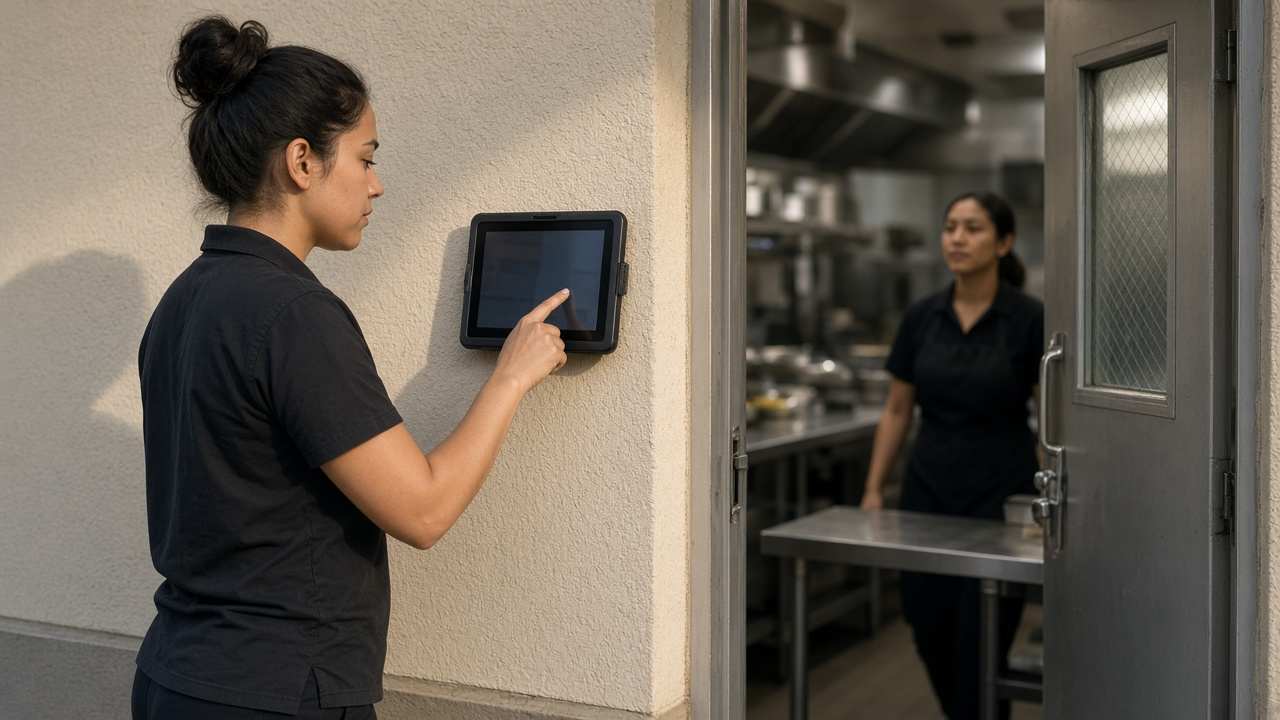
Every store gets its own tablet, and every employee keeps one PIN.
It's Sunday night and you're building next week's schedule for three stores from three notebooks. The shift lead at the second store texts that she can't open Saturday. Someone at the third store worked a double at the first one last week, and nobody's sure whose sheet those hours are on. By Thursday you find out he's at 46 hours, and you're paying overtime you never planned.
This guide is for franchise owners and multi-unit operators, whether you run two quick-service restaurants or a dozen service locations. It covers clean clock-ins at every store, schedules that hold up when someone calls out, overtime you see across stores, and hours payroll can use without retyping.
Why the second store breaks the system
One store can run on a paper sheet and a manager who knows everyone. A second store doubles the paperwork, and a third exposes every gap.
- Every store tracks time its own way. One uses a sign-in sheet, one uses a spreadsheet, and one has a manager who writes hours on the back of the schedule.
- People work at more than one store. Floaters, assistant managers and anyone picking up shifts end up with hours on two sheets that nobody adds together.
- Call-outs are handled by text. When someone can't make a shift, the fix happens in a group chat, and the schedule on the wall is wrong by lunch.
- Time off is approved in the hallway. A store lead says yes to a day off without knowing two other people at that store are already off.
- Payroll is a weekly rebuild. Someone retypes every store's hours and hopes the totals match.
What good looks like across every store
- Every employee clocks in at their store in a few seconds with their own PIN, and every clock-in shows which store it was.
- Each store's schedule uses the same shift patterns, so you can move people between stores without rebuilding anything.
- One timesheet per person shows every hour they worked this week, at every store, so overtime shows up before payday.
- Store leads approve time off for their own team after checking who's already off, and the owner sees every store.
One account or one per store?
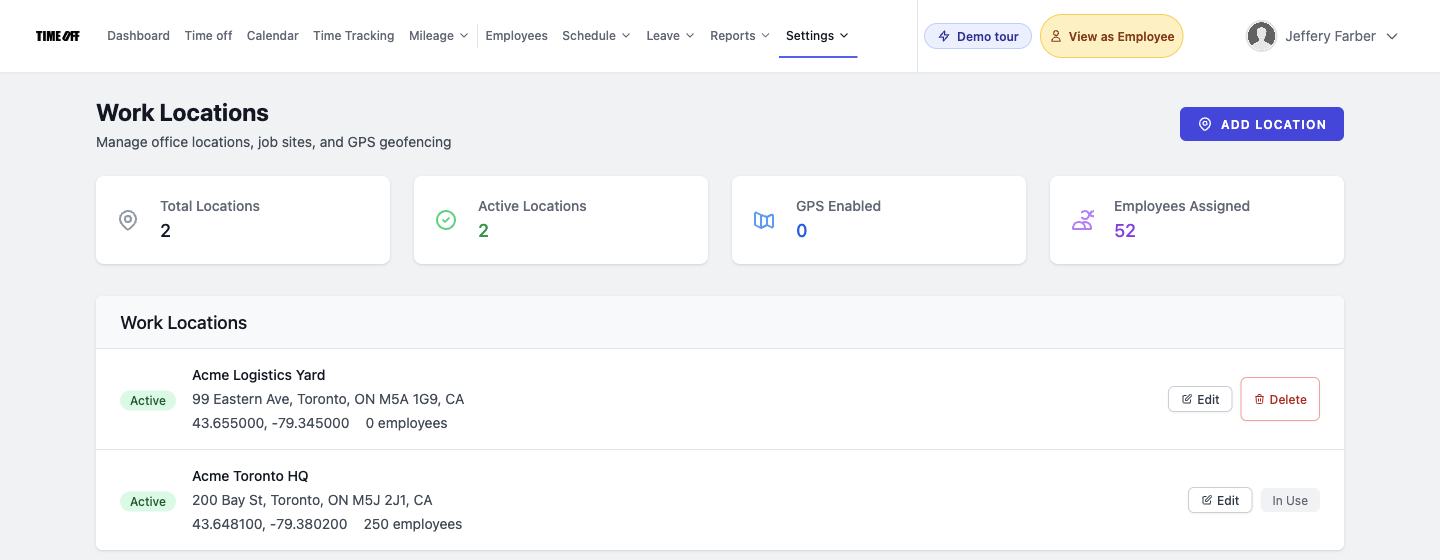
This is the first decision, and it shapes everything else. In TimeOff Manager, a company workspace holds your roster, clock rules, leave policies and work locations. Stores are usually work locations inside one workspace, not separate accounts.
Use one workspace when the stores belong to the same company, share policies and run through the same payroll. Add each store as a work location with its address and an optional GPS geofence. A person who works at two stores still has one profile, one PIN and one timesheet, and a fourth store doesn't add a fourth plan.
Use separate workspaces when a store is its own legal entity with different policies, different payroll or different owners. Our guide to running multiple companies with isolated workspaces explains how that works. The tradeoff: hours in one workspace don't add up with hours in another, so if the same person works for two of your entities, see the rules section below.
A clock-in tablet in every store
The simplest setup is a shared tablet at each store running TimeOff Kiosk. Put it by the back door, the time clock wall or the break room. An admin or HR manager activates it once, then each employee clocks in with the PIN from their profile.
A few settings matter for franchises. In clock rules you can require GPS and a photo at clock-in, so each clock event carries a location and a picture of who was at the tablet. If you turn on Require a schedule to clock in, the kiosk only lets in people who are scheduled that day, admins included. Leave it off until every store's schedules are loaded. The kiosk guide covers activation and the rules.
District managers, owners and floaters who move between stores can clock in on their own phone with the TimeOff Manager Pro app. With GPS rules on, the clock-in has to happen inside the geofence of a saved store, so a clock-in from the car three blocks away doesn't count. Worried about people clocking in for a friend? Read our guide to stopping clock-ins for coworkers with kiosk photos.
Schedules that work across stores
Most franchise schedules repeat: an opener, a mid, a closer, a weekend crew. Build those once as shift templates. Each template is a weekly pattern that can carry a default work location. Then use bulk schedule assignment to apply a template to a whole store's crew at once.
For people who split their week, edit their individual schedule and assign each shift to the right store. Monday and Tuesday at the first location, Saturday at the second.
Then set guardrails. Schedule validation rules let you set daily and weekly hour limits, shift length, break requirements and consecutive days. Consecutive days matters most for franchises: a willing employee can work six days at one store and pick up a seventh at another.
Filling a last-minute shift gap
Someone calls out two hours before open. Here's how to handle it without a group-chat scramble.
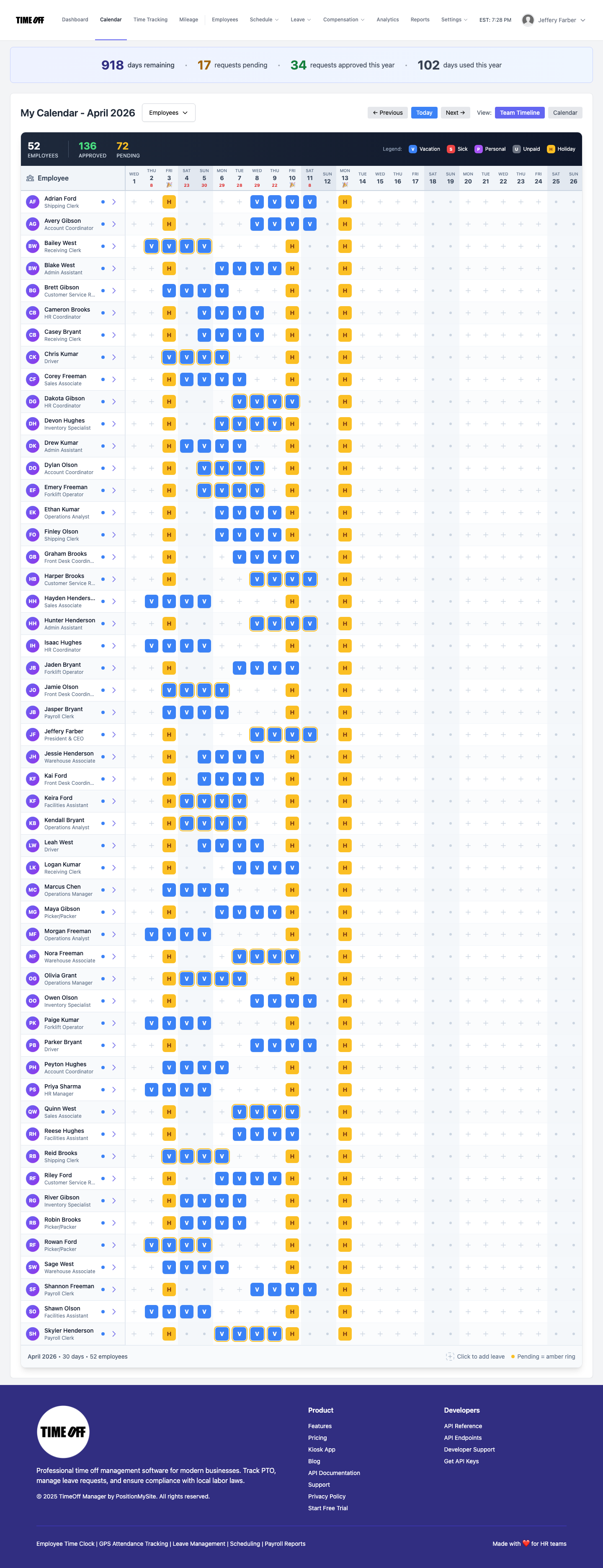
- Check who's already off. Open the team coverage calendar. It shows approved leave and holidays for everyone, so you don't call someone who's off.
- Check hours before you ask. Open the weekly view in the manager timesheet hub. Someone at 24 hours is a better ask than someone at 38, who'd go into overtime.
- Look at the nearest store. With one roster, a trained person from the store down the road is an option too.
- Assign it in the schedule. Update their schedule for that day and store, so the record matches what happened.
If you want to tell a whole team at once, a staff message sends a one-way announcement. It isn't chat, so replies still come to you directly.
Overtime that adds up across stores
This is where multi-store operators lose the most money. An employee works 25 hours at one store and picks up 20 at another. Each store manager sees a part-timer, but that's 45 hours, and in the US usually five at time and a half.
When your stores share one workspace, each person has one timesheet. Every clock-in at every store lands there, and the weekly view splits regular from overtime hours. In Overtime Management you set the company-wide weekly threshold and multiplier, then add per-employee rules only where someone's arrangement is different.
Missed clock-outs cause the rest of the bad overtime. When someone forgets to clock out after closing, they send a forgot to clock in or out request with the real time and a reason, and a manager approves it. For more on catching overtime early, see our guide to overtime tracking and payroll exports.
Time off without a hole in the schedule
Employees request time off in the app, and the request goes to the people you chose as approvers. Store leads check coverage for their store, then approve or deny from one inbox. The leave requests guide walks through that queue. Once approved, the day shows on the coverage calendar before anyone writes next week's schedule.
A store lead can see and approve their own team, while the owner sees every store. Balances and leave types follow company policy, so someone who works at two stores gets one answer about their vacation. See PTO software for how leave tracking works.
Hours ready for payroll
At the end of the pay period, managers approve the hours, and the payroll hours report pulls every store into one download. You get Excel or CSV, plus ADP RUN and Paychex SPI hours files for import. Hours only: regular, overtime and holiday. TimeOff Manager doesn't calculate pay, run payroll, file taxes, or figure royalties, sales or brand audits. If a bookkeeper handles payroll, give them accountant access so they can pull the report without asking you.
Who does what
Employees clock in at their store's tablet or on their phone, see their schedule, request time off and fix a missed clock-in themselves. Our retail time tracking guide and restaurant time clock guide cover the store floor in more detail.
Store leads approve missed clock-in fixes and time off for their team, cover call-outs and review weekly hours.
The owner or office sets up stores, clock rules, templates and overtime, watches overtime across stores and exports approved hours. You can also see how TimeOff Manager fits franchise locations on our industry page.
A rollout you can do one store at a time
- Decide on workspaces. One workspace for stores under the same company and policies; a separate one for each separate entity.
- Save every store as a work location. Add the address and a geofence radius.
- Set clock rules once. Decide whether GPS and a photo are required, and whether a schedule is required to clock in.
- Start with your best-run store. Run one pay period next to the old sheet.
- Build shift templates from that store's patterns, then bulk-assign them as you add the others.
- Set validation and overtime to match your workweek.
- Give store leads access to their own team, and move time-off requests into the app.
- Every pay period: approve missed clock-in fixes, review overtime across stores, approve hours and export for payroll.
For how the clock-in side works overall, see time tracking software.
Rules worth checking
This is not legal advice. Employment rules vary by country, state, province and sometimes city.
- United States, overtime. Under the Fair Labor Standards Act, non-exempt employees generally earn time and a half after 40 hours in a fixed workweek. Hours worked for the same employer are added together even when they're at different locations. Whether two of your entities count as one employer is a legal question. See the U.S. Department of Labor overtime fact sheet.
- Predictable scheduling laws. Oregon and several cities, including New York City, Chicago, Seattle, San Francisco and Philadelphia, have fair workweek rules for some retail, food service or hospitality employers. Some count every location in a chain, including franchised ones. If you're covered, you may owe advance notice of schedules and pay for last-minute changes.
- Canada. Overtime is set by each province. Ontario generally pays overtime after 44 hours a week. See the Ontario overtime guide.
Try it across your stores
Start with a full year free. A full year to try it with your team. You pay $0 for 12 months. A card is required to start, and the yearly price is charged on the anniversary unless you cancel first. Pricing follows headcount, not the number of stores: Starter (1 to 20 people) is $180 a year, Growth (21 to 50) is $300 a year, and Scale (51 to 1,000) is $479.90 a year or $49.99 a month. Get comfortable before you decide: set up one store, run a pay period, then add the next.
FAQ
What is the best way to track employee time across franchise locations?
Put a shared tablet running TimeOff Kiosk in each store and give every employee one personal PIN. Save each store as a work location, so every clock-in shows where it happened. Floaters can use the TimeOff Manager Pro app on their own phone.
Should each franchise store be its own account?
Not usually. If your stores are run by the same company and follow the same policies, keep them in one company workspace and add each store as a work location. Use a separate workspace when a store is its own legal entity with its own policies or payroll.
How do I fill a last-minute shift gap at one of my stores?
Check the team coverage calendar for who is already off, then the weekly timesheet for who is under their hours and who is close to overtime. Ask the people who make sense and assign the shift to whoever says yes.
Does overtime count hours from more than one store?
Under the federal FLSA, hours an employee works for the same employer in a workweek are added together, even if they are split across stores. In TimeOff Manager, stores in the same company workspace share one timesheet per person, so 25 hours at one store and 20 at another show as 45. Separate workspaces do not add hours together.
Can a store manager see only their own store?
Yes. You decide which employees a person can see and who can approve time-off requests. A store lead works inside the access you grant, and the owner can see every store.
Does TimeOff Manager calculate franchise royalties or run payroll?
No. It records who worked at each store, approved time off and overtime, then exports approved hours as Excel or CSV, plus ADP RUN and Paychex SPI hours files. Payroll, taxes and royalties stay in your other tools.
What does it cost after the free year?
New companies get a full year free, $0 for 12 months, with a card required to start. Pricing follows headcount, not the number of stores. If you continue, the yearly price is charged on your anniversary: Starter (1 to 20 people) is $180 a year, Growth (21 to 50) is $300 a year, and Scale (51 to 1,000) is $479.90 a year or $49.99 a month.