Moving Company Time Tracking: GPS Clock-Ins for Crews, Long Days and Overtime (2026)
How moving company owners get every mover clocked in on their own, at the yard or at the customer's home, track drive time and long Saturdays, and catch overtime before payday.


When the day starts at the customer's door, the clock-in has to start there too.
It's Saturday, the busiest day of the month. Three trucks leave the yard at 7:00 a.m. One crew meets at a customer's house across town at 8:30. By 9:00 p.m. the last truck is back, and the crew lead texts you "we did about 13 hours." On Monday you're trying to rebuild who started where, who took a lunch, who drove the second truck to a storage unit, and whether that new helper is already into overtime.
This guide is for owners and operations managers at local and regional moving companies. It covers how to get clean clock-ins from every mover, whether they start at the yard or at the customer's door, how to see long days and overtime coming, and how to hand payroll a set of hours you trust.
Why hours go wrong at moving companies
Moving work doesn't look like a normal shift. The start point changes every day, the end time depends on how much the customer forgot to pack, and the busy season pushes everyone into long weeks at the same time.
- The crew lead becomes the time clock. One person writes down a start and stop time for the whole crew. If the helper came 30 minutes late or left early, nobody can tell.
- Start points move. Some days the crew loads at the yard. Other days they meet at the customer's home or a storage facility. A wall clock in the office only covers one of those.
- Travel time gets lost or padded. The drive from the yard to the first job and between jobs is usually paid time. If it's not recorded as it happens, it gets guessed later.
- Long days stack up. Two 12-hour Saturdays and a Monday double, and a mover is in overtime before Wednesday. You find out when payroll does.
- Peak season hires. From late spring through the end of summer, and again at month-end, you add temps and part-time helpers. Sharing logins or adding them to a paper sheet is how hours disappear.
What good time tracking looks like for movers
- Every mover creates their own clock-in and clock-out. No crew-lead totals.
- A shared tablet at the yard for crews that start there, and a phone app for crews that start at the customer.
- GPS saved with the clock event when you need proof of where the day started.
- Optional job codes so you can see loading, driving and packing time separately.
- A weekly view of hours per person, so overtime is a decision you make, not a surprise.
- Missed clock-outs fixed through a request and an approval, not a text message.
- One clean export of hours for whoever runs payroll.
Two ways to clock in: at the yard or at the door
Crews that start at the yard
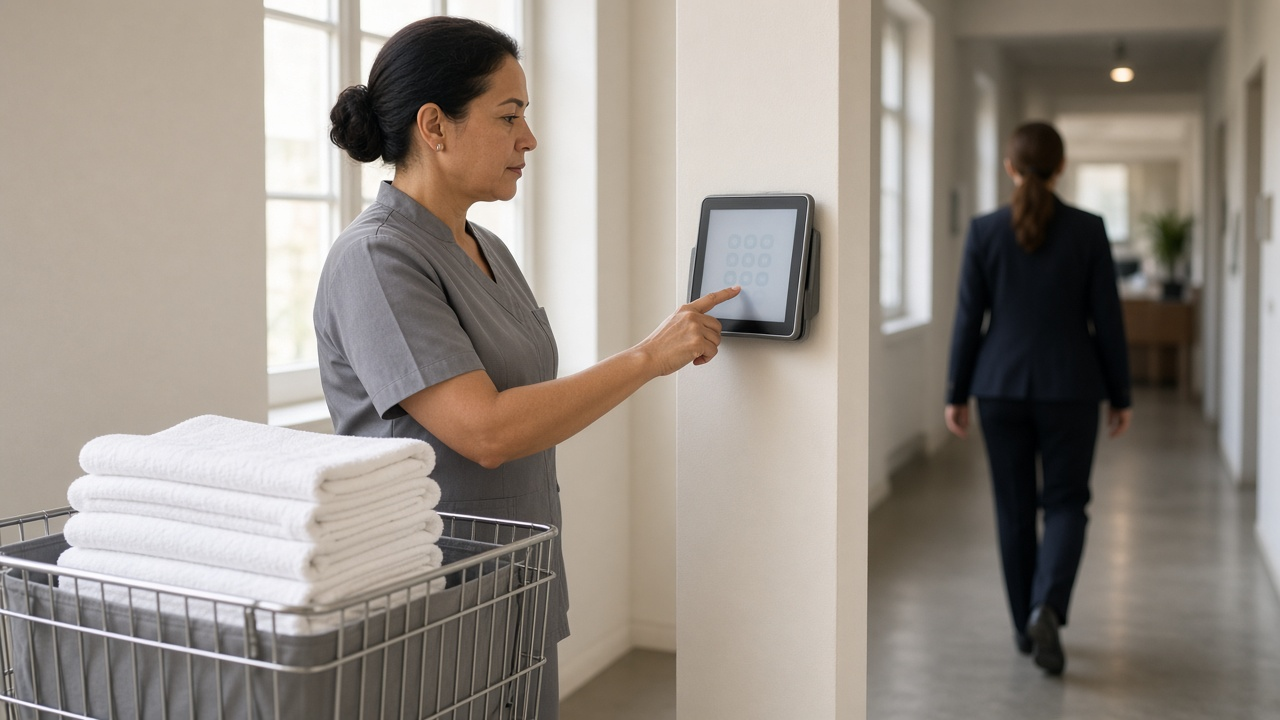
Mount a tablet with TimeOff Kiosk by the dispatch door or the break room. Each mover types their own PIN to clock in and out. There's no app login to forget and no company phone to hand out. You can require a photo at clock-in under your clock rules, so a supervisor can see who actually stood at the tablet. The kiosk overview covers how to activate a tablet and how PINs work.
If the yard wifi drops, looking up a PIN still needs a network. Once a mover is identified, a clock-in or clock-out that times out is saved on the tablet and sent later with the original time.
Crews that meet at the customer's home
Crews that go straight to the job clock in on their own phone with the TimeOff Manager Pro app. It uses their work email, the same login as the website. When your clock rules require it, the app records GPS with the clock-in, plus a selfie if you turn that on. If the phone has no signal in a basement or a new subdivision, the app saves the clock event on the device with the time they tapped and sends it when the signal comes back. The phone app guide explains what employees see.
Keep the two apps straight when you train your crews: the kiosk is PIN-only on a shared tablet, and the Pro app is each person's own signed-in phone.
Set up your yard, storage sites and regular customers
Add your yard, warehouse and any storage facility you use often under Work Locations. Each one can have an address, map coordinates and an optional GPS geofence radius for clock validation. Schedulers attach these locations to shifts, so a mover can see where the day starts.
Most residential moves happen at a different address every time, so you won't add every customer's home as a location. For those days, the GPS saved with the clock-in on the phone is your record of where the day began. For commercial accounts you serve over and over, such as an office building or a property manager's units, adding the address as a location keeps things cleaner.
Split the day into loading, driving and packing
If you quote by the hour, or you want to know how much of the day is actually windshield time, turn on work activities. They're optional and off by default. Once on, you add codes such as Loading, Driving, Packing and Unloading, and mark which ones are billable.
Movers switch the current activity from the kiosk or the signed-in timesheet while they stay clocked in. At the end of the month you can see whether long drive times are eating into your margins on certain routes, without asking anyone to fill out a separate log.
Schedule crews before the weekend fills up
Build shift templates for the patterns you run every week, like a 7:00 a.m. yard start or an 8:30 a.m. on-site start. Then assign people to crews in schedule management. Movers see their own shifts in My Schedule on the web and in the app.
Before you approve time off for a mover in your busiest weeks, check the team coverage calendar. It shows approved leave and holidays for everyone, day by day, so you don't approve three helpers off on the last Saturday of the month.
See crews on the road with the live map
If you want to know whether a crew has left the yard or is still stuck in traffic, turn on live location during shifts under Company settings, Clock rules. Managers, HR and admins then open the live staff map. Pins show who is inbound before a shift, who is running late and who is clocked in.
A few things to know before you turn it on:
- Employees don't get a map. Only people who manage a team see it.
- Location is recorded only during the live window your company sets, not around the clock.
- GPS history is kept for a short rolling window, currently 10 calendar days, not forever.
- Tell your crews in writing. A clear monitoring notice prevents a lot of awkward questions.
The live map is a different setting from requiring GPS at clock-in. You can use either one, or both.
Catch long days and overtime before payday
Set your company overtime threshold and multiplier in Overtime Management, then add per-employee rules for anyone who needs a different threshold. Hours come straight from the clock events, so managers see each mover's week building up in the manager timesheet view.

A simple Thursday habit: open the weekly view and look at anyone already past 32 hours. If Saturday is booked solid, move a job, add a helper, or decide the overtime is worth paying.
Fix missed clock-outs without the Monday scramble
After a 13-hour day, someone will forget to clock out. Instead of a text, they send a missed clock-in or clock-out request with the right time and a reason. It lands in the manager's approval inbox along with leave requests and mileage, so nothing gets lost. Once approved, the timesheet updates.
Payroll day notes are a separate thing. Use those when you need to tell payroll something about a day, not to fix a clock time. Our guide on fixing a missed clock-in walks through the difference.
Hand clean hours to payroll
When the pay period closes, export hours instead of retyping them. If an outside bookkeeper runs payroll, give them accountant access so they can pull the exports themselves. TimeOff Manager exports hours. It doesn't calculate tips, so if your movers get cash or card tips, keep handling those the way you do today.
If you also run long-haul or dispatch-heavy routes, our guide on trucking and driver time tracking goes deeper on that side.
Step by step: your first two weeks
- Add your yard, warehouse and regular storage sites as work locations.
- Add every mover, including part-time helpers, with time tracking on, and give each one a PIN.
- Mount a tablet by the dispatch door and activate TimeOff Kiosk.
- Have crew leads and anyone who starts on-site install the Pro app and clock in once while you watch.
- Set your overtime threshold and decide whether you want GPS at clock-in, live location, or both.
- Optional: turn on work activities with three or four codes, not twenty.
- Build shift templates for your two or three most common start times.
- Run one full pay period next to your current sheets, then compare.
Compliance notes for moving companies
This is not legal advice. Rules change by state and province, so check with your own advisor. A few points that come up often for movers:
- Travel time. A normal commute usually isn't paid. Travel from the yard to the job, and from job to job during the day, generally is. See the DOL Fact Sheet #22 on hours worked.
- Overtime. Non-exempt movers earn time and a half after 40 hours in a fixed workweek under the FLSA. Some states add daily overtime.
- Interstate moves. Some drivers, helpers and loaders on interstate work may be exempt from overtime under the Motor Carrier Act, but the exemption has limits, including for work on vehicles of 10,000 pounds or less. Read DOL Fact Sheet #19 before you treat anyone as exempt.
- Canada. In Ontario, overtime generally starts after 44 hours a week. See the Ontario hours of work guide.
Try it with your crews
Start with a full year free to try it with your team. You pay $0 for 12 months. A card is required to start, and the yearly price is charged on the anniversary unless you cancel first. After that, Starter (1 to 20 people) is $180 a year, Growth (21 to 50) is $300 a year, and Scale (51 to 1,000) is $479.90 a year or $49.99 a month. Get comfortable before you decide: put a tablet at the yard, get your crew leads on the app, and run one busy month next to your current sheets. You can read more about time tracking with GPS and timesheets first if you like.
FAQ
What is the best way to track time for a moving crew?
Have every mover clock in on their own PIN or phone, not on a sheet the crew lead fills in. Crews that start at the yard clock in on a TimeOff Kiosk tablet by the dispatch door. Crews that meet at the customer's home clock in on the TimeOff Manager Pro app, which records GPS with the clock-in when your clock rules require it.
Does drive time between the yard and the customer count as hours worked?
Under the federal FLSA, a normal commute from home to the first place of work usually isn't hours worked. But if a mover has to report to the yard first and then rides to the job, the time from the yard to the customer's home is generally work time, and so is travel from one job to the next during the day. See the DOL's Fact Sheet #22 on hours worked. This is not legal advice.
Do movers get overtime?
Usually, yes. Non-exempt movers earn time and a half after 40 hours in a fixed workweek under the FLSA. Some interstate drivers, helpers and loaders may fall under the Motor Carrier Act exemption, and that exemption has limits, including for work on smaller vehicles. Check DOL Fact Sheet #19 and your own counsel before you treat anyone as exempt. In Ontario, the general overtime threshold is 44 hours a week.
How do I stop a crew lead from writing one start time for everyone?
Give each mover a personal PIN or their own app login, so every person creates their own clock event. You can require a photo at clock-in under your clock rules, and the photo sits next to the clock event for a supervisor to review.
Can I see where my crews are during a move?
If you turn on live location during shifts, managers, HR and admins can open the live staff map and see who is on the way, who is running late and who is clocked in. Employees don't get the map, and location is only recorded during the window your company sets. GPS history is kept for a short rolling window, not forever.
What if a mover forgets to clock out after a long day?
They send a missed clock-in or clock-out request with the right time and a reason. It lands in the manager's approval inbox, and once approved the timesheet updates. You don't have to edit hours by hand on Friday.
What does it cost after the free year?
New companies get a full year free, $0 for 12 months, with a card required to start. If you continue, the yearly price is charged on your anniversary: Starter (1 to 20 people) is $180 a year, Growth (21 to 50) is $300 a year, and Scale (51 to 1,000) is $479.90 a year or $49.99 a month.