PTO Management for Employers: 6 Strategies That Actually Work
Double-booked weeks, drifting balances and a December rush all come from the same gap. Here's a simple PTO management system for small teams: policy, scheduling, approvals, balances and payroll.


Good PTO management starts with clear rules and one shared calendar.
You find out about the problem on a Monday. Two people from the same shift are both on a beach, a third called in sick, and the spreadsheet everyone swore was up to date says one of them still has nine days left. Nobody broke a rule, because nobody really had one. That is what weak PTO management costs a small business: not the time off itself, but the guessing around it.
This guide is for owners, office managers and HR leads who want a simple system that works. You will get the policy decisions to make once, the scheduling strategy that keeps coverage safe, the habits that keep balances honest, and a short checklist you can start this week.
Why PTO management breaks at small companies
Most teams don't fail at PTO because they are careless. They fail because the pieces live in different places. The policy sits in a handbook nobody opens. Requests come in by text, email and hallway conversations. The manager approves from memory. The balance lives in a spreadsheet that one person updates when they remember. Then payroll asks a question and everyone scrambles.
A few patterns show up again and again:
- Approvals happen before anyone checks coverage. The request looks fine on its own, but it lands in the same week as two others.
- Balances drift. A half day gets recorded as a full day, or not at all, and nobody notices until someone asks why their number looks wrong.
- Rules change by manager. One supervisor wants two weeks' notice, another says yes the same day. Employees notice, and it feels unfair.
- Year-end turns into a rush. People who saved their days all try to use them in December, right when you need them most.
- Payroll gets a surprise. Approved leave never makes it into the hours report, so someone fixes it by hand.
Good PTO management for employers fixes all five with the same move: one place for the rules, the requests, the calendar and the numbers.
Step 1: Make the policy decisions once
Before you think about tools, write down the answers to these questions. Keep it to one page. If it takes longer than that, it is too complicated for a small team.
- Which leave types do you offer? Vacation and sick time are the base. Many teams add personal days, bereavement, appointments, jury duty or unpaid leave. Name each one so reports make sense later.
- Days or hours? If people take two-hour appointments or work 10-hour shifts, track in hours. If everyone is salaried and takes full days, days are fine. Pick one and be consistent.
- How is time earned? A lump sum each year, or accrual each pay period. Accrual is fairer for new hires and part-timers. A lump sum is easier to explain.
- What happens at year-end? Carry over everything, carry over up to a cap, or follow what local law requires. Write the cap down as a number.
- How much notice? For example, one week for a single day and four weeks for anything longer than three days.
- Who approves, and who backs them up? Name the approver for each team and the person who covers when that approver is away.
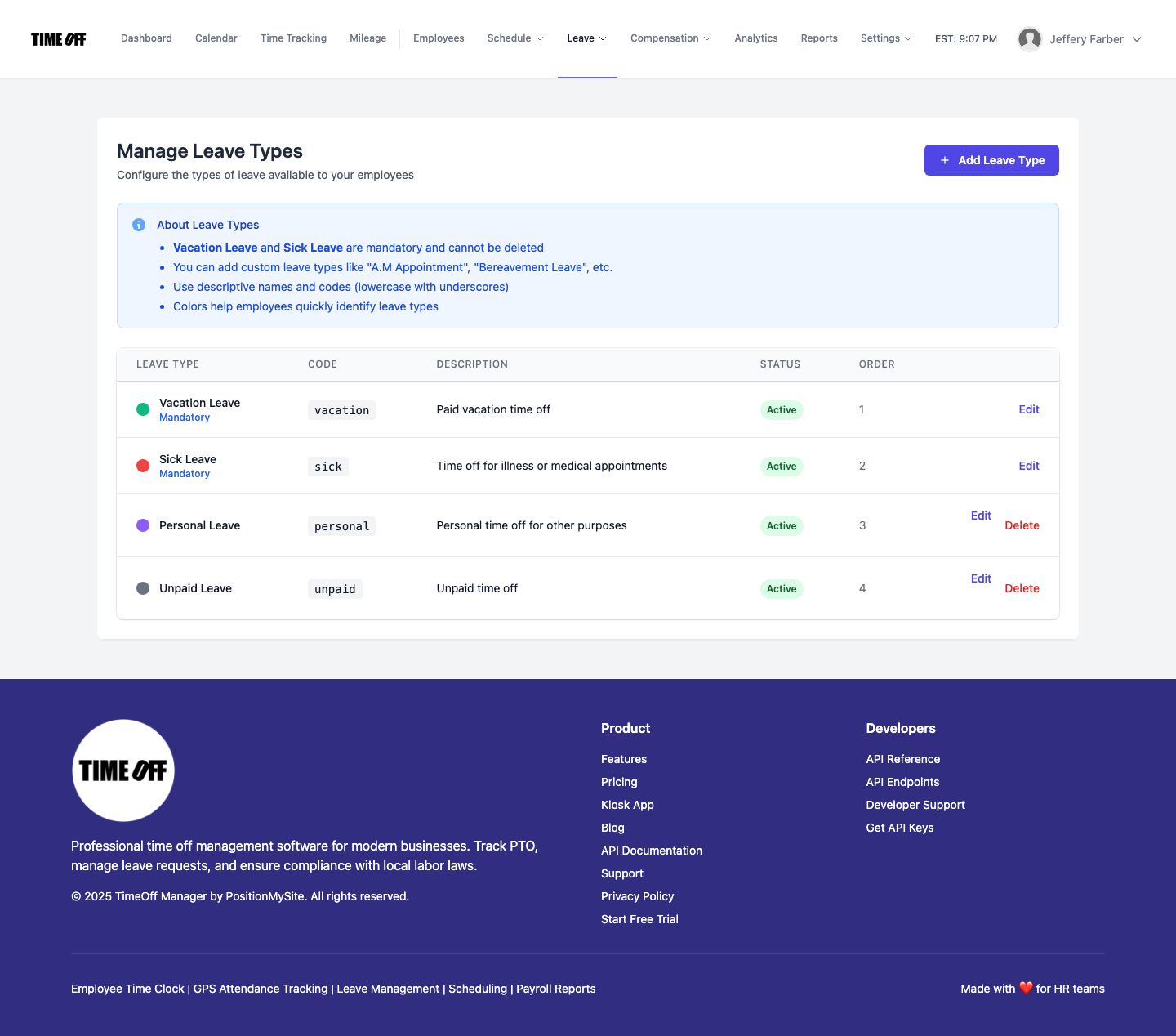
In TimeOff Manager, the setup wizard asks how you measure time off (days only, hours only or both) and your hours per workday, so the day and hour math stays consistent everywhere. Extra categories go in custom leave types, where vacation and sick are always kept and you add the rest with your own names and colors. If you are adding people in different states or provinces, our guide to the statutory PTO wizard explains how the minimum suggestions work. You still decide and own your final policy.
Step 2: Use a scheduling strategy that protects coverage
Ask managers what the best strategy for scheduling PTO is and you will hear "first come, first served." That works until two people ask for the same week in March for a trip in August. A better approach is a few clear rules that everyone sees in advance.
- Publish your crunch weeks early. If you are a retailer, it might be the weeks before the holidays. If you are a contractor, it might be peak season. Say which weeks are restricted at the start of the year, not the week before.
- Set a simple coverage cap. For example, no more than one cook, one dispatcher or two techs off on the same day. Caps by role work better than caps by headcount.
- Collect long vacations early. Ask for summer and holiday requests by a set date. Approve them in one pass, so you can be fair when two people want the same week.
- Check the calendar before you approve. This is the habit that matters most. A request that looks fine on its own can break a week when you see it next to everyone else's.
- Plan around public holidays. Long weekends attract requests. Load your public holidays into the same calendar so managers see them while planning.
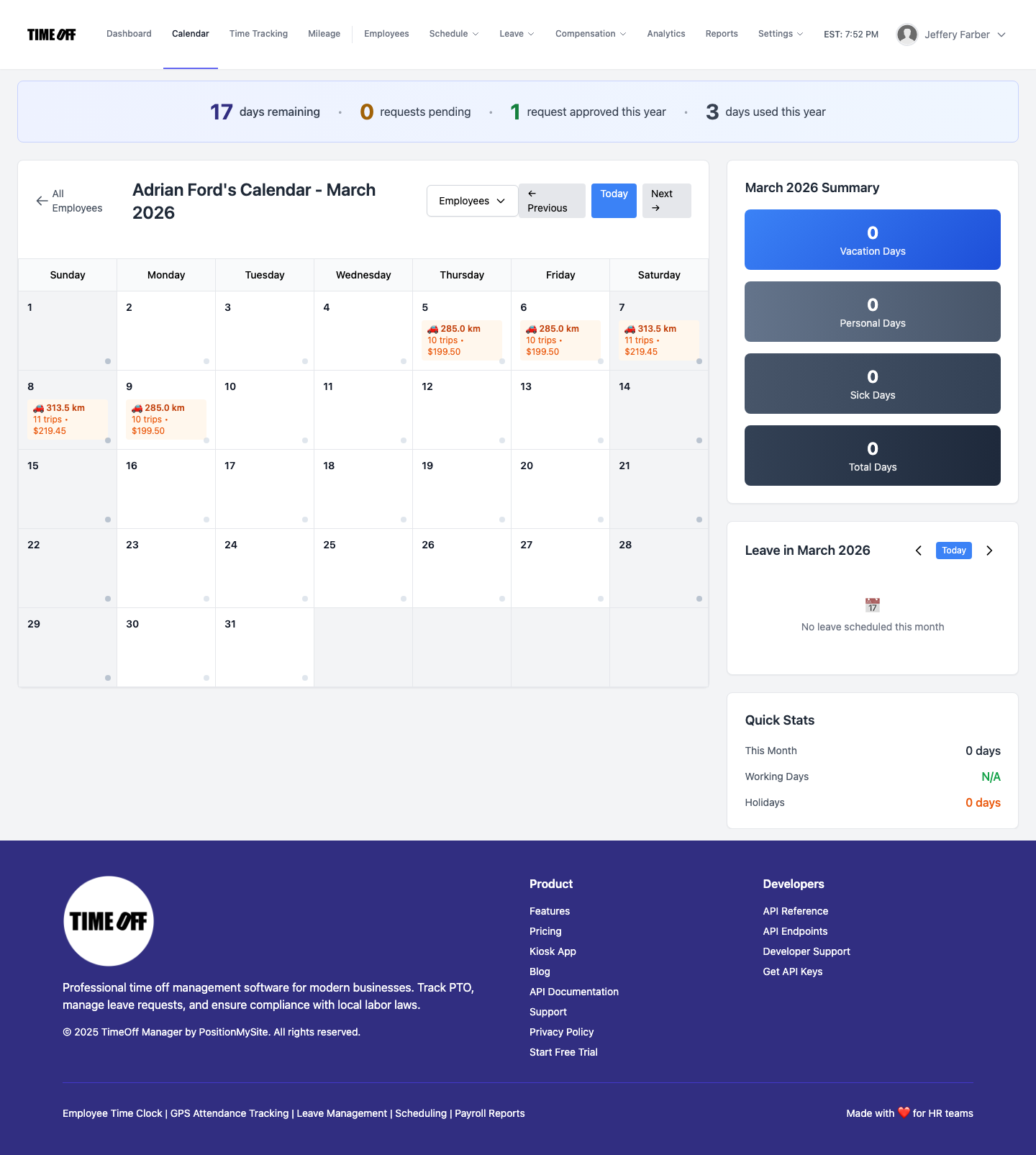
The team timeline in TimeOff Manager shows one row per employee and one column per day, with short codes for vacation, sick, personal, unpaid and holiday time, so overlaps are visible at a glance. Public holidays are synced per country at holiday management, and employees can see the holidays that apply to them on My holidays before they ask for a long weekend. For more on planning around gaps, read our post on the team leave calendar and coverage.
Step 3: Give requests and approvals one path
If requests can arrive five different ways, some of them will get lost. Pick one path and stick to it. Texts and hallway asks get the same answer every time: "Put it in the app."
Here is how the two sides look in TimeOff Manager:
- Employees open My leave requests, choose a type and dates, add a note if needed, and submit. They can see pending, approved, rejected and cancelled requests in one list, and track anything still waiting in My pending. They can also do this from the TimeOff Manager phone app.
- Managers and HR approve from the dashboard Approval Center, one inbox for leave and other items that need a decision, or from the leave-only queue described in Approvals inbox and leave queue. Managers usually see their direct reports. HR and company admins see the whole company.
Two small habits make approvals faster. First, decide within two working days, so nobody books a flight on hope. Second, when you decline, offer another date. "Not that week, but the week after works" keeps goodwill. Our guide to manager PTO approval workflows goes deeper on who approves what.
Step 4: Keep balances honest all year
Employees trust a PTO system when their number is right. They stop trusting it the first time it is wrong. The fix is not more checking. It is fewer hand-entered numbers.
- Let balances update on approval. When a request is approved, the balance should change without anyone typing it in.
- Let people check their own numbers. Every "how many days do I have left?" email is a sign the balance is hidden.
- Record partial days properly. If someone leaves at noon, take half a day or four hours, not a full day. Our post on hourly and partial-day PTO covers the details.
- Review usage once a quarter. Look for people who have taken almost nothing and people who are already near zero.
The employee leave summary in TimeOff Manager is a year-level roster with calculated PTO, days taken, days remaining and a usage bar for each person. Managers see their own team, and HR and admins see everyone. It is the fastest way to find the person sitting on three weeks in July before it turns into a December problem.
Step 5: Head off the year-end rush
A December pile-up is a planning failure, not an employee failure. People save their days because they are unsure of the rules or worried they will need them later. You can make it smoother with three moves:
- Send a mid-year nudge. In June or July, remind anyone with a large balance to book some time. Keep it friendly. Rest is the point of PTO.
- Restate the carryover rule in the fall. One short message: what carries over, the cap, and the date it resets.
- Open holiday-season requests early. Collect them by a set date and approve them together so the rush is spread across the team fairly.
If you want to see patterns across teams, like which department always runs low or which month has the most sick days, our post on time off reporting and leave trends by team shows how to read them.
Step 6: Hand payroll a clean report
Approved time off has to show up in pay. If someone retypes it, mistakes follow. Agree on one report, one format and one deadline for each pay period. TimeOff Manager has Excel and CSV exports for PTO usage, balances and year-end summaries in reports and exports, and you can give your bookkeeper their own login through accountant access instead of emailing spreadsheets back and forth.
Compliance: know your local minimums
PTO rules depend on where your people work, not only where your office is. In Canada, each province sets minimum vacation time and vacation pay. Ontario, for example, publishes its rules in the Employment Standards Act vacation guide. In the US, federal law does not require paid vacation, but the Family and Medical Leave Act covers job-protected unpaid leave for eligible employees, and many states and cities have their own paid sick leave laws. If your company is in both countries, our Canadian PTO and vacation entitlement guide is a good place to start.
This is not legal advice. Check the rules for each place you have employees, and talk to an employment lawyer or advisor when you are unsure.
A PTO management checklist you can start this week
- Write a one-page policy covering leave types, days or hours, accrual, carryover, notice and approvers.
- List your restricted weeks for the next 12 months and share them.
- Set a coverage cap for each key role.
- Move every request into one system and stop approving by text.
- Have managers check the team calendar before every approval.
- Let employees see their own balances.
- Review the leave summary once a quarter.
- Agree on one payroll report and a deadline for each pay period.
Try it
TimeOff Manager puts your leave types, requests, approvals, team calendar, holidays and balances in one place for US and Canadian teams. See how it works on the PTO software page, open the live demo, or start a 14-day free trial.
FAQ
What is PTO management for employers?
PTO management is how an employer sets time-off rules, takes requests, approves or declines them, keeps balances accurate and protects coverage. It covers the written policy, the approval path, the calendar your managers plan from, and the report payroll uses at the end of each period.
What is the best strategy for scheduling PTO across a team?
Publish your blackout dates and peak weeks early, ask for long vacations a set number of weeks ahead, cap how many people from one role can be off on the same day, and have managers check a shared team calendar before they approve. Approving first and checking coverage later is what causes double-booked weeks.
Should we track PTO in days or hours?
Hours work best when people take partial days or work uneven shifts. Days are simpler for salaried office teams. TimeOff Manager lets you choose days only, hours only, or both, and uses your hours-per-workday setting to convert between them.
How do we stop a year-end rush of PTO requests?
Show employees their remaining balance all year, send a mid-year reminder to anyone who has barely used their time, and make your carryover rule clear in writing. A leave summary that shows taken versus remaining by person makes it easy to spot who is sitting on a big balance by summer.
Who should approve time off requests?
Usually the employee's direct manager, with HR or an admin able to step in when the manager is away. In TimeOff Manager, managers see their direct reports, and HR and company admins can see the whole company.
Do we have to offer paid vacation by law?
It depends on where your people work. Most Canadian provinces set minimum vacation time and vacation pay, while US federal law does not require paid vacation, though some states and cities require paid sick leave. Check your own jurisdiction. This article is not legal advice.