HVAC Time Tracking for Field Techs: Clock-Ins, Drive Time and Overtime (2026)
Service techs work a string of calls, drives and parts runs, not one shift. Here's how HVAC, plumbing and electrical shops track clock-ins, drive time, on-call work and overtime without paper timesheets.

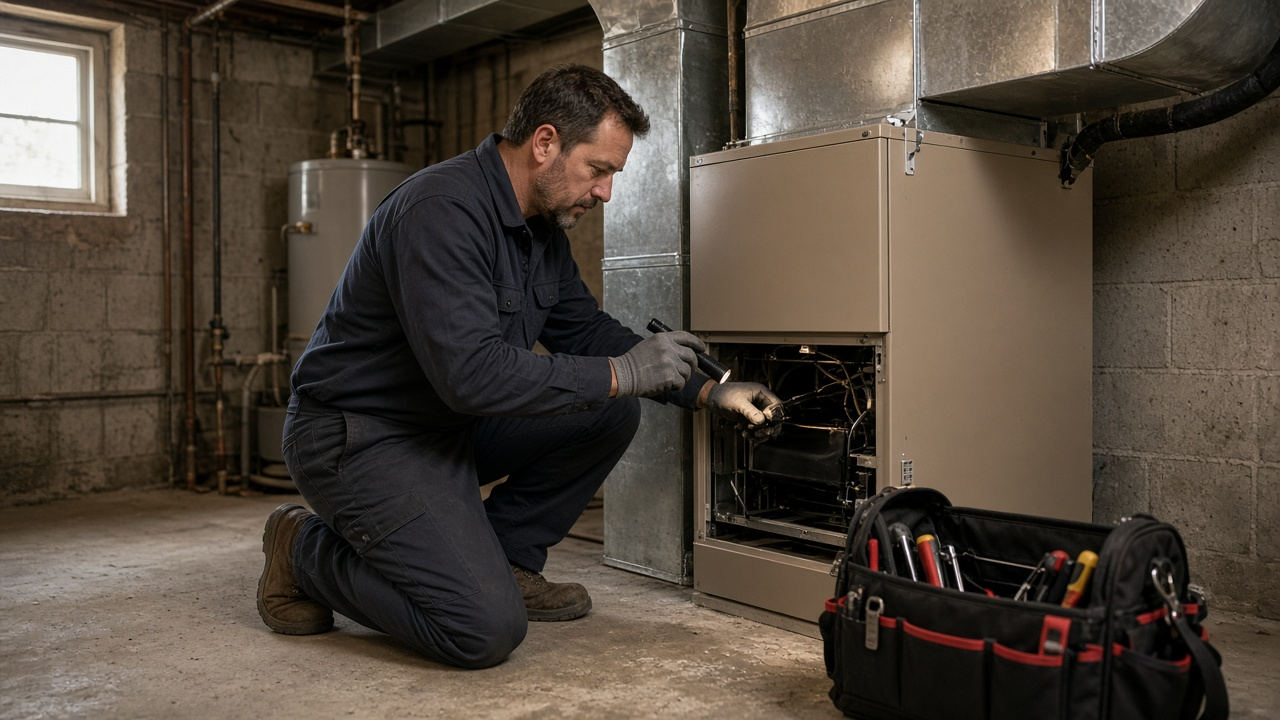
Service techs clock in at each job, not just the shop.
It's the first cold snap of October. Your phones light up at 6 a.m., three techs are on no-heat calls before the shop even opens, and by Friday you're staring at a paper timesheet that says "8 to 5" for a tech who was in four basements, two supply houses and a 9 p.m. emergency. You know the hours are wrong. You just can't prove which way.
This guide is for HVAC, plumbing and electrical shop owners who are done guessing. You'll see what good time tracking looks like for field techs, how drive time and on-call work fit in, and how to set it up in an afternoon so heating season doesn't eat your margin.
Why trades timesheets break down in heating season
A service tech's day isn't one shift at one address. It's a string of short jobs, drives, parts runs and callbacks. Paper sheets and "text me your hours" fall apart for a few predictable reasons:
- The day starts somewhere other than the shop. A morning check-in at the shop says nothing about where the tech went for the afternoon calls.
- Drive time disappears. Time between calls gets rounded into the job, left off entirely, or padded. Either way you can't price jobs or defend payroll.
- Emergency calls happen off the clock. The 2 a.m. no-heat call gets written on the back of an invoice, if it gets written down at all.
- Overtime shows up after it's paid. In peak season, 50-hour weeks creep in quietly, and you only notice when payroll lands.
- Time off collides with install week. Two techs ask for the same week off by text, and you find out when the crew is short on a furnace changeout you already promised.
None of this is a people problem. It's a tooling problem. If clocking in takes more than a few seconds from the van, techs skip it.
What good HVAC time tracking looks like
Whether you run three vans or thirty, the setup that holds up tends to have the same pieces:
- Clock-in on the tech's own phone, with the GPS location saved at each clock-in, not a shared sheet in the shop.
- Customer and job-site addresses saved as work locations, with a geofence only where you need proof, like a commercial rooftop contract.
- Job codes inside one clock-in so a tech can switch from "service call" to "drive" to "parts run" without clocking out.
- Mileage logged next to the hours, so van miles and labor land in the same weekly review.
- A way to fix a missed clock-out that leaves a record and goes to a manager, instead of you editing a cell.
- Overtime visible before approval, plus one place to see who's off before you book install week.
- A clean export your bookkeeper or payroll provider can open.
That's the whole list. You don't need a full field service suite to get accurate hours. TimeOff Manager handles time tracking, GPS clock-ins, mileage and time off in one account. It doesn't replace dispatch.
Tech vs. office: who does what
What the tech does from the van
Each tech signs in to the TimeOff Manager Pro app with their work email. The Today tab is where they clock in and out. If your company requires GPS on clock-in, the location is saved automatically, and a selfie can be required when your clock rules say so. The mobile app guide walks through the tabs: Today, Time, Leave and More, where mileage, schedule and holidays live.
Basements and mechanical rooms are dead zones. If the phone can't reach the server, the app saves the clock event on the device with the time they tapped, the GPS and the photo, then shows "Saved on this phone — will send when you have a signal." When the signal returns, it sends. Your geofence and schedule rules are checked against what was captured at the tap.
If you turn on work activities, the tech taps to switch the current activity while staying clocked in. Each segment keeps its own duration, so a Tuesday can read "Service call 2.5 h, Drive 1.2 h, Parts run 0.6 h" instead of one flat block.
Miles go on the same phone. The tech starts a live GPS trip from Mileage, or uses "Already drove — save trip" after the fact. The mileage hub shows pending and approved trips.
When a tech forgets to clock out at the last call, they fix the missed clock-out from the Time tab: pick the date, enter the times and a short reason, submit. It stays pending until a manager acts.
What the office (or the owner) does
Admins save job sites under Work Locations, with an optional GPS geofence and radius per site. Managers open the live staff map to see who's on the way, who's running late and who's clocked in. The map only works while a tech is in the live window you configured, and employees never see it.
Mileage claims come into Mileage Management for approve or reject, with a CSV export. Missed clock-outs, leave and mileage all show in the dashboard Approval Center, so nothing sits in someone's text messages.
On Friday, the manager timesheet hub is where you review the week. The Weekly view shows each tech's days with regular and overtime hours split out, and that's where you approve.

Drive time, on-call and emergency calls
This is where trades shops get hurt, so set the rules before the season, not after the first complaint.
- Home to first call. Under federal rules, the ordinary commute from home to work usually isn't work time. If your techs take the van home, check how your state treats that, and write your policy down.
- Shop first, then out. If a tech has to report to the shop to load parts or get the day's tickets, the drive from the shop to the first call is generally work time. Have them clock in at the shop.
- Call to call. Travel between job sites during the day is generally work time. A "Drive" activity makes it visible instead of buried.
- On-call nights. Being on call at home and free to live your life is usually treated differently from waiting at the shop. Answering the 2 a.m. call is work. Have the tech clock in when they leave for the call and out when they're done.
One setup detail matters here. If you turn on "Require a schedule to clock in" in your clock rules, regular staff can't clock in on a day they aren't scheduled. That's great for a fixed crew and a problem at 2 a.m. Either leave it off for service techs, or schedule your on-call rotation through schedule management so the on-call tech is covered.
Set it up in one afternoon
- Turn on time tracking and decide your clock rules: GPS on clock-in, selfie or not, schedule required or not.
- Add work locations. Start with the shop, your commercial accounts and any repeat sites. Turn on a geofence only where you need proof.
- Create five or six job codes in work activities: Service call, Install, Drive, Parts run, Shop and Callback. Mark which are billable. Keep the list short or techs will pick the first one every time.
- Set overtime thresholds in overtime rules, with per-tech rules for anyone on a different arrangement.
- Turn on mileage if you reimburse personal vehicles or want van miles tracked by job.
- Put a kiosk in the shop for warehouse or counter staff who don't drive. TimeOff Kiosk is a PIN clock on a shared tablet, separate from the techs' phone app.
- Run one week in parallel with your old sheet, compare totals, then switch fully.
- Pick an approval day. Thursday afternoon works for most shops. Fix missed clock-outs, approve, then download Excel or CSV for payroll.
Want a second set of eyes on the numbers? Invite your bookkeeper with accountant access so they can see reports and timesheets without a full login to your company.
Plan time off around install season
Trades have two busy seasons and a lot of vacation requests in between. When techs request time off from the Leave tab, it shows on the team coverage calendar next to holidays, so you can check who's out before you promise a homeowner a start date. Techs track their own requests under My requests, and you approve from the same Approval Center as hours and mileage.
A simple rule many shops use: no more than one service tech off per week from mid-October through January, and first approved, first served. Post it before the season, then let the calendar enforce the conversation.
Plumbers and electricians: same problem, different job sites
Plumbing crews have the same call-to-call days, plus long jobs where a tech is on one site for a week. Electrical crews often split time between new construction and service work. The setup is the same, and the job codes change: "Rough-in," "Trim-out" and "Service" for electricians, "Drain," "Water heater" and "Repipe" for plumbers. See how it applies to HVAC companies, plumbing companies and electrical contractors.
If your techs work inside a bay instead of on the road, the auto shop time tracking guide covers the kiosk-first version. For a broader look at phone clock-ins, read clock in app with GPS for small business, and for van miles, see mileage reimbursement software.
Compliance notes
This is not legal advice. Hours-worked rules depend on where your techs work, and your advisor or payroll provider should confirm your policy.
- U.S. Department of Labor, Fact Sheet #22: Hours Worked under the FLSA.
- Federal rules on travel that is part of the day's work and on home-to-work travel.
- Federal guidance on on-call time.
- In Canada, provincial rules apply to most shops. Ontario employers can start with the Your guide to the Employment Standards Act.
Location data is personal data. Tell your techs what's recorded and when, in a written monitoring notice. TimeOff Manager records GPS at clock-in and, if you turn on the live map, only during the live window you set. GPS history is kept for a short rolling window, not forever.
Try it on your own crew
See how GPS clock-ins, job codes, mileage and overtime fit together on the time tracking software page, click around the live demo, or start a 14-day trial and run one week in parallel with your old timesheet.
FAQ
What is HVAC time tracking software?
It records when each tech starts and stops work, where they clocked in, and how the day splits between calls, drive time and shop time. TimeOff Manager does that on each tech's own phone, adds mileage and time off in the same account, and lets a manager approve the week before hours go to payroll.
Can my techs clock in at the customer's house instead of the shop?
Yes. Save the address as a work location and the tech clocks in there from the TimeOff Manager Pro app. The GPS location is saved with every clock-in, and you can turn on a geofence for sites where you want the clock-in to happen inside a set radius.
Is drive time between service calls paid?
Under the federal FLSA, travel from one job site to another during the workday is generally work time, while the normal commute from home to the first job usually isn't. Your state or province can add rules on top, so confirm with your own advisor. This is not legal advice.
What happens when a tech clocks in from a basement with no signal?
The TimeOff Manager Pro app saves the clock-in on the phone with the tap time, GPS and photo if required, then sends it when the signal comes back. Geofence and schedule rules are checked against what was captured at the tap, not where the phone is when it syncs.
Will this replace our dispatch or field service software?
No. TimeOff Manager doesn't assign tickets, manage service agreements or invoice homeowners. It records clock-ins, job-code time, drives and time off, then exports approved hours as Excel or CSV.
Can I see heating-season overtime before I run payroll?
Yes. Set company overtime thresholds, add per-tech rules where needed, and review regular versus overtime hours in the weekly timesheet view before you approve. TimeOff Manager flags the hours; your payroll provider still calculates pay.
Is there a free trial?
Yes. You get a 14-day trial with time tracking, GPS clock-in, mileage, the shared-tablet kiosk and time off included, and you can click through the live demo first without signing up.