Time Off Reporting: Leave Usage Trends, Balances and History by Team (2026)
Know who still has vacation in the bank, which teams are trending heavy on sick days, and what happened to every request, without building a spreadsheet each month.


See who still has vacation in the bank and how leave is trending, team by team.
Someone asks you a simple question: "How much vacation did the warehouse team take this year, and who still has two weeks sitting in the bank?" If your answer starts with "give me a day to pull it together," your time off data is stored, but it isn't reported. This guide shows what a useful time off report looks like, the four questions it should answer, and how to get there without building pivot tables every month.
Why time off reporting breaks in small companies
Most teams start with a spreadsheet, a shared calendar, or an inbox full of approvals. That works for recording requests. It falls apart the moment you need to look back across people and months.
- Totals live in one place, history in another. The balance is in a spreadsheet tab. The reason for the change is in an email thread from March.
- Nobody sees trends until they hurt. You notice the sick-day spike after the schedule is already short, and you notice the unused vacation in December when half the team wants the same two weeks off.
- Managers can't see their own team. Either they get the whole company's data (too much) or they ask HR every time (too slow).
- Auditing is guesswork. When an employee disputes a balance, you're rebuilding the year from memory, calendar invites and old messages.
Good time off reporting fixes this by keeping every request, approval and cancellation in one record, then giving you views that summarize that record by person, team, leave type and date range.
The four questions a time off report should answer
Before you pick a tool or build a template, decide what the report is for. In our experience, owners, HR and ops managers keep coming back to four questions:
- Where does everyone stand right now? Allowance, taken, remaining and pending, per person, for the current year.
- How is leave being used over time? Usage by month and by leave type, so you can see seasonal peaks, sick-day spikes and teams that never take vacation.
- Who is at risk? People with large unused balances late in the year, people who have already run through their allowance, and requests piling up waiting for approval.
- What happened, and when? A history you can trust when someone asks why their balance changed, or when payroll needs leave days for a pay period.
A report that answers all four is worth more than ten tabs that answer one each.
What good time off reporting looks like
- One source of truth. Requests, approvals and balances come from the same system, so the report can't drift from what employees see.
- Date filters that match how you run the business: calendar year, quarter, pay period or a custom range.
- Breakdown by leave type. Vacation, sick, personal and unpaid tell very different stories. If you use custom leave types, those should show up too.
- Role-based scope. Managers see their direct reports. HR and admins see the company.
- A visible history. Pending, approved, rejected and cancelled requests stay on record instead of being overwritten.
- Exports in Excel or CSV for payroll, your accountant or a board deck.
How time off reporting works in TimeOff Manager
TimeOff Manager gives you three reporting views, each built for a different question, plus exports. All of them read from the same leave requests your employees submit, so there's no separate spreadsheet to keep in sync.
1. Analytics Dashboard: trends and patterns
The Analytics Dashboard at /admin/analytics opens with an Executive Summary of time off and timesheet KPIs. Set the year and a start and end date, click Update, and the page refreshes for that range. Below the summary, depending on your data and the features you use, you'll find sections such as leave request overviews, balances, usage by leave type, patterns over time, at-risk balances and approval performance, alongside hours worked and overtime.
This is the screen for question two and three: how is leave trending, and who needs a conversation. Managers generally see analytics for their direct reports. Company admins and HR managers see company-wide numbers.

2. Employee Leave Summary: where everyone stands this year
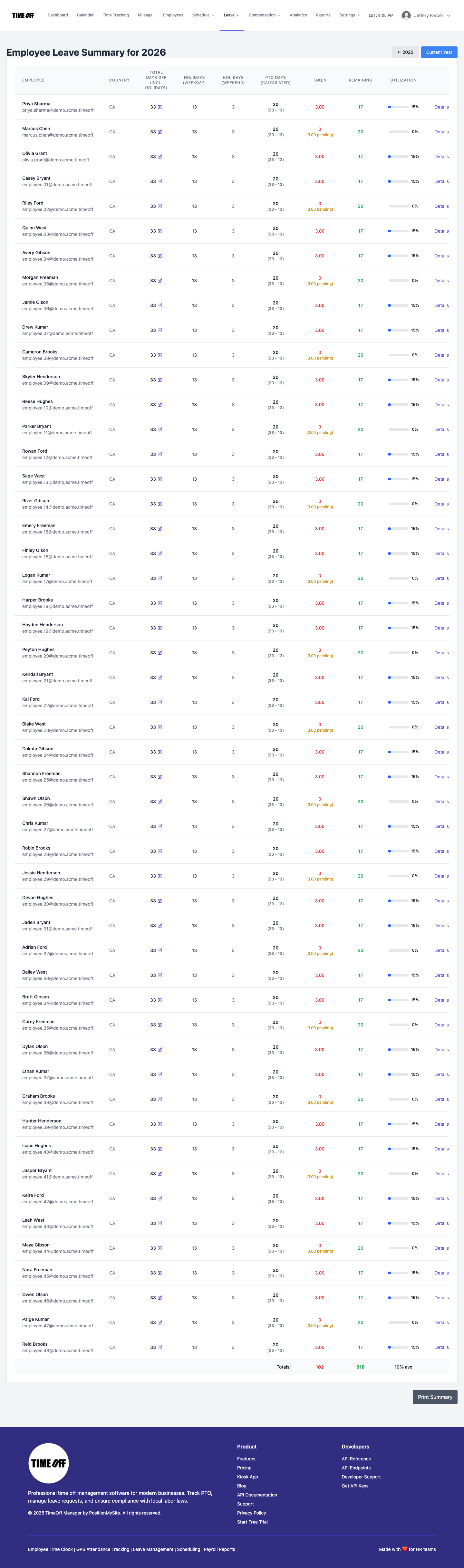
The Employee Leave Summary at /admin/summary is the year-level roster view. Each row shows the employee, country, holiday splits, calculated PTO, days taken, days remaining and a utilization bar. Use the year arrows to look at last year, this year or next year.
This answers question one in a single screen. Scan the utilization bars to spot who is heavy or light on usage, then use the row actions to open that person's details or jump to their calendar when you need day-by-day context.
3. Leave requests and the team calendar: the history
Every request lives under /leave-requests. Employees see My Leave Requests; admins and HR see a Team Time Off list with counts like pending approvals, who's off today and year-to-date usage. Each row carries its dates, leave type and status: pending, approved, rejected or cancelled. Cancelled requests stay in the list, which is exactly what you want when you need to explain a balance months later.
For a visual version of the same history, the team timeline shows one row per employee and one column per day, with codes for vacation, sick, personal, unpaid and holidays. It's a planning view (we wrote more about it in our team leave calendar guide), but it's also a fast way to read a month of leave at a glance.
4. Reports and exports: hand it to payroll
When the numbers need to leave the app, Reports at /admin/reports builds a Payroll Hours Report for a date range, with total hours, regular hours, overtime, leave days and pay columns, plus an optional daily breakdown. Download it as Excel or CSV. A Quick Exports section adds more downloads, such as a master list and PTO usage, depending on your setup.
If your bookkeeper is the one asking, you don't have to share your login. Accountant Access lets a company admin or HR manager invite them with read-focused access to reports and timesheets. Our accountant access and Excel export walkthrough covers that month-end flow step by step.
Employee vs manager vs HR: who sees what
- Employees see their own requests, statuses and personal summary. They submit leave and watch it move from pending to approved.
- Managers approve requests in the dashboard Approval Center and see analytics and the leave summary scoped to their direct reports.
- HR managers and company admins see company-wide analytics, the full leave summary, Reports and exports, and can invite an accountant.
That split matters for reporting. A manager can answer "how is my team doing on vacation?" on their own, without HR building a custom report, and without seeing the rest of the company's data.
A monthly time off review you can run in 15 minutes
Reports only help if someone looks at them. Here's a simple routine for owners, HR or ops managers:
- Clear the queue first. Open the Approval Center and handle anything pending. Old pending requests make every report less accurate.
- Check the year so far. Open the Employee Leave Summary for the current year. Note anyone whose remaining balance is still high relative to the time left in the year.
- Look at the trend. In the Analytics Dashboard, set the range to the last three months. Compare usage by leave type. A jump in sick days on one team is worth a quiet check-in.
- Look ahead. Open the team timeline for next month and look for overlapping vacations before they become a staffing problem.
- Export what payroll needs. At the end of the pay period, run the Payroll Hours Report in Reports and download the Excel or CSV file.
- Write down one action. Nudge two people to book vacation, adjust a policy, or plan coverage. One action per month beats a report nobody reads.
Do a deeper version each quarter, and one more in the fall so year-end carryover conversations happen in October, not the week before the holidays.
Five patterns worth watching
- Low vacation usage by mid-year. Often a sign of workload or a manager who discourages time off. It also sets you up for a year-end crunch.
- Sick days clustering on Mondays, Fridays or around holidays. Treat it as a prompt for a conversation, not proof of anything.
- One team carrying most of the pending requests. Usually a slow approver. Approval performance metrics help here.
- Balances that go negative or hit zero early. Check whether the policy or the allowance set for that person is right.
- Seasonal peaks. Summer and December requests that overlap year after year tell you when to plan coverage or set booking windows.
Recordkeeping and compliance
Time off reports are also part of your records. In the US, the Department of Labor's FLSA recordkeeping rules require employers to keep payroll records for at least three years and supporting time records for at least two. Some states add their own rules for paid sick leave and vacation. In Canada, each province sets its own requirements for vacation records and how long to keep them; Ontario's are explained in the Employment Standards Act vacation guide.
A system that keeps request history and lets you export it makes those obligations easier to meet. It doesn't replace knowing the rules that apply to you. This article is general information, not legal advice. Check with your provincial or state employment standards office, or an employment lawyer, for your situation.
Try it
The fastest way to see what these reports look like with real-looking data is to open the live demo and click into Analytics and the Employee Leave Summary. When you're ready to use your own team, start a 14-day trial. You can also read more about our PTO software.
FAQ
What should a time off report include?
At minimum: each person's allowance, days taken, days remaining and pending requests for the period, broken out by leave type (vacation, sick, personal, unpaid). Add usage by month and by team so you can see patterns, not just totals.
How do I track time off usage trends by team?
Use a dashboard that filters by date range and scopes to a manager's direct reports. In TimeOff Manager, the Analytics Dashboard at /admin/analytics shows leave KPIs, usage by type and patterns over time; managers see their own reports and admins or HR see the whole company.
How do I find employees who haven't taken enough vacation?
Open the Employee Leave Summary for the current year and sort your attention by the utilization bar. Anyone with a large Remaining balance late in the year is a burnout and year-end crunch risk. The Analytics Dashboard can also flag at-risk balances.
Can I audit an employee's time off history?
Yes. Leave requests keep their status history (pending, approved, rejected, cancelled), and cancelled requests stay in the list instead of disappearing. From the Employee Leave Summary you can drill into one person's details or calendar for day-by-day context.
Can I export time off data for payroll or my accountant?
Yes. Reports at /admin/reports builds a Payroll Hours Report with leave days, overtime and hours that you can download as Excel or CSV. Quick Exports add more downloads, and you can invite your accountant with read-focused access instead of sharing an admin login.
How often should managers review time off reports?
A quick monthly check works for most small teams: pending requests, who is trending low on remaining balance, and any spike in sick days. Do a fuller review each quarter and before year-end so carryover and coverage conversations happen early.