Warehouse & Logistics Time Clock: Shift Clock-Ins, Peak Season Coverage and Overtime (2026)
How warehouse and distribution managers replace the clipboard at the door with kiosk clock-ins, keep shifts covered through peak season with seasonal hires, and catch overtime before payday.


Shift change at the dock door is where hours start, so that's where the time clock belongs.
It's 5:58 a.m. and forty people are trying to get through one door. Half of them sign a sheet on a clipboard. A few write down 6:00 when they walked in at 6:20. Two temps from the agency aren't on any list yet. By Friday, someone in the office is squinting at handwriting, guessing at overtime and fielding a call about a paycheck that's short.
This guide is for warehouse, distribution and logistics managers who want clean clock-ins at the door, shifts that are covered through peak season, and overtime they can see coming before payroll. It works the same for a single building or a few sites in one region.
Why warehouse hours go wrong in peak season
Most of the year, a warehouse can get by with a sign-in sheet and a good supervisor. Peak season breaks that. Volume jumps from late October through January returns, you add seasonal workers, and people pick up extra shifts. Every weak spot in how you track time gets bigger at once.
- The door gets crowded. Shift change is the busiest five minutes of the day. Paper sheets and shared logins get skipped or filled in later.
- Times get rounded by hand. When people write their own start times, 6:20 turns into 6:00 and nobody can prove otherwise.
- Temps arrive fast. New seasonal hires need to clock in on day one, not after the office gets around to setting them up.
- Three shifts, three supervisors. First, second and third shift each keep their own notes, and the office only sees the mess at payday.
- Overtime sneaks up. A few voluntary Saturdays on top of five 10-hour shifts and you're well past 40 hours before anyone looked.
- Time off collides with the busiest weeks. Everyone wants the week of a holiday, and that's exactly when you can't spare them.
What good looks like on the warehouse floor
- Every worker clocks in at the door in a few seconds with their own PIN, on a tablet that stays mounted.
- People who start at another building, a yard or a cross-dock clock in on their phone at a location you saved.
- Breaks are tracked against the rules you set, so a missed break is flagged instead of discovered later.
- Supervisors on every shift see the same schedule, the same timesheets and the same overtime picture.
- Time-off requests come through the app, and managers check coverage before saying yes.
- Payroll gets approved hours, not a stack of sheets to retype.
Clock-ins at the door with a kiosk
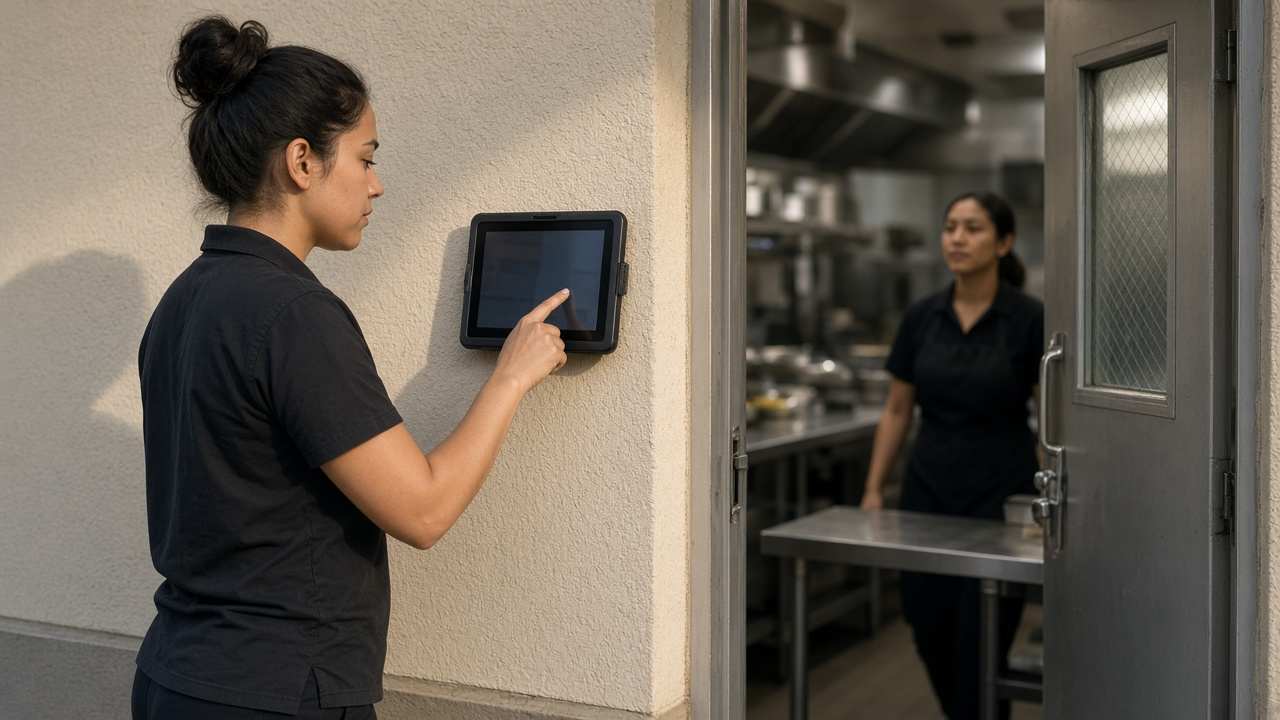
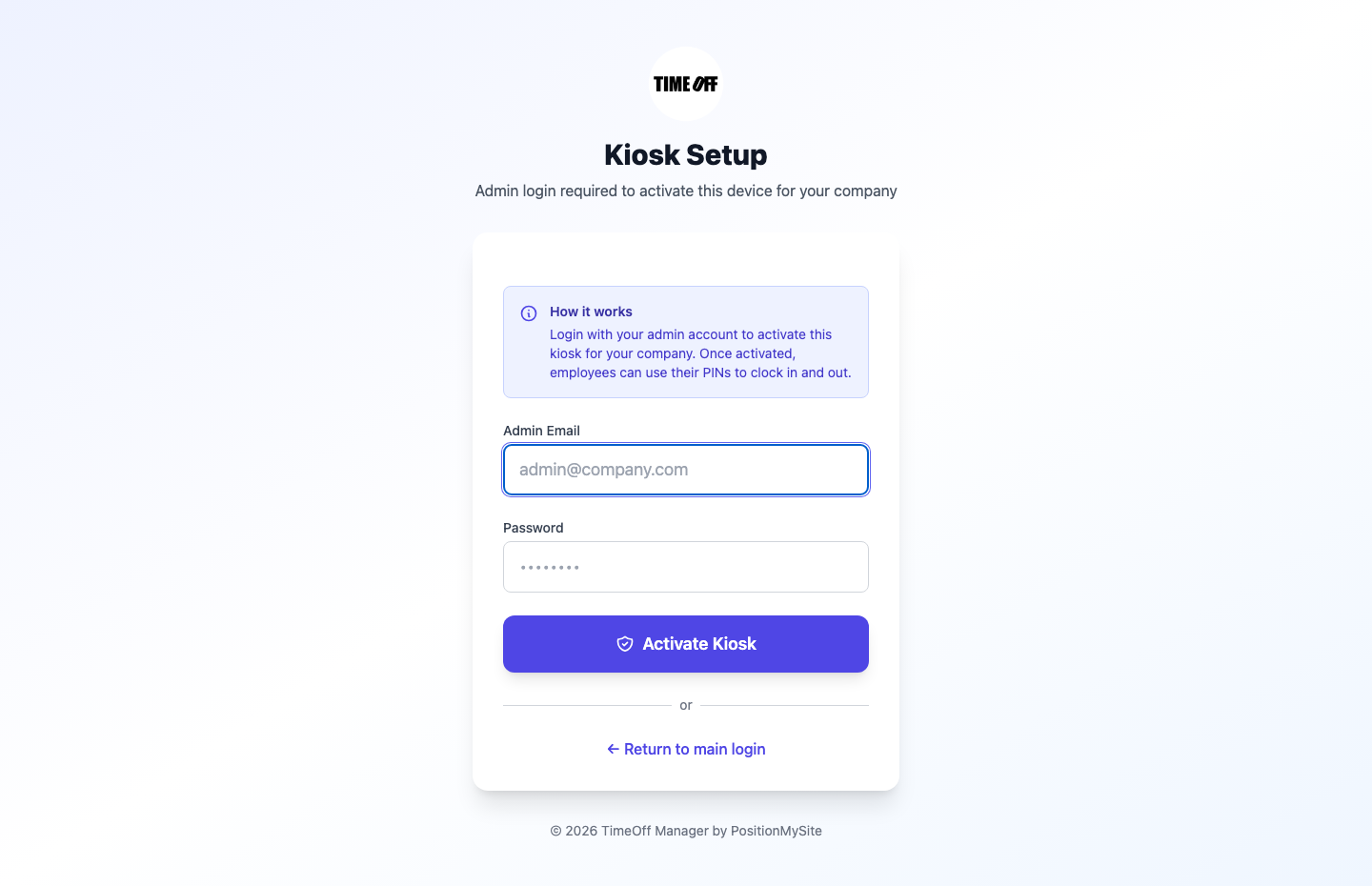
The simplest fix is a shared tablet by the main entrance or the break room running TimeOff Kiosk. An admin activates the tablet once, then each worker clocks in with the PIN from their employee profile. Nobody signs into a full account on a shared device, and nobody needs a company phone.
A few settings make it work for a busy floor. In clock rules you can require GPS and a photo at clock-in, so the photo sits next to each clock event. If you turn on Require a schedule to clock in, everyone, admins included, needs a schedule before the kiosk lets them in. That's useful once your rosters are solid, but you may want it off for the first weeks of peak while temps are still being added. The kiosk help guide covers activation and the rules.
Warehouses also have dead spots. Looking up a PIN still needs a network, but once the worker is identified, a clock event that times out is saved on the tablet and sent later with the original time. You don't lose the 5:58 a.m. clock-in because the wifi blinked.
For staff who don't start at the main door, like yard drivers, a second building or a client site, the TimeOff Manager Pro app lets each person clock in on their own phone. Save each building as a work location with a geofence radius so a clock-in from the parking lot across the street doesn't count when your rules require GPS. If your concern is people clocking in for a friend, our guide to stopping clock-ins for coworkers with kiosk photos goes deeper.
Shifts and coverage through peak
Build your shift patterns once with shift templates: first shift, second shift, overnight, a weekend crew. Each template is a weekly pattern with days and times, and you can apply it to many people at once with bulk schedule assignment. When you hire 15 seasonal pickers on a Monday, they get the second-shift template in one step instead of 15 hand-built schedules.
Then set the guardrails. Schedule validation rules let you set daily and weekly hour limits, shift length, break requirements and consecutive days. Start with a preset, adjust the numbers to your policy, and run a test scenario so supervisors know what the warnings look like. In peak, the consecutive-days rule is the one people forget: it's easy to schedule someone for 12 days straight when you're short.
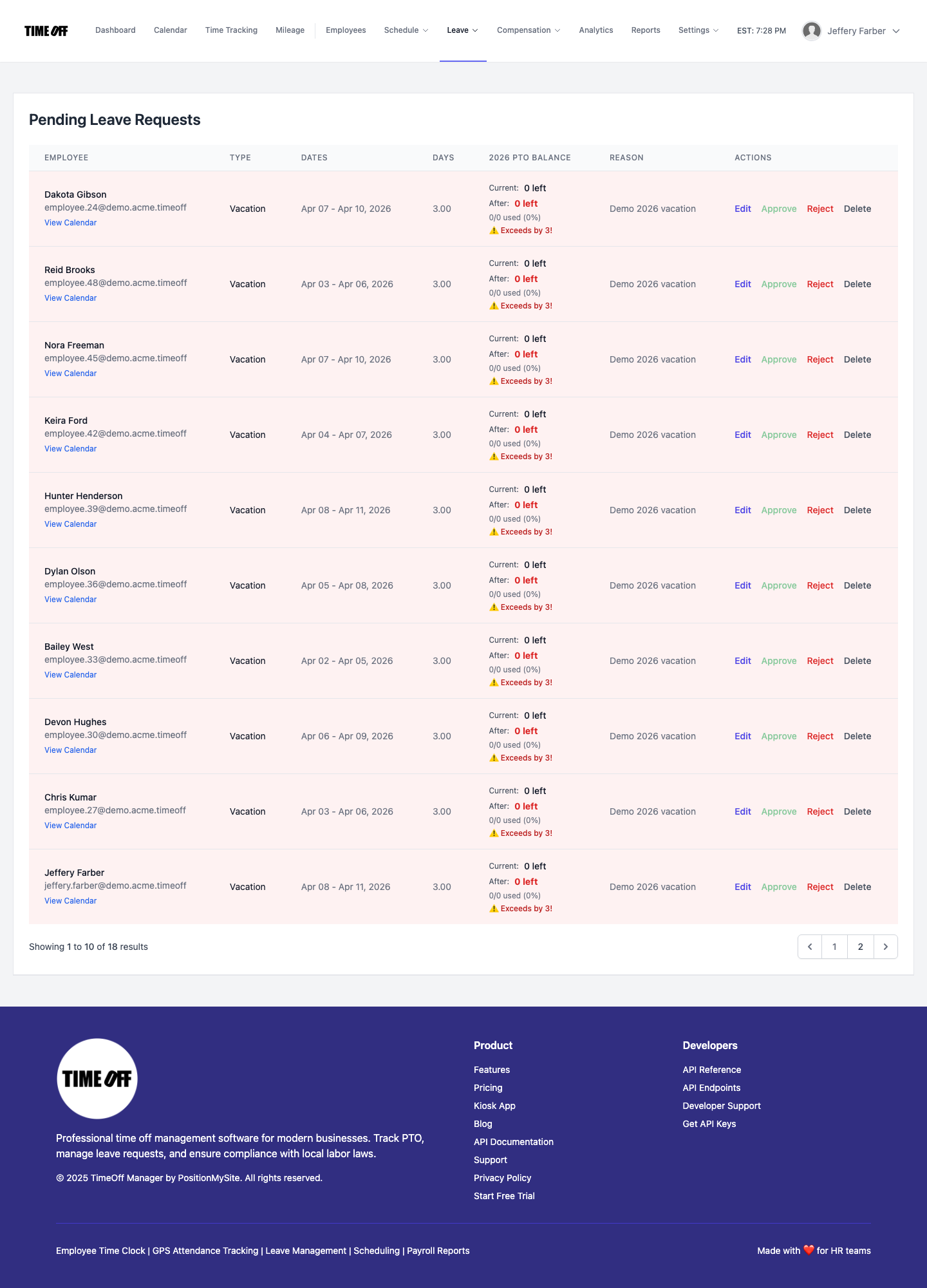
Time off is the other half of coverage. Workers request days in the app, and managers open the team coverage calendar to see who's already off on each date before approving. If you let people take time off in peak only with notice, set that expectation up front and use the calendar to hold the line fairly. Requests then get approved or denied from one inbox, which the leave requests guide walks through.
Overtime you see before payroll
Peak overtime isn't a surprise if you watch it during the week. Five 10-hour shifts is 50 hours. Add one voluntary Saturday and it's 58. That's 18 hours at time and a half for that person, and it's a lot cheaper to know on Wednesday than on payday.
In Overtime Management, you set the company-wide weekly threshold and multiplier, then add per-employee rules only where someone's arrangement is different. Supervisors review weekly hours in the manager timesheet hub before they approve, and that's where you decide whether to offer the next extra shift to someone at 32 hours instead of someone at 46.
Missed clock-outs are the other big source of bad overtime. When someone forgets to clock out after a double, they file a forgot to clock in or out request with the real time and a reason, and a manager approves it. That's better than the office guessing. If you split hours between areas like receiving, picking, packing and returns, work activities let people switch codes mid-shift without clocking out, so labor lands in the right bucket.
Who does what
Warehouse workers clock in at the kiosk or on their phone, see their schedule, request time off and fix a missed clock-in themselves.
Shift supervisors watch who's clocked in, approve missed clock-in fixes and leave requests, check coverage before approving days off, and review weekly hours and overtime before they sign off.
The office or HR sets locations, clock rules, shift templates, validation rules and overtime, adds seasonal hires, and exports approved hours for payroll or the bookkeeper. Drivers on the road are a different job: our guide to trucking and driver time tracking covers dispatch, stops and mileage. You can also see how TimeOff Manager fits logistics companies on our industry page.
A rollout you can finish before the peak
- Save your buildings. Add each warehouse, yard and cross-dock as a work location with a geofence radius.
- Set clock rules. Decide whether GPS and a photo are required, and whether people need a schedule to clock in.
- Mount a tablet at the door. Activate TimeOff Kiosk, hand out PINs and test it at shift change, not at 2 p.m.
- Build shift templates. One per shift pattern, then bulk-assign your crews.
- Set validation and overtime. Break rules, consecutive-day limits, and a weekly overtime threshold that matches your workweek.
- Turn on time-off requests. Load your leave types and tell people peak requests go through the app.
- Run one pay period in parallel with the paper sheet, compare the totals, then retire the clipboard.
- Every pay period: approve missed clock-in fixes, review overtime, approve hours and export for payroll.
Running a store during the same season? Our guide to retail time tracking for the holiday season covers the front of the house. For how the time tracking side works overall, see time tracking software.
Rules worth checking
This is not legal advice. Employment rules vary by country, state and province, and some cities add their own scheduling rules.
- United States, overtime. Under the Fair Labor Standards Act, non-exempt employees generally earn time and a half after 40 hours in a fixed workweek. That includes temps and seasonal workers. Hours can't be averaged across two weeks, and some states add daily overtime. See the U.S. Department of Labor overtime fact sheet.
- United States, breaks. Federal law doesn't require meal or rest breaks, but short breaks of about 5 to 20 minutes are generally paid as hours worked, and a bona fide meal period of 30 minutes or more usually isn't. Many states require meal or rest breaks. See the DOL hours worked fact sheet and check your state.
- Agency temps. If a staffing agency supplies workers, check who is the employer for overtime and records. The hours still need to be accurate either way.
- Canada. Overtime and breaks are set by each province. Ontario generally pays overtime after 44 hours a week and requires a 30-minute eating period after no more than five hours of work. See the Ontario overtime guide and the Ontario hours of work guide.
Try it with your crews
Start with a full year free to try it with your team. You pay $0 for 12 months. A card is required to start, and the yearly price is charged on the anniversary unless you cancel first. After that, Starter (1 to 20 people) is $180 a year, Growth (21 to 50) is $300 a year, and Scale (51 to 1,000) is $479.90 a year or $49.99 a month. Get comfortable before you decide: mount a tablet at the door, load one shift and run a full pay period next to your sign-in sheet.
FAQ
What is the best time clock setup for a warehouse?
For most warehouses, a tablet with TimeOff Kiosk mounted by the main entrance or the break room works best. Each worker clocks in with their own PIN, so nobody needs a company phone. Staff who start at another building or a cross-dock can clock in on their own phone with the TimeOff Manager Pro app at a work location you saved.
Can seasonal and temp workers use the same time clock?
Yes. Add them as employees with time tracking turned on and give each person a PIN. They clock in at the same kiosk as everyone else, and their hours show up in the same timesheets and overtime review. When the season ends, deactivate them instead of sharing logins.
How do I stop people clocking in for each other at the dock?
Each worker has a personal PIN, and you can require a photo and GPS at clock-in under your clock rules. The photo sits next to the clock event, so a supervisor can see who actually stood at the tablet.
What happens when the warehouse wifi drops?
Looking up a PIN on the kiosk still needs a network. Once the worker is identified, a clock-in or clock-out that times out is saved on the tablet and sent later with the original time. The phone app also saves clock events while offline and sends them when the signal returns.
How does overtime work during peak season?
Under the federal FLSA, non-exempt workers, including temps and seasonal staff, earn time and a half after 40 hours in a fixed 7-day workweek. Some states add daily overtime, and Ontario generally uses 44 hours a week. You set the company threshold and multiplier, add per-employee rules where needed, and review weekly hours before payroll.
Can I see who is off before I approve more time off in December?
Yes. The team coverage calendar shows approved leave and holidays for everyone, day by day. Managers check it, then approve or deny the request from the approval inbox.
What does it cost after the free year?
New companies get a full year free, $0 for 12 months, with a card required to start. If you continue, the yearly price is charged on your anniversary: Starter (1 to 20 people) is $180 a year, Growth (21 to 50) is $300 a year, and Scale (51 to 1,000) is $479.90 a year or $49.99 a month.