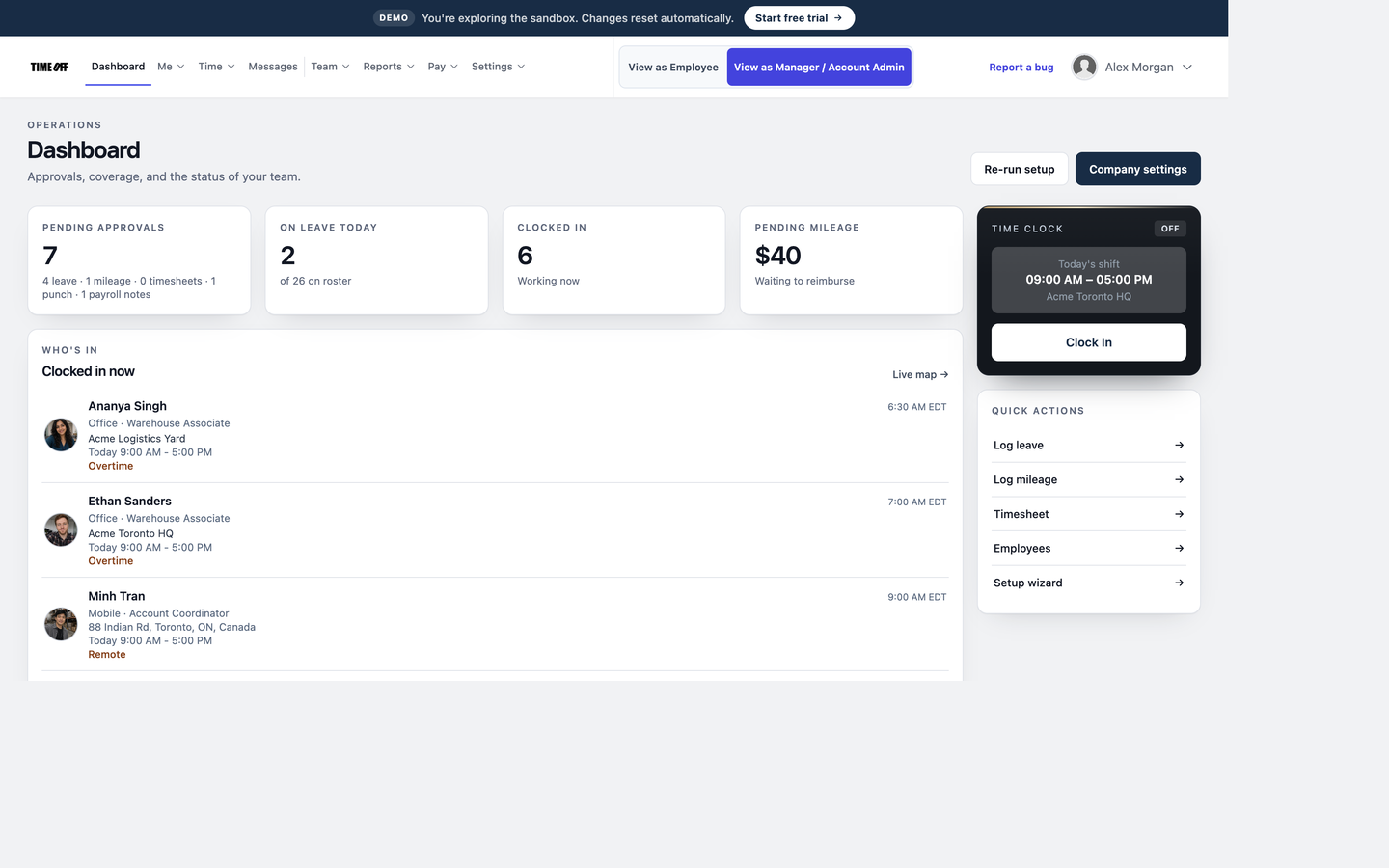
 Dashboard
Getting started as an employee
Sign in, open Dashboard, then use the Me, Time, and Messages menus — the same labels as production. Dashboard shows today’s shift, balances, and quick actions.
Interactive sandbox
Pick a role and jump into Acme Inc., a fully loaded sample company — 52 employees, two Toronto sites, live map GPS, clock photos, sample pay stubs, and mileage receipts.
Ready for your own workspace? Start a 14-day free trial — no credit card. Plans start at $15/mo billed annually after the trial.
Tell us your name and email and we’ll sign you in — takes about ten seconds. Once you’re inside, you can switch between the administrator and employee views from the top menu.
Heads up: the sandbox resets once daily at 03:00 (America/Toronto, EDT) — nothing you do here is saved. Next reset: Oct 17, 2026 at 3:00 AM EDT.
Demo · Walkthrough
Short step-by-step guides for the workflows people actually use — clocking in with GPS and photos, live staff map, requesting leave, live mileage trips, building schedules, and exporting hours. Read one, then jump into the sandbox as an Employee or Company administrator.
Same login as the website on TimeOff Manager Pro.
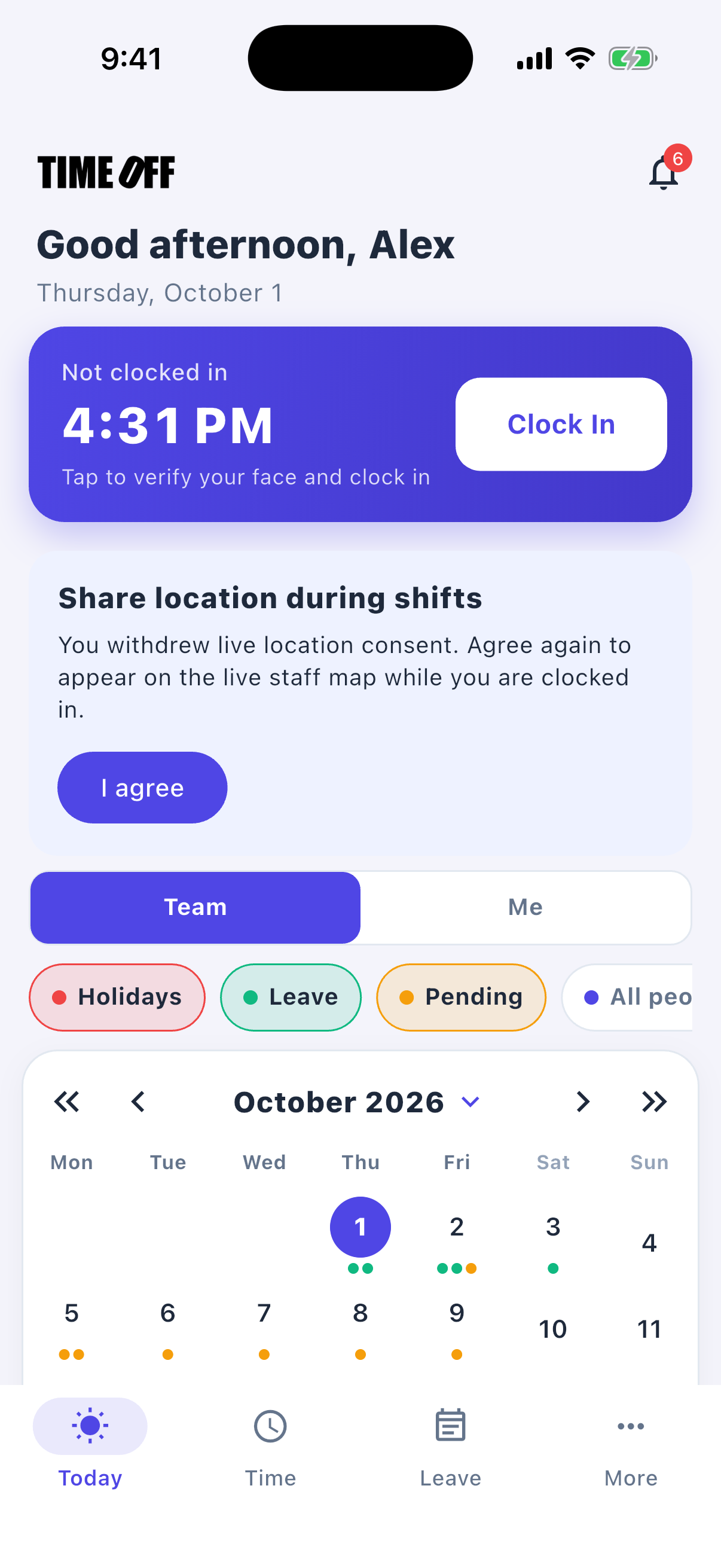
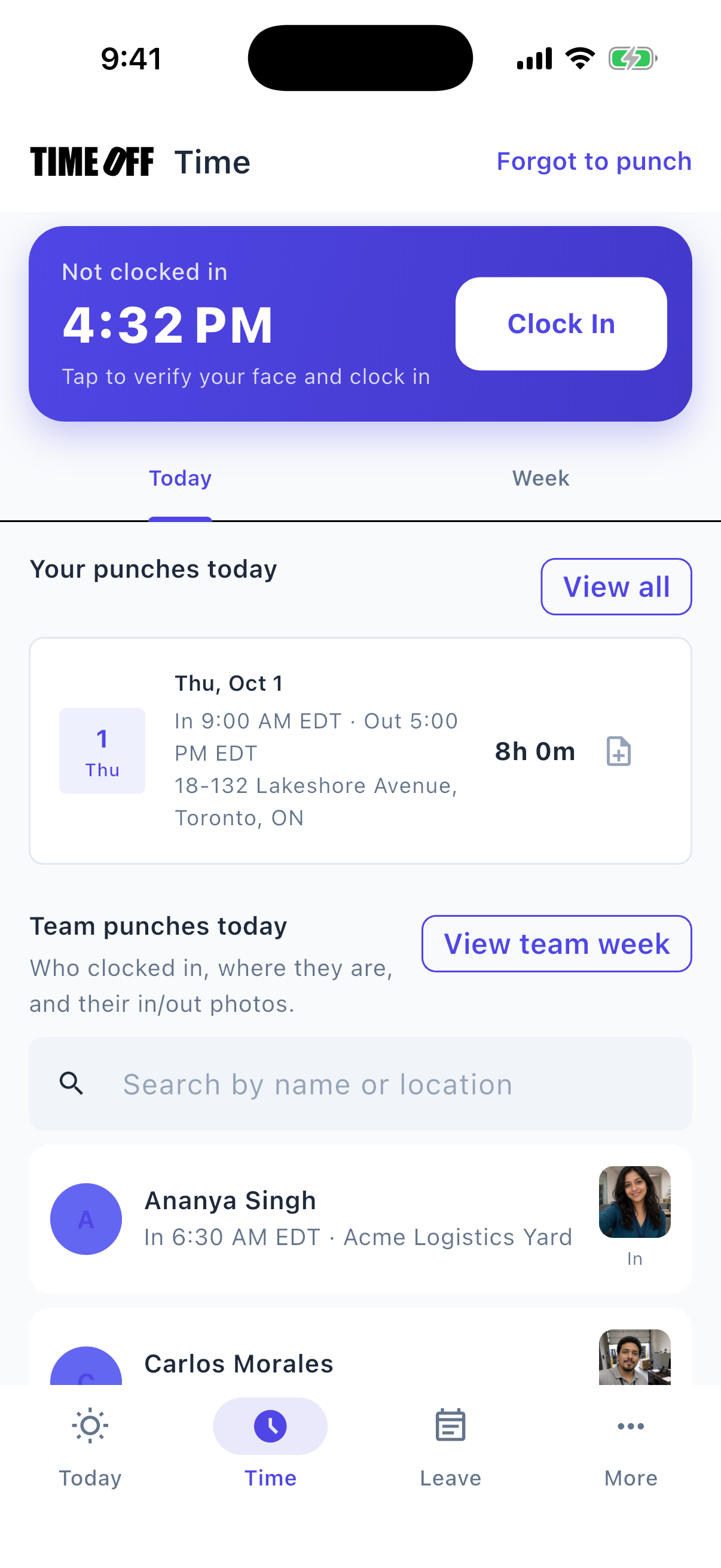
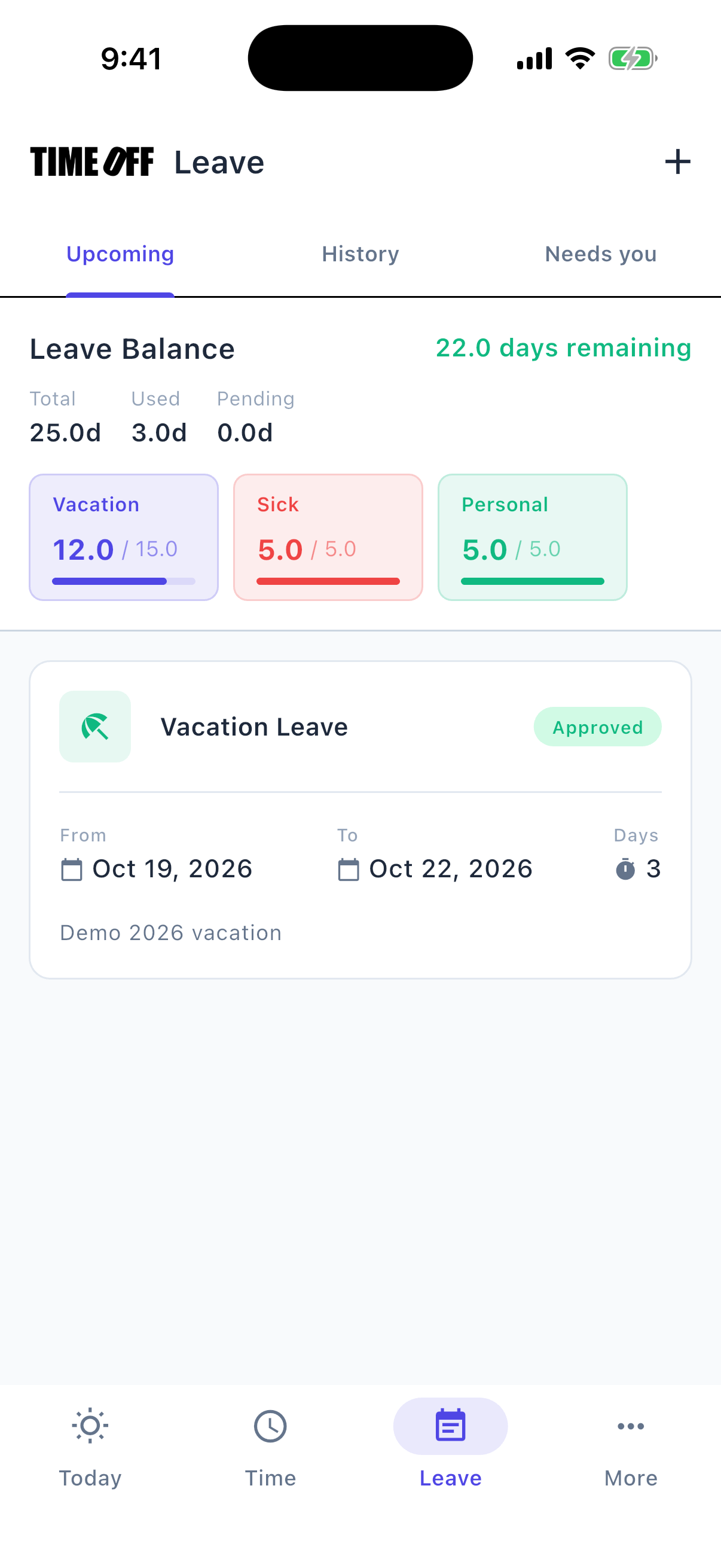
Open Demo logins, choose Employee or Company administrator, and enter your name and email. Administrators get full owner-level access — settings, Reports, live map, the whole roster.
Prefer a guided tour? Contact us and we’ll walk you through it live.
Day-to-day tasks staff will do inside TimeOff Manager.
Dashboard
Sign in, open Dashboard, then use the Me, Time, and Messages menus — the same labels as production. Dashboard shows today’s shift, balances, and quick actions.
 Time Tracking
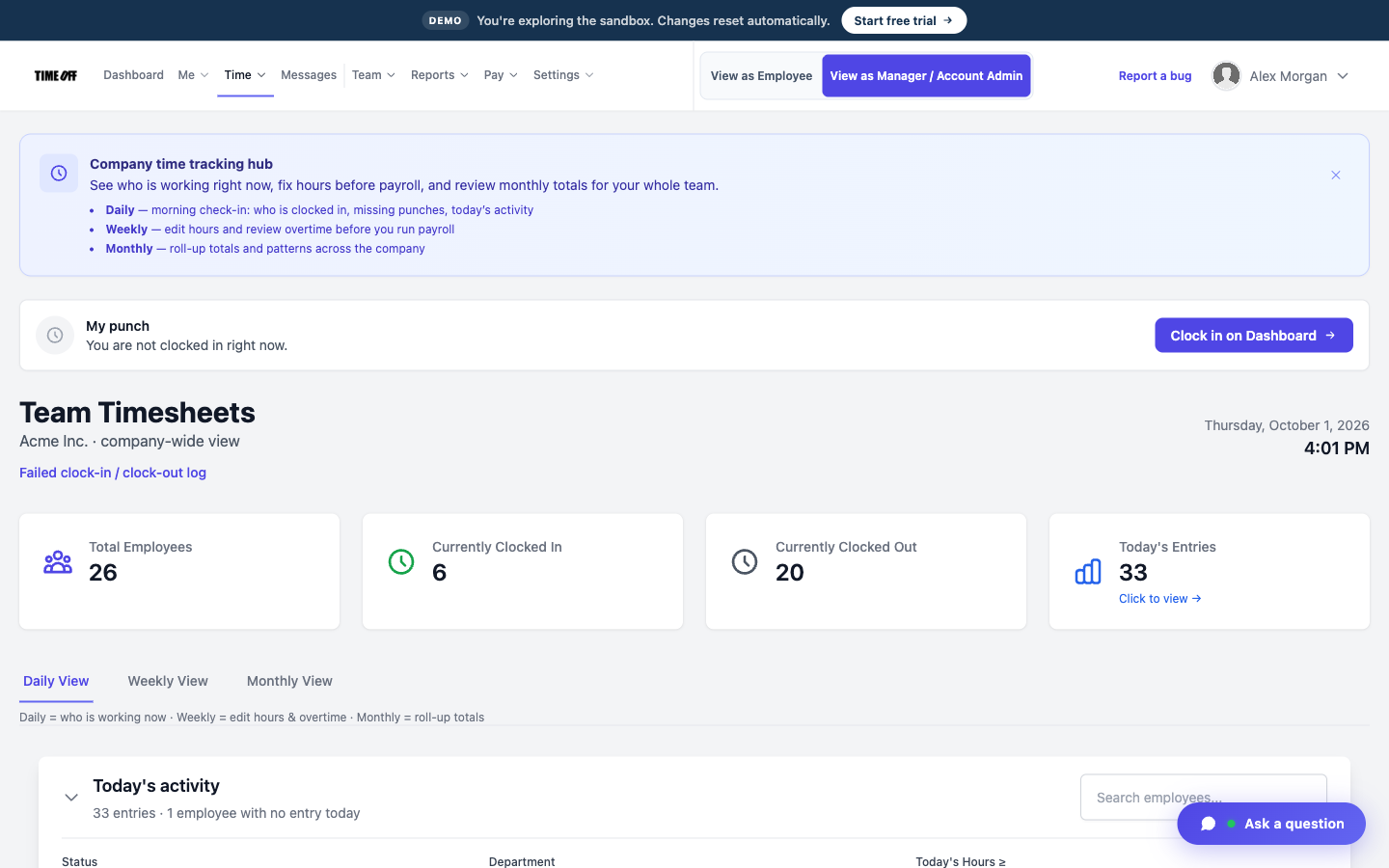
Time → Time Tracking: start and end shifts, take breaks, and fix a missed clock-in. Acme shifts in the last ~90 days include clock-in and clock-out photos.
 Request time off
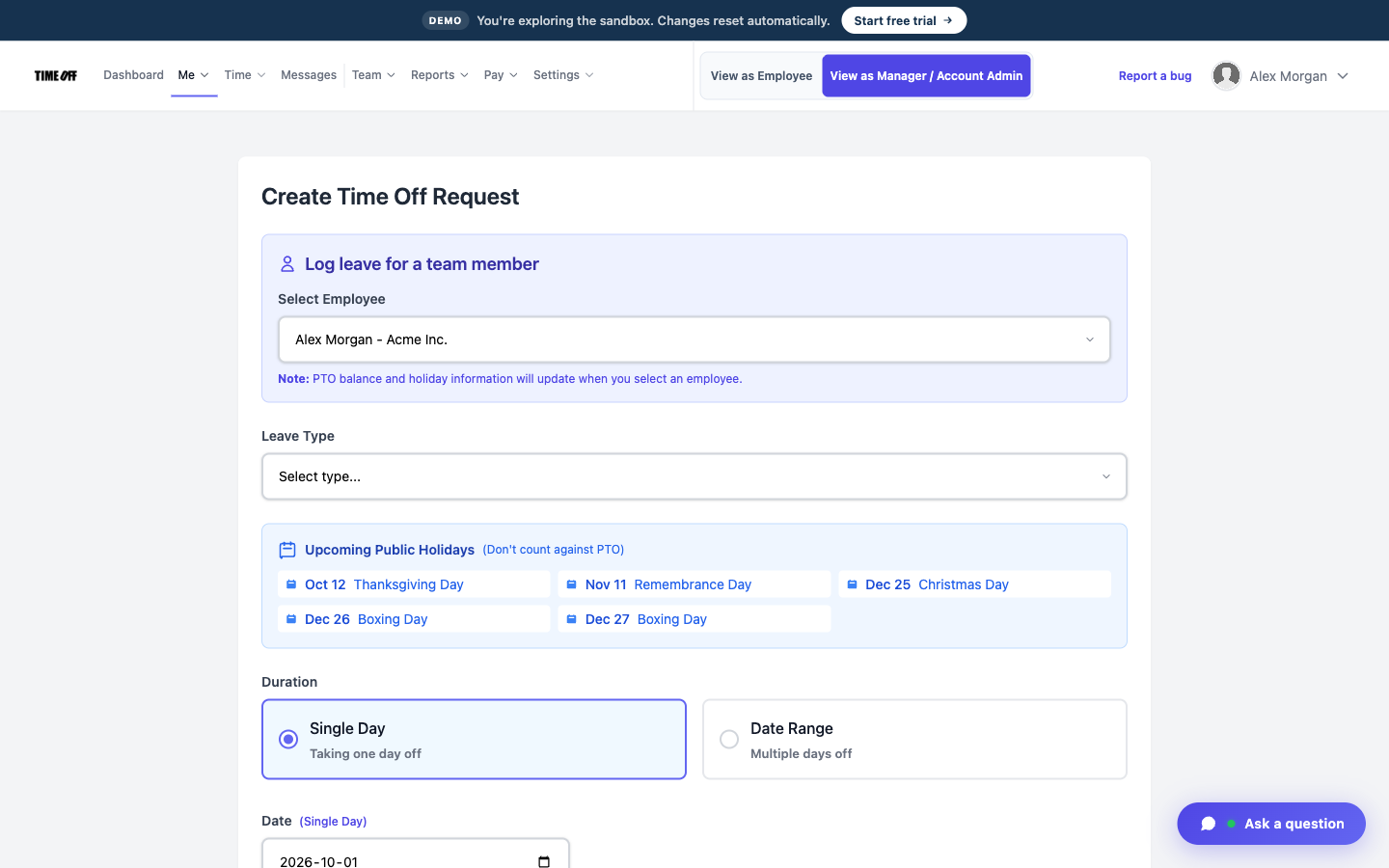
Me → My Requests to submit vacation, personal, or sick on chosen dates. Me → My pending shows your open leave, mileage, missed clock-ins, and day notes.
 My Mileage
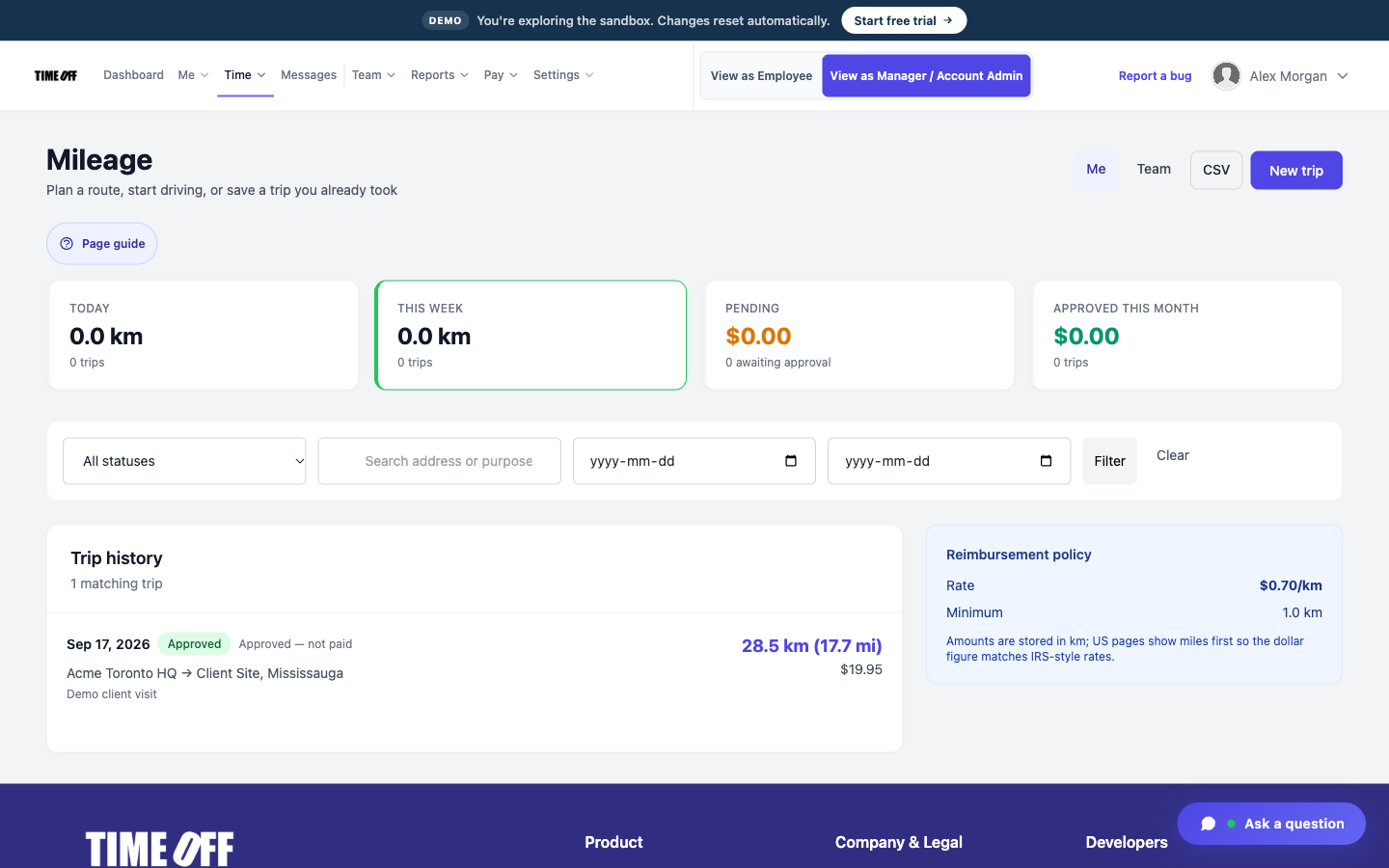
Time → My Mileage: start a live GPS trip, or log a trip with a gas or parking receipt photo and send it for approval.
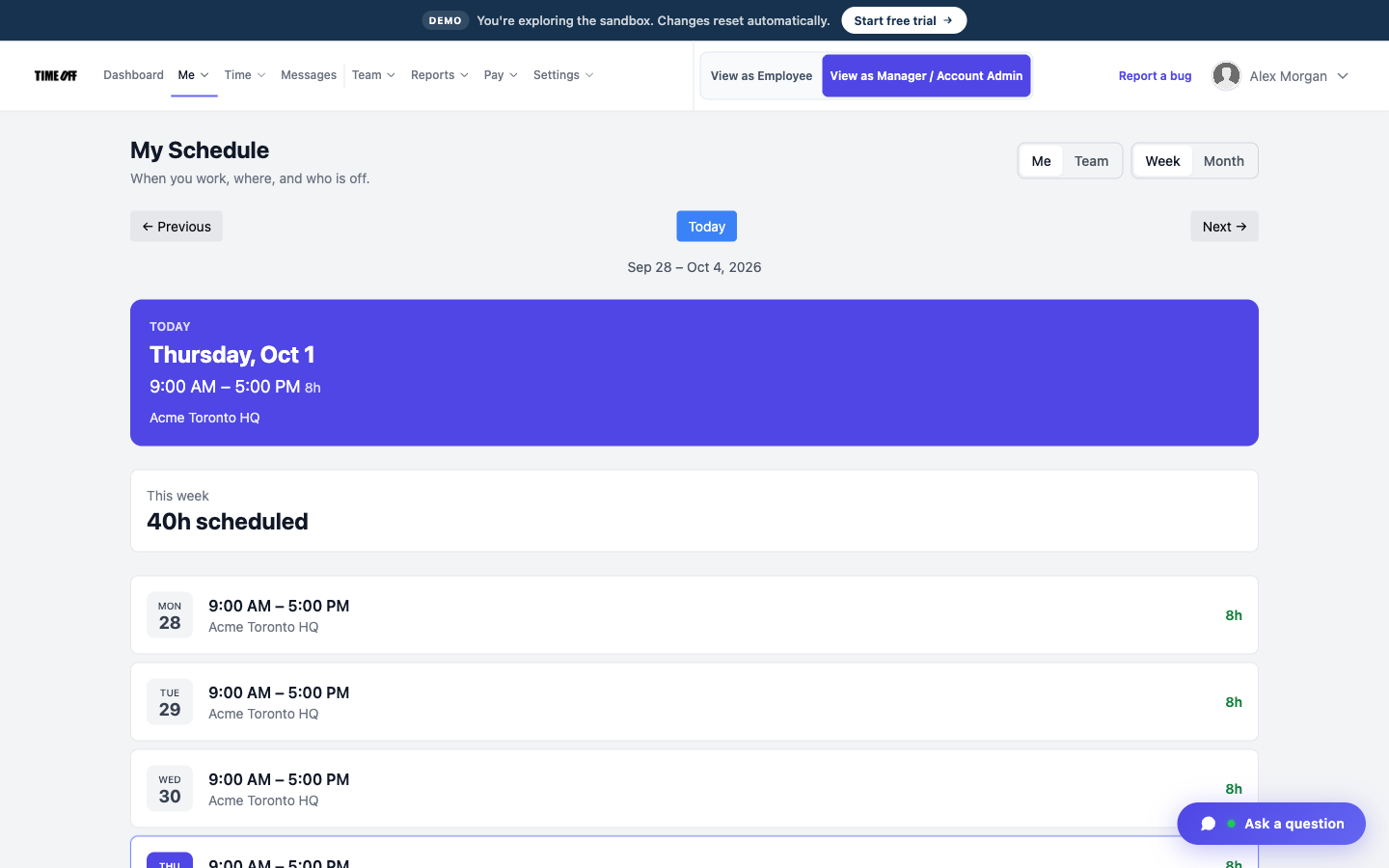 My Schedule
Me → My Schedule for your week or month (and one-day exceptions). Me → Holidays shows company paid days that apply to you.
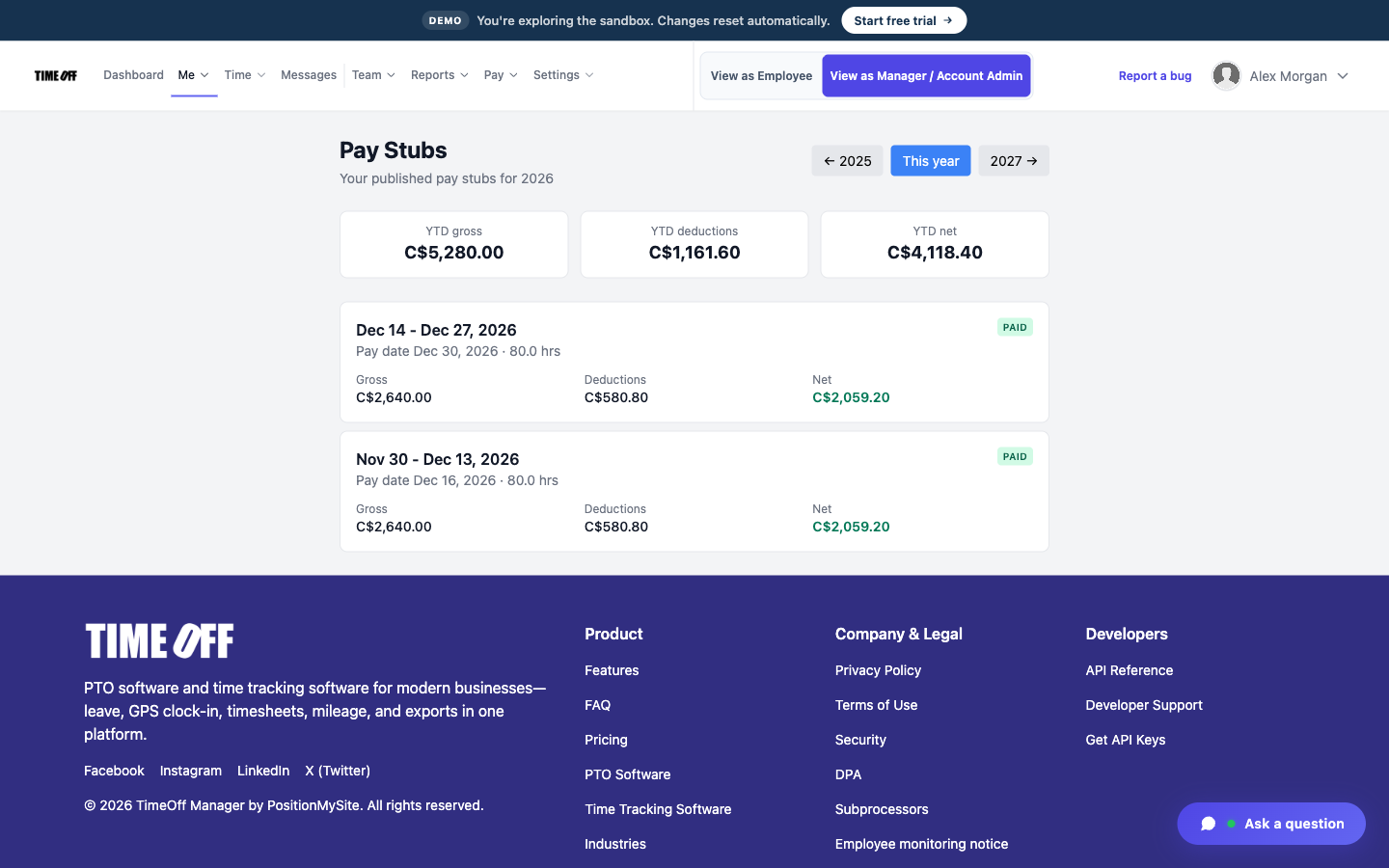 Pay Stubs
Me → Pay Stubs after a sample pay period is marked paid — CAD totals on Acme, with PDF when published.
Setup, live map, approvals, scheduling, hour exports, and reporting — end to end.
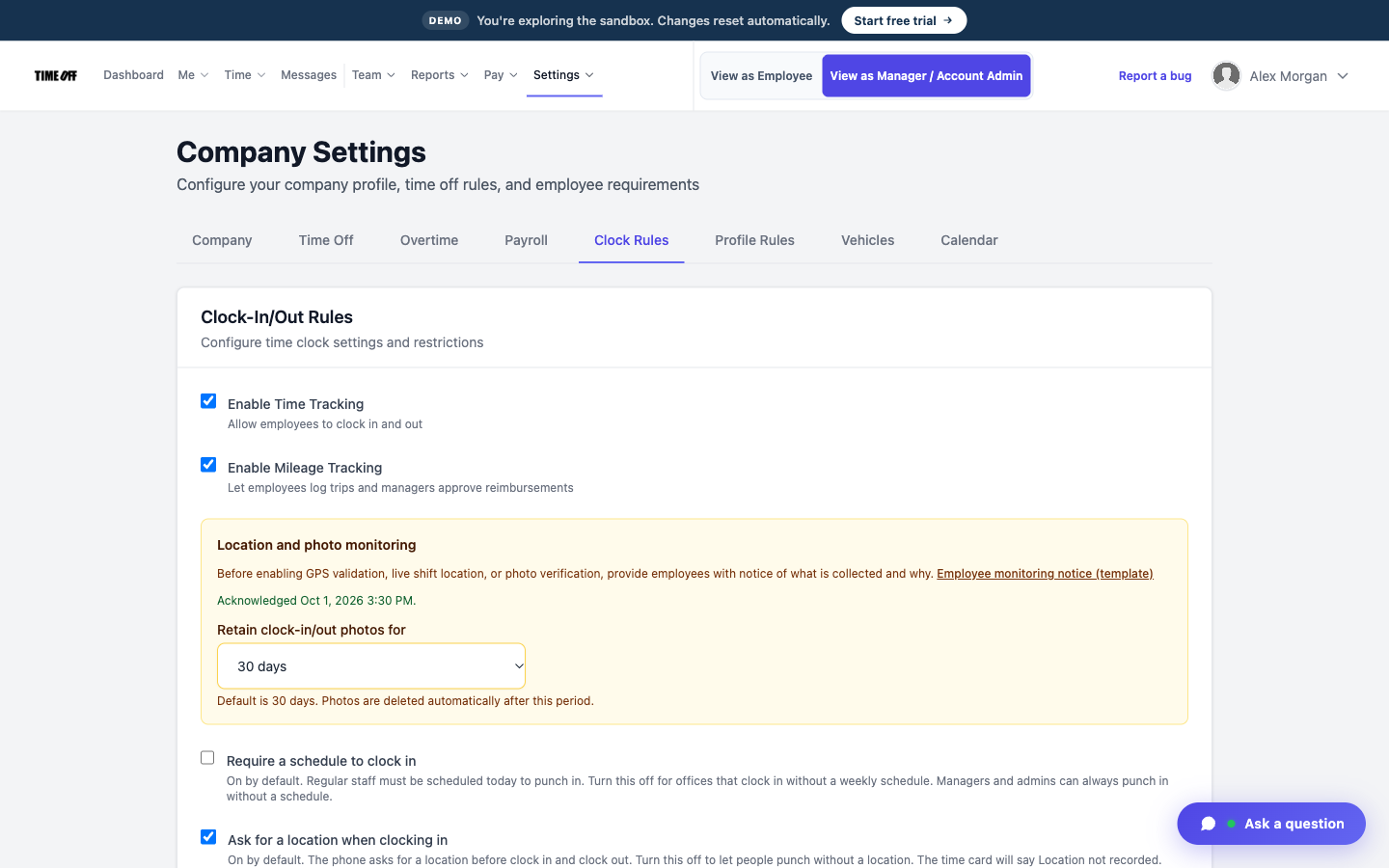 Company Settings — Clock Rules
Settings: Company Settings (including Clock rules / live location), Work Locations, Holiday catalog, and Web Kiosk. Top nav is Me, Time, Messages, Team, Reports, Settings.
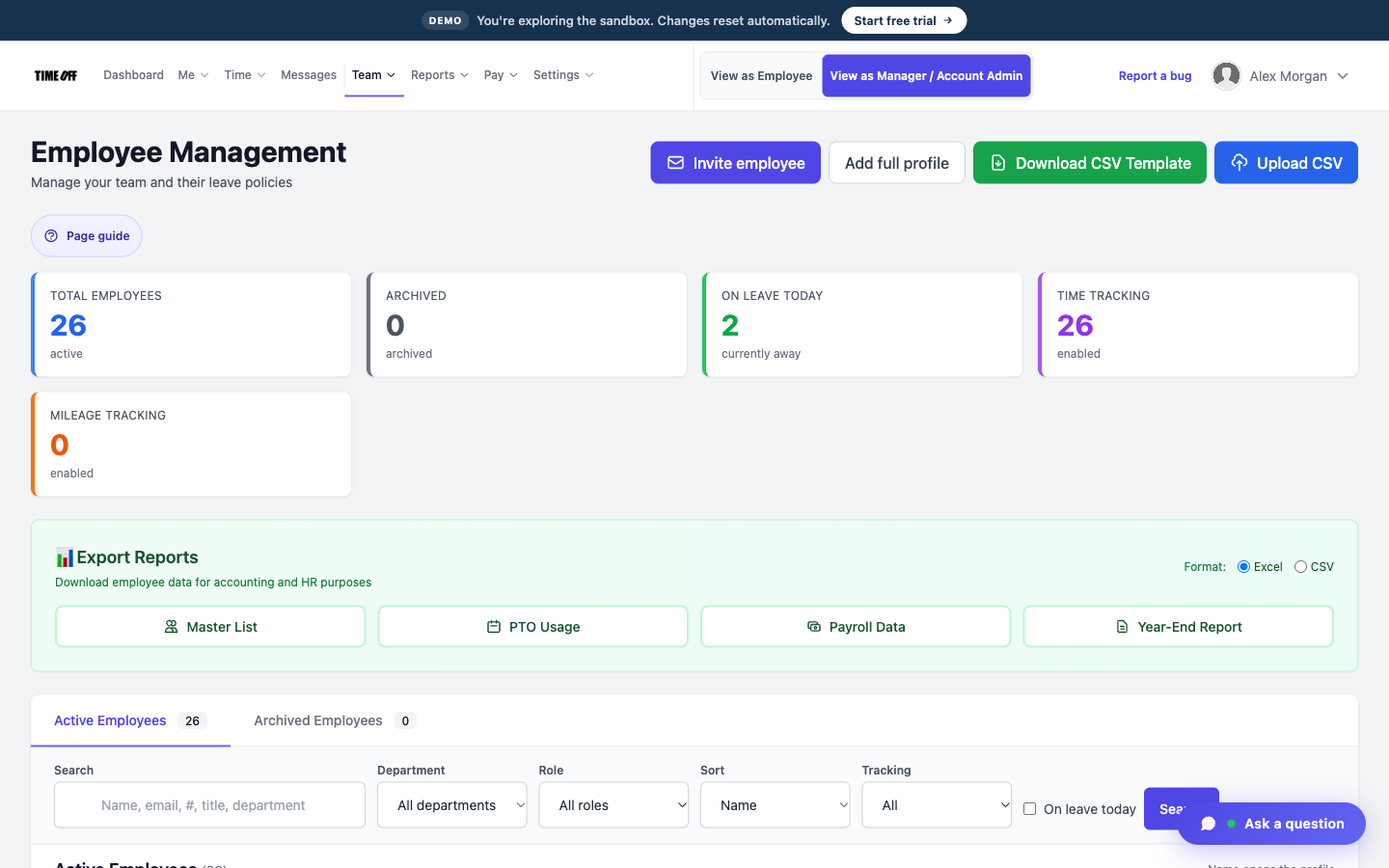 Employees
Team → Employees: create people with the employee wizard, assign managers, and send the welcome email.
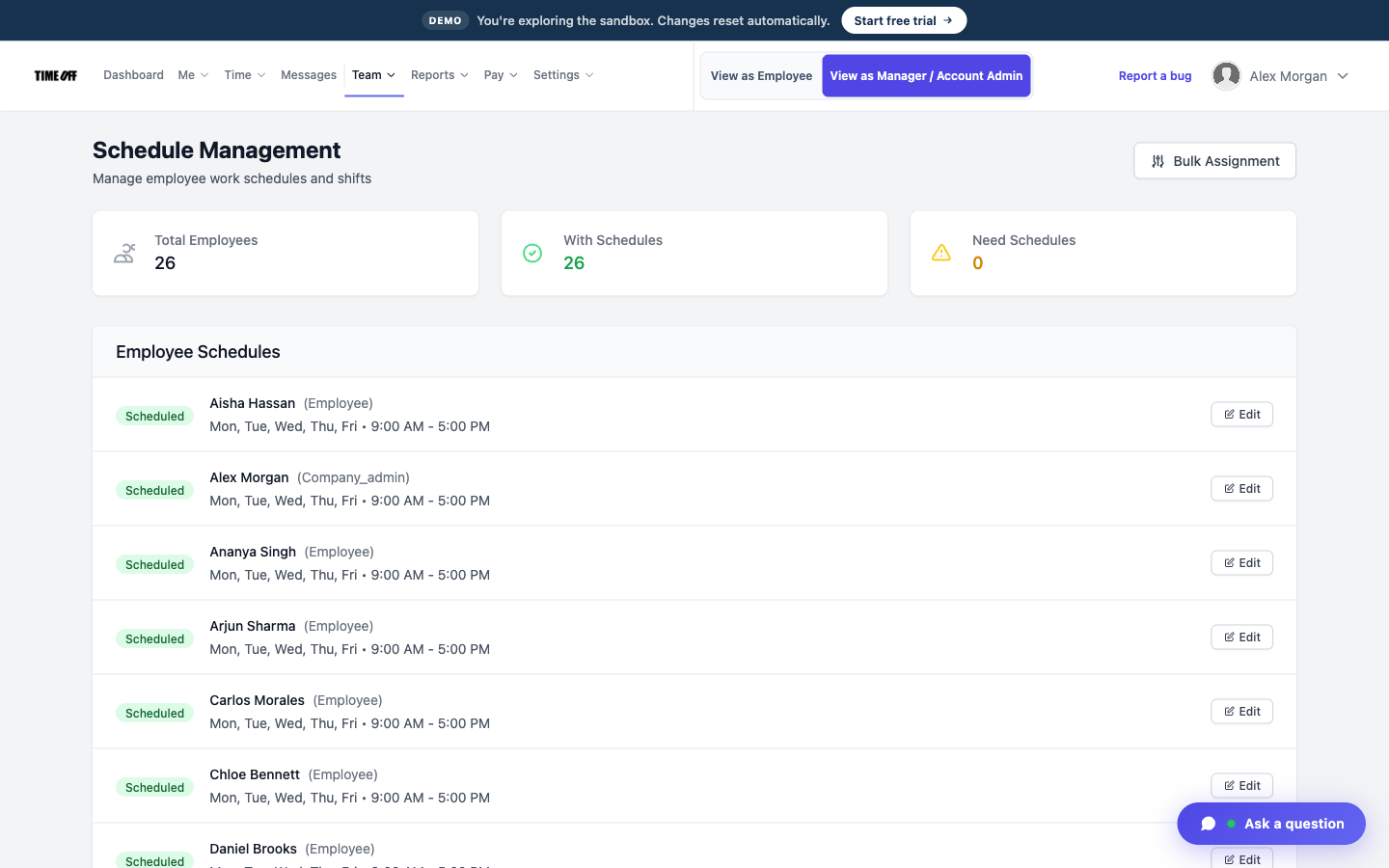 Employee Schedules
Team → Employee Schedules and Shift Templates. Save this date only for a one-day exception. Overtime and validation rules live under Team as well.
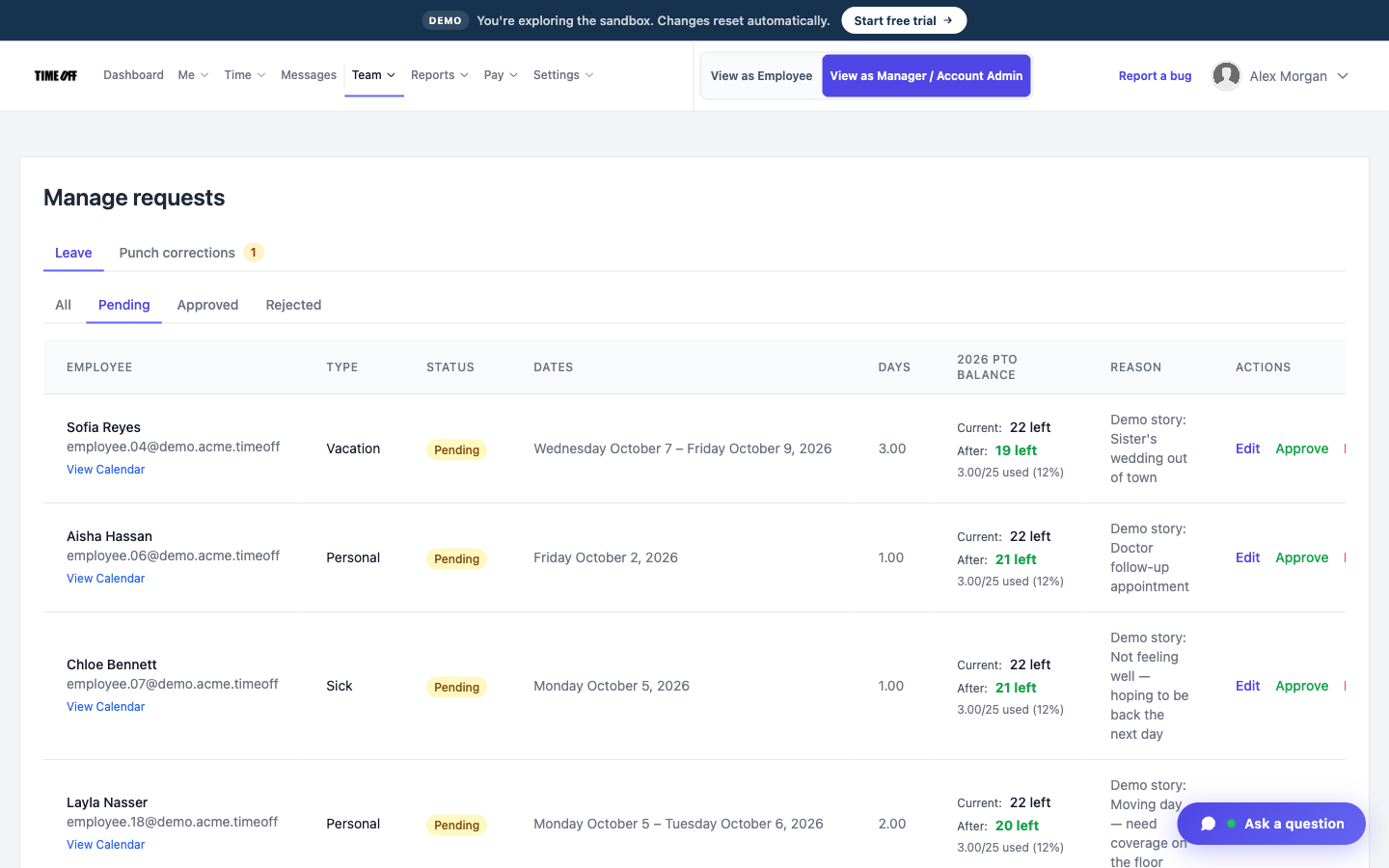 Manage Requests
Dashboard → Approval Center for leave, missed clock-ins, mileage, and day notes in one place. Team → Manage Requests is the leave-only queue; Leave Summary and custom types are under Team → Leave.
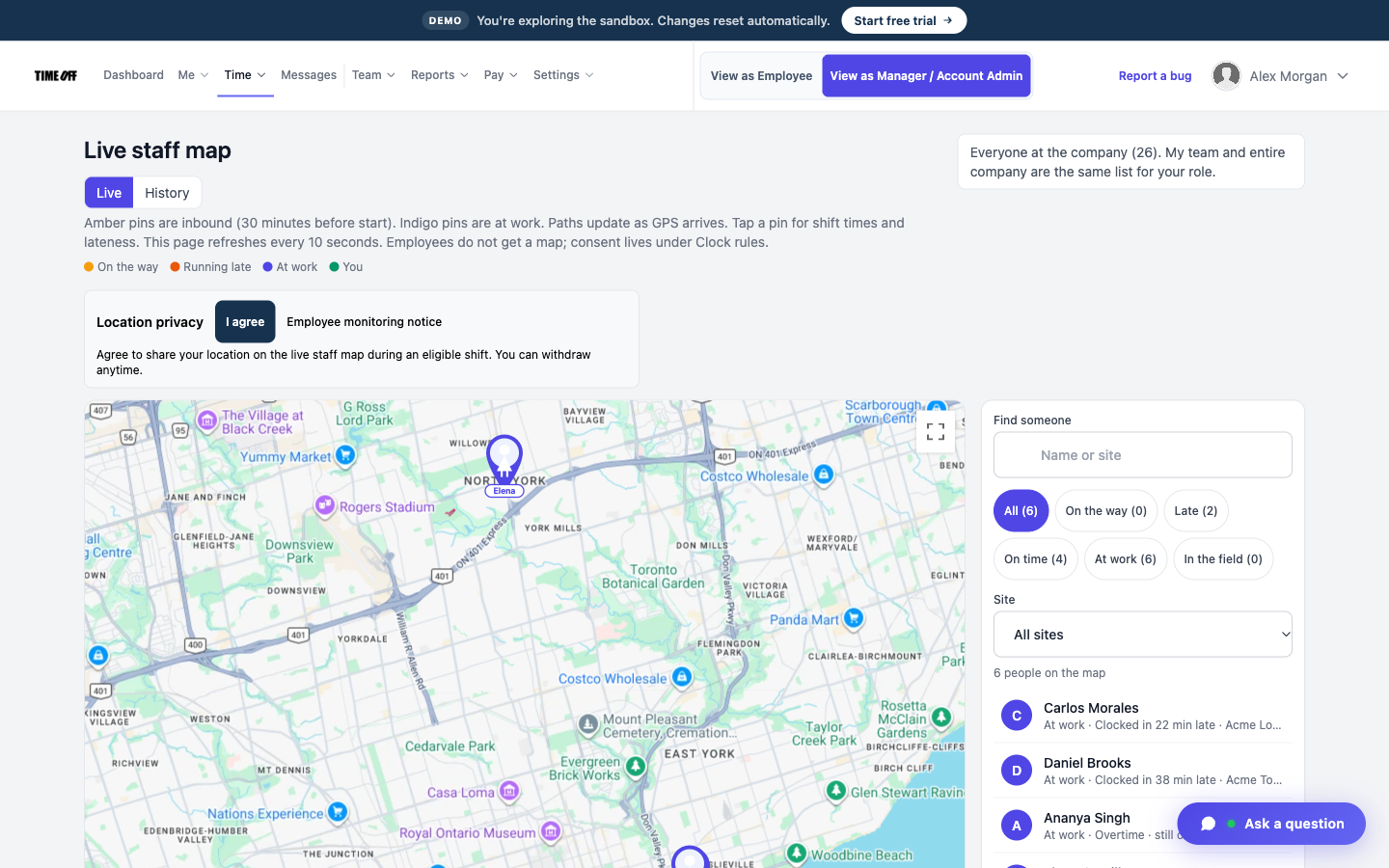 Live map
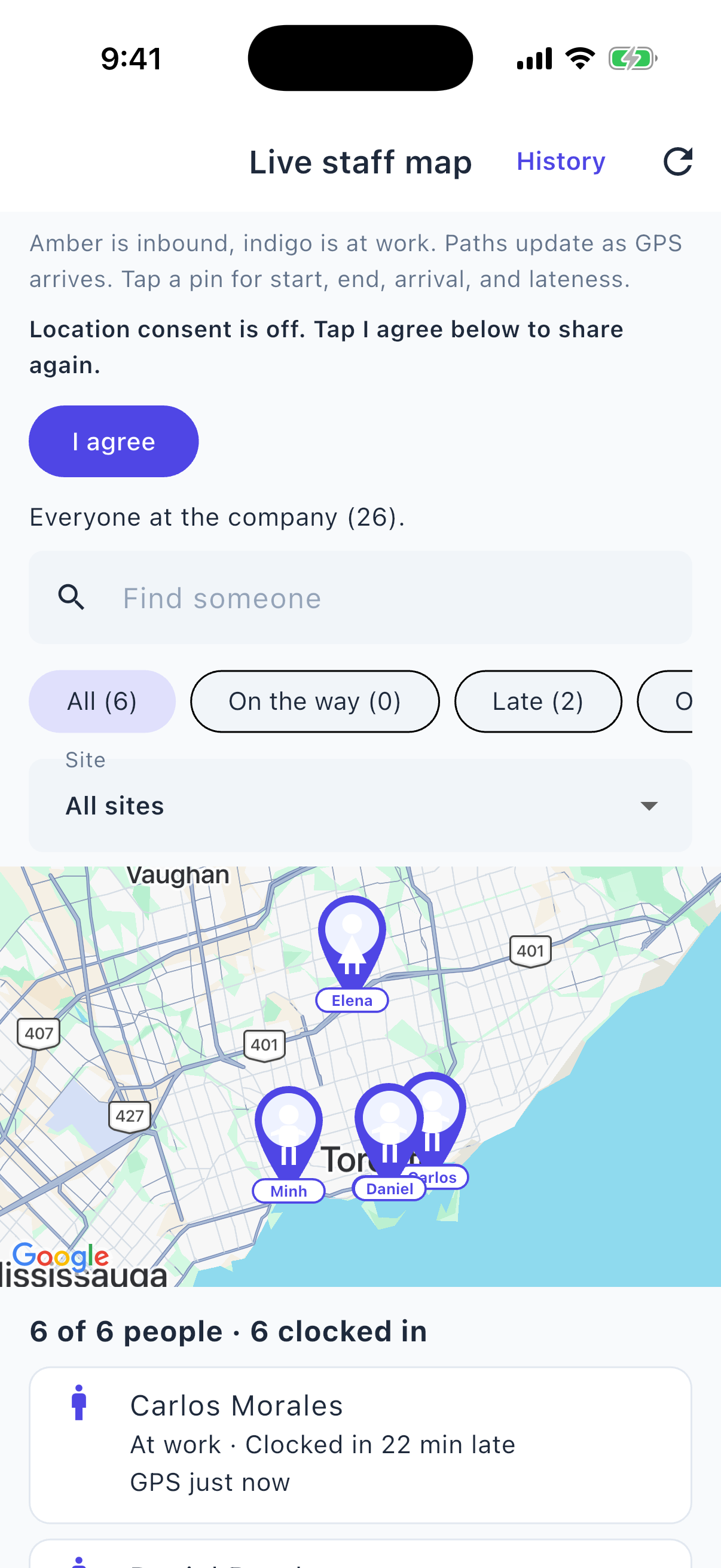
Time → Live map: who is inbound vs clocked in, GPS history, and site pins for Acme Toronto HQ vs the Logistics Yard. Employees do not see this map. Live map is separate from GPS saved at clock-in.
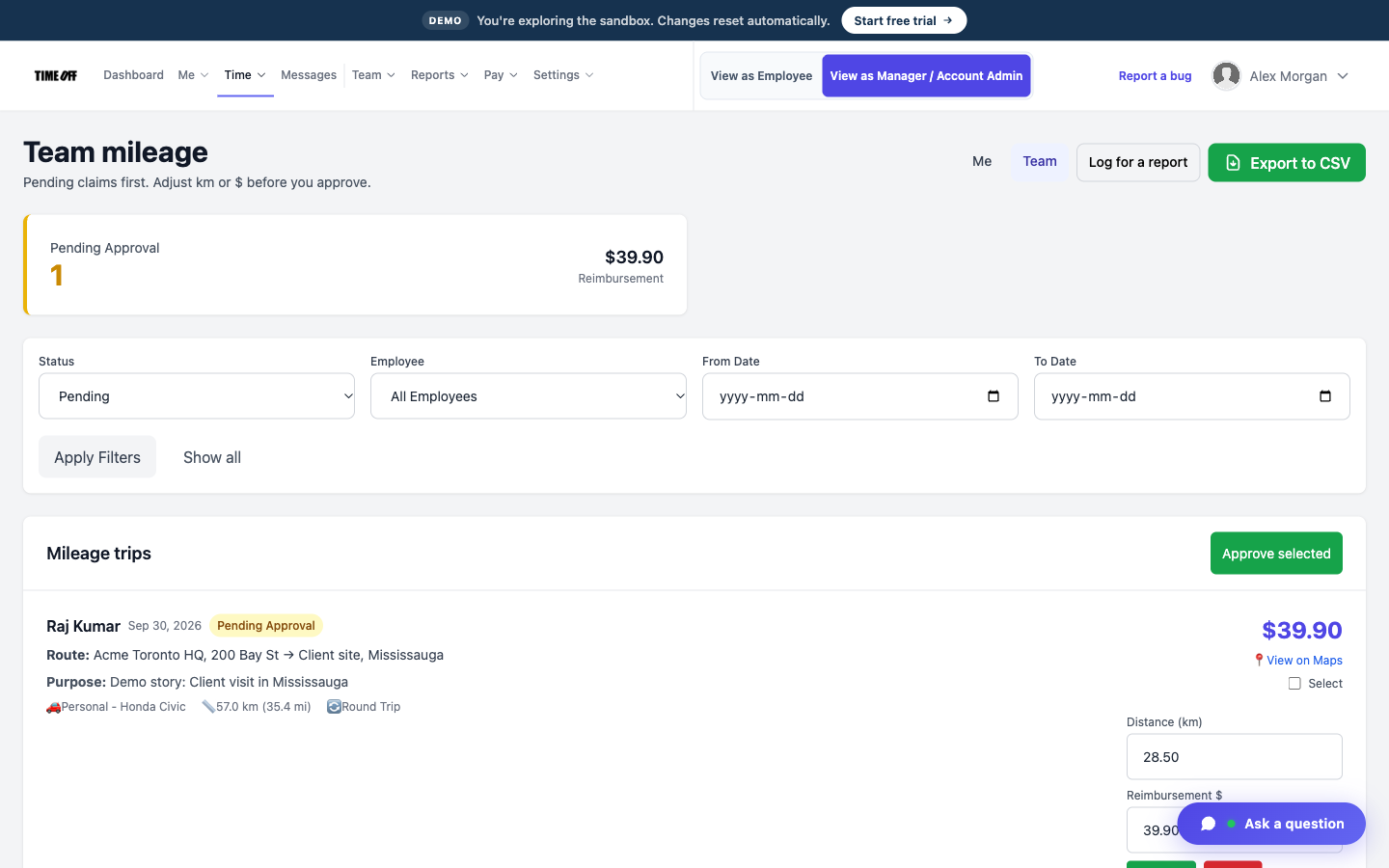 Team Mileage
Time → Team Mileage to approve trips. Staff log from Time → My Mileage — not under Schedule.
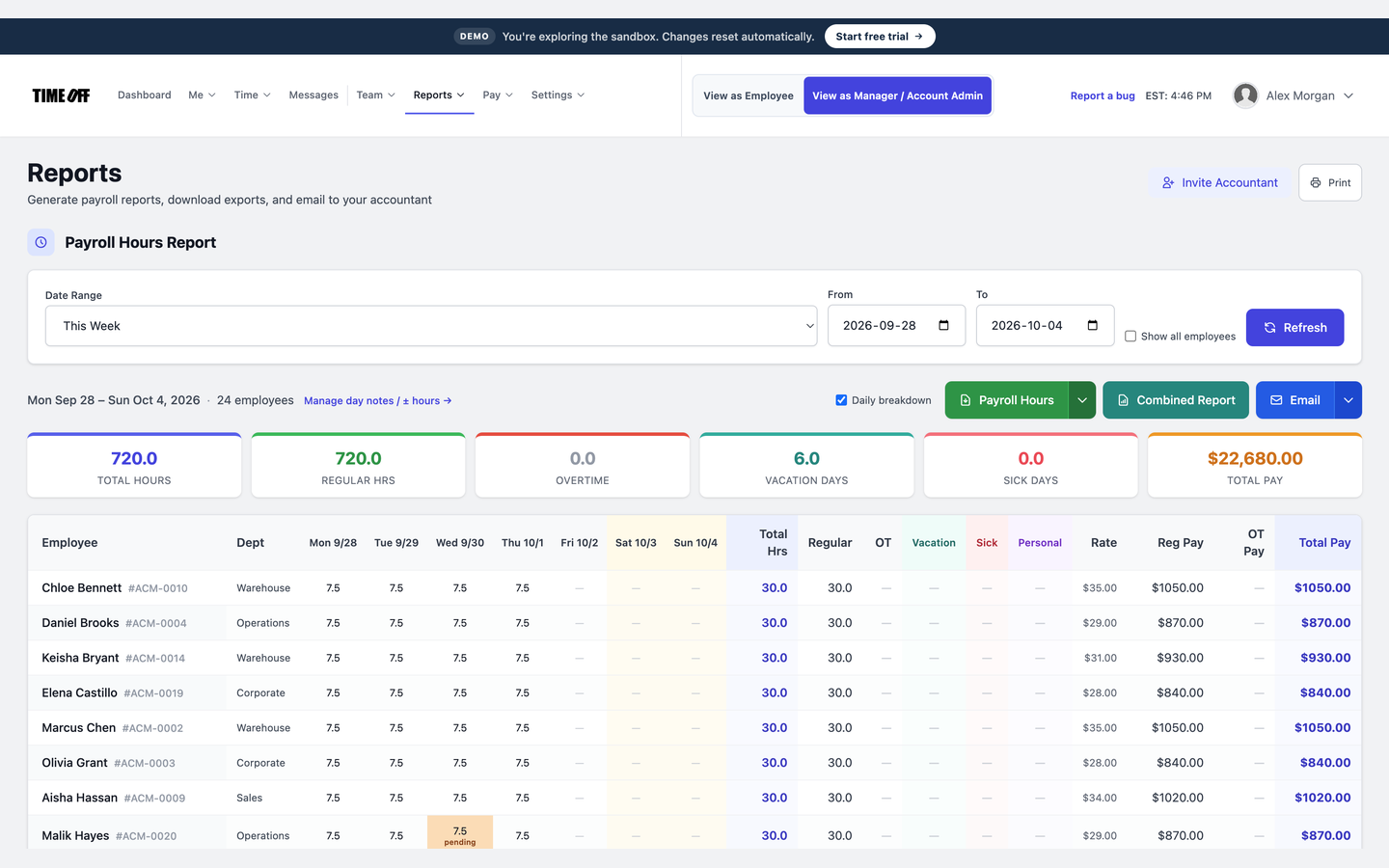 Reports
Reports exports payroll hours and mileage for the tool you already use — CSV or email. After a sample period is marked paid, staff open Me → Pay Stubs. TimeOff Manager does not calculate or run payroll.
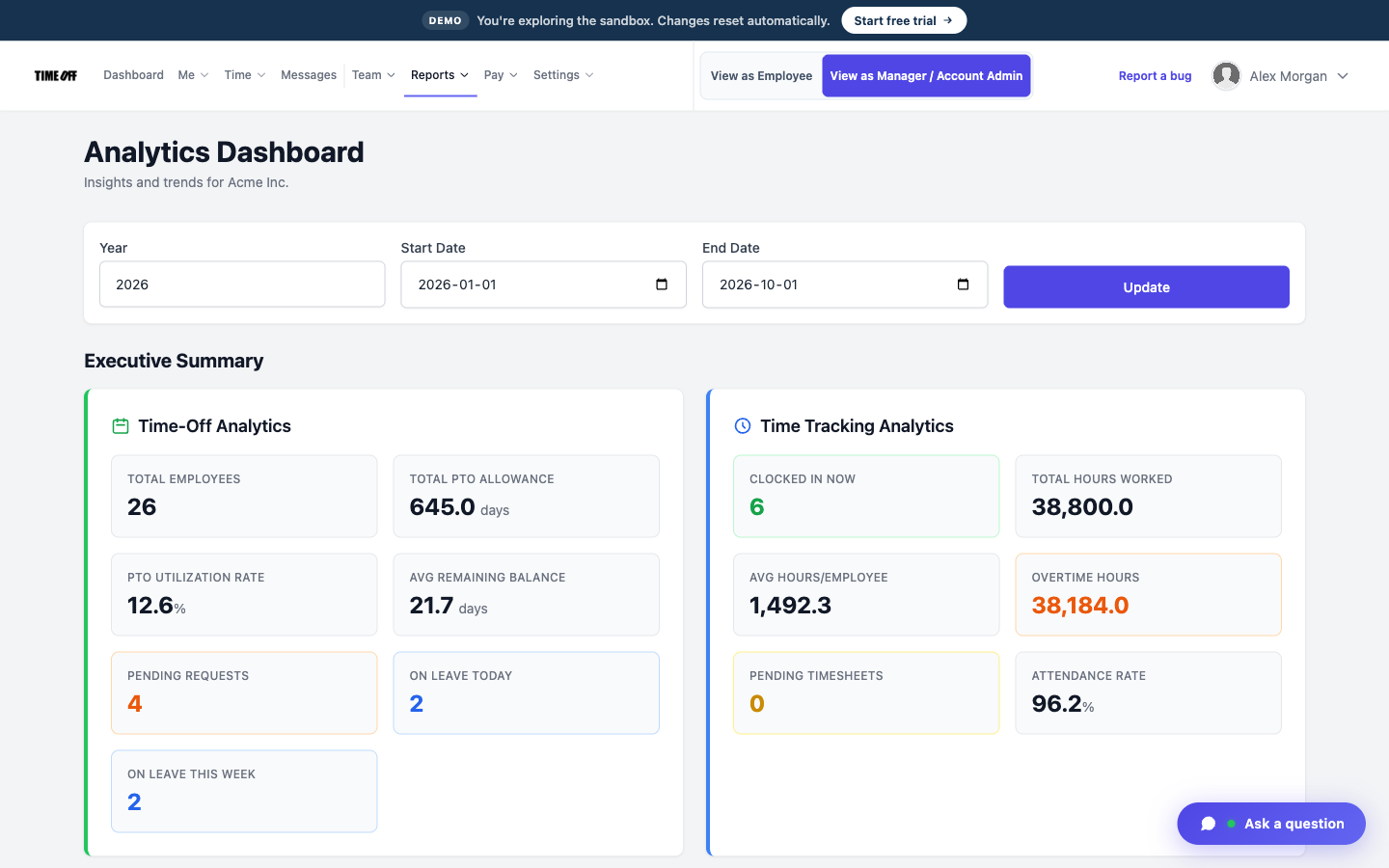 Analytics
Reports → Analytics, Reports (Payroll hours / Mileage) exports, and Day notes. Settings → Accountant Access to invite an accountant.
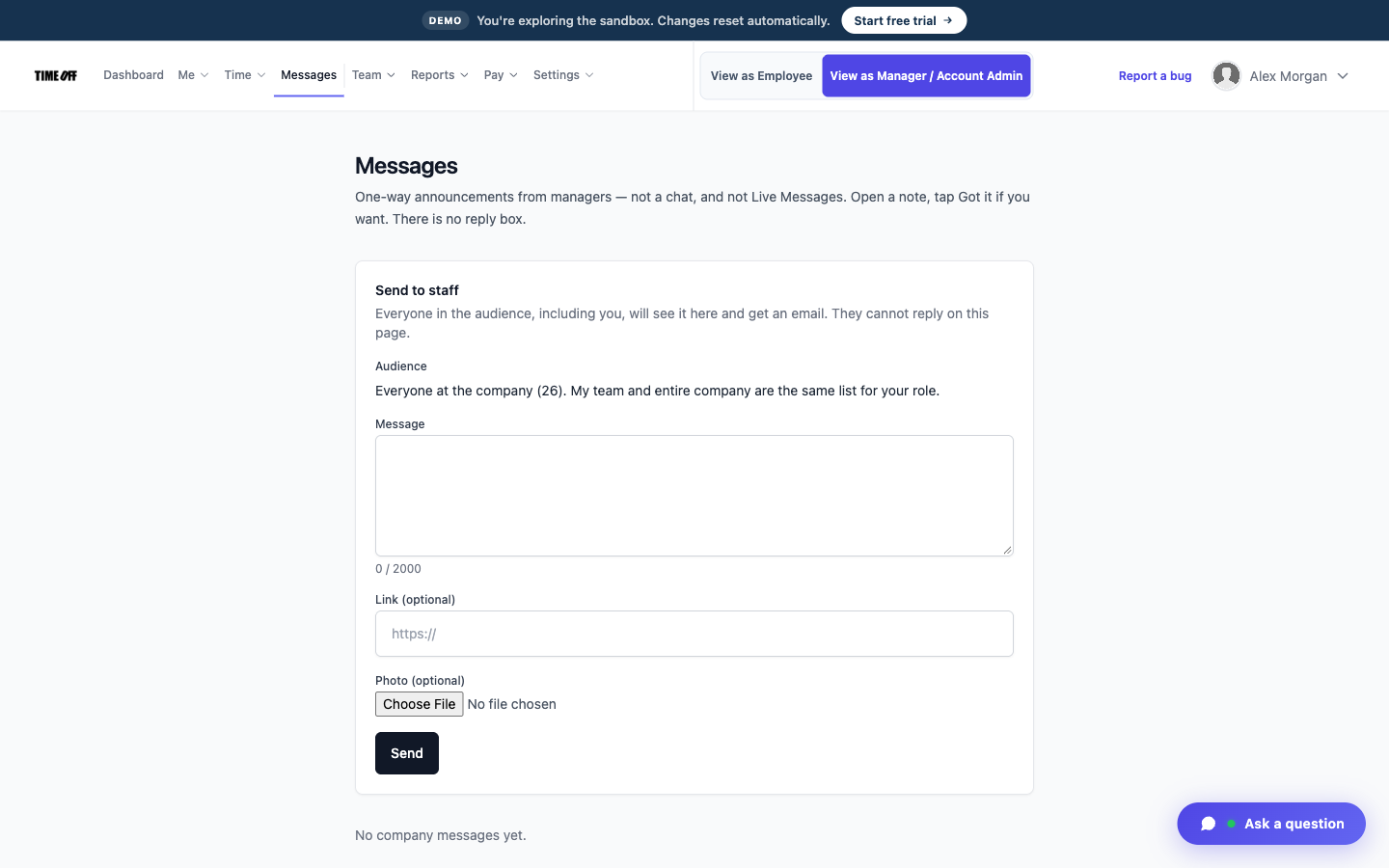 Messages
Messages (top nav) — one-way notes to the company or a team. Recipients open and acknowledge; it is not a chat.
Short hands-on paths to run right after you sign in. Labels match the top nav.
Employee → Time → Time Tracking. Older history is one summary row per pay period; the last ~90 days show day-by-day clock-ins (with photos) from schedules.
Company administrator → Dashboard Approval Center (leave, missed clock-ins, mileage, day notes). Team → Manage Requests is leave-only. Staff track their own items at Me → My pending.
Admins: Reports → Day notes / ± hours for a missed day or an hour adjustment. Hour exports for outside payroll software are under Reports.
Time → My Mileage to start a live GPS trip or attach receipts. Admins review at Time → Team Mileage.
Time → Live map as administrator. Pins follow HQ vs Logistics Yard schedules; inbound vs clocked-in updates between daily resets. Live map is separate from GPS saved at clock-in.
Open Messages in the top nav. Admins send a note; employees open and acknowledge. Not the public support widget.
Labels match production. After the form signs you in, navigate from the top menu.
Hourly staff on Marcus Chen's team. Same menus as frontline employees in production.
Where to click
Owner-level access — Me, Time (including Live map), Team, Reports, and Settings.
Where to click
Alex Morgan
Seeded company owner — the original company_admin used in documentation screenshots.
Priya Sharma
Seeded human resources manager — people & leave focus, not a billing owner.
Marcus Chen
Seeded people manager for staff employee.01–employee.24. Employee instant visitors roll up to Marcus.
Olivia Grant
Seeded people manager for staff employee.25–employee.48.
These personas exist in the dataset so line-manager and HR views have realistic relationships — you don't need to log in as them.
Summary of the fictional Acme Inc. sample company after each sandbox reset — handy for training or comparing to your own company.
| Topic | Details |
|---|---|
| Instant access | Employee: hourly staff, cohort A (Mon–Fri 09:00–17:00), reports to Marcus Chen. Company administrator: company_admin user with full Acme settings. Visitors are removed on reset; form data is retained. |
| Organization | 52 seeded people: 1 company admin, 1 HR manager, 2 people managers, 48 staff. Toronto-area addresses. Two sites: Acme Toronto HQ (200 Bay St) and Acme Logistics Yard (99 Eastern Ave). Mix of personal and company (fleet) vehicles. |
| Live map & GPS | Live shift location is on. Map pins follow each person’s scheduled site. Minute-by-minute live state refreshes between daily wipes. Clock-in / clock-out photos on shifts in the last ~90 days. Live map is separate from GPS saved at clock-in. |
| Leave policies | 10 vacation · 5 personal · 5 sick / year (2024–2026). 2026 includes a mix of approved and pending requests. |
| Hours & pay stubs | Biweekly sample periods from 2024-01-01 · recent 4 periods marked paid · sample pay stubs in Canadian dollars. Reports exports payroll hours for outside software — TimeOff Manager does not calculate or run payroll. |
| Mileage | At least one sample trip per person, with example gas and parking receipt photos. Live GPS trips can be started from My Mileage after you sign in. |
| Cohort | Schedule | Who |
|---|---|---|
| A | Mon–Fri 09:00–17:00 | Seeded admins/HR/managers, first 20 staff, and employee instant visitors. |
| B | Mon–Fri 08:00–16:00 | 10 staff |
| C | Thu–Sun 08:00–15:00 | 10 staff |
| D | Mon–Fri 17:00–00:00 (crosses midnight) | 8 staff |