Dashboard overview
Home after login: clock, balances, Approval Center for managers, and Me shortcuts (pending, schedule, holidays, stubs, messages).
/dashboard
Roles
All roles (content varies by permissions)
The dashboard is the first screen most people see after Sign in. Managers also get the Approval Center (#approval-center). Everyday self-service lives under Me: pending, schedule, holidays, pay stubs, and messages.
Purpose
Use the dashboard to confirm you’re in the right account, see today’s date in the company timezone, and jump to the task you need without hunting the top navigation. What you see depends on your role and which modules your company enabled (time tracking, mileage, payroll, etc.).
What’s on the page
- Welcome header — Personalized greeting and the current date (company timezone).
- Time clock card (if enabled) — Clock in/out or link to PIN kiosk; status badge shows whether you’re active.
- Leave / PTO snapshot — Balances and quick context (wording varies by setup).
- Approval Center (managers/admins) — Mixed queue for leave, missed punches, mileage, and day notes. The yellow Pending Approvals card jumps here, not to My pending. See Approvals inbox.
- Me — My pending, My Schedule, My holidays, Pay stubs, Staff messages.
Trial companies may also see a trial banner with days remaining and billing links for admins.
Where to go next
| Goal | Top nav (typical) |
|---|---|
| Your open items | Me → My pending |
| Approve the team | Dashboard → Approval Center |
| Team coverage | Calendar / Coverage |
| Punch or review time | Time Tracking |
| Log a trip | Time → My Mileage |
| Run payroll / pay records | Pay → Payroll runs / Compensation |
| Something is broken | Report a bug |
Product screenshot
Automated capture: full page after login as demo company admin (modules visible match your tenant).
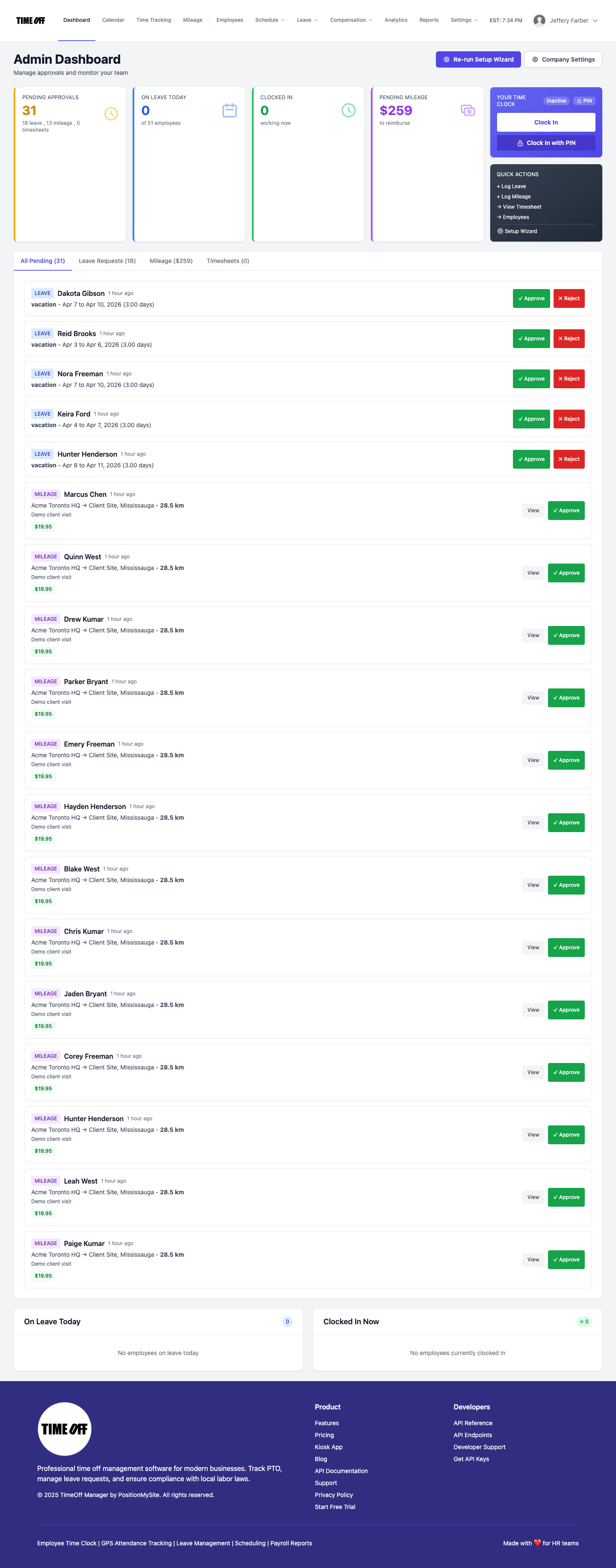
Dashboard — signed-in home (company admin, Acme demo).