Company settings
Control center at /company/settings: Clock tab includes require-a-schedule-to-punch, live location, inbound 30 minutes, require photo. Accounting sync is /integrations/accounting, not this hub.
/company/settings
Roles
Company admin
Company Settings (/company/settings) is your organization’s control center: not just a single form—a set of seven primary tabs (plus an eighth for platform operators) where admins define identity, how leave and payroll behave, how clocks work, what employees must fill in, and shared fleet data. Use Quick navigation at the top or bookmark URLs with section=….
Overview
Each tab is a separate card on the same page: you switch tabs, edit fields for that area, and save (typically with a Save … button at the bottom of that card). This keeps complex settings approachable compared to one endless form. The setup wizard still wins for first-day module toggles; Company Settings is where you refine policy and operational detail afterward.
Who can open it
Company administrators only. Everyone else should use role-appropriate tools elsewhere.
Tabs & deep links
Append ?section=key to /company/settings.
| section | Tab (UI) |
|---|---|
| company | Company Profile |
| timeoff | Time Off |
| overtime | Overtime |
| payroll | Payroll |
| clock | Clock-In/Out Rules |
| profile | Employee Profile Rules |
| vehicles | Vehicles |
| admin | Admin Access · not used by company admins |
Company Profile (section=company)
Establishes who this tenant is in the product: legal/display name, website, country and timezone (drives dates/times across leave and time clocks), logo (shown on kiosk and employee-facing surfaces), billing address, and a short list of work locations where your people operate. For the full site directory (addresses, GPS geofencing, add/edit/delete), use Work locations (admin) at /admin/work-locations. Getting identity right prevents “wrong day” support tickets and keeps exports aligned with where you do business.
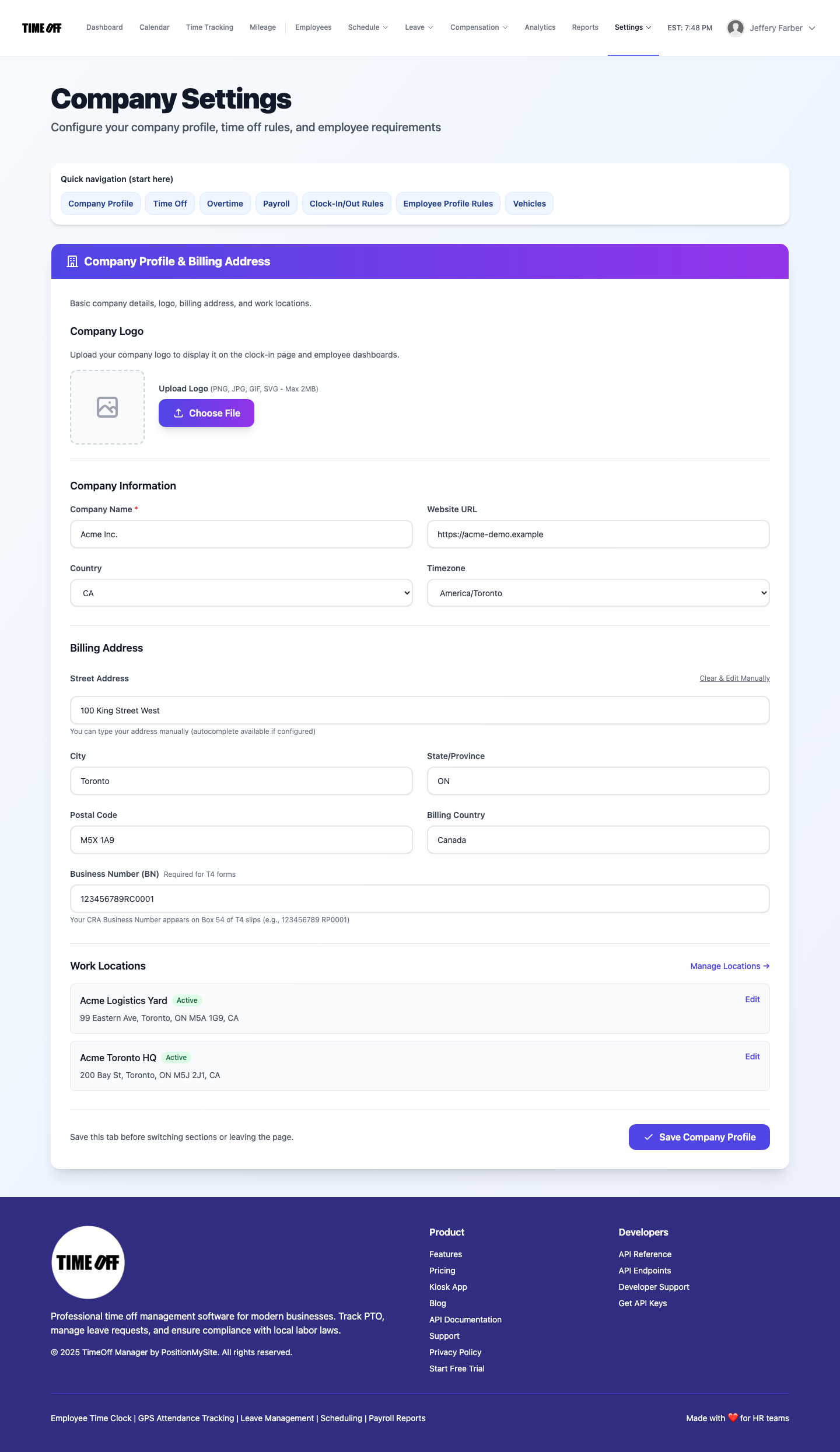
Company Profile — identity, logo, timezone, billing & locations.
Time Off (section=timeoff)
Controls how PTO is expressed day-to-day: hours per workday (for day↔hour math on balances and requests), whether staff request in days only, hours only, or both, and whether to suppress low-balance warnings in the employee UI. This tab complements leave policies configured elsewhere—here you set the global unit behavior employees experience when booking time off.
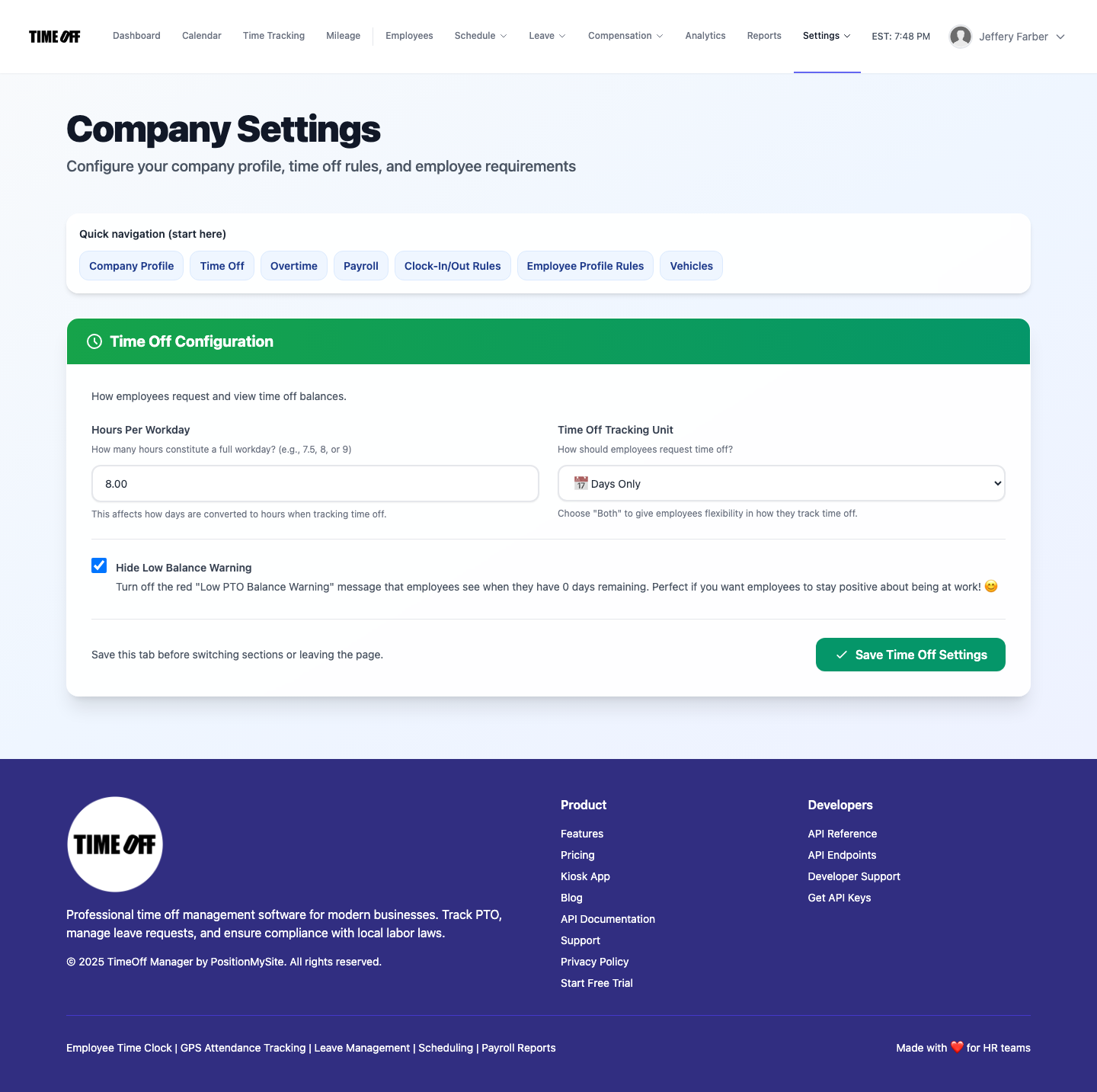
Time Off — units, workday length, balance messaging.
Overtime (section=overtime)
When overtime is in scope for your company, this tab defines the weekly hours threshold after which time counts as overtime, the pay multiplier used for calculations/display, and whether approvers may perform manual overtime entry. Use it together with timesheet and payroll flows so manager edits and approvals match your labor rules.
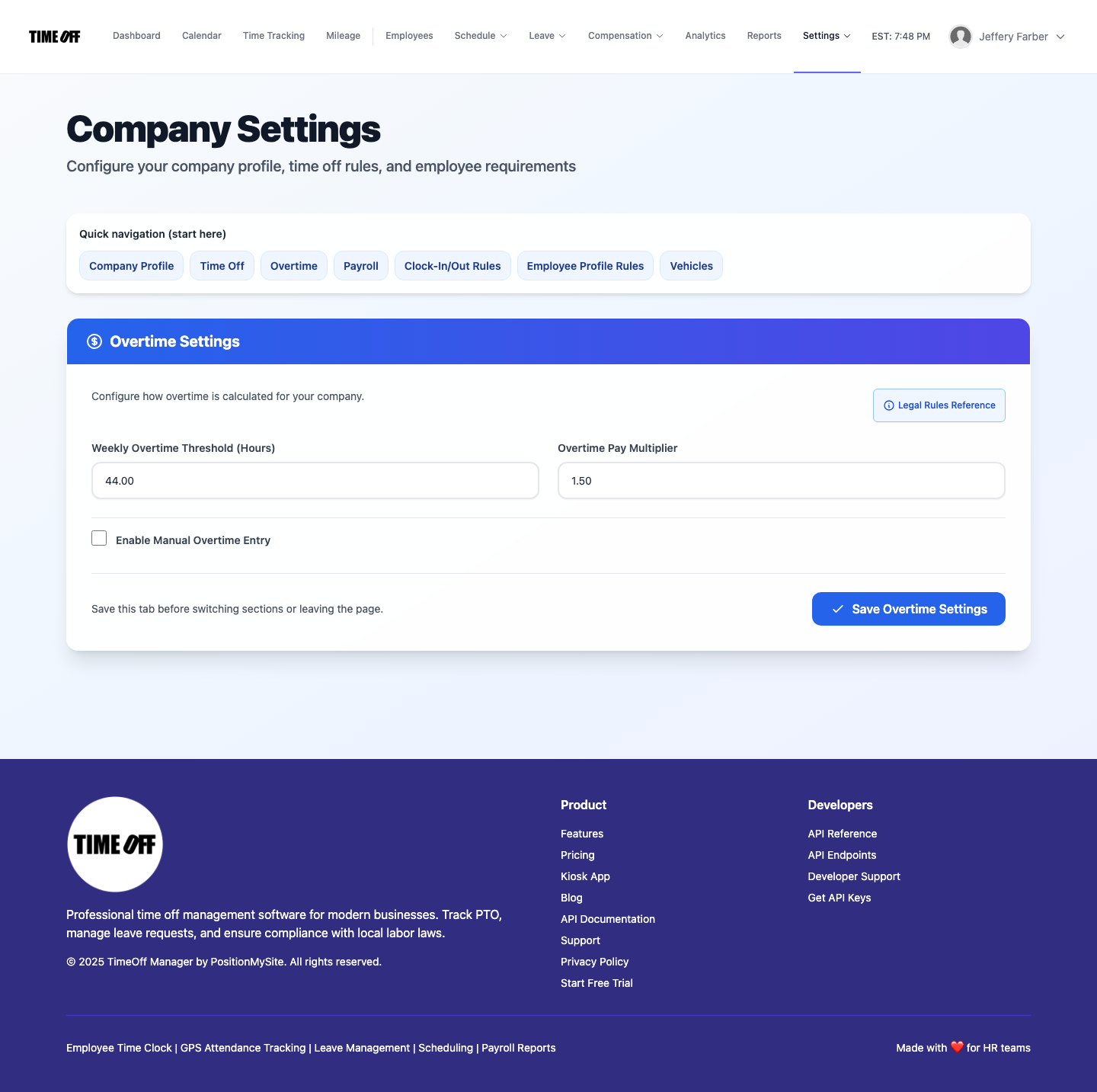
Overtime — weekly threshold, multiplier, manual entry option.
Payroll (section=payroll)
Focuses on payroll governance—for example requiring a multi-step approval chain (manager / HR / finance) before a payroll run can proceed, and related approver options exposed in your build. This is about who must sign off, not line-item editing of individual punches (that stays on timesheets).
Per-employee pay records (rates, salary, history) are maintained in the app under Compensation: Employee records at /admin/compensation when compensation & payroll is enabled.
Payroll runs (create a run, view history, process payments) are on Payroll: Runs & history at /admin/payroll.
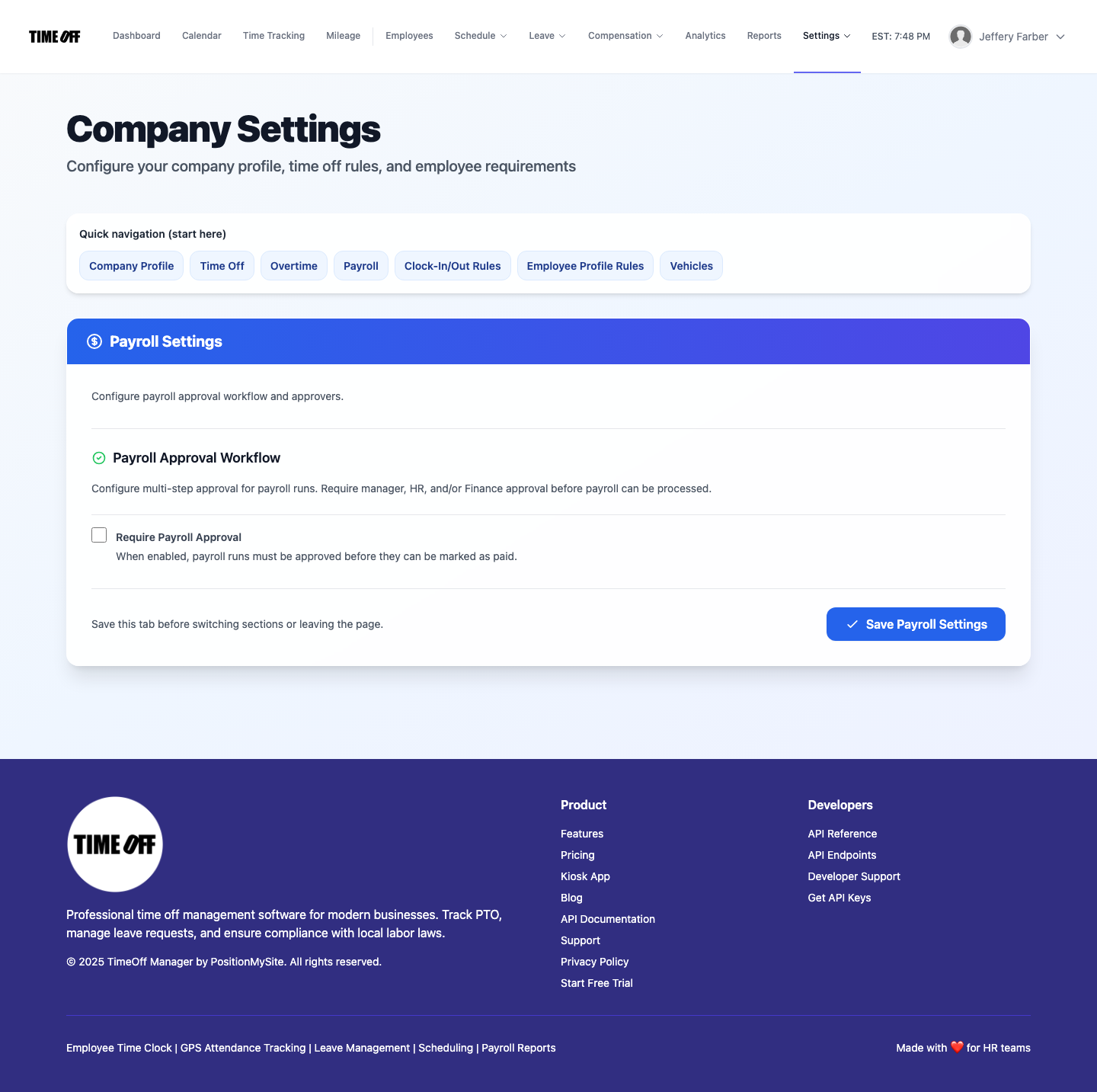
Payroll — approval workflow and related payroll settings.
Clock-In/Out Rules (section=clock)
Governs attendance behavior separate from pay math: Require a schedule to clock in (on by default — regular staff must be scheduled today; turn it off for offices that punch without a weekly roster; managers and admins can always punch without a schedule), when employees may clock in or out relative to the schedule, Require Photo on Clock In/Out, Live location during shifts (managers see consented staff on the live map while clocked in), and optionally Show inbound location 30 minutes before start. Locations are stored separately from payroll and drop off quickly if the phone stops sending GPS. These Clock rules are distinct from overtime thresholds. QuickBooks / FreshBooks connections live at /integrations/accounting, not on this tab.
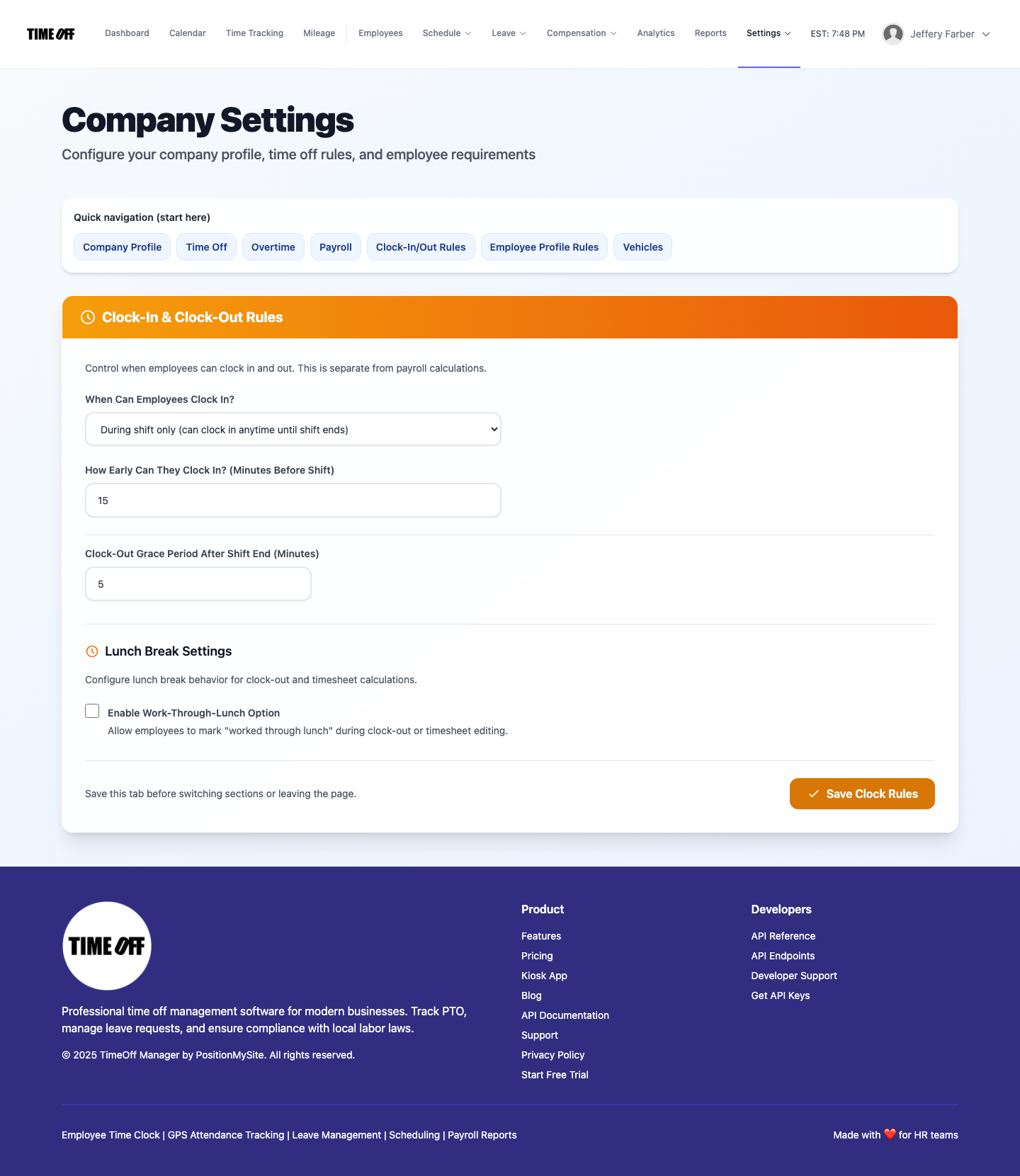
Clock-In/Out Rules — schedule required to punch, live location, photo.
Employee Profile Rules (section=profile)
Lets HR define which profile fields are mandatory when someone edits an employee record: basics (name, email, PIN, employee number), work data (title, department, phones, work location, manager), and emergency contacts. Toggles apply company-wide so data quality stays consistent for reporting, scheduling, and compliance; changes affect future profile edits, not historical snapshots.
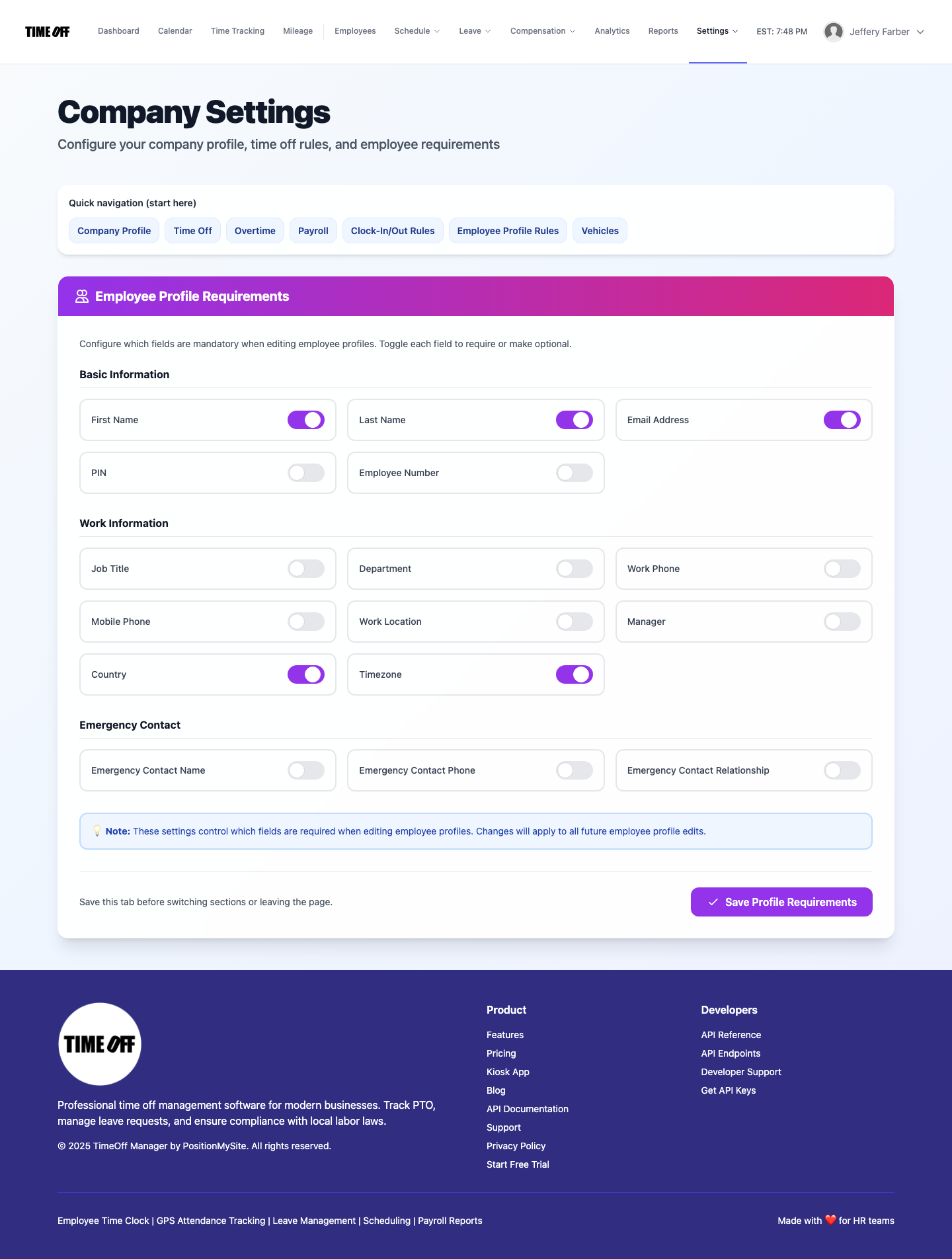
Employee Profile Rules — required vs optional fields by category.
Vehicles (section=vehicles)
Maintains the company vehicle list employees and admins attach to mileage or fleet-related workflows—plate, make/model, ownership type, and similar metadata your deployment collects. Keeping vehicles here avoids one-off spreadsheets and ties reimbursements to approved company assets.
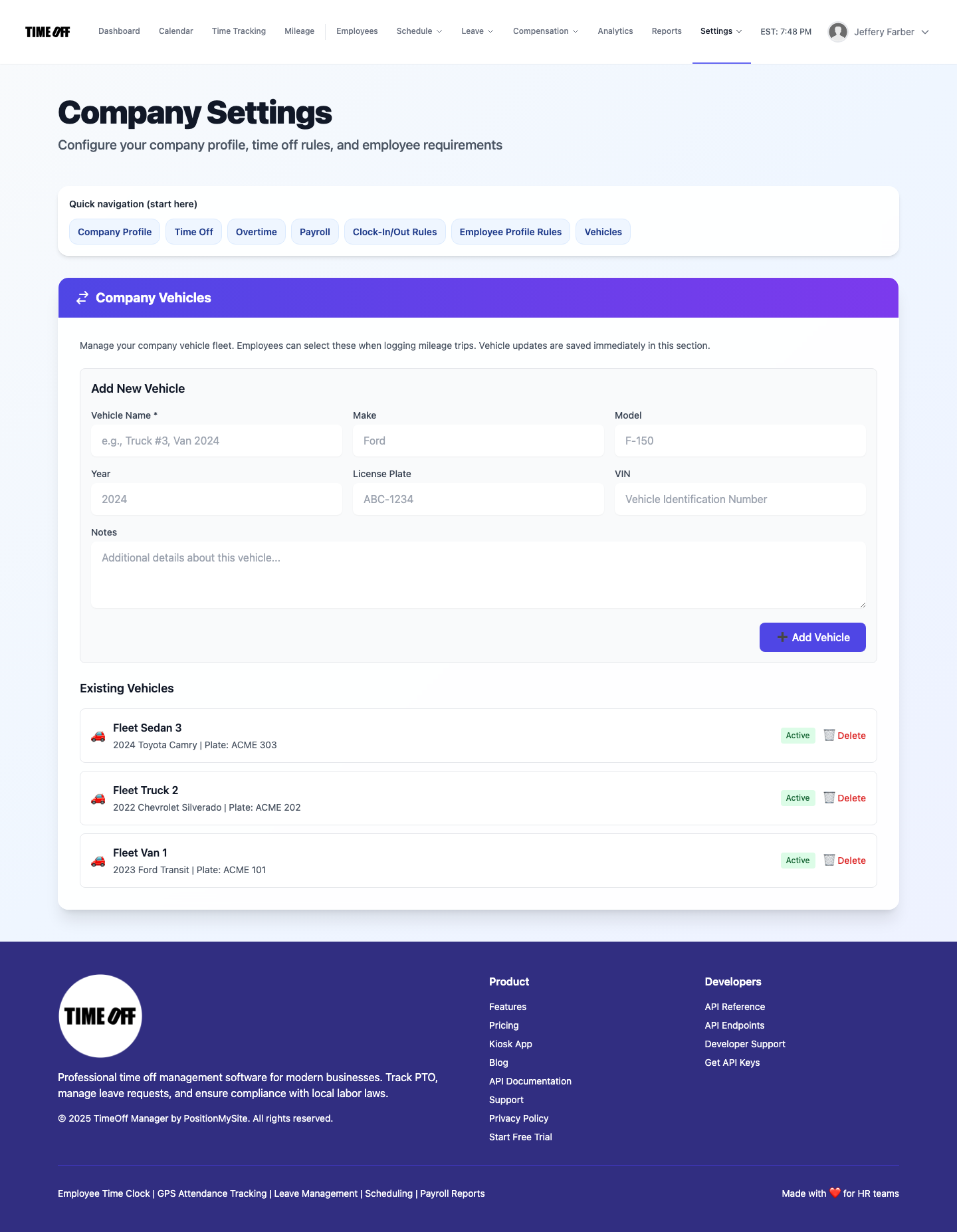
Vehicles — fleet records for mileage and administration.
Admin Access (section=admin)
Not used by company administrators on a normal subscription. It is an internal TimeOff Manager tab for tenant admin credentials. There is no public screenshot.
Settings menu: holidays & sites
Under the main nav Settings dropdown (outside this single-page hub), you’ll also find Holiday management at /admin/holidays, Work locations at /admin/work-locations, and Work activities at /admin/work-activities. QuickBooks and FreshBooks live at /integrations/accounting.
Company context
- Company admin — Works on their own organization;
company_idis usually omitted from URLs.
Screenshots below: Acme demo company admin, one full-page capture per tab (automation scrolls to top so the page title and Quick navigation are included on every image).