Time Off Request Software: From Ask to Answer (2026)
PTO requests by text and email get lost. Here's what a good time off request flow looks like, from the employee's ask to the manager's answer to payroll.


Requests and answers in one place, even when your team never sits at a desk.
Someone texts you on Sunday night: "Can I take Friday off?" You reply "sure" from the couch. By Thursday you've forgotten, the schedule still has them on, and the only record of that yes is buried under forty other messages. Now multiply that by a crew of 15, or 50. That is why time off feels chaotic in most small businesses. The policy is usually fine. The request is the mess.
Time off request software fixes the front door. Every ask goes into one place, reaches the right manager, gets a clear yes or no, and updates the balance and the team calendar without anyone retyping it. Here's what that flow should look like in 2026, and how it works in TimeOff Manager for the person asking and the person answering.
Why time off requests fall apart in small teams
Nobody sets out to run PTO through text messages. It happens because the first few requests were easy. Then the team grows, you add a second manager or a second location, and the informal system starts leaking.
The leaks look the same everywhere:
- Too many doors. Requests arrive by text, email, a sticky note on the office door, or a hallway conversation. Each one is a separate thing you have to remember.
- No status. The employee doesn't know whether "let me check" means yes. They book the flight anyway, or they ask again, or they give up and call in sick.
- Balance guessing. Nobody is sure how many vacation days are left, so the answer depends on who does the math and which spreadsheet tab they open.
- Blind approvals. A manager says yes without seeing that two other people on the same crew are already off that week.
- Nothing reaches payroll. Approved days never make it to the person running payroll, so paid time off gets missed, double-paid, or fixed by hand a month later.
None of these are people problems. They are process problems, and they get worse every time you hire.
What good time off request software does
Before you compare tools, write down what the request itself should do. A good system handles the whole round trip, from the ask to the paycheck:
- One front door. Employees request from the website or their own phone, using the same login they use for everything else.
- Your leave types, not generic ones. Vacation and sick at minimum, plus the categories your handbook actually names, such as personal, unpaid, or bereavement.
- Days or hours. A dentist appointment shouldn't cost a full day just because the system only counts in days.
- A visible status. Pending, approved, rejected, or cancelled, visible to the employee without asking anyone.
- The right approver, notified. The manager hears about the request right away instead of discovering it days later.
- A decision with context. Balances and team coverage are one click away when the manager approves.
- Automatic updates. Approval updates the balance and the team calendar. Nobody copies dates into a second system.
- A history you can trust. Every request and decision stays on record, including cancelled ones.
- Clean payroll handoff. PTO usage and balances export for whoever runs payroll.
If a tool misses the status or the payroll step, you'll end up running a side spreadsheet again within a quarter.
The time off request lifecycle, step by step
Here's how a single request moves through TimeOff Manager's PTO software, with the real screens involved.
1. The employee submits the request
Employees open My Leave Requests at /leave-requests and click + New Request. On the request form they pick the leave type, choose the date range, and add any notes your company requires. The list of leave types comes from your company settings, including any custom types you've turned on. The Leave: My requests help article walks through the page.
2. The request waits somewhere visible
Once submitted, the request shows as pending in the employee's list. They can also open My pending from the dashboard, which collects everything of theirs still waiting on someone else: leave requests, missed-punch fixes, mileage, and payroll day notes. No more "did you see my text?"
3. The manager is notified and decides
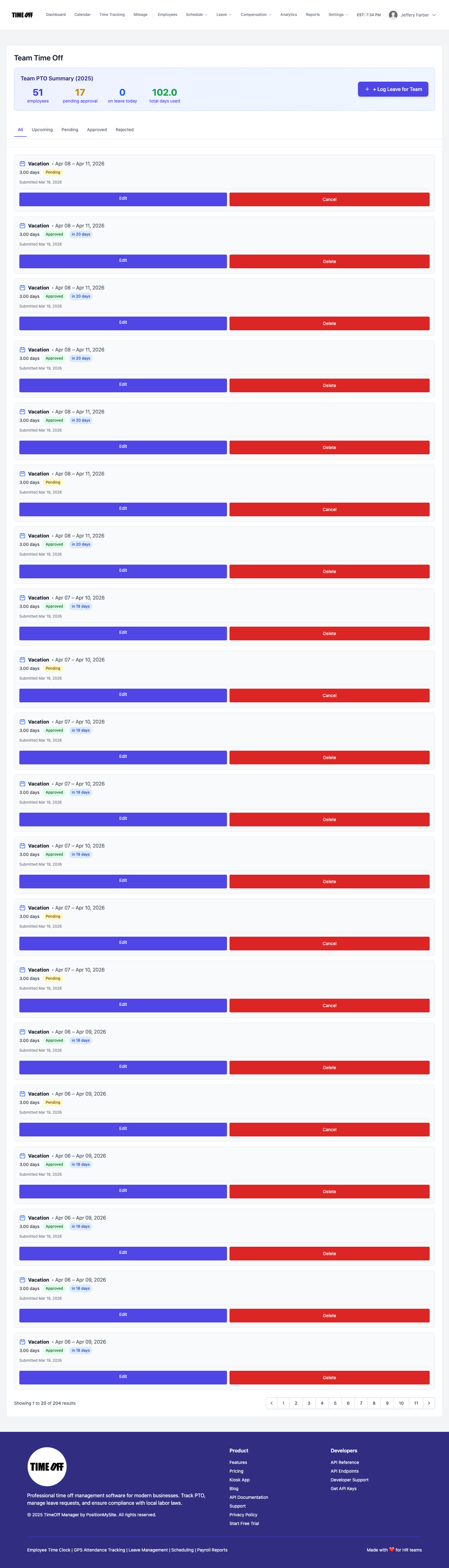
Managers get an email as soon as someone requests leave. When they sign in, the yellow Pending Approvals card on the dashboard jumps straight to the Approval Center, one inbox for leave, missed punches, mileage, and day notes, soonest first. Tabs filter by type, and they approve or reject in place.
If a manager prefers a leave-only view with PTO context beside each request, /admin/requests is still there. Both are covered in the Approvals inbox and leave queue guide. Managers usually see their direct reports; HR and company admins see the company.
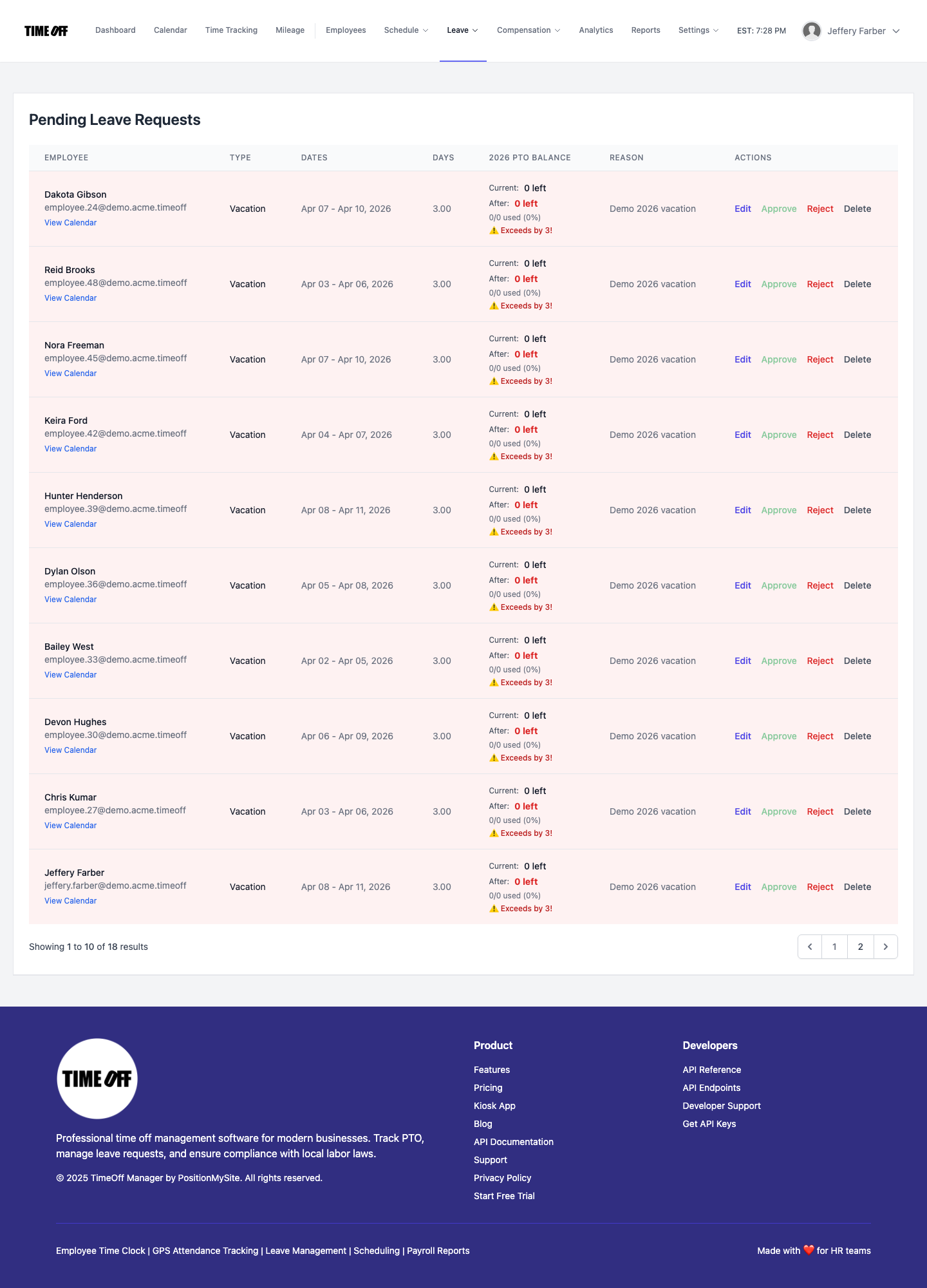
For the manager side in depth, including how to keep approvals consistent across supervisors, read our guide to manager PTO approval workflows. If your managers also handle punch fixes and mileage, the Approval Center walkthrough shows the full mixed inbox.
4. The balance and the calendar update themselves
Vacation, sick, and personal balances update the moment a request is approved. Approved leave then shows up on the team Coverage timeline at /calendar, where each row is an employee, each column is a day, and short codes like V for vacation and S for sick make overlaps obvious. The team timeline help article explains the grid, and our post on spotting PTO overlaps before you approve shows how managers use it day to day.
5. Plans change: edit or cancel
Trips move. When your policy allows it, an employee can open a request and edit the dates while it's still editable, or cancel it. Cancelled requests stay in the history instead of disappearing, so nobody has to wonder later whether a day was taken.
6. Payroll gets the numbers
At the end of the period, you export PTO usage, balances, and year-end summaries to Excel or CSV for payroll. For the year view, the Employee Leave Summary at /admin/summary shows each person's taken versus remaining time and utilization. The leave summary help article covers it.
Employee side vs manager side
The same request looks different depending on who's holding it. Here's the split:
| Task | Employee | Manager, HR, or admin |
|---|---|---|
| Ask for time off | + New Request on /leave-requests, or Leave in the phone app | Same, for their own time off |
| Check status | Request list and My pending | Approval Center on the dashboard |
| Decide | Not applicable | Approve or reject in the Approval Center or /admin/requests |
| See who's off | Their own month on My Calendar | Team Coverage timeline on /calendar |
| Check balances | Their own summary | Employee Leave Summary for the team |
| Change plans | Edit or cancel when policy allows | Sees the updated request and history |
Requesting time off from a phone
Most hourly and field staff will never sit at a desk to request a day off. They'll do it from their own phone on a break. The TimeOff Manager Pro app signs in with the same work email as the website. The Leave tab lets employees request time off and see what's pending, and managers get the same mixed approvals inbox under More, then Approvals. The phone app help article lists everything that travels with the phone.
Keep the two apps straight. TimeOff Kiosk is the shared tablet by the door, where each employee clocks in with their own PIN. Requests, balances, and approvals live in the Pro app and on the website, tied to each person's own login.
How to set up time off requests in an afternoon
- Add your people. The employee wizard suggests PTO minimums for every US state and Canadian province or territory based on where each person works. You still configure and own your final policies.
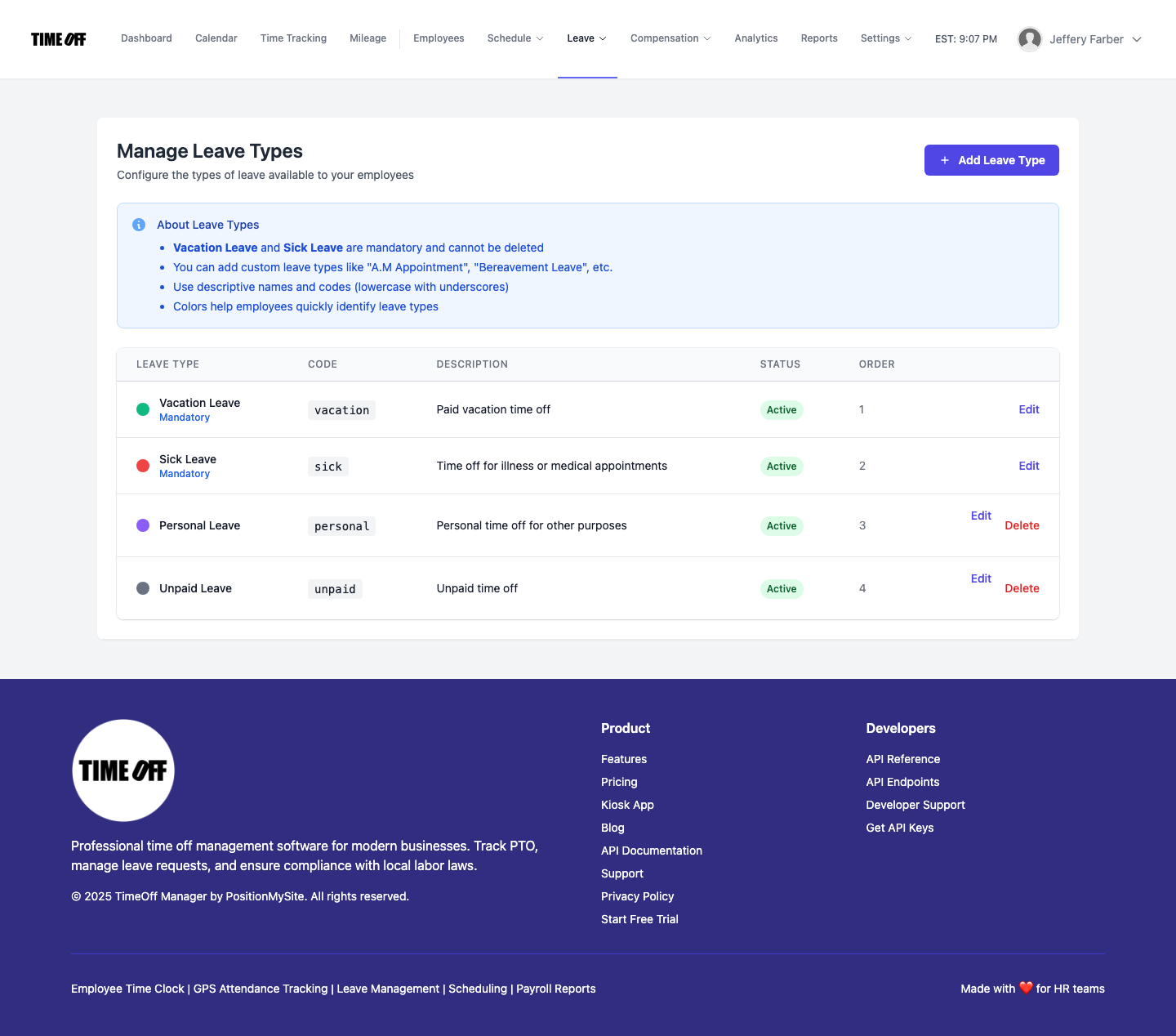
- Confirm your leave types. Vacation and sick are always there. If your handbook names more, turn on custom leave types and add them at
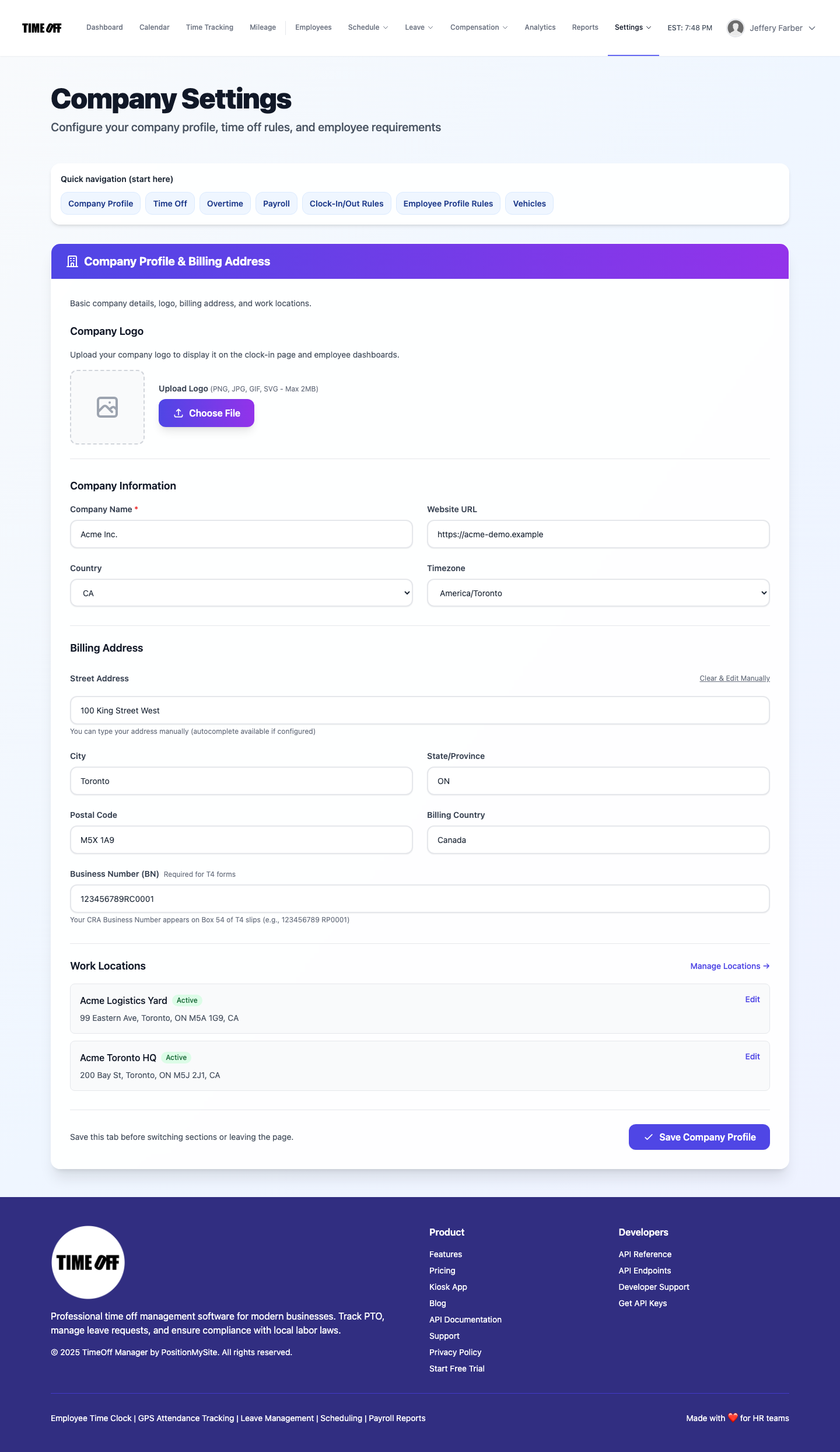
/admin/leave-types, as covered in the custom leave types guide and our custom leave types walkthrough. - Pick days, hours, or both. Under Company Settings, the Time Off tab sets hours per workday and whether staff request in days only, hours only, or both. It's also where you can quiet low-balance warnings. See the company settings overview.
- Load your holidays. Public holidays for the US and Canada sync per work location, so nobody burns a vacation day on a stat holiday. The holidays admin article has the details.
- Set each person's manager. Managers see requests from their direct reports, so make sure every employee profile has the right manager before the first request comes in.
- Announce one rule. From today, time off requests go through the app. Texts get a friendly reply with the link, not a yes.
- Check coverage before you approve. Make the Coverage timeline part of every decision for the first month until it becomes habit.
Policy rules that keep requests fair
Software gives you a clean process. Fairness still comes from the rules you write down and apply the same way every time. A one-page request policy should answer:
- Notice. How far ahead should people request planned vacation? Two weeks is common for a few days off; longer for a week or more.
- Response time. How quickly will a manager answer? Promise a number, such as two business days, and keep it.
- Overlap. How many people from the same role or crew can be off at once, and who wins a tie? First-submitted is easy to explain and easy to prove when every request carries its own record.
- Busy seasons. Which weeks are off-limits or need extra notice, and does everyone know that before they book?
- Sick days. Sick time is rarely planned. Say how employees should report it on the day and when they should enter the request.
- Changes. When can someone edit or cancel an approved request, and who needs to know?
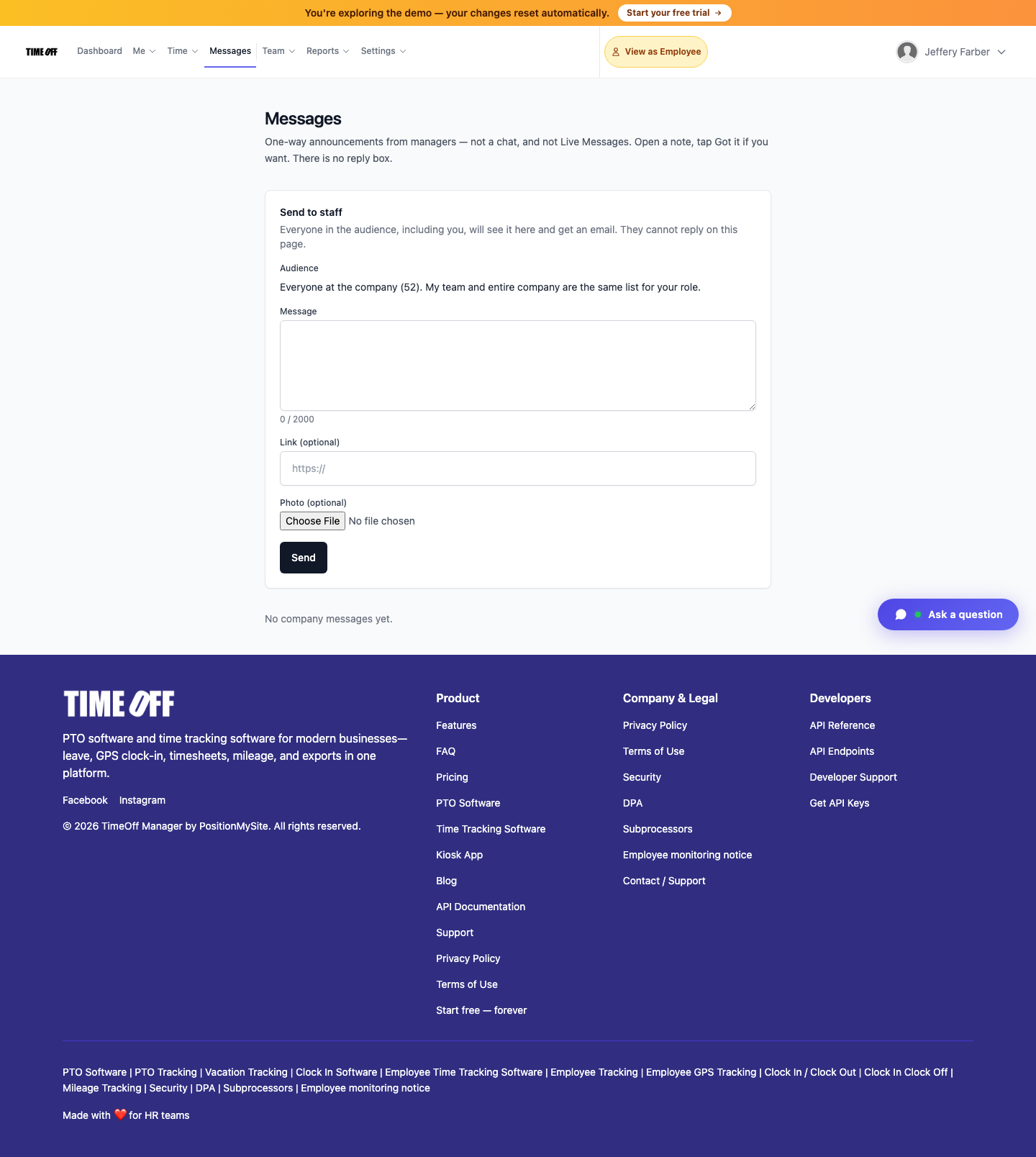
Put the policy where employees can find it, and send it as a staff message when it changes so everyone sees the same version.
Compliance notes for US and Canadian employers
This is not legal advice. Check the rules for every state and province where you have people.
United States. Federal law does not require paid vacation. The Department of Labor notes that the Fair Labor Standards Act does not require payment for time not worked, such as vacations or holidays. Many states and cities do require paid sick leave, though, and the Family and Medical Leave Act gives eligible employees of covered employers unpaid, job-protected leave for qualifying reasons. A clear record of when someone asked for leave, and what you decided, helps whenever questions come up later.
Canada. Vacation is a statutory minimum set by each province, territory, or the federal code. In Ontario, for example, employees with less than five years of employment are entitled to two weeks of vacation after each vacation entitlement year, and three weeks at five years or more. Ontario's employment standards guide also says employers must keep vacation records. Our guide to Canadian vacation entitlements by province covers the rest of the country.
Either way, the habit that protects you is the same: every request in writing, every decision recorded, and balances that match what payroll paid.
Try it
See how requests, approvals, balances, and the team calendar fit together on the TimeOff Manager PTO software page. When you're ready, start a 14-day trial or click through the live demo and submit a test request yourself.
FAQ
What is time off request software?
Time off request software gives employees one place to ask for vacation, sick, or other leave, routes each request to the right manager for approval, and records the decision. Good tools also update leave balances and the team calendar automatically when a request is approved.
How do employees request time off in TimeOff Manager?
Employees open My Leave Requests at /leave-requests, click + New Request, pick the leave type and dates, add any required notes, and submit. They can also request leave from the Leave tab in the TimeOff Manager Pro phone app using the same work login.
How do managers know a time off request is waiting?
Managers get an email when someone requests leave. On the dashboard, the yellow Pending Approvals card opens the Approval Center, where they can approve or reject leave alongside missed punches, mileage, and day notes.
Can employees request part of a day off?
Yes, if your company allows it. In Company Settings, the Time Off tab sets hours per workday and whether staff request in days only, hours only, or both.
Can an employee change or cancel a request after submitting it?
Yes, when your policy allows it. Employees can edit a request while it is still editable or cancel it from their request list. Cancelled requests stay in the history for transparency.
Can staff request time off from the shared kiosk tablet?
TimeOff Kiosk is the shared tablet where each employee clocks in and out with their own PIN. Time off requests are made from the website or the TimeOff Manager Pro app on each employee's own phone, tied to their personal login.
Does approved time off reach payroll?
Approved leave updates balances right away, and you can export PTO usage, balances, and year-end summaries to Excel or CSV for whoever runs payroll.