Custom Leave Types: Match PTO Categories to Your Policy (2026)
Vacation and sick alone rarely match a real handbook. With custom leave types enabled, company admins manage Personal, Unpaid, Bereavement, and more at /admin/leave-types—names, codes, colors, and order that employees pick when they request time off.
Vacation and sick alone rarely match a real handbook. With custom leave types enabled, company admins manage Personal, Unpaid, Bereavement, and more at /admin/leave-types—names, codes, colors, and order that employees pick when they request time off.
Most handbooks name more leave than vacation and sick. Personal days, unpaid leave, bereavement, morning appointments—managers still track those categories in a side spreadsheet because the software only offers two buckets. Approvals get messy, calendars look the same for every absence, and year-end reports cannot tell personal time from unpaid leave.
TimeOff Manager Manage Leave Types at /admin/leave-types lets company administrators define the leave categories employees see when they request time off. With custom leave types enabled for the company, you keep mandatory Vacation and Sick, then add the labels your policy actually uses—names, lowercase codes, colors, sort order, and active status.
Why custom leave categories matter
When every absence lands in “vacation” or “sick,” balances lie and managers approve the wrong bucket. Field and hourly teams in the US and Canada often need unpaid leave for slow seasons, personal leave for life errands, and bereavement when policy requires a separate code. Matching the picklist to the handbook keeps My requests, approvals, and calendars honest without a parallel tracker.
What’s on Manage Leave Types
Company admins open Manage Leave Types after custom leave types are turned on (Setup wizard or company settings). The page includes:
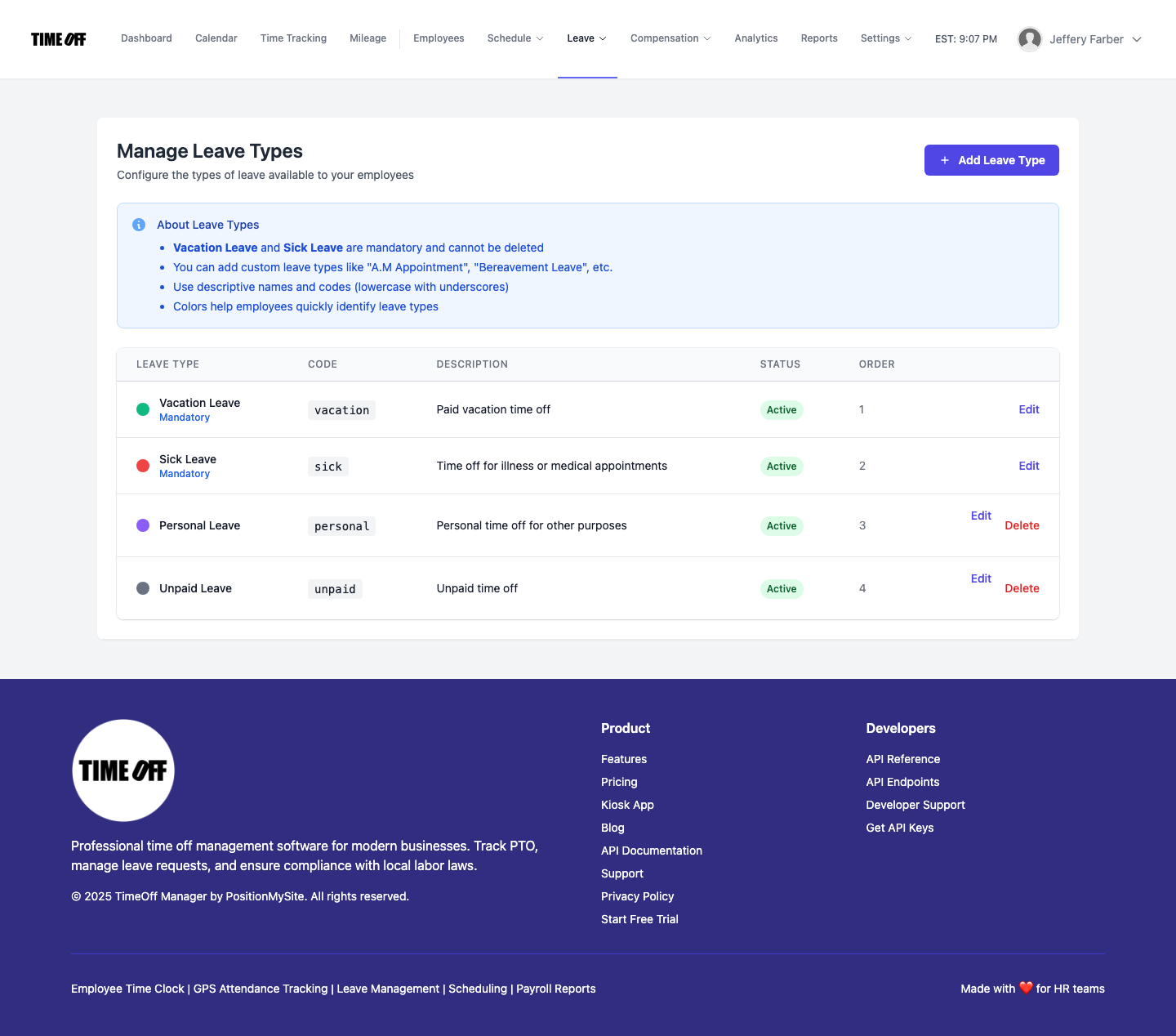
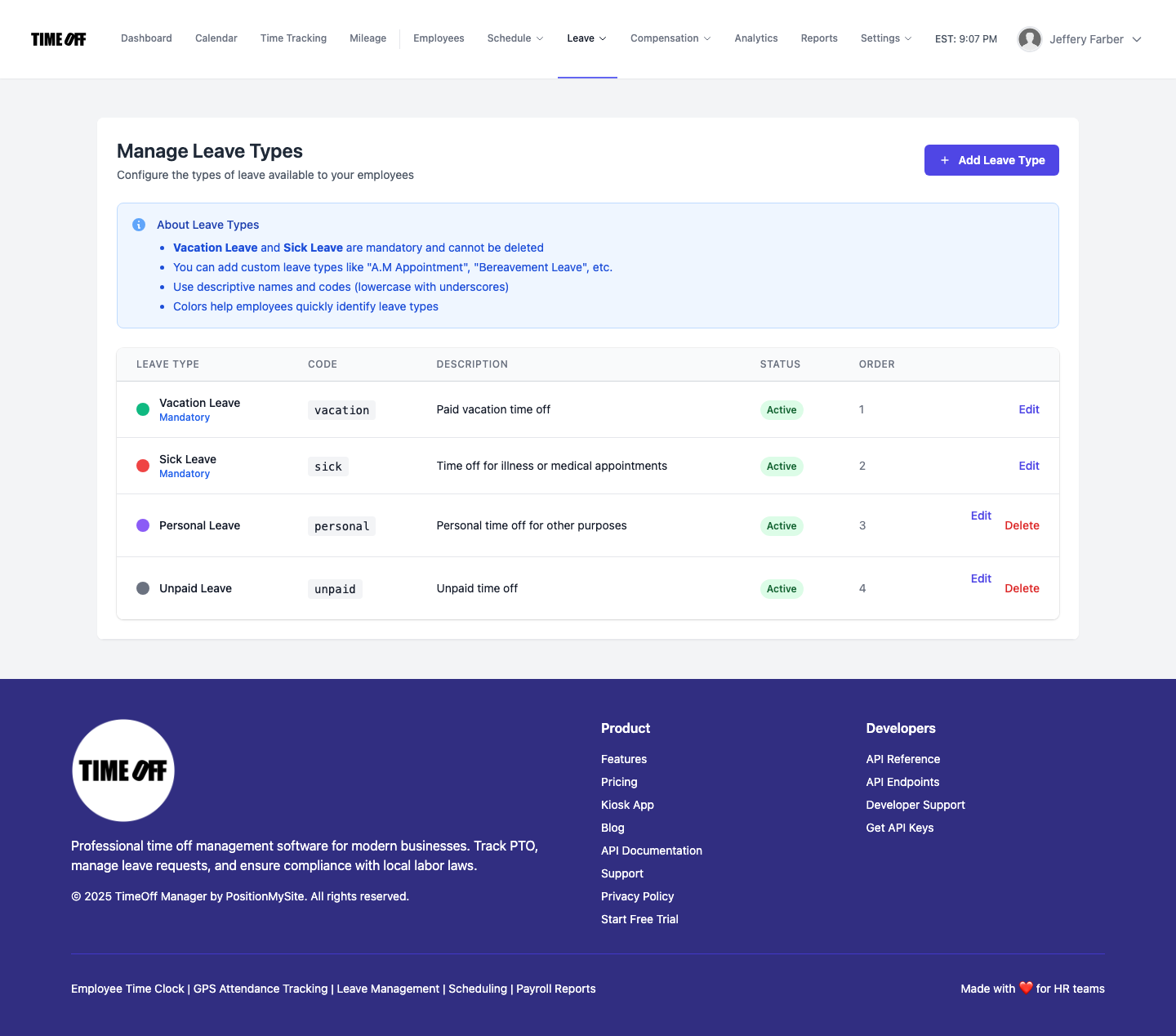
- Add Leave Type — purple button that opens the create form for a new category
- About Leave Types — short callout on mandatory types, naming, codes, and colors
- Leave types table — name, code, description, status, order, and Edit / Delete where allowed
In a typical setup you will see Vacation Leave (green, mandatory, code vacation), Sick Leave (red, mandatory, code sick), plus custom rows such as Personal Leave (purple, personal) and Unpaid Leave (grey, unpaid). Each active type shows an Active status pill and a display order so the picklist stays predictable.
Rules that keep categories clean
- Vacation and Sick are mandatory — they cannot be deleted, and their codes cannot be duplicated
- Codes are lowercase_snake_case — letters and underscores only (for example
bereavementoram_appointment), unique per company - Colors — help employees and managers spot categories on calendars and lists
- Order and active status — control display order and whether a type appears for new requests
- Custom examples — Personal, Unpaid, Bereavement, A.M. Appointment, or any label your policy needs
How employees and managers use the types
Employees choose a leave type from My requests when they submit time off. Approvers review those categories in the leave queue and related leave summaries. Colors and clear names reduce “which bucket was that?” back-and-forth. Broader PTO balance rules still live under Company Settings; Manage Leave Types is the catalog of categories those requests can pick.
TimeOff Manager Pro is the signed-in employee and manager mobile app (same work email as the website). TimeOff Kiosk is the separate door-tablet PIN app—one person, one PIN. Leave types you define here feed the same request flow both surfaces use for time-off categories.
How to enable and use custom leave types
- Sign in as a company admin.
- Turn on custom leave types for the company (Setup wizard or equivalent company settings). If the flag is off,
/admin/leave-typesredirects you to enable it first. - Open Manage Leave Types at
/admin/leave-types. - Review mandatory Vacation and Sick; edit names, descriptions, or colors if needed (you cannot delete them).
- Click Add Leave Type. Enter a descriptive name, a unique lowercase_snake_case code, a color, optional description, order, and active status.
- Save, then confirm the new type appears in the table and in employee request picklists.
- Reorder or deactivate types you no longer offer so managers and staff only see current policy categories.
Who it’s for
US and Canada owners, HR leads, and field managers who need leave categories that match a real handbook—not a two-option dropdown. It fits hourly and field teams where unpaid, personal, and appointment leave show up as often as vacation, and where calendar colors should mean something at a glance.
Start a 14-day free trial
Try Manage Leave Types on your own company workspace. Start a 14-day free trial, then choose Starter, Growth, or Scale when you are ready to continue. Register here: https://timeoffmanager.us/register/company.
Related: Help for custom leave types (admin). Also see multi-company workspaces when each organization needs its own policies and roster.