Auto Shop Time Tracking Software: Clean Hours for Technicians (2026)
Techs forget to clock in, overtime sneaks up and time off lives in texts. Here's how to get clean hours from the bay floor with a shared kiosk.
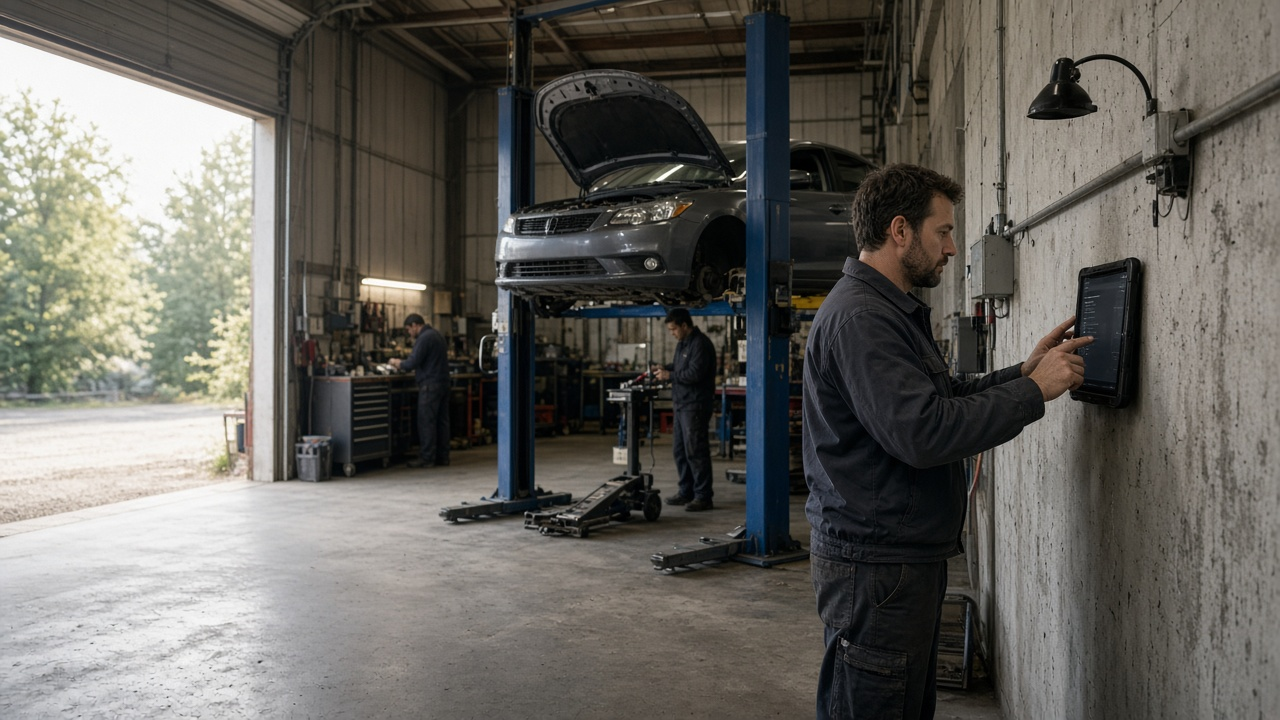
Techs clock in with a PIN on a shared tablet at the bay.
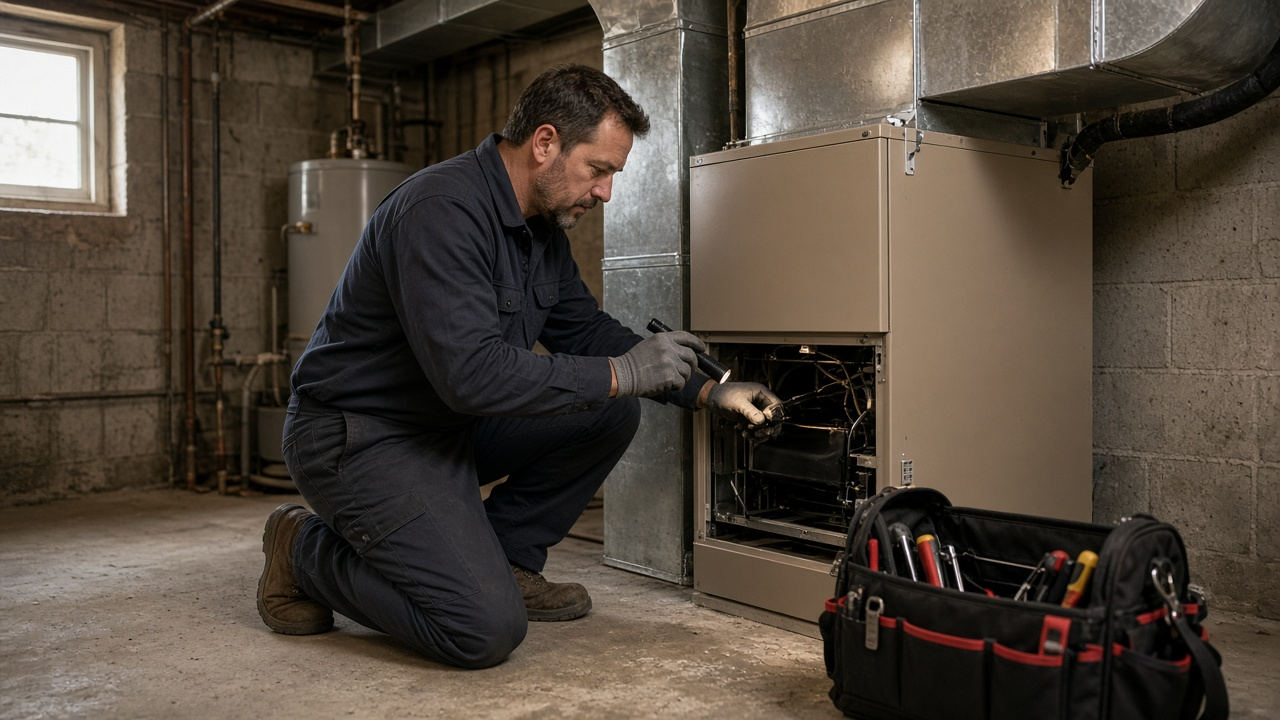
Your best tech says he was in at 7:30. The door camera says 7:52. The timesheet says nothing at all, because the paper sheet by the coffee machine went missing again. Meanwhile you're paying overtime you can't prove, and two people asked for the same Friday off by text. Auto shop time tracking doesn't need to be this messy. Here's how to get clean hours from the bay floor without slowing anyone down.
Why time tracking breaks in auto repair shops
Most shops track time in two places and trust neither. Repair order time lives in the shop management system. Attendance lives on a paper sheet, a whiteboard or somebody's memory. Those two numbers almost never match, and they're not supposed to. A tech can be on the clock for nine hours and flag six. That gap is normal. Not knowing what the gap is, that's the problem.
Here's what usually goes wrong:
- Clock-ins happen late or not at all. Techs walk straight to the bay, open a car and forget. By lunch nobody remembers when they started.
- Hands are dirty. Nobody wants to unlock a personal phone with brake dust on their fingers. A shared screen with a short PIN works better.
- Overtime sneaks up. A Saturday comeback plus two late nights and you're over 40 hours. You find out when payroll runs, not on Thursday when you could still adjust.
- Time off lives in texts. "Can I get the 18th?" gets a thumbs-up emoji and is forgotten. Then two of your three techs are gone the same day.
- Payroll is a weekly guessing game. Somebody adds up handwritten hours, fixes the obvious mistakes and sends a number to the bookkeeper.
None of this is about effort. Shops are busy. The fix is to make clocking in the easiest thing a tech does all day, and to give the owner one place to see hours, overtime and who's off.
What good auto shop time tracking looks like
Before you pick any tool, write down what "fixed" means for your shop. For most independent and small multi-bay shops it looks like this:
- A wall-mounted tablet by the bays where every tech clocks in and out with a personal PIN.
- Advisors, parts staff and anyone who drives (parts runs, shuttle drivers) can also clock in from the signed-in phone app.
- Daily, weekly and monthly timesheets the owner can read in a minute.
- Overtime rules set once, so weekly overtime shows up as it happens.
- Missed clock-ins fixed by request and approval, not by someone overwriting the sheet.
- Time off requested in the app, approved by a manager, and visible on a coverage calendar.
- Clean exports for whoever runs payroll.
- Repair orders, estimates and parts stay in your shop management system. Your time tool should not try to be your shop software.
That last point matters. TimeOff Manager is built for attendance, time off and overtime. It doesn't write repair orders, track parts or calculate flat-rate pay. If a vendor tells you one app does all of it perfectly, ask to see the flag-hour report next to the attendance report before you sign.
Shared kiosk at the bay vs the phone app
There are two ways your people can clock in, and most shops use both.
TimeOff Kiosk for the bay floor
Mount a tablet near the time board or the shop entrance and open the kiosk. Each tech types their PIN, taps in, and goes to work. It takes a few seconds. Because it's a shared device, nobody has to install anything personal. The setup is covered in the kiosk clock-in guide, and the TimeOff Kiosk page shows what the screen looks like.
Worried about someone clocking in for a buddy? We covered that in detail in our kiosk selfie verification post.
TimeOff Manager Pro for advisors and drivers
Service advisors, the shop manager and anyone doing parts runs can use the signed-in TimeOff Manager Pro app. They see their own timesheet, request time off and check their schedule. The employee mobile app guide walks through it.
Don't mix these up. The kiosk is a shared screen with PINs. Pro is a personal, signed-in app. Most techs only ever need the kiosk.
What technicians see vs what the owner sees
Technicians
- Clock in and out at the kiosk with a PIN.
- See their own hours on their timesheet (employee timesheet guide).
- Request a missed clock-in fix when they forget (missed clock-in requests).
- Request vacation or sick time and see whether it's pending or approved.
Owner or shop manager
- Daily, weekly and monthly timesheets for every tech (manager timesheet guide).
- Overtime settings and reports (overtime admin guide).
- One approvals inbox on the dashboard for leave requests and missed clock-in fixes.
- A team coverage calendar to see who is off before booking big jobs (team calendar guide).
- Optional work activities if you want to tag time to buckets like diagnostics, shop maintenance or training (work activities guide).
How to set up auto shop time tracking in one afternoon
You don't need a consultant. Block two hours on a slow afternoon and do it in this order.
1. Add your people
Add every tech, advisor and parts person to the roster. Give each tech a kiosk PIN. Keep the roster honest. If someone left in the spring, deactivate them now so they don't show up on reports.
2. Set the work week and overtime rule
Decide when your work week starts and what counts as overtime for your state or province. In most US states that's hours over 40 in the work week under the federal rule. Some places add daily overtime. Set it once in company settings and let the system flag it.
3. Mount the tablet
Put it where techs pass every morning, not in the office. Near the time board or the bay door works. Keep it on a charger and lock it to the kiosk screen.
4. Decide on work activities (or skip them)
Work activities are optional. If you want to know how much paid time goes to shop cleanup, training or comebacks, set up a short list. If you already get that from your shop software, skip it. Fewer buttons means more people clock in.
5. Move time off out of text messages
Set up your leave types (vacation, sick, personal) and tell the team: from Monday, requests go in the app. Approve or decline from the dashboard. The PTO software page shows how balances and approvals work.
6. Run one week side by side
Keep the paper sheet for one more week. Compare. You'll find the missed clock-ins, the late starts and the overtime you didn't see coming. Then retire the paper.
7. Hand payroll a clean export
At the end of the pay period, review timesheets, approve the fixes and export totals for your bookkeeper or payroll provider. The reports guide covers the exports. We export; we don't claim a live sync with any payroll vendor.
Reconciling clocked hours with flagged hours
Here's where clean attendance pays off. Once you trust your clocked hours, you can compare them to flagged hours from your shop software every week. A tech who clocks 45 hours and flags 28 isn't necessarily slow. Maybe he's waiting on parts, doing comebacks or covering the phones. You can only have that conversation when the clocked number is real.
Keep the comparison simple:
- Pull weekly clocked hours per tech from TimeOff Manager.
- Pull weekly flagged hours from your shop management system.
- Look at the ratio over a month, not a single week.
- Talk about the causes (parts delays, diagnostics, training) before you talk about performance.
Overtime, flat rate and the law
This is not legal advice. Pay rules for technicians vary a lot by state and province, and flat-rate pay has its own wrinkles. A few things hold up almost everywhere:
- Most hourly and many flat-rate techs are non-exempt, which means overtime rules apply to actual hours worked.
- You need accurate records of hours worked, whatever you pay per job. The US Department of Labor explains this in its Fair Labor Standards Act overview.
- In Canada, hours of work and overtime are set provincially. Ontario's rules are in the Employment Standards Act guide.
- Some states have specific rules for piece-rate or flat-rate workers, including pay for non-productive time. Check with your accountant or employment lawyer.
The common thread is records. A clocked hour on a kiosk with a clean approval trail is far easier to defend than a sheet that's been corrected in three different pens.
Common mistakes shops make when switching
- Putting the tablet in the office. Techs don't walk past the office at 7 a.m. They walk past the bay door.
- Too many work activities. Ten buttons and nobody picks the right one. Start with zero to three.
- Letting the manager edit times directly. Use missed clock-in requests so there's a record of who changed what and why.
- Leaving time off in texts. If requests aren't in the system, the coverage calendar lies.
- Expecting the time tool to calculate flat-rate pay. It won't. Keep that in your shop and payroll software.
If you run a bigger operation with field techs or mobile service vans, our auto repair shop overview and the time tracking software page cover the rest.
Try it at your shop
Put a tablet by the bay and see how it feels for a week. Set up TimeOff Kiosk, or start a 14-day trial and add your techs today. Want to click around first? Open the live demo.
FAQ
Do I need a separate time clock if my shop management system already tracks repair orders?
Usually, yes. Repair order time tells you how long a job took. It doesn't tell you when a technician arrived, left, or went over 40 hours. TimeOff Manager handles attendance, overtime and time off. Your repair orders stay in your shop software.
Can technicians clock in without a phone?
Yes. Put a tablet on the wall by the bays and run TimeOff Kiosk. Each person clocks in with their own PIN on the shared screen at /clockin. Nobody needs to pull a phone out with greasy hands.
What happens when a tech forgets to clock out?
They submit a missed clock-in or clock-out request with the real time and a reason. It lands in the manager's approval inbox. Once approved, the timesheet is corrected and the original stays on record.
Does TimeOff Manager calculate flat-rate or flag hours?
No. Flat-rate pay belongs in your shop and payroll software. TimeOff Manager tracks actual clocked hours, overtime and leave, then exports clean totals so you can reconcile them against flagged hours.
Can service advisors and parts staff use the same system?
Yes. Front-counter and parts people can clock in on the kiosk or the signed-in TimeOff Manager Pro phone app, and everyone requests time off the same way.
How do I see who is off before I book a big job?
Open the team coverage calendar. It shows approved and pending leave by person and day, so you can see a short-handed Friday before you promise a customer a same-day timing belt.