Timesheet Approval Software for Managers (2026)
Review the week in one place. Catch missing clock-ins, approve the hours, and export totals your accountant can use.


Managers review the week in one place before payroll.
Payroll closes Friday. Half your crew is still “fixing” Monday’s hours in a group chat. The other half clocked in from the wrong site. You need timesheet approval software that lets managers review the week—not a spreadsheet merge the night before payday.
If you run a small team with GPS phones, a shared kiosk, or both, the job is the same: see who worked, catch missing clock-ins early, approve clean hours, and export something your accountant can use. This guide walks through what that looks like in practice—and how TimeOff Manager’s manager timesheet hub fits without inventing a second system.
Why timesheet approval breaks down for small teams
Most SMBs do not fail because people hate timesheets. They fail because clock-ins, leave, and payroll notes live in different places.
- Managers chase screenshots instead of reviewing one weekly grid.
- Missed clock-outs become “edit the cell” folklore with no approval trail.
- Overtime shows up as a surprise after you already promised the payroll file.
- Field staff and office staff use different tools, so Friday is a reconciliation project.
Good timesheet approval software does not mean more buttons. It means a daily view for “who is clocked in,” a weekly grid for hours and OT, a clear fix path for mistakes, and a place to approve exceptions before they hit payroll.
What good looks like
- One manager hub for Daily / Weekly / Monthly—not three apps.
- Live status so morning stand-ups show who is in or out.
- Weekly hours with OT split tied to your company overtime rules.
- Separate queues for different mistakes: missing clock-ins vs payroll notes when the clock-in is already right.
- Team submission/approval when your company uses that workflow (Team Timesheets beside the core views).
- Export path for accountants—CSV/Excel—without claiming a fake payroll sync you do not have.
- Leave in the same product so approved PTO and worked hours do not fight each other.
Employee vs manager: who does what
Employees live on their personal timesheet. In TimeOff Manager that is /timesheet/employee: clock status, today’s hours, recent clock-ins (with photo/GPS when your Clock rules require them), plus links to fix problems. If a schedule is required to clock in, they may see “not scheduled today” until an admin relaxes that Clock rule.
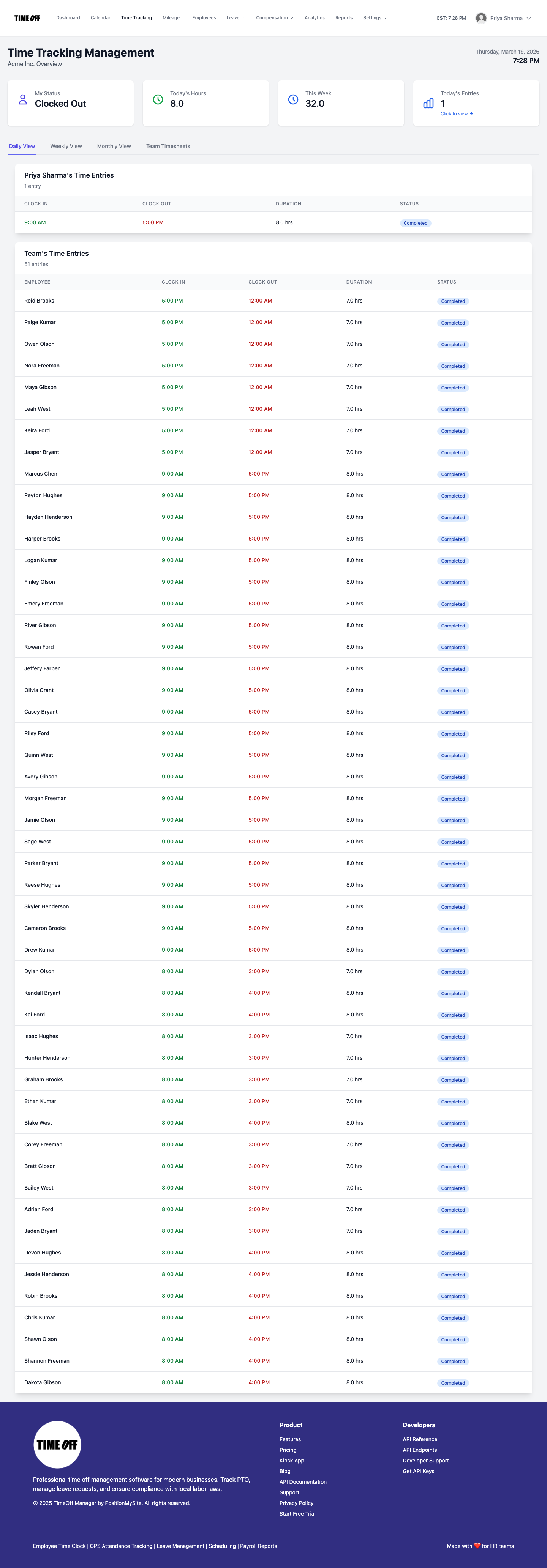
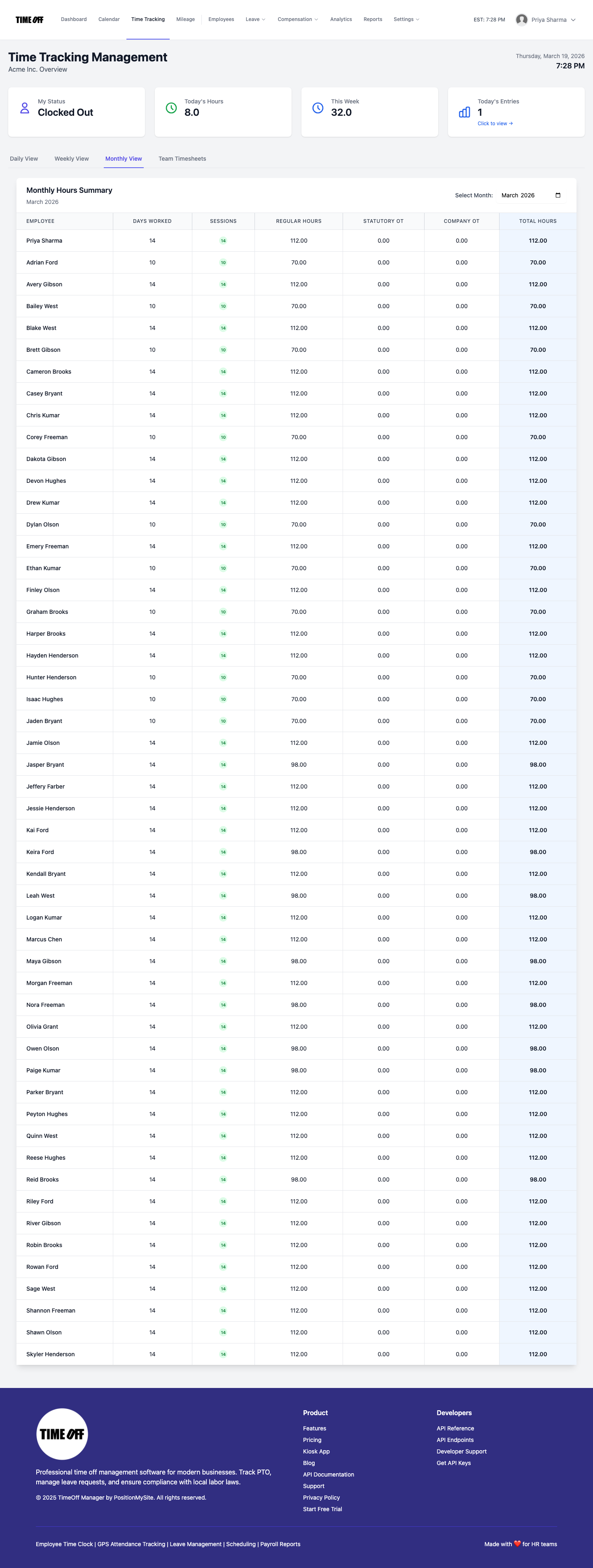
Managers and HR open the same product’s command center at /timesheet. Daily is the snapshot. Weekly is the workhorse grid for hours and overtime. Monthly rolls up totals when you need the bigger picture. Company admins see the same tabs with a wider roster.
Do not conflate the phone apps. TimeOff Manager Pro is the signed-in phone app. TimeOff Kiosk is the shared-tablet PIN clock. Both feed the same timesheet story managers review.
Missed clock-in vs payroll day notes (do not mix these up)
This is where most DIY sheets go wrong. TimeOff Manager keeps two different correction paths on purpose.
Missed clock-in (missed clock-in) is for a missing or wrong in/out time. Staff submit the date, times, and a short reason (within a 60-day window). Managers approve or edit the times in the dashboard Approval Center. An approved request becomes a real time entry—not a sticky note.
Payroll day notes / hours (/timesheet/payroll-adjustment) are for days when the clock-in times are already right and you still need a note or a small hours tweak for the next payroll report. Admins review at /admin/payroll-adjustments. Day notes do not rewrite clock-ins.
The weekly grid is for hours and overtime oversight. It does not replace those two queues. If you want the leave + missed clock-in + mileage inbox story in one place, see our guide to the Approval Center.

Practical steps: close the week without the Sunday scramble
- Turn on time tracking and set Clock rules (GPS, selfie, schedule-required) once—then stop changing them mid-pay-period.
- Teach the two fix paths. Missing clock-in → the missed clock-in request. If the times are already right and payroll needs a note → day notes. Link both from the employee timesheet help page above.
- Use Daily every morning. Spot who never clocked in before lunch, not after the client invoices.
- Review Weekly before you export. Check regular vs overtime against your overtime admin rules.
- Approve exceptions in the Approval Center so leave, missed clock-in, mileage, and day notes are not buried in email.
- Export for payroll/accounting. Invite your accountant or pull Excel/CSV—see accountant access and our post on Excel exports for PTO and payroll hours. Prefer export language over claiming sync to every payroll vendor.
- Keep leave on the same login. When PTO is approved in-product, the timesheet story stays coherent. Related: time off request software and fixing a missed clock-in.
Daily, Weekly, Monthly: how managers actually use the hub
Think of the three tabs as zoom levels, not three products.
Daily answers “who is working right now?” Use it for morning coverage, for spotting a missing clock-in before lunch, and for quick entry counts. It is the stand-up screen.
Weekly answers “are the hours right for this pay week?” This is where regular vs overtime splits show up against your company rules. Most payroll prep time belongs here. If a day looks wrong, do not silently rewrite history in a spreadsheet—send the person through the missed clock-in request or a day note so the approval trail stays intact.
Monthly answers “what pattern am I seeing?” Totals and trends without day-by-day noise. Useful for manager summaries and sanity-checking a busy season.
When your company enables it, Team Timesheets sits beside those tabs for submission/approval style workflows. The wording follows your configuration—the point is that approval is still inside the same /timesheet experience, not a separate vendor.
Tie timesheet approval to overtime and leave (or you will double-pay)
Hours review without overtime rules is only half the job. Configure overtime once under admin overtime settings, then let the weekly grid show the split. Pair that with leave that lives in the same login so an approved vacation day does not also look like eight worked hours.
If your team still tracks PTO in a shared inbox, fix that first—managers cannot approve a clean timesheet when leave is invisible. Product landing pages for the same story: PTO software beside time tracking, plus the leave calendar coverage post when overlaps are the real risk.
Also related when field crews are the pain: GPS clock-in for small business and the live staff map help you see location context, but they do not replace the weekly hours approval step. Location proves the clock-in; the manager hub still owns the week.
What to look for when you shop timesheet approval tools
- Exception queues that match real mistakes — missing clock-in ≠ payroll annotation.
- Role-aware views — employees see themselves; managers see the team; admins see the company.
- Mobile + kiosk without two databases — Pro for signed-in phones, Kiosk for shared PIN tablets, one timesheet underneath.
- Export you can hand an accountant — CSV/Excel and invited accountant access beat a marketing claim about syncing to every payroll brand.
- Leave + time in one login — otherwise Friday is still a merge.
Competitor marketing will promise AI that “auto-approves everything.” Auto-approve without a human on exceptions is how you pay for hours nobody worked. Prefer clear queues and a manager who can finish the week in under an hour.
A simple weekly rhythm that sticks
Tools fail when the calendar is vague. Borrow this cadence and adjust for your pay period.
- Monday morning: Daily tab—anyone still “in” from Sunday? Anyone missing a start clock-in?
- Mid-week: Glance at Weekly for anyone trending into overtime earlier than expected. Coach before Saturday.
- Day before payroll export: Clear the Approval Center. No pending missed clock-in or day notes left hanging.
- Export day: Pull hours for accounting, then lock the story in your own checklist so last-minute edits are rare.
If your crew is mostly on job sites, add one more habit: confirm work locations and Clock rules before you hire the next seasonal wave. Geofencing only helps when the sites on the map match the jobs people actually visit. For the employee-facing request side of leave (not hours), keep using the time-off request flow so PTO never lands as a mystery zero on the timesheet.
Open the team leave calendar coverage guide when overlap risk is the reason managers hesitate to approve either leave or hours.
Compliance notes (not legal advice)
This is not legal advice. US wage-hour rules (including overtime under the Fair Labor Standards Act) and Canadian provincial employment standards both care about accurate hours records. A manager review trail—who approved a missed clock-in, when hours were adjusted—helps you answer questions later. Keep policies written, train supervisors the same way, and talk to counsel or a payroll pro when your industry has special rules.
Useful starting points: the U.S. Department of Labor Wage and Hour Division resources, and your province’s employment standards site if you hire in Canada.
When the rhythm above is boring, you are winning. Exciting timesheet weeks usually mean the process is still tribal knowledge.
Try manager timesheet review in TimeOff Manager
Explore TimeOff Manager time tracking—GPS clock, kiosk, and the manager hub in one product. Or start a 14-day trial and open the live demo when you want to click the Daily / Weekly tabs yourself.
demo login if you prefer the sandbox before inviting your crew.
FAQ
What is timesheet approval software?
It is software that captures employee time, lets managers review hours (and exceptions), and produces payroll-ready totals—ideally with an audit trail for edits and approvals.
How is this different from PTO approval?
PTO approval decides time off. Timesheet approval decides worked hours and corrections. TimeOff Manager handles both, but leave requests and clock-in fixes use different queues so nothing gets rubber-stamped by accident.
Can managers see Daily, Weekly, and Monthly in one place?
Yes. The manager/HR timesheet hub at /timesheet is built around Daily, Weekly, and Monthly tabs, with Team Timesheets available when your company uses submission/approval style workflows.
What if someone forgot to clock out?
Use the missed clock-in request. Managers approve or edit the times in the Approval Center; approved requests become time entries. Do not use payroll day notes to invent missing clock-ins.
Does TimeOff Manager sync with Gusto or ADP payroll?
Use exports and accountant access for payroll-ready hours. Do not assume a named vendor sync unless your Help Center documents that integration for your account.
Where do GPS and kiosk clock-ins show up for approval?
Clock-ins from TimeOff Manager Pro and TimeOff Kiosk land in the same timesheet system managers review. Location/photo appear when Clock rules require them; exceptions still go through the missed clock-in request or day notes as appropriate.