Invite Your Accountant + Export Payroll Hours to Excel/CSV (2026)
Give your bookkeeper read-only access to reports and timesheets—or download payroll-ready Excel/CSV yourself. TimeOff Manager’s Accountant Access invite plus Reports exports keep month-end clean without sharing an admin login.

Give your bookkeeper read-only access to reports and timesheets—or download payroll-ready Excel/CSV yourself. TimeOff Manager’s Accountant Access invite plus Reports exports keep month-end clean without sharing an admin login.
If payroll asks for “the hours file” every period and your bookkeeper still waits on forwarded screenshots, you do not need another spreadsheet ritual—you need a clean handoff from the same system that already tracks leave and time.
TimeOff Manager covers both sides: Accountant Access lets company admins and HR managers invite an external accountant by email for read-focused reports and timesheets, and Reports exports give you payroll hours as Excel or CSV when you want to download yourself. That combination is one of the most underused signup paths on the product: leave and timesheets already get traffic, but finance often never gets a safe seat.
Why month-end still breaks without accountant access
On timeoffmanager.us, recent analytics still concentrate on homepage, dashboard, and login paths, with timesheets and leave requests in active use and company registration converting lightly. Search impressions around PTO software, PTO management software, and vacation tracking remain healthy, while blog traffic stays thin—so the signup story that is still open is the finance handoff: give accountants a safe login, or export payroll-ready files, without sharing an admin account.
Typical failure modes look familiar to any SMB that grew past a single bookkeeper:
- Admins share a full company login (too much power for an outside firm)
- Managers email CSV dumps that go stale overnight
- Accountants chase timesheet screenshots in chat threads
- Payroll hours and PTO balances live in different tools, so month-end reconciliation becomes archaeology
Accountant Access plus Reports exports close that gap without replacing your accounting stack—and without forcing every accountant onto a sync connector on day one.
What Accountant Access does
Path: /admin/accountant-access (“Accountant Access”).
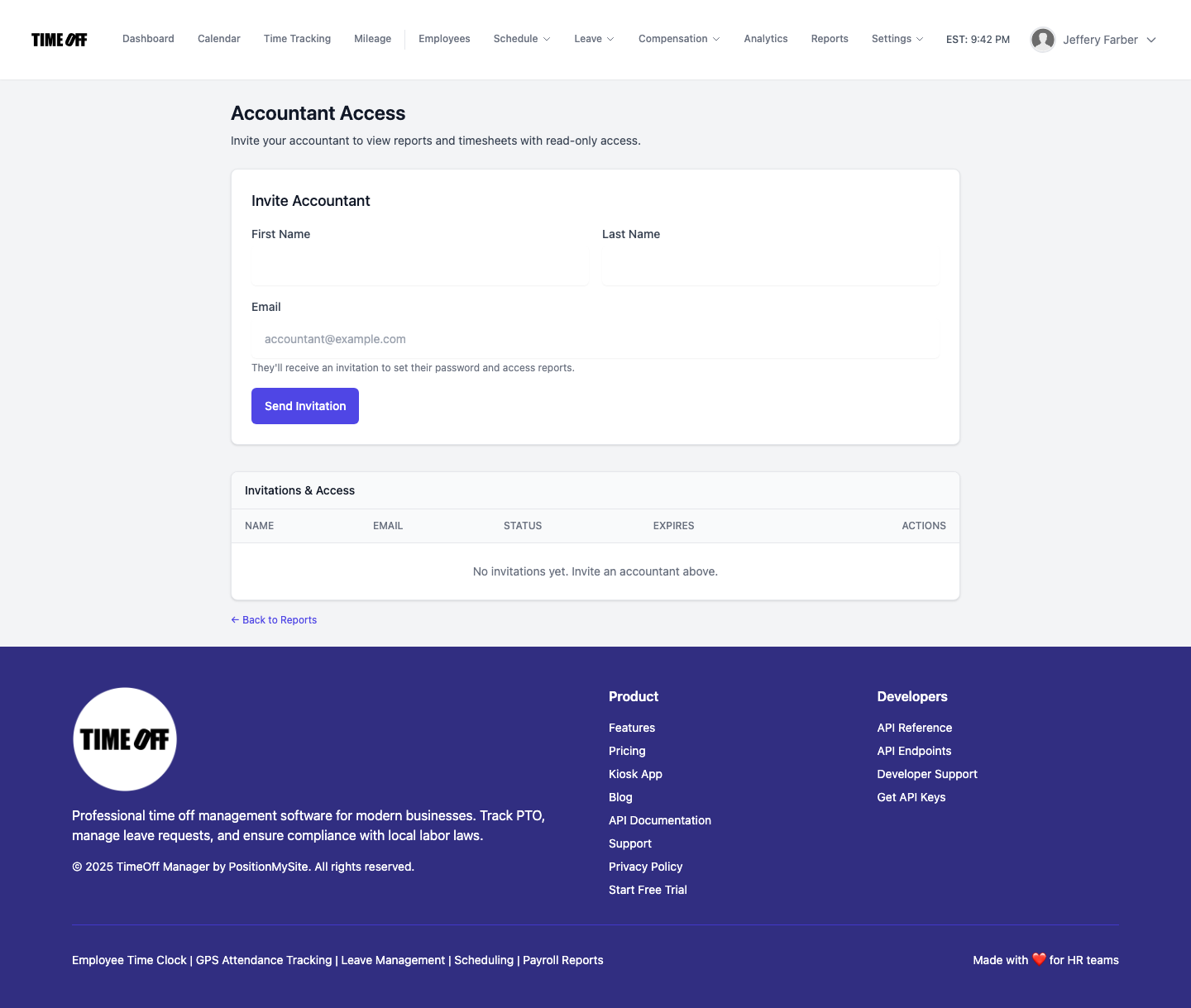
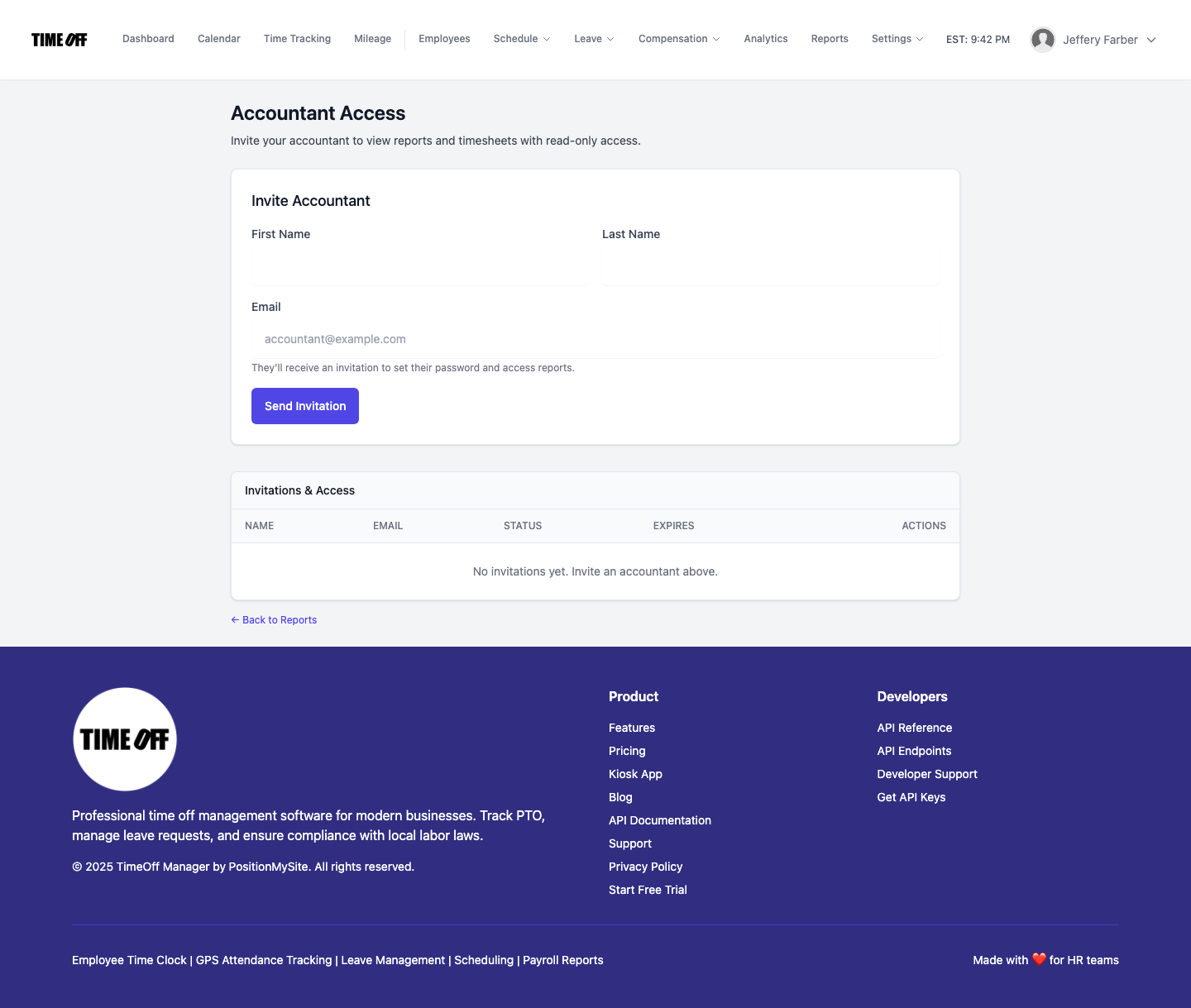
The screen has two clear parts: an Invite Accountant form (first name, last name, email, Send Invitation) and an Invitations & Access table that lists each invite with status, expiry, and actions. A link at the bottom returns to Reports so the admin path stays short.
Company administrators and HR managers can:
- Enter first name, last name, and email (unique per company for pending invites)
- Click Send Invitation — the system emails a link (token typically valid about 14 days)
- The recipient opens the link, sets a password, and signs in with read-focused access to reports and timesheets
- Track everything in Invitations & Access (Pending / Accepted / Expired / Revoked)
Pending invites can be canceled; accepted users can have access removed (shown as Revoked when applicable). Expired invites simply need a fresh send. Duplicate pending invites or an existing accountant for the same email are blocked with validation. Other roles receive 403 on this URL; invited accountants never manage invitations themselves—they use their own login after accepting.
Need the longer in-product walkthrough? See Accountant access (invite).
Reports & Excel/CSV exports (when you download yourself)
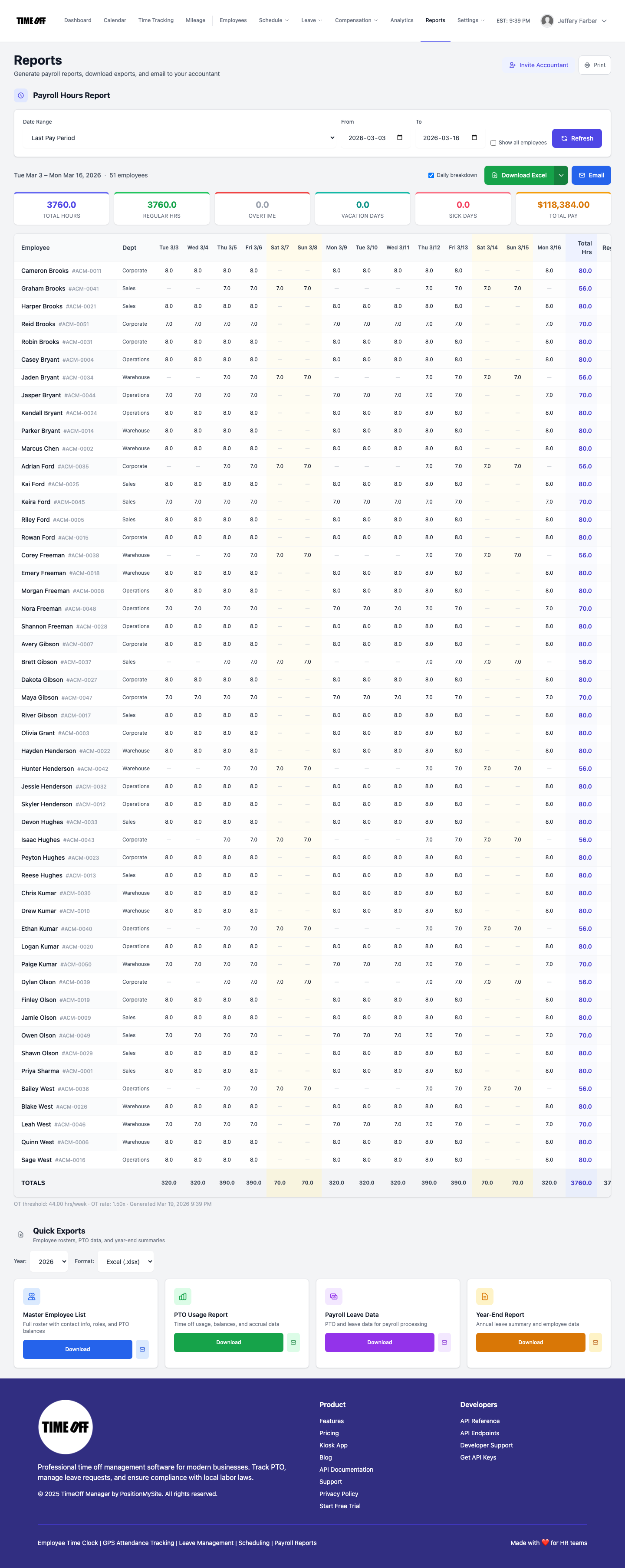
When you need a file today—not a live login—open Reports for payroll hours and related Excel/CSV downloads. Pair that with the Timesheet Manager / HR hub so approved hours match what leave already reserved. Accountants who prefer files can still receive exports from admins while their invite is pending, or if your firm prefers offline review for a given pay period.
That file path matters for firms that already have a locked-down process in Excel: invite for ongoing visibility, export when you need a dated snapshot for payroll or the archive.
Distinct from QuickBooks Online / FreshBooks sync
Accounting integrations push approved time into QuickBooks Online TimeActivity or FreshBooks. Accountant Access is different: it invites a human with read-focused product access and pairs with Excel/CSV downloads. Use sync when books should update automatically; use invite + exports when your accountant needs to inspect reports inside TimeOff Manager or work from files. Both can coexist—they solve different handoffs, and yesterday’s sync walkthrough does not replace this invite flow.
How to invite (real product path)
- Sign in as company admin or HR manager
- Open Accountant Access at
/admin/accountant-access - Fill First Name, Last Name, Email → Send Invitation
- Confirm the row appears as Pending in Invitations & Access
- After acceptance, verify they can open reports and timesheets with your tenant’s accountant permissions
- Use ← Back to Reports when you are ready to export hours
If an invite expires before acceptance, send a new one. If someone leaves the firm, remove access so the status reflects Revoked and the login stops.
Who this is for
- Owners who will not share an admin password with outside bookkeepers
- HR managers who already approve leave and need payroll-ready hours
- Accountants who want read-only reports/timesheets or Excel/CSV—not another full SaaS seat war
- Teams that already use TimeOff Manager for PTO and clock-in and need a finance handoff before the next pay run
Start your 1 year free trial (then Starter, Growth, or Scale)
See Accountant Access and Reports on your own company workspace. Invite a bookkeeper on the trial so month-end is not a scramble after you go live.
You get a 1 year free trial and pay $0 for 12 months. A card starts the year. Nothing is charged until then. Cancel before your anniversary and you owe nothing; otherwise choose Starter, Growth, or Scale based on seats and features. Register at https://timeoffmanager.us/register/company.
Related: QuickBooks & FreshBooks sync · Help: Accountant access