Payroll: Create run (admin)
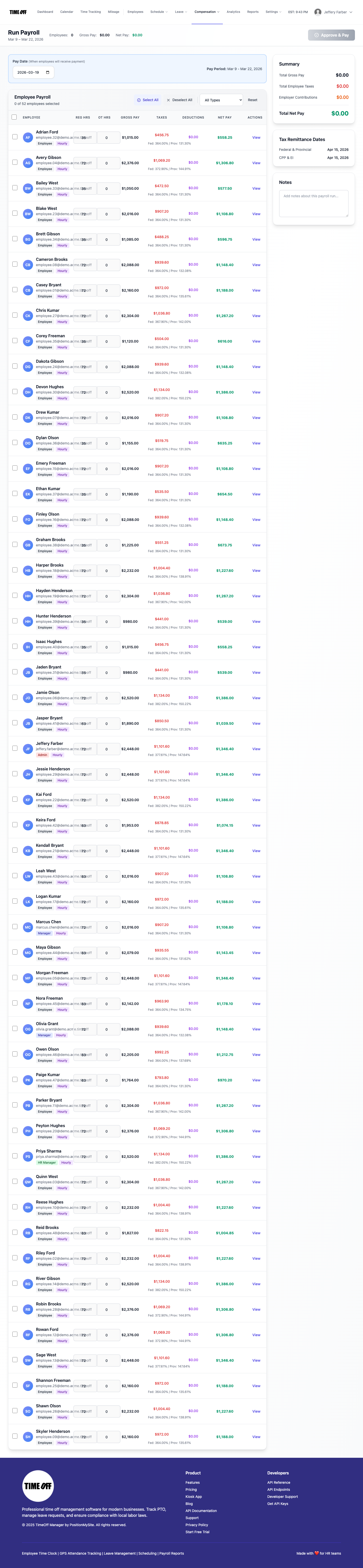
Run Payroll wizard at /admin/payroll/create: pay date, per-employee hours and payroll lines, gross/tax/deduction/net, compliance banners, Approve & Pay—or no pay period / no employees states.
/admin/payroll/create
Roles
Company admin
Run Payroll at /admin/payroll/create is the working screen for a new payroll run: pick pay date, review per-employee hours and calculated gross, taxes, deductions, and net pay, then Approve & Pay when your process allows. You reach it from Payroll: Runs & history via Run Payroll.
Overview
The controller resolves the current pay period for the company. The sticky header shows the period range, live employee count, gross, and net summaries, plus the primary Approve & Pay action (enabled when your UI rules are satisfied). The main area is either an employee payroll table (desktop grid + responsive layout) or guidance to add compensation when no one qualifies.
Enabling access
Same as the payroll hub: Compensation & Payroll on for the company (see Setup wizard), and a company admin–class login. You also need at least one active pay period configured—otherwise the page shows No Pay Period Found with a link back to /admin/payroll.
What’s on the page
- Sticky header — Run Payroll, period dates, optional totals, Approve & Pay.
- Pay date — Date field for when employees are paid (labeled with pay period context).
- Employee payroll — Select all / none, filter by compensation type, Reset; table columns typically include regular and OT hours, gross, taxes, deductions, net, and row actions (detail or adjustments your build exposes).
- Sidebar / panels — When present, extra breakdowns (taxes, benefits, etc.) may appear beside the table on large screens.
- No employees — Empty state with link to set up compensation records.
- No pay period — Centered card explaining pay periods must exist first.
Compliance & warnings
When the server passes compliance data, banners may appear for employee field issues (e.g. missing tax or profile data) or company settings warnings. Expand View Details to see per-person messages before finalizing payroll.
Typical workflow
- Open from hub — /admin/payroll → Run Payroll.
- Confirm period & pay date — Matches the legal / operational dates you intend to pay.
- Review rows — Select who is in this run; open actions to inspect calculations.
- Resolve warnings — Fix data or settings, refresh as needed.
- Approve & pay — Completes the run per your approval chain and redirects or shows confirmation (see run detail from the hub).
Related
Payroll: Runs & history · Compensation records · Company settings (payroll policy) · Timesheet: Manager & HR (hours source when time tracking is on).
Product screenshot
Automated capture: full page after login as company admin—either the main Run Payroll layout or the No Pay Period Found state if no period exists in the environment.
Create payroll run — /admin/payroll/create