Compensation: Employee records (admin)
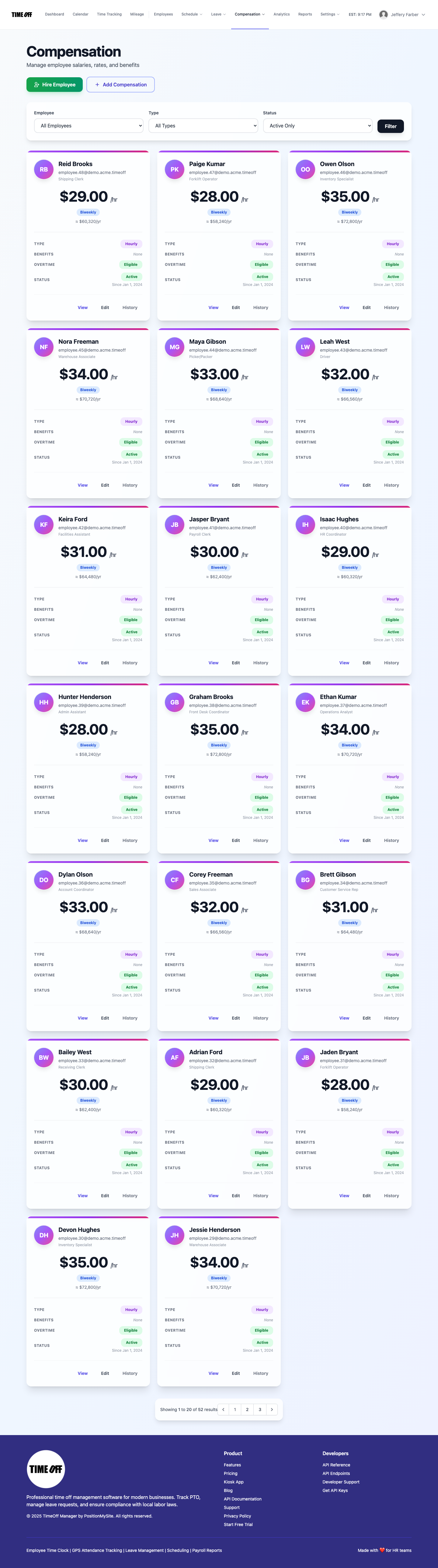
Hub at /admin/compensation when compensation & payroll is enabled: filter roster by employee, type, and status; card grid of salary/hourly/contract records; add, view, edit, history; optional Hire Employee to job-offer flow.
/admin/compensation
Roles
Company admin · HR manager
Compensation at /admin/compensation is the admin directory of pay arrangements for people in your company: hourly rates, salaries, contractors/contracts where your product supports them, pay frequency, effective dates, and links to detail, edit, and change history. It complements payroll runs and company-level payroll policy in settings.
Overview
Use the hub to see who has active compensation on file, narrow the list with filters, and open a card for the full picture. Many teams start from Add Compensation for existing employees or from Hire Employee, which opens the Job offer wizard at /offers/create for new-hire offers.
Enabling access
The company must have Compensation & Payroll enabled—typically in the Setup wizard or equivalent. If it’s off, visitors are redirected to complete that setup first. When it is on, company admins and HR open this hub from signed-in nav Pay → Compensation (not buried in Settings).
What’s on the page
- Title — Compensation with subtitle about salaries, rates, and benefits.
- Actions — Hire Employee (when shown for your role) and Add Compensation.
- Filters — Employee, compensation type (e.g. hourly, salary, contractor, contract), status (active / inactive / all), plus Filter and Clear.
- Results — Card grid per person with rate, type, frequency, status, and View / Edit / History; or an empty state with the same primary actions. Those actions map to Compensation: View, edit & history (/admin/compensation/{id}, /edit, and /employee/{userId}/history).
Typical workflow
- Confirm the module is on for the company.
- Add or import compensation rows for each employee who needs payroll-ready data.
- Use filters during audits or before a pay period.
- Use History when you need prior effective-dated versions.
Related
Per-record screens and change timeline: View, edit & history. Onboard new hires with pay and benefits via Job offer wizard (/offers/create). Payroll runs, history, and payment processing are documented in Payroll: Runs & history (/admin/payroll); tax settings use separate URLs when exposed. Company-wide approver and payroll governance options are summarized under Company settings → Payroll. The roster of people still lives in Employees: Admin roster.
Product screenshot
Automated capture: full page after login as demo company admin (compensation & payroll enabled).
Employee compensation — /admin/compensation