Staff Messages: One-Way Announcements Staff Actually Acknowledge (2026)
Managers send one-way staff announcements at /messages — pick team or company, compose, send. Staff open the note and tap Got it to acknowledge. Same inbox in TimeOff Manager Pro with optional push. Not a chat; not Approval Center; not Work Activities.

Managers send one-way staff announcements at /messages — pick team or company, compose, send. Staff open the note and tap Got it to acknowledge. Same inbox in TimeOff Manager Pro with optional push. Not a chat; not Approval Center; not Work Activities.
Policy updates buried in Slack. Warehouse closed Friday—half the crew never saw the thread. A new PIN rule emailed once, then lost. That is how staff announcements fail for US and Canada field and hourly teams—and how managers keep re-sending the same note.
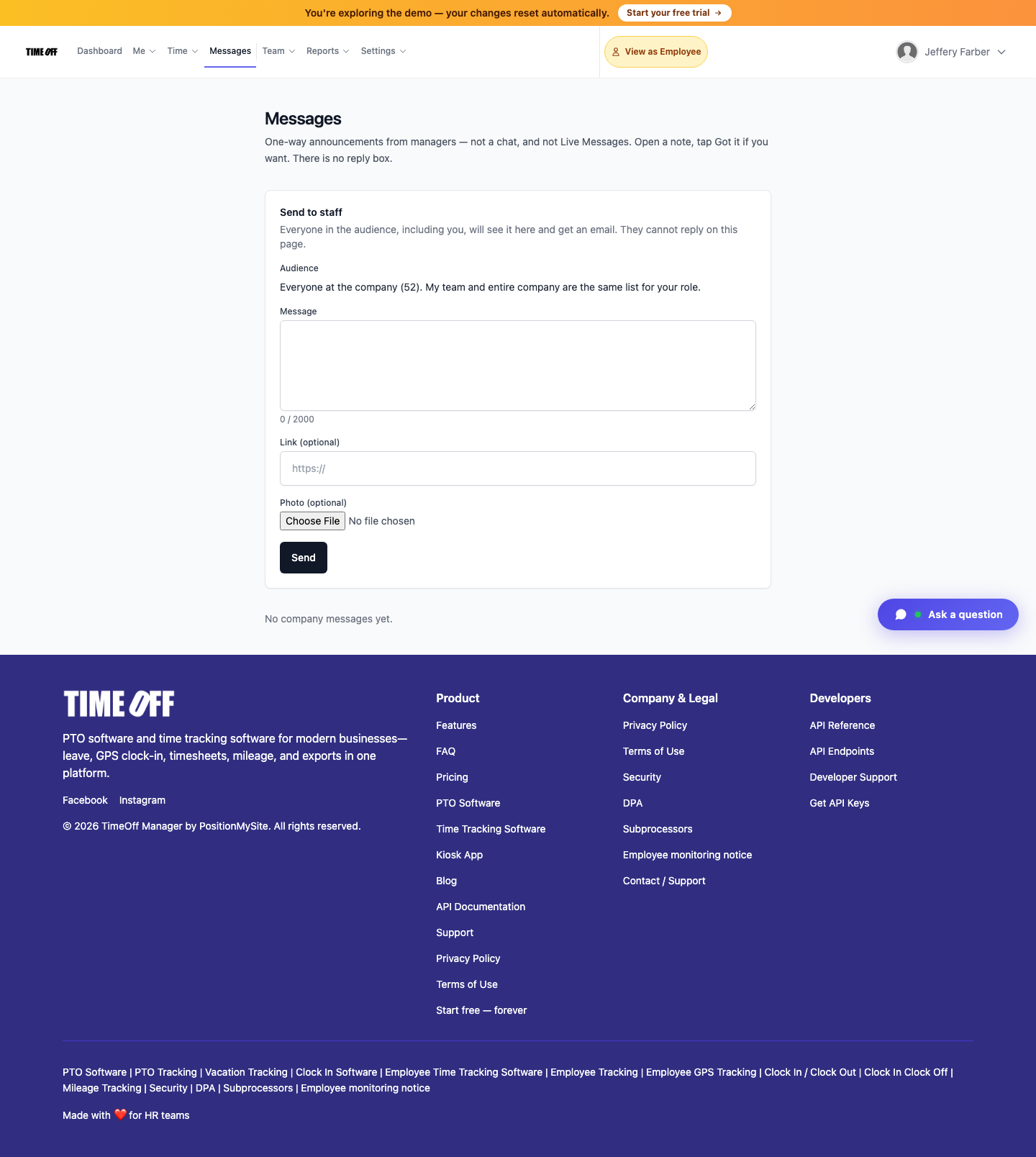
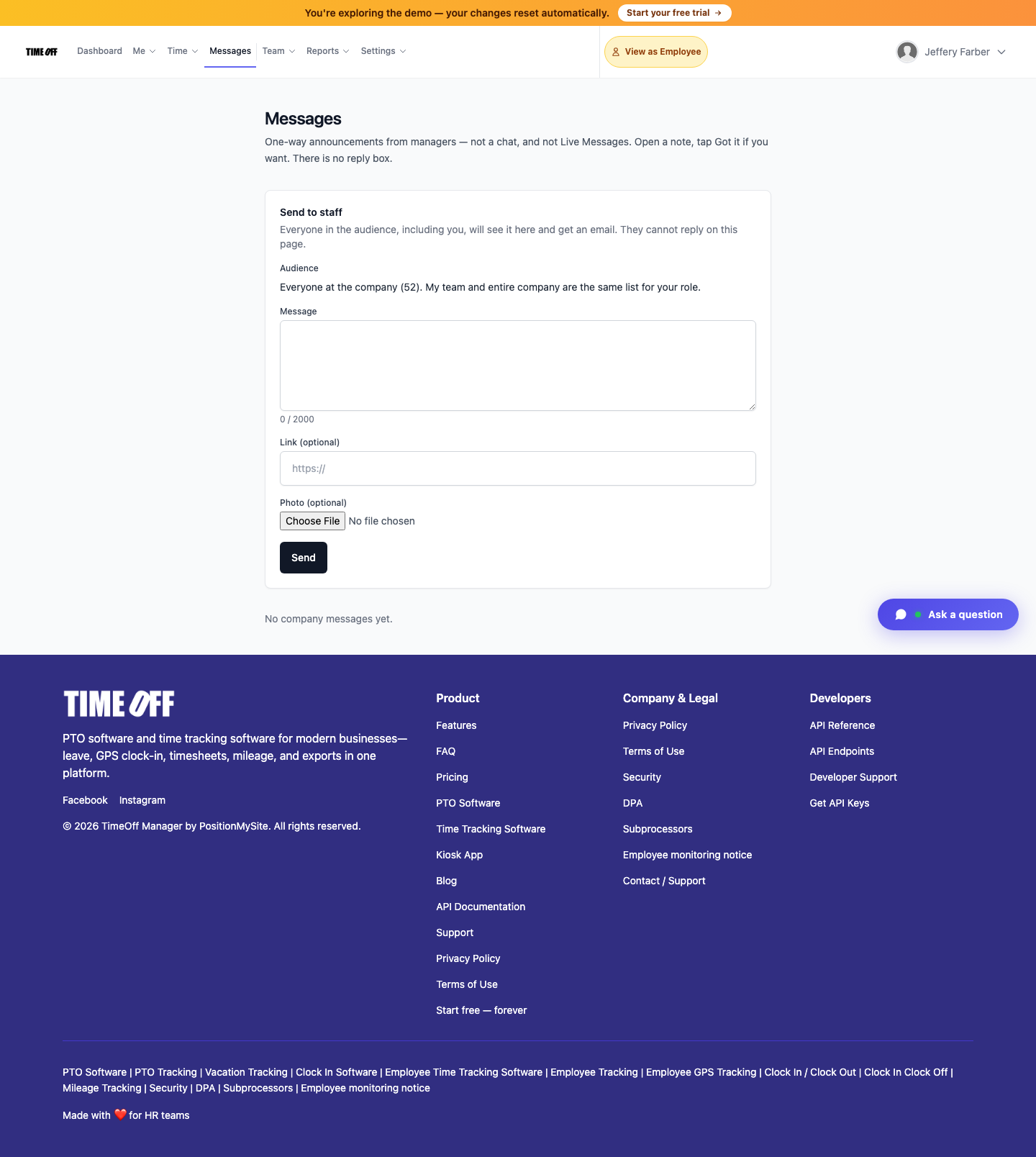
TimeOff Manager Staff Messages at /messages gives managers a one-way announcement channel: compose, pick the audience (team vs company), send. Staff open the note and tap Got it to acknowledge. There is no reply box. It is not a chat, not the public Ask-a-question widget, and not the operator Live Messages inbox.
Why one-way announcements matter
Group chats reward replies, not confirmation. Email gets archived. For ops that need “everyone saw the warehouse notice” or “new PIN policy is in force,” you need a dedicated inbox with optional acknowledge—not another conversation.
- One-way notes from managers—no reply thread on the page
- Audience: team or company when those lists differ
- Staff open the note; tap Got it to acknowledge
- Same inbox in TimeOff Manager Pro with optional push
Recent signup guides covered the manager Approval Center mixed inbox and Work Activities job codes. This post is the staff communications path—different job, same platform.
What Staff Messages is (and is not)
What it is — Messages at /messages for one-way staff announcements. Managers who can manage a team compose from the same page, pick audience, send. Recipients see the note until they open it; optional acknowledge tracks who confirmed. Everyone in the audience (including the sender) sees it here and gets an email.
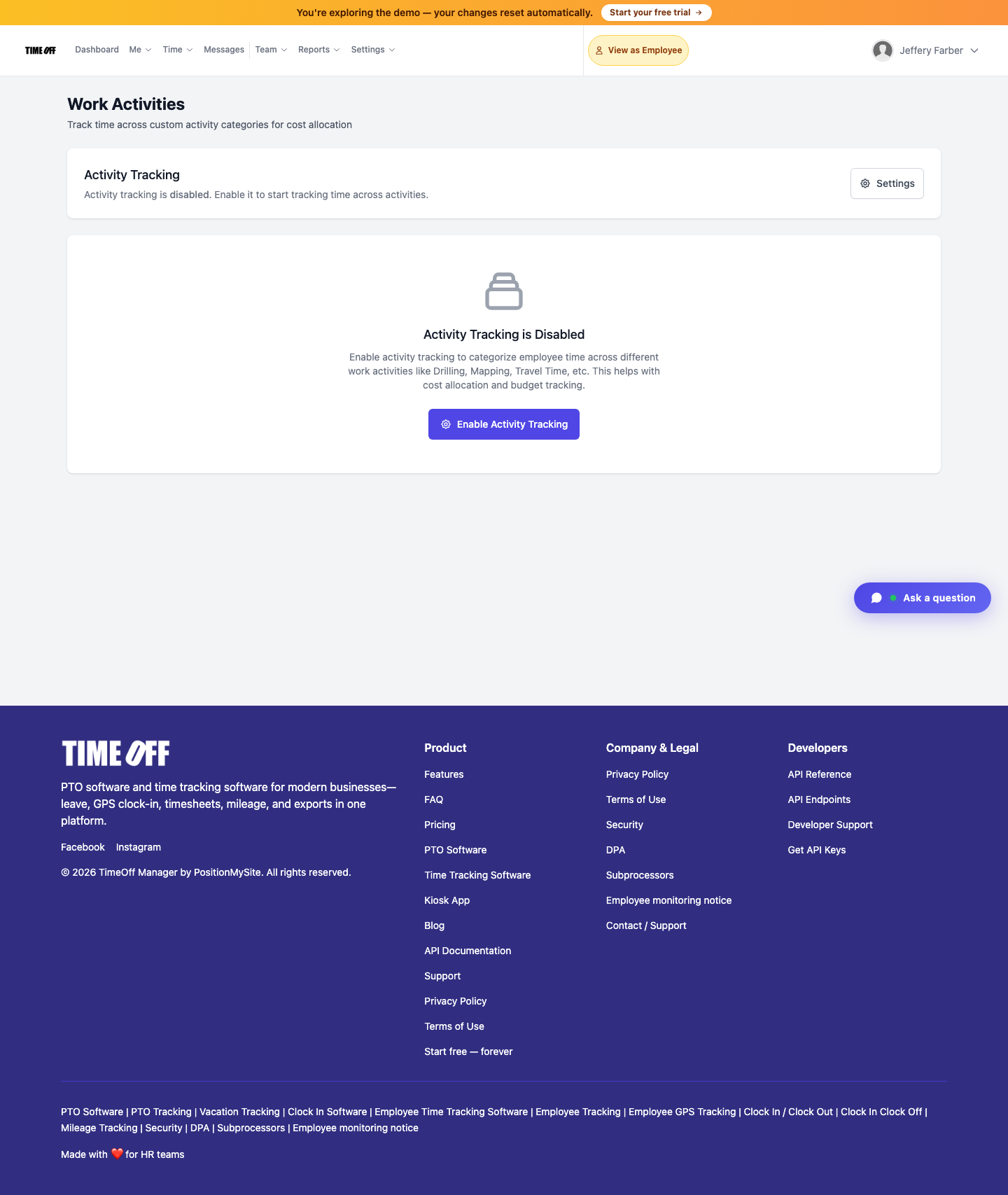
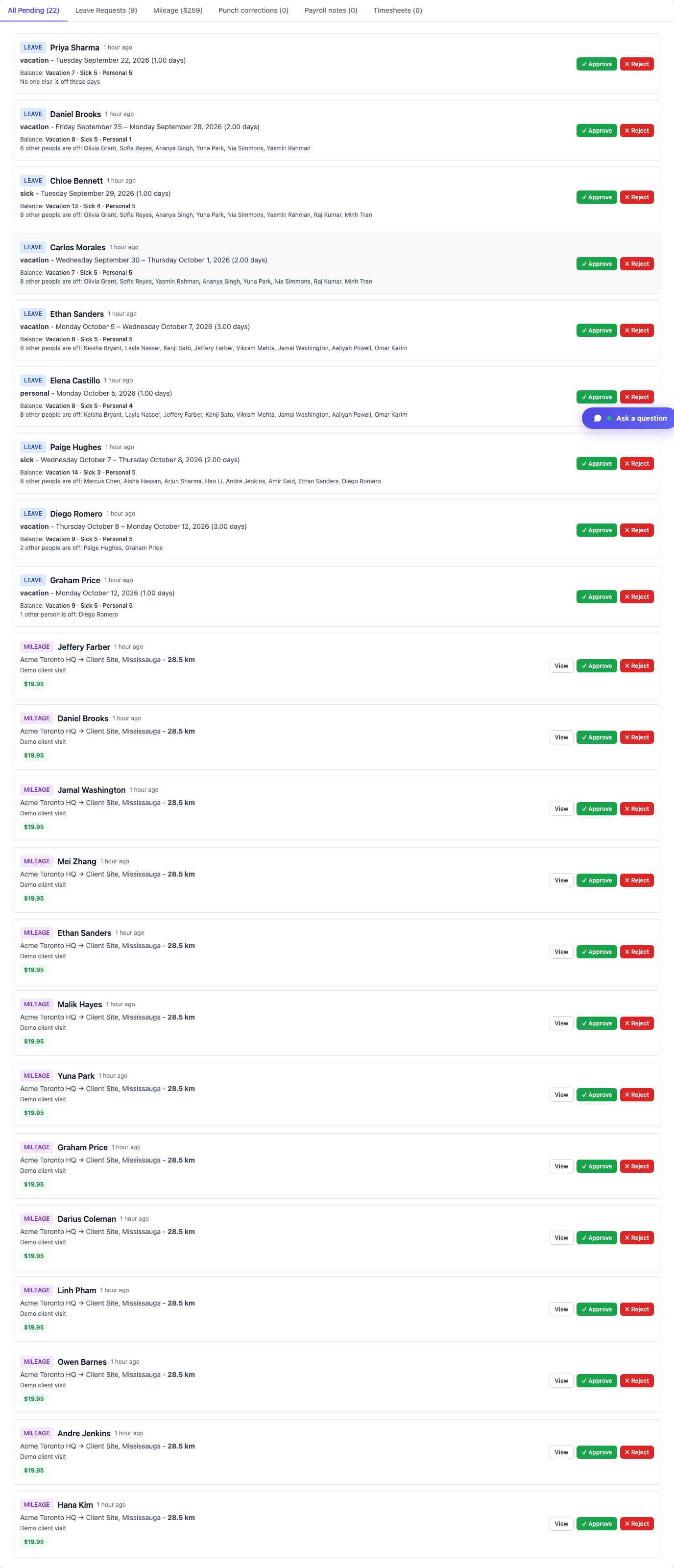
What it is not — Not a chat. Not the marketing-site Ask a question support widget. Not the operator Live Messages inbox (that is not company comms). Not Approval Center (leave / punches / mileage). Not Work Activities (job codes on a punch). One person, one PIN on the kiosk—never share PINs.
How managers send
Open /messages (nav: Messages). Under Send to staff:
- Confirm the audience (team vs entire company when those differ for your role)
- Write the note (up to 2000 characters)
- Optionally add a link and/or photo
- Tap Send
Use it for “warehouse closed Friday,” “new PIN policy,” shift-coverage notes, or any company notice that should land in one product inbox instead of a scattered Slack thread.
How staff acknowledge
Staff open the note from Messages on web or in the TimeOff Manager Pro app. Tap Got it if you want to acknowledge. There is no reply box—questions still go through your normal manager channel; this surface is for confirmed receipt of announcements.
On mobile, TimeOff Manager Pro uses the same work email account as the website. Optional push can alert staff when a new announcement lands. Kiosk remains the door-tablet PIN app—do not install Pro on the shared tablet.
Who uses Staff Messages
- Managers / team leads — compose and send to team or company from
/messages - Staff — read announcements, tap Got it, get email / optional push
- Company admins — same Messages surface for company-wide notes when the audience is everyone
Distinct from Approval Center and Work Activities
- Approval Center — mixed pending leave, punches, and mileage approvals
- Work Activities — optional job codes on an open punch for cost allocation
- Staff Messages — one-way announcements with optional acknowledge at
/messages
Full product walkthrough: Staff messages.
How to use it (real product path)
- Sign in as a manager (or company admin) who can manage a team
- Open Messages, or go to
/messages - Under Send to staff, pick audience (team vs company)
- Write the note; optional link / photo; Send
- Have staff open the note and tap Got it to acknowledge
- Optionally rely on TimeOff Manager Pro push for the same inbox on mobile
Who this is for
- Field and hourly ops tired of Slack threads that never confirm receipt
- US and Canada teams that need warehouse / policy / schedule notices in one product inbox
- Managers already on TimeOff Manager clock-in and leave who want announcements without a second chat tool
- Companies that want optional acknowledge tracking—not another reply storm
Start a 14-day trial (then Starter, Growth, or Scale)
Turn on Staff Messages in your own company workspace—compose, audience, acknowledge, and the same inbox in Pro.
You get a 14-day free trial, then choose Starter, Growth, or Scale based on seats and features. Register at https://timeoffmanager.us/register/company.
Related: Help: Staff messages · Approval Center · Work Activities