QuickBooks Online & FreshBooks Sync: Push Approved Time Into Your Books (2026)
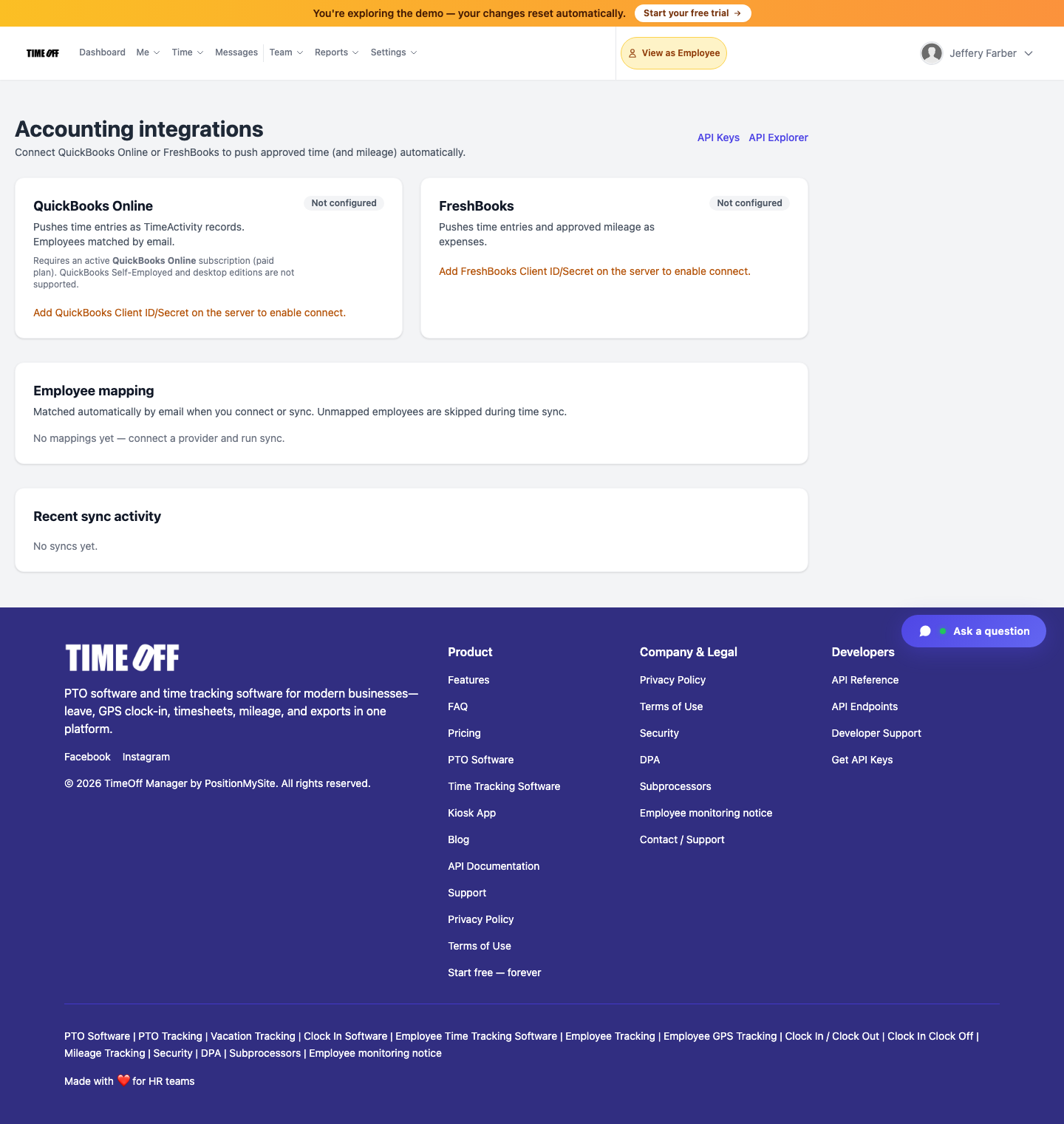
Stop re-keying timesheets into QuickBooks or FreshBooks. TimeOff Manager connects at /integrations/accounting, matches employees by email, and pushes approved time (plus FreshBooks mileage expenses).

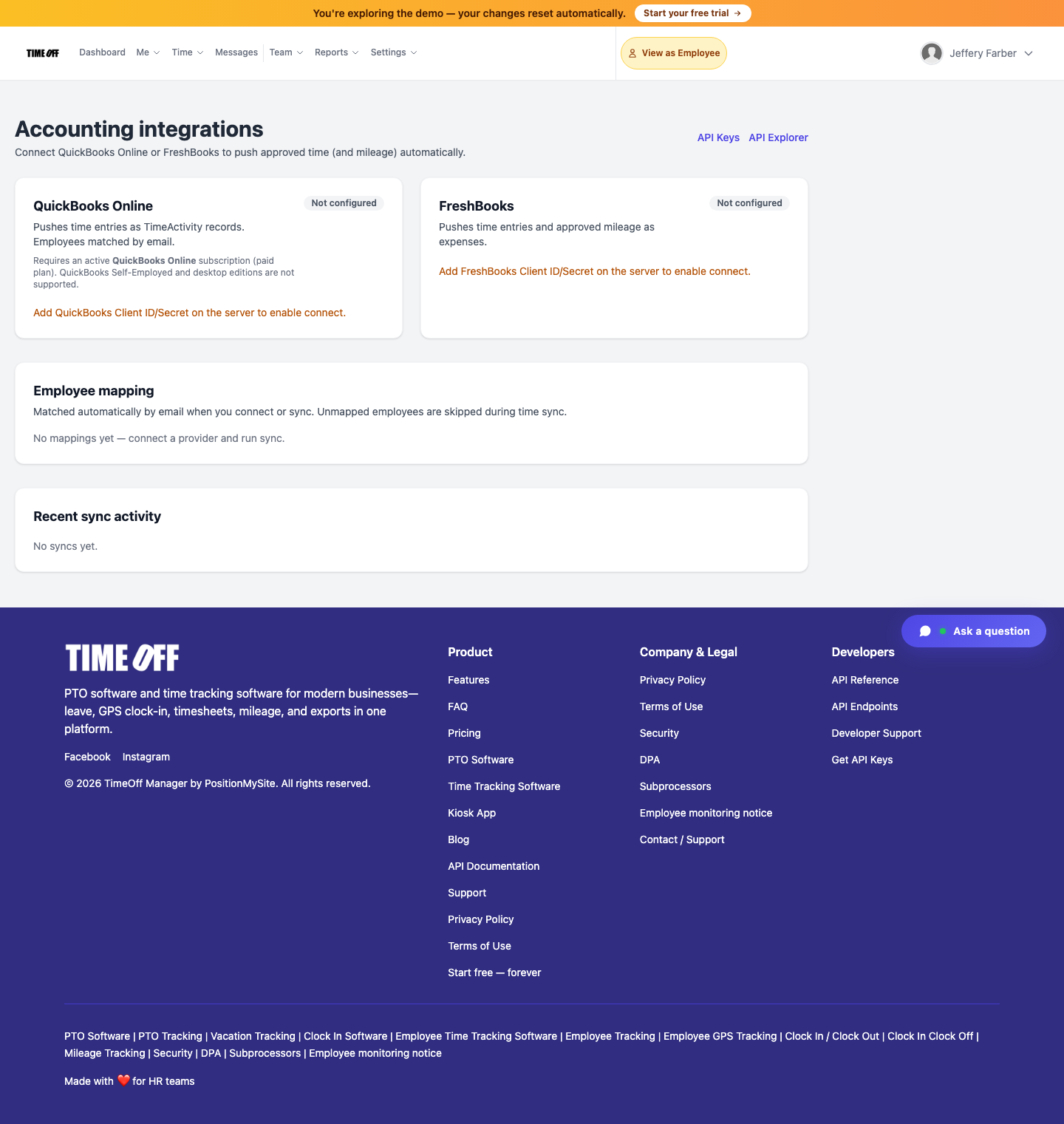
Stop re-keying timesheets into QuickBooks or FreshBooks. TimeOff Manager connects at /integrations/accounting, matches employees by email, and pushes approved time (plus FreshBooks mileage expenses).
If your team clocks time in one tool and your books live in another, someone is retyping hours every Friday. That spreadsheet bridge is where overtime gets rounded wrong, billable work goes missing, and PTO hours never match what payroll approved.
TimeOff Manager already tracks clock-ins, leave, and mileage. The Accounting integrations screen connects that approved work to QuickBooks Online or FreshBooks so your books stay aligned with the same source of truth your managers already use.
Why SMBs still lose hours between time tracking and accounting
Most small teams do not lack a timesheet. They lack a clean handoff:
- Managers approve time in a PTO / clock-in product
- Finance re-enters those hours as QuickBooks TimeActivity lines or FreshBooks time entries
- Mileage sits in a separate export (or a text thread)
- Unmatched employee emails create silent gaps at month-end
On timeoffmanager.us, recent site analytics still show the homepage and leave/calendar paths getting attention, while search continues to bring queries around PTO software and vacation tracking. The homepage already promises QuickBooks Online and FreshBooks under Accounting integrations—but until now there was no 2026 signup-focused post that walks owners through that exact screen. If you already trust TimeOff Manager for leave and clock-in, syncing the books is the natural next conversion step.
What the QuickBooks Online sync does
From Settings → Accounting integrations (/integrations/accounting), QuickBooks Online is built for payroll and invoicing prep:
- Pushes completed / approved time as native TimeActivity records
- Matches employees by email (unmapped people are skipped, not invented)
- Requires an active QuickBooks Online paid plan (Self-Employed and desktop editions are not supported)
That means the hours your supervisors already signed off become the hours your bookkeeper sees—without another CSV ritual. For multi-location teams, keep employee emails consistent between TimeOff Manager and QuickBooks before the first sync so mapping stays automatic.
What the FreshBooks sync adds
FreshBooks is aimed at service businesses that bill time and expense mileage:
- Pushes time entries into FreshBooks
- Also pushes approved mileage as expenses
- Uses the same email-based employee mapping rules
If your field crew clocks GPS-verified time and submits mileage in TimeOff Manager, FreshBooks can receive both in one connection instead of two export paths. That is especially useful for contractors and small agencies that already invoice in FreshBooks but still chase weekly timesheet screenshots.
How this fits with PTO and clock-in (not a bolt-on afterthought)
Accounting sync is most valuable when the upstream data is already trustworthy:
- Leave approvals reduce the chance you bill or pay hours that conflict with vacation
- Hourly / partial-day PTO keeps balances honest so “approved time” is not a day-rounded fiction
- Team calendar coverage helps managers approve the right shifts before those hours ever reach QuickBooks or FreshBooks
In other words: sync pushes good time. TimeOff Manager is designed so PTO, clock-ins, and books share one operational loop instead of three siloed tools.
How to connect (real product path)
- Sign in as a company admin
- Open Accounting integrations at
/integrations/accounting(also linked from company settings—accounting sync is not buried inside the Clock tab) - Choose QuickBooks Online or FreshBooks
- Complete OAuth with your accounting login (production workspaces; the public demo sandbox cannot complete OAuth by design)
- Confirm employee mappings (email match). Fix any skipped users before your first full sync
- Run sync and review Recent sync activity
Need a longer walkthrough? The in-product help article QuickBooks & FreshBooks mirrors this path with screenshots from the live product UI.
Guardrails that keep syncs honest
- Email match only — no fuzzy name guessing that posts hours to the wrong person
- Unmapped employees are skipped — better a visible gap than a bad journal line
- Approved / completed work — you push what managers already accepted, not every draft clock-in
- Not a full invoicing replacement — TimeOff Manager feeds time (and FreshBooks mileage); your accounting tool still owns invoices and tax filings
- Server OAuth credentials — Connect buttons appear when QuickBooks / FreshBooks client credentials are configured for your environment; the Acme demo intentionally shows the not-configured state
Who this is for
- SMBs already on QuickBooks Online or FreshBooks that still copy timesheets by hand
- Owners who want PTO, GPS clock-in, and bookkeeping prep in one platform
- Accountants who prefer Excel/CSV exports and a live sync when the connection is ready
- Ops leads tired of reconciling “hours worked” against “hours paid” after every pay period
Start your 1 year free trial (then Starter, Growth, or Scale)
Connect accounting after you see how leave and time already work in TimeOff Manager.
You get a 1 year free trial and pay $0 for 12 months. A card starts the year. Nothing is charged until then. Cancel before your anniversary and you owe nothing; otherwise choose Starter, Growth, or Scale based on seats and features. No free-forever launch pricing—the launch offer ended on 2026-09-15. Existing launch workspaces keep their prior plan terms; new signups use the current trial → paid path.
Related: Team Leave Calendar coverage · Hourly & partial-day PTO · Help: QuickBooks & FreshBooks